

Import your manuscript into Dabble
Your book already exists. It’s just living somewhere else: a Word file, a Google Doc, a folder named novel_FINAL_v7. Here’s how to import a manuscript into Dabble.
Upload a file or paste your text in, and Dabble does the tedious part for you. One long document comes in already split into chapters and scenes.
Before you begin
Section titled “Before you begin”Two ways in:
- Upload a file in Word (.docx), Markdown, HTML, or RTF format. The largest file you can upload is 50 MB.
- Paste your text directly into a title field, if you would rather copy and paste.
A few things worth knowing first:
- Word (.docx) imports most cleanly, because Dabble reads Word files directly. Markdown, HTML, and RTF are converted on the way in, so complex formatting may need a quick cleanup afterward.
- Imported words don’t count toward your word-count goals or stats. An import won’t inflate your progress.
- Images embedded in a Word document come in with your text. Standalone image files dropped into the upload box are skipped.
Import a file as a new project
Section titled “Import a file as a new project”- On your Dashboard, click Import Book.

- In the upload box, drag your file onto Drag and drop your file here, or click to browse for it. Supported types are Word, Markdown, HTML, or RTF.
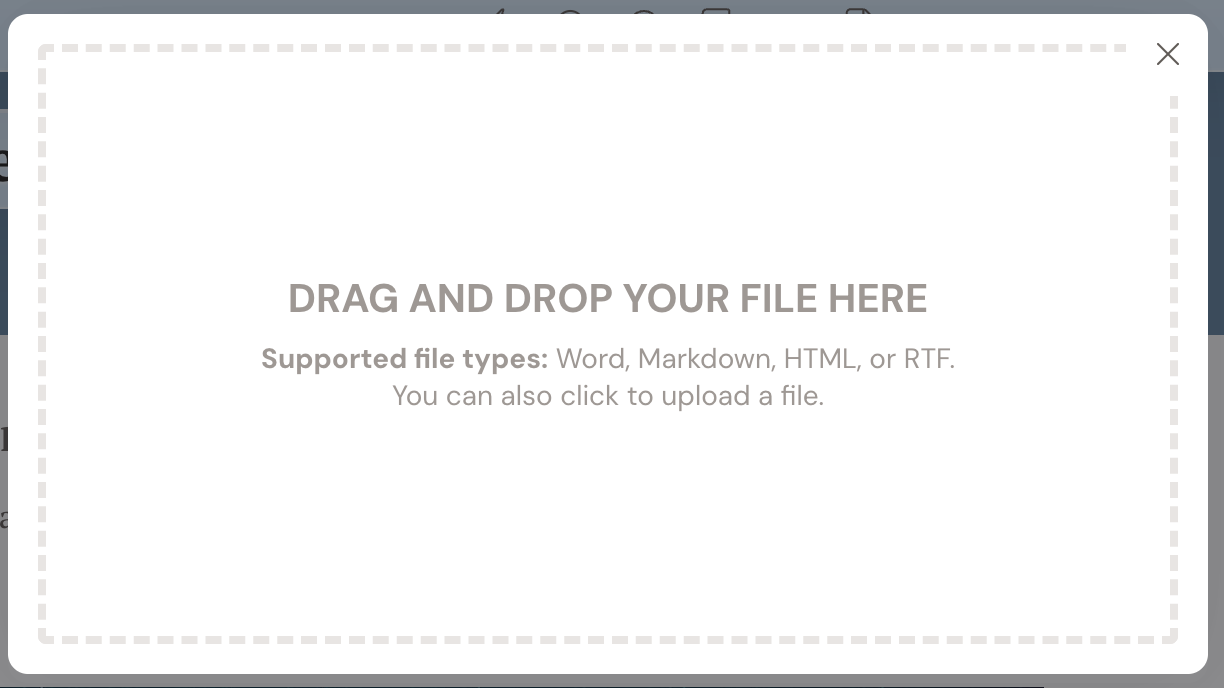
- Dabble imports your manuscript and splits it into a book with chapters and scenes (and parts too, if your headings define them).
- If Dabble cannot split the document, it asks whether to import it as a single document. Choose Yes to bring it in as one piece, or No to cancel.
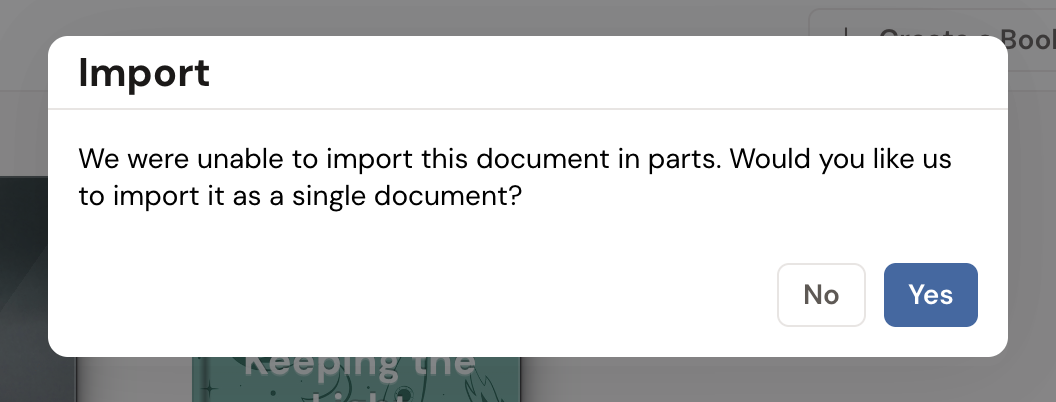
- When the import finishes, Dabble opens your new book.
Import into an existing project
Section titled “Import into an existing project”- Open the project, or the book’s title page.
- Click Import Book on the book title page, or choose Import Book from the document menu.
- Drag and drop or pick your file as above.
- If Dabble asks Would you like to import this book into an existing project?, choose your target project.
Paste your manuscript instead
Section titled “Paste your manuscript instead”If you would rather copy and paste, Dabble can still build your chapters for you.
- In your other app, select your whole manuscript starting at Chapter 1 and copy it.
- Paste it into a book title or chapter title field in Dabble.
- Because you pasted a large block of text, Dabble asks whether to import it as a document rather than dropping it into the title. Confirm to import.
- Pasting into a book title creates a new book. Pasting into a chapter or part title adds the chapters to your current book.
When Dabble splits your manuscript, it looks for chapter headings and scene breaks:
- Chapter headings. A line by itself that reads something like “Chapter 1: This is a chapter title” becomes a new chapter. “Chapter 1” on one line with the title on the very next line works too, and a chapter with no title is still detected.
- Scene breaks. A line containing only
#or***by itself marks the start of a new scene.
If your manuscript already uses these conventions, your chapters and scenes line up automatically. If it does not, you can split sections by hand after importing.
Troubleshooting
Section titled “Troubleshooting”- The file is too large. The maximum file size is 50 MB. If your file is bigger, try splitting it or removing large embedded images.
- The file type is not accepted. Dabble imports Word, Markdown, HTML, and RTF. Convert your file to one of these formats first.
- My formatting looks off. Word imports most faithfully. Track changes, comments, and unusual styles may not carry over, so review your manuscript after importing.