

Export your manuscript
Your draft is done. Now it has to leave the building. You can export your manuscript from Dabble to Word (.docx), Google Docs, the web, or Markdown. For a PDF, you use Print and save as PDF.
Word files arrive in standard manuscript format, so the person on the other end sees clean submission pages, not the cozy font you write in. PDF is the one exception. There’s no button for it, so that export runs through Print.
Before you begin
Section titled “Before you begin”You export one book at a time. The Export to… command lives on a book, a chapter, or a scene, so you can send out a single scene, one chapter, or a whole book. There’s no export on the Manuscripts heading itself, since a project can hold more than one book.
Word exports use standard manuscript formatting, so the file lands cleanly in Microsoft Word, Apple Pages, or Google Docs. No fixing margins on the other end.
Want a PDF? There is no PDF button. Use Print and choose Save as PDF in your browser instead. See Print your manuscript.
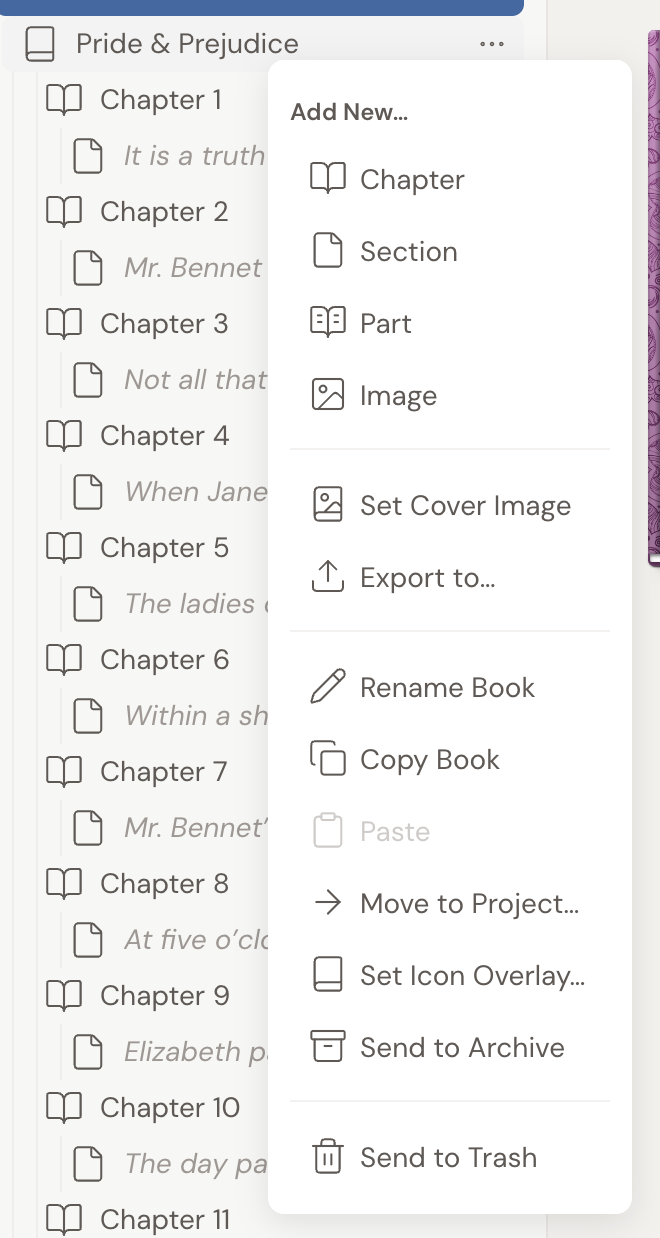
- In the left panel, find the book, chapter, or scene you want to export. Open its ⋯ menu (or right-click it) and choose Export to….
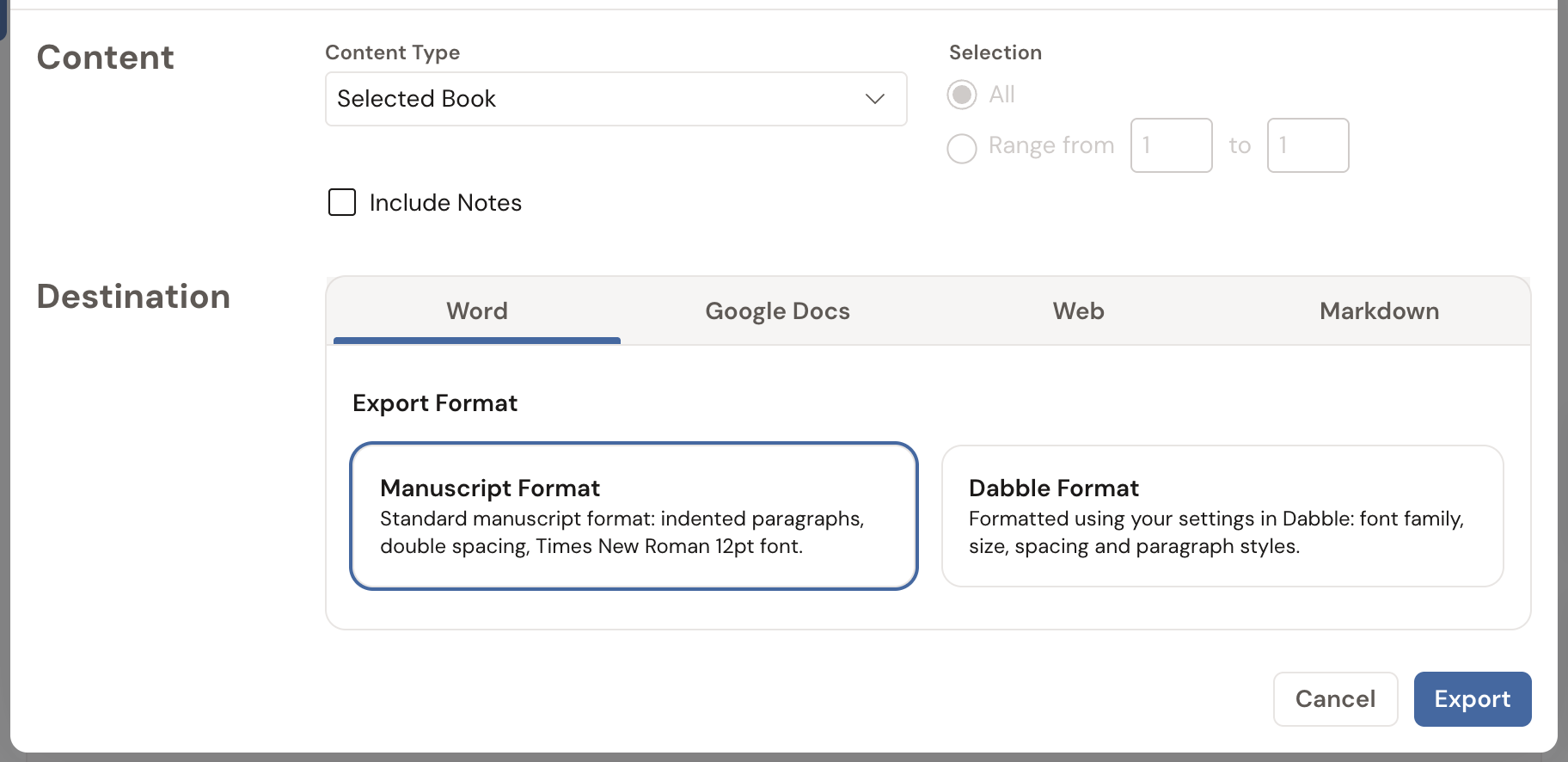
- In the Export modal, under Content, set what to export:
- Choose a Content Type. The default is the whole selected document. For a book, you can also pick Chapters or Pages.
- Choose All, or Range from [n] to [n] to export only part of it. The range fields stay disabled until you pick a Content Type other than the default.
- Optionally tick Include Notes to append your document notes after each section with a clear label.
- Under Destination, pick a tab:
- Word downloads a
.docxfile. - Google Docs sends the document to your Google Drive.
- Web publishes an HTML page to a shareable link.
- Markdown downloads a
.mdfile.
- Word downloads a
- For Word or Google Docs, choose an Export Format:
- Manuscript Format is the standard submission format: indented paragraphs, double spacing, Times New Roman 12pt.
- Dabble Format uses your in-app formatting: your font family, size, spacing, and paragraph styles.
- Click Export.
- On the Export Complete screen:
- For Word or Markdown, the file downloads automatically. Click Download Again if you need another copy.
- For Web, use Copy Link or View to open the page, or send the link by email from the form.
- Click Done.
Set your manuscript header details
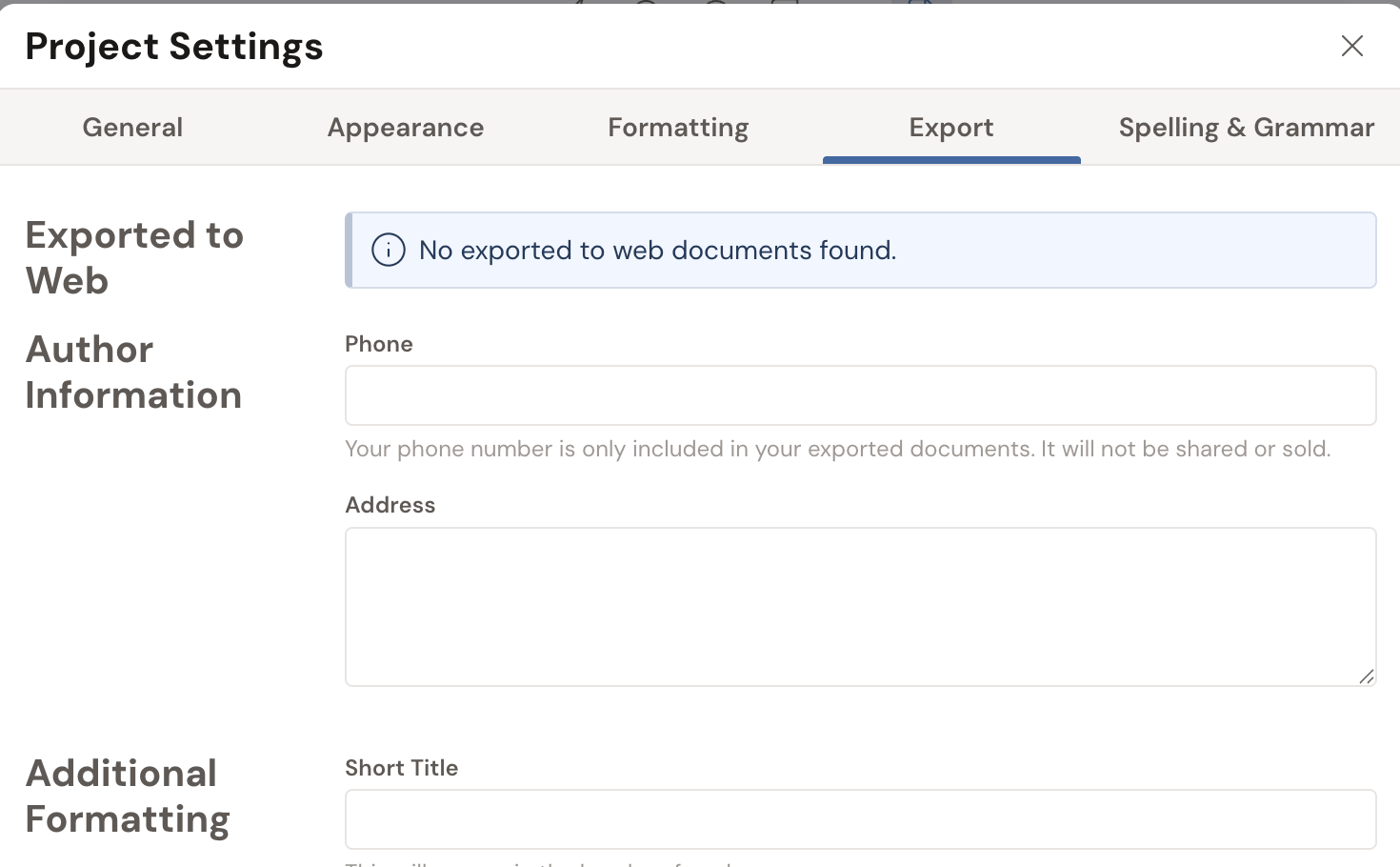
Section titled “Set your manuscript header details”Standard manuscript format comes with a running page header and scene breaks. You set both in Project Settings under the Export tab:
- Short Title appears in the header of each page.
- Phone and Address are added to your exported documents. Your phone number only shows up in your own exports, never shared or sold.
- Scene Separator is the character placed between scenes (for example,
#).
- Exporting to Google Docs for the first time? Connect your account on the Google Docs tab with Sign In with Google. You can connect or remove it there at any time with Disconnect Google.
- A Web export publishes a page that anyone with the link can view. Manage, expire, or remove these pages later in Project Settings under Export, in the Exported to Web section.
- The 4×5 Cards and 3×5 Cards formats are index-card layouts that only appear when you export a plot line.
Troubleshooting
Section titled “Troubleshooting”- No PDF or ePub option. Dabble does not export PDF or ePub directly. For a PDF, use Print and choose Save as PDF. See Print your manuscript.
- The Range fields are greyed out. Pick a Content Type other than the default (for example, Chapters) and the range fields become editable.
- Your Google connection expired. Reconnect your Google account on the Google Docs tab and export again.
- Looking for plain Text (.txt) export? Dabble now exports Markdown instead. Choose the Markdown tab for a
.mdfile, or use Print for a PDF.