

Set your manuscript's spacing and paragraph style
Some writers want their draft double-spaced and roomy. Others want it tight, like a printed page. Neither of you is wrong.
Dabble sets the look of your manuscript per project, in one panel. Change it once and it shapes both the editor you write in and the file you export.
Open the formatting settings
Section titled “Open the formatting settings”These settings belong to a project, so open the project first.
- Open your project and go to Project Settings.
- Click the Formatting tab.
- Find the Manuscripts section.
A live preview sits beside the controls, so you can watch the page change as you tune it.
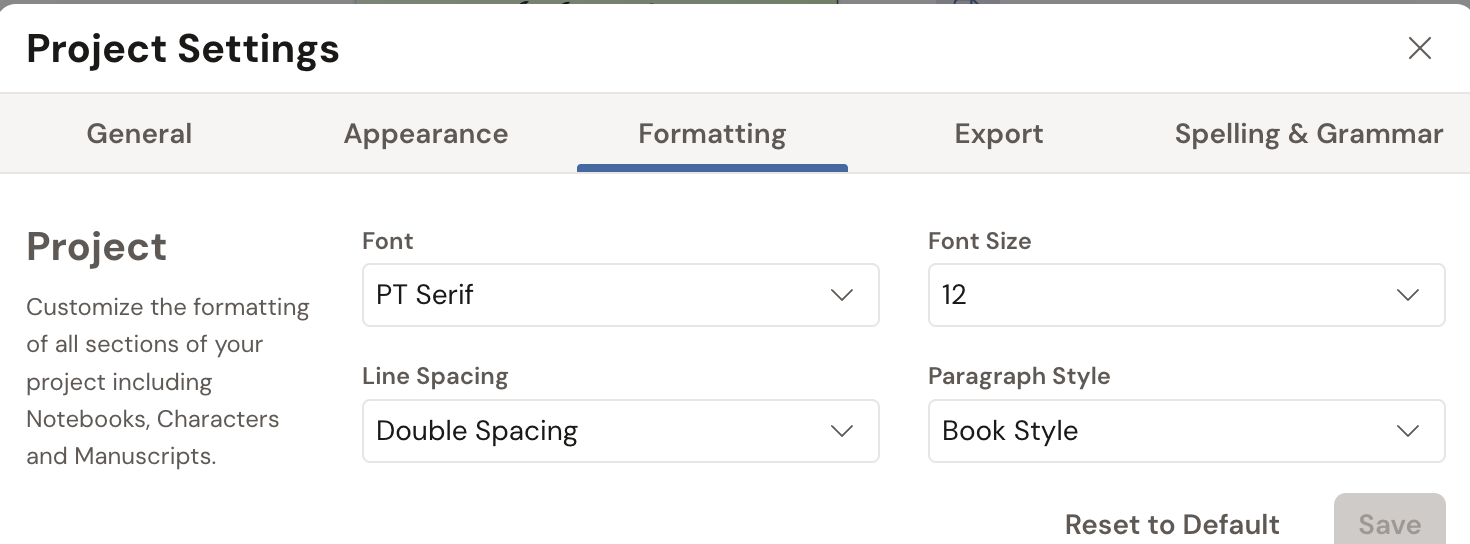
Set size, spacing, and style
Section titled “Set size, spacing, and style”Three controls do most of the work:
- Font Size sets how large the text reads in the editor.
- Line Spacing sets the gap between lines, from tight to wide open.
- Paragraph Style sets how paragraphs begin, such as a first-line indent or a blank line between them.
Each one updates the preview right away, and applies to the whole project. There’s a fourth control, Font, for the typeface itself. That one has its own guide: see Change your theme and fonts.
Your choices follow the project into anything you export, so what you set here is what your reader gets.
Reset to the defaults
Section titled “Reset to the defaults”Tuned yourself into a corner? Click Reset to Default to put the Manuscripts section back to Dabble’s standard formatting. Then click Save.
The double space after a period
Section titled “The double space after a period”You learned to type on a machine that needed two spaces after a period. Your thumb still does it. Dabble quietly eats the second one.
That’s Prevent Extra Spaces, and it’s on by default. It stops a second space from landing right next to the first, so your manuscript doesn’t fill up with gaps a typesetter would have to hunt down later.
It’s an account setting, not a project one, so it applies to everything you write in Dabble.
- Open Preferences and go to the General tab.
- Find the Interface section.
- Turn Prevent Extra Spaces off to type your double spaces freely, or leave it on to have Dabble catch them.
One caveat: it only guards the spaces you type or paste from here on. Double spaces already sitting in your draft stay put until you clean them up yourself, and Find and replace is good at exactly that.