

Add links, blockquotes, and highlights
Links, blockquotes, and highlights are three quick ways to mark up your manuscript in Dabble. Link out to a reference. Set a quote or epigraph apart from the prose. Flag a passage in color so future-you can find it again.
All three come from the same place: the Formatting Toolbar. Here’s how to reach it and use each one.
Before you begin
Section titled “Before you begin”All three tools live in the Formatting Toolbar, which is hidden until you ask for it: click the Aa button in the document toolbar, or press Cmd+Alt+B (Mac) or Ctrl+Alt+B (Windows). Full details in Show the Formatting Toolbar.
Two things to know before you start. The toolbar stays hidden while a project is read-only, so the formatting buttons only reach people who can edit. And highlights are a paid feature.
Add a link
Section titled “Add a link”Turn a word or phrase into a clickable web link.
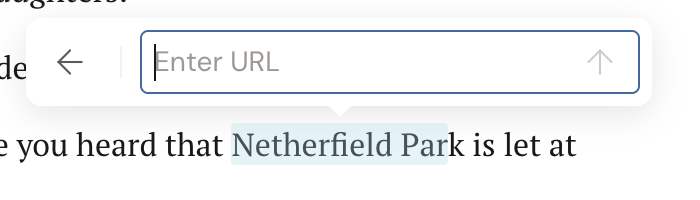
- Select the text you want to turn into a link.
- In the Formatting Toolbar, click the Insert Link button (the link icon).
- In the popover, type or paste the web address into the Enter URL field.
- Press Enter, or click the up-arrow apply button.
To remove a link, click anywhere in the linked text, open the popover again, and click the remove button.
Prefer to skip the toolbar? Two shortcuts do the same thing:
- Type
[text](url)and Dabble converts it to a link. - Select text, then paste a URL over it to wrap your selection in that link.
Add a blockquote
Section titled “Add a blockquote”A blockquote sets a passage apart from the body text. Dabble gives you two styles. Indented Blockquote is a standard left-indented quote. Centered Italic Blockquote is centered and italic, made for poems, verse, or epigraphs.
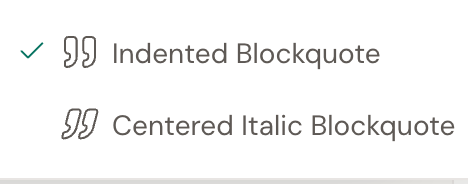
- Click in the paragraph you want to quote.
- In the Formatting Toolbar, click the blockquote split-button to apply your last-used style.
- To choose a specific style, click the caret next to the button and pick Indented Blockquote or Centered Italic Blockquote.
To remove a blockquote, click the active style again to toggle it off.
You can also type > at the start of a line to start an indented blockquote, or set the block type from the left dropdown in the Formatting Toolbar.
Add a highlight
Section titled “Add a highlight”Highlights color-mark a passage without changing the text itself. They come in six colors: yellow, purple, teal, green, blue, and black.
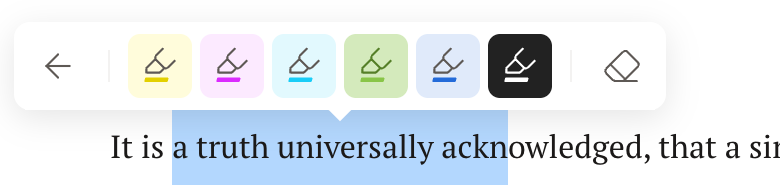
- Select the text you want to highlight.
- In the Formatting Toolbar, click the Highlight button.
- In the popover, click a color swatch.
To remove a highlight, select the highlighted text, open the popover, and click the eraser button.
- The color swatches in the highlight popover have no labels. Hover to find the color you want, or just click and try another if it isn’t the shade you expected.
- Switching a paragraph’s block type (for example to a blockquote) clears conflicting inline formatting on that line, so apply bold or italic after you set the block type.