

Invite a co-author
Writing a book is mostly a solo sport. But some manuscripts want two sets of hands. When you’re ready to invite a co-author in Dabble, you send one email, choose what they can do, and they join your project to write alongside you, in real time.
One email, one call about access. Here’s the whole thing.
Before you begin
Section titled “Before you begin”- You invite people by the email address tied to their Dabble account. No account yet? They can create one when they accept.
- A co-author’s access rides on their own Dabble subscription, not yours. The invite note says as much: “Invite people to collaborate on this project. Access depends on each user’s subscription.”
- Open the project you want to share.
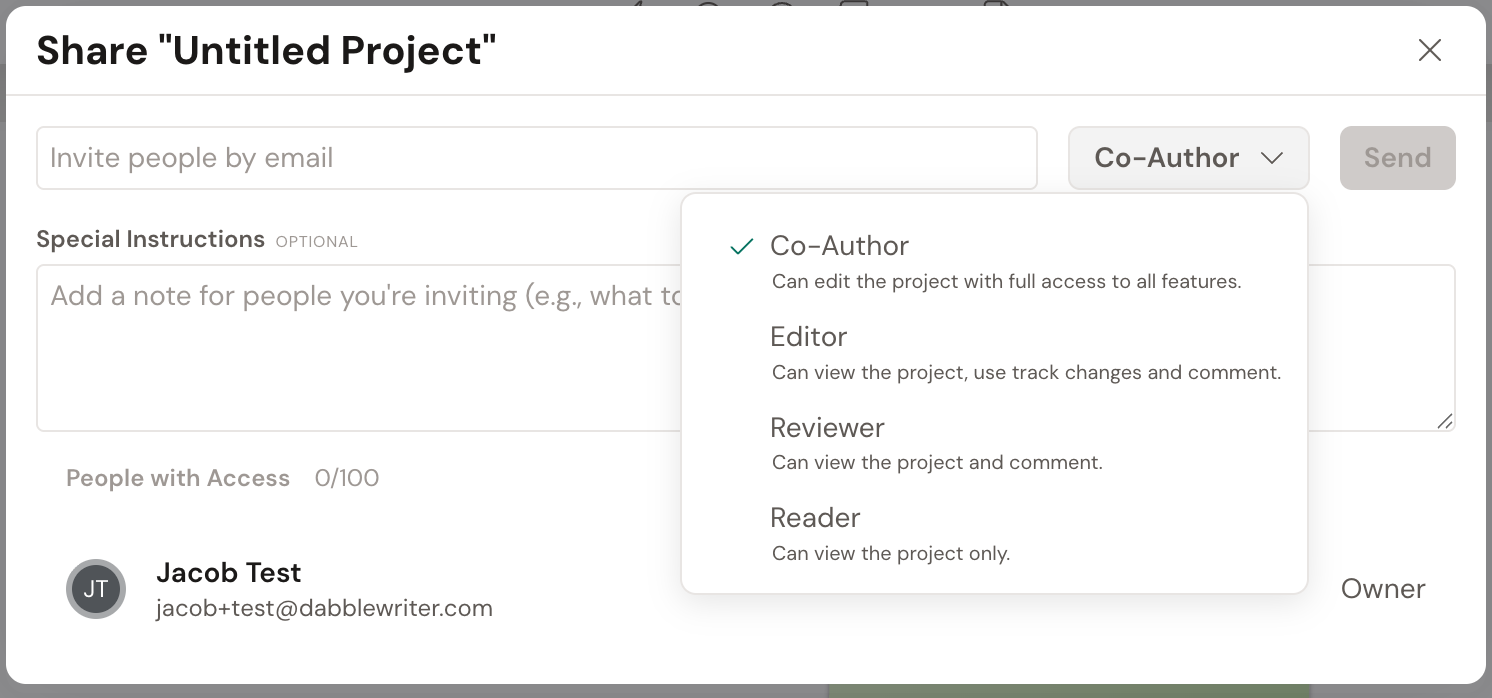
- Click Share in the top bar (its tooltip reads “Share Project”). The Share “{project name}” window opens. You can also reach the same panel from the project’s Settings, in the “Sharing” section.
- Click the “Invite people by email” field and type an email address. Press Enter or comma to add it as a chip. Repeat to invite more than one person at once.
- Click the access-level dropdown (it starts on “Co-Author”) and choose the role you want to give them. Each option shows a short description of what it allows:
- Co-Author: “Can edit the project with full access to all features.”
- Editor: “Can view the project, use track changes and comment.” Their edits are always saved as tracked suggestions.
- Reviewer: “Can view the project and comment.”
- Reader: “Can view the project only.”
- Click Send. The person appears in the people list with a “Pending” badge.
How many people you can invite
Section titled “How many people you can invite”Every project has a ceiling on collaborators, and it’s set by your plan.
Two subscriptions, two jobs: yours decides how many people you can invite, theirs decides what they can do once they’re in.
The Share panel keeps score for you. Look above the People with Access list for a small counter like 3/5. Hover it and it spells the number out: 3 of 5 people. The same counter sits beside the invite field and climbs as you add addresses, so you can see the cap coming.
You don’t count against your own cap. The tally covers the people you’ve invited, accepted and Pending alike.
Here’s what each plan allows on a single project:
| Plan | Collaborators per project |
|---|---|
| Writer | 5 |
| Author | 100 |
| Bestseller | 100 |
The counter in the panel is the last word. If it disagrees with this table, believe the counter.
When you hit the limit
Section titled “When you hit the limit”At the cap, the invite field stops taking new addresses and Send goes grey. If an invite tries to slip past anyway, Dabble blocks it and says why: “You’ve reached the sharing limit of 5 people.” (with your plan’s number in place of the 5).
Nothing is broken. You just need a free seat. Revoke someone who’s finished, or delete a pending invite that never got answered, and the counter drops. See Change or remove co-author access.
Need more seats than your plan allows? Change your plan.
If sharing isn’t on your plan
Section titled “If sharing isn’t on your plan”Sharing needs a paid plan. On the free plan the Share button isn’t in the project header at all, so there’s no panel to open and no invite field to go looking for. Start a paid plan and the button is back, with that plan’s seats. See Change your plan.
What the invitee sees
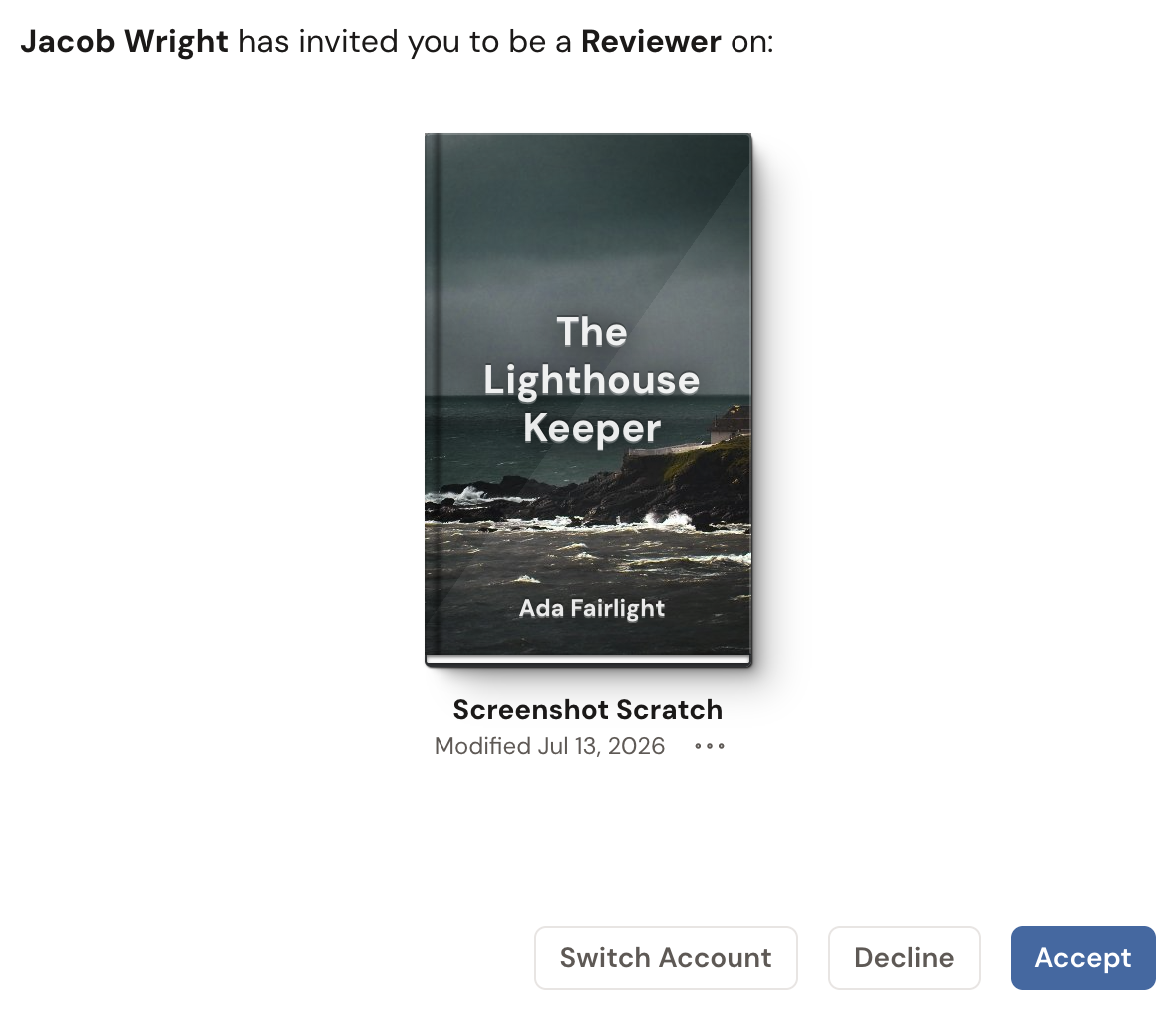
Section titled “What the invitee sees”Here’s the other side of the invitation. Your co-author gets an email and lands on their Dabble dashboard, where an invitation window reads “{your name} has invited you to be a Co-Author on:” above a preview of the project. They click Accept to join, or Decline to pass. Signed in to the wrong account? They can click Switch Account first.
The window names whichever role you picked, so a reviewer sees “to be a Reviewer on:” instead.
Once they accept, the project shows up under Shared with Me on their side, and the “Pending” badge on yours flips to “Accepted”.
- To hand someone a link instead of relying on email, open the … menu on their pending row and click “Copy Invite Link”. See Share a read-only link.
- Not sure which role to pick? Choose Co-Author for a full writing partner, Editor for someone whose changes you want to review as suggestions, Reviewer for comments only, and Reader for view-only access.
Troubleshooting
Section titled “Troubleshooting”- “This person has already been added.” or “This person was already invited.” means that email is already on the project or has a pending invite. Check the people list.
- A pending invite expires after 30 days. If it lapses, send a new one.
- A pending row shows the person’s email until they accept, since Dabble doesn’t guess their name yet.