

See who wrote what with author colors
Two people, one chapter. A paragraph appears that you don’t remember writing. Was that your co-author, your editor, or past-midnight you?
Dabble gives every collaborator a color. Turn on Co-Author Colors and each person’s writing picks up a soft tint in their color, so you can tell contributions apart at a glance. Your own words stay clear.
Turn on Co-Author Colors
Section titled “Turn on Co-Author Colors”Author coloring is a personal view setting. It starts off, and switching it on changes only your view, never what your collaborators see.
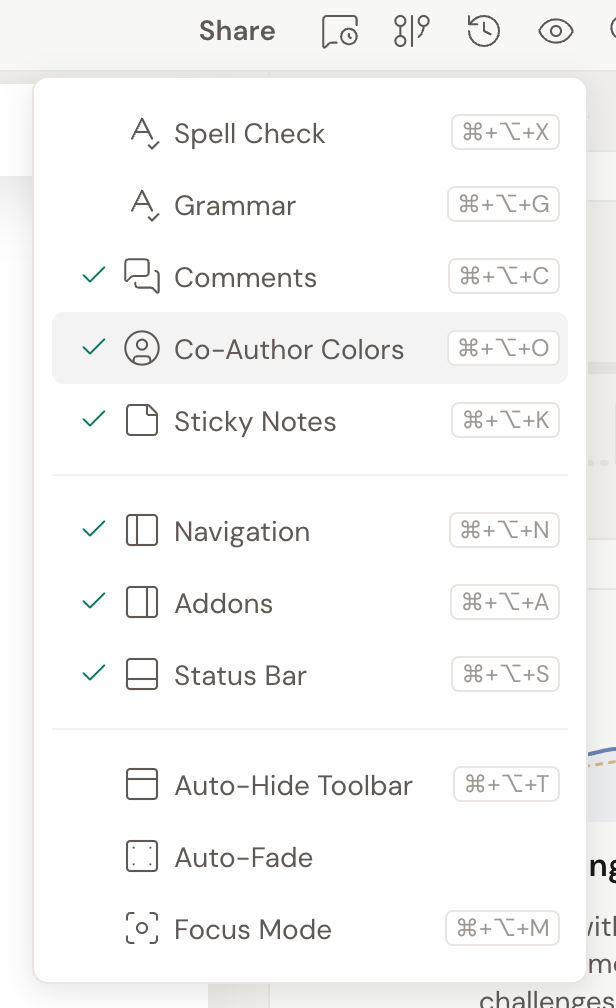
- Open the project and click View Options (the eye icon in the project header).
- Click Co-Author Colors to switch it on. Click it again to turn it off.
You can also toggle it with a shortcut: Cmd+Opt+O on Mac, Ctrl+Alt+O on Windows.
What the colors mean
Section titled “What the colors mean”With Co-Author Colors on, Dabble tints the text in your manuscript by who wrote it.
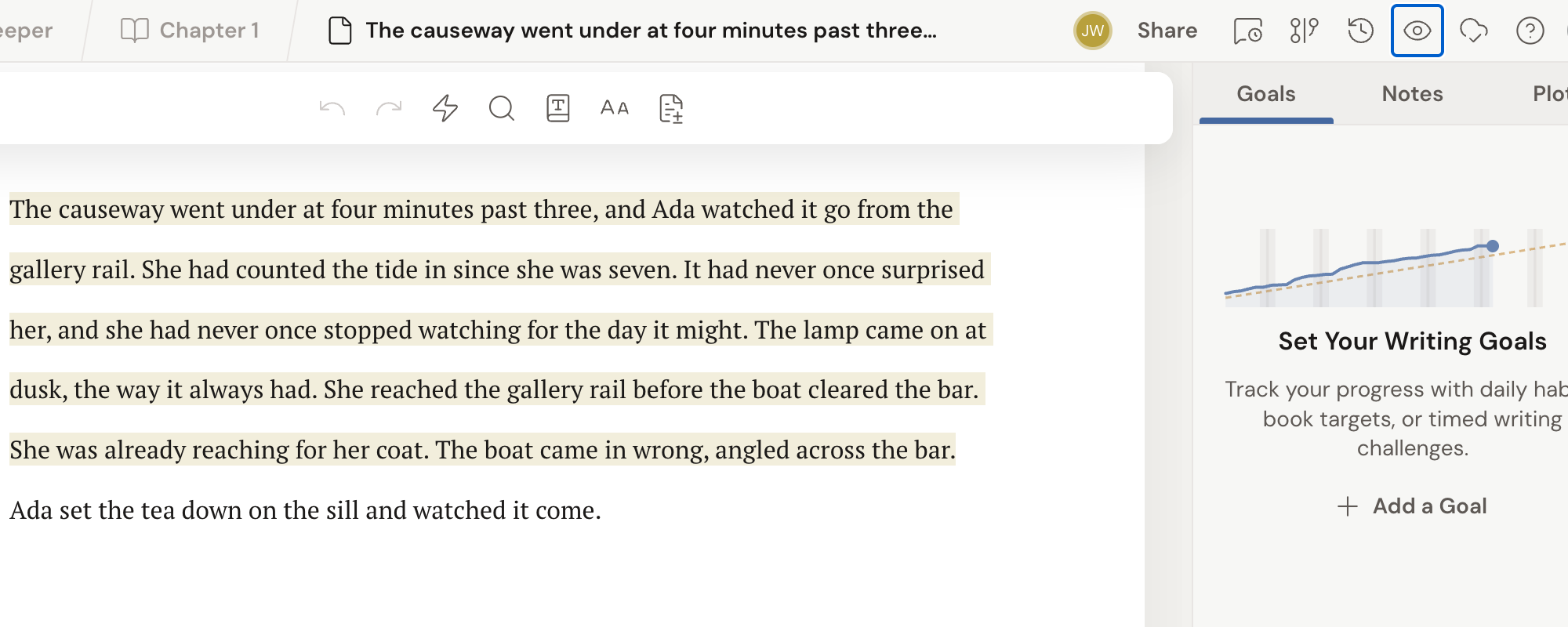
- Your own writing stays clear. No highlight, so the color you see always belongs to someone else.
- Everyone else gets their own color. Each collaborator’s text carries a light highlight in their assigned color.
The tint hugs the words themselves, not the whole line, so the page stays readable. Dabble assigns each person a color automatically from their name, so there’s nothing to set up. If two collaborators would land on the same color, Dabble nudges one to a different shade so everyone stays distinct.
This isn’t just live typing. Dabble records who wrote each run of text as it’s written, so the colors show authorship across the whole manuscript, including an editor’s contributions and work from people who have since left the project.
The same color, everywhere
Section titled “The same color, everywhere”A collaborator’s color isn’t just for the text tint. It’s their identity color across the shared project, so the same shade follows them wherever they show up.
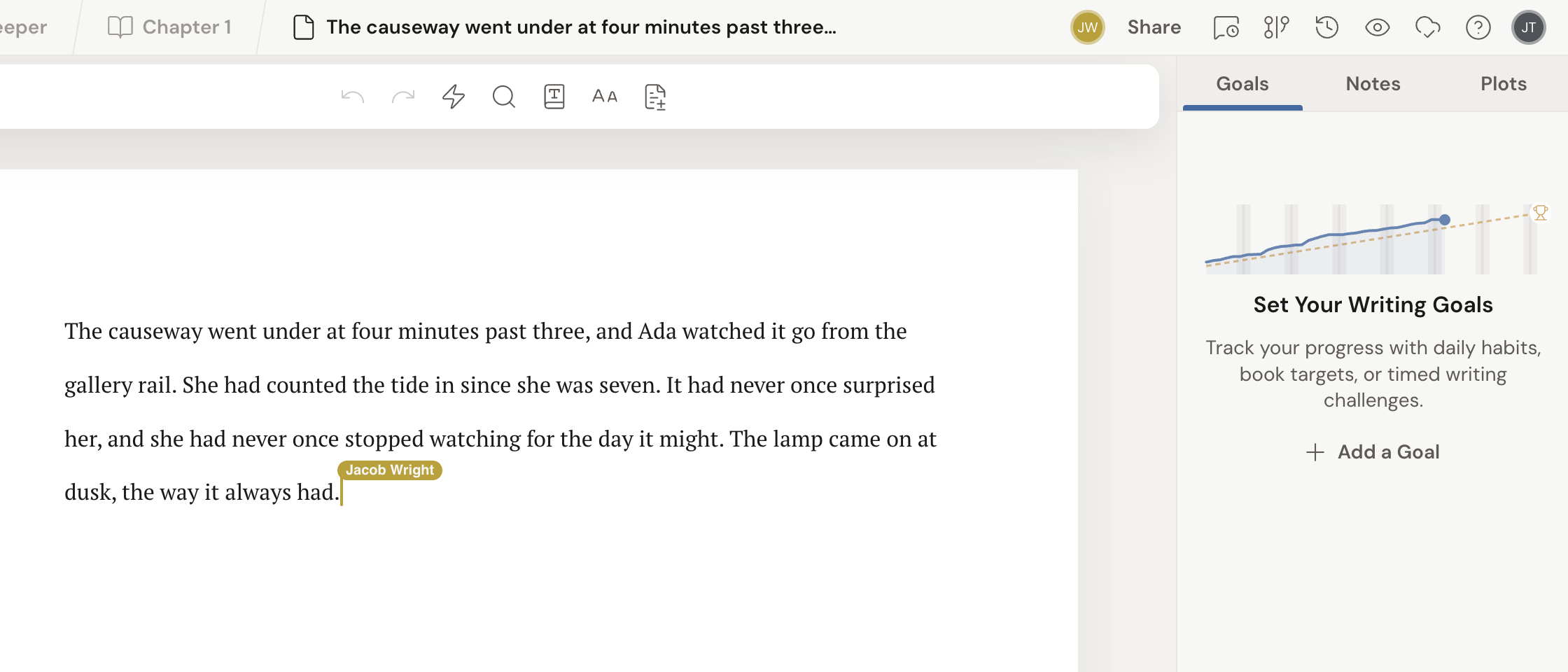
- Avatars. Their profile circle in the share list and on their comment cards uses their color.
- Live cursors. When you’re editing together, each person’s cursor appears in their color with a small flag showing their name, so you can see where they’re working in real time.
- Comments. A comment card is stamped with its author’s avatar in the same color.
Once you learn that green is your editor and blue is your co-author, that mapping holds no matter where you run into them.
Author colors and track changes
Section titled “Author colors and track changes”When someone is suggesting edits, track changes wins the color contest. A pending insertion shows in green and a pending deletion shows in red, and those track-change colors take priority over the author tint while the change is unresolved.
Accept or reject the suggestion and the track-change coloring goes away. If the text stays, it settles back into that author’s normal color.