

Comment and reply
Add comments in Dabble when you need to talk about the writing without changing it. A plot hole to flag. A “wait, didn’t she die in chapter three?” for your co-author. A note to future-you, right there in the margin.
Reply in a thread, resolve a comment once it’s handled, and find everything again in Comment History. Here’s the whole flow.
Before you begin
Section titled “Before you begin”Anyone with the Reviewer role or higher can comment. Reader access is view-only, so readers can’t leave comments.
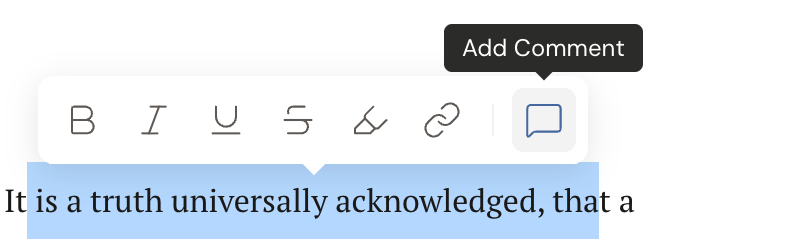
- In the manuscript, select the text you want to comment on.
- Click the comment icon in the toolbar (tooltip Add Comment), or press Cmd+Option+C / Ctrl+Alt+C to turn on the Comments view. Adding a comment turns the Comments view on automatically if it was off.
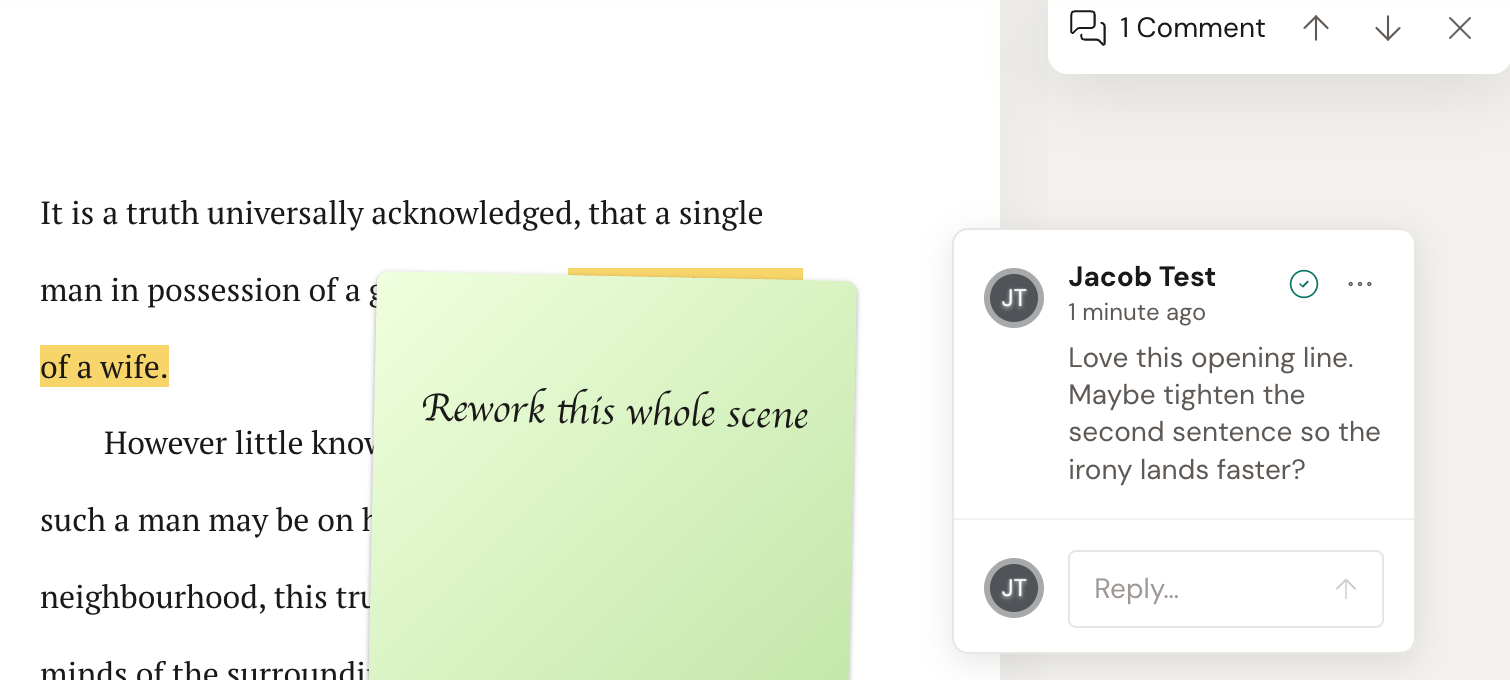
- Type your note in the Leave a comment… field and click Save. Your comment appears as a card in the right gutter on desktop, or in a slide-up drawer on mobile.
Reply to a comment
Section titled “Reply to a comment”- Click a comment to open its thread.
- Type in the Reply… field and click Save.
Edit or delete a comment
Section titled “Edit or delete a comment”- To change your wording, click Edit, update the text, and save. An edited comment shows an (edited) label.
- To remove a comment, open the row menu and delete it.
Resolve a comment
Section titled “Resolve a comment”- On the thread root, click Mark as resolved. Resolved comments leave the gutter so you can focus on what’s still open.
- To reopen a resolved comment, find it in Comment History and click Undo.
Keep track of new replies
Section titled “Keep track of new replies”When someone adds a reply you haven’t seen, the thread shows an unread indicator. Click Mark as read to clear it.
Review every comment
Section titled “Review every comment”Open Comment History to see all comments, including resolved ones, in one place.
Pasting text that carries comments
Section titled “Pasting text that carries comments”Move a commented paragraph to another scene and there’s a question to answer: do the comments come too?
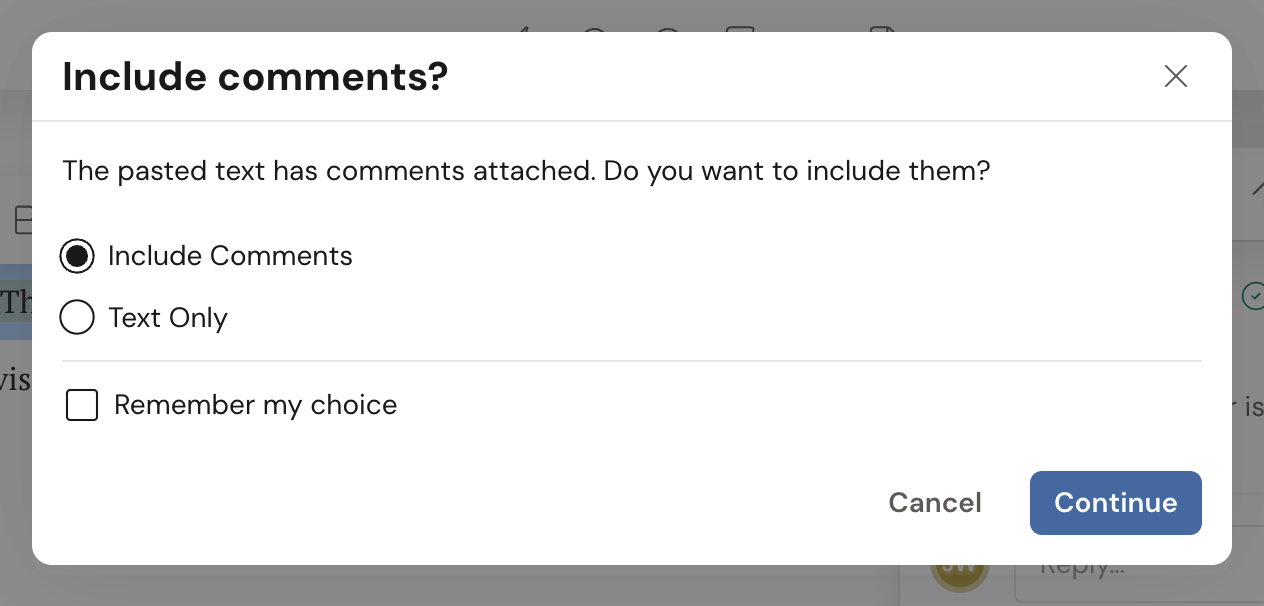
Dabble asks. Paste text that has comments attached and a window opens, titled Include comments?: “The pasted text has comments attached. Do you want to include them?”
Pick one:
- Include Comments brings the threads along with the words.
- Text Only pastes the words and drops the comments.
Then click Continue. Tick Remember my choice first and Dabble stops asking, using that answer from then on. Close the window without choosing and you get text only.
The question only comes up when the text actually carries comments. Everything else pastes straight through.
Copy versus cut
Section titled “Copy versus cut”Copying and cutting do different things to a comment, and the difference is the one you’d hope for.
Copy and paste, and the comments arrive as fresh threads of their own. The originals stay put. Reply to one and the other never hears about it.
Cut and paste, and the original threads travel with the text. Same conversation, new address.
Change the Paste Comments preference
Section titled “Change the Paste Comments preference”Told Dabble to remember and want the question back? It’s a setting.
- Open Preferences from your account menu.
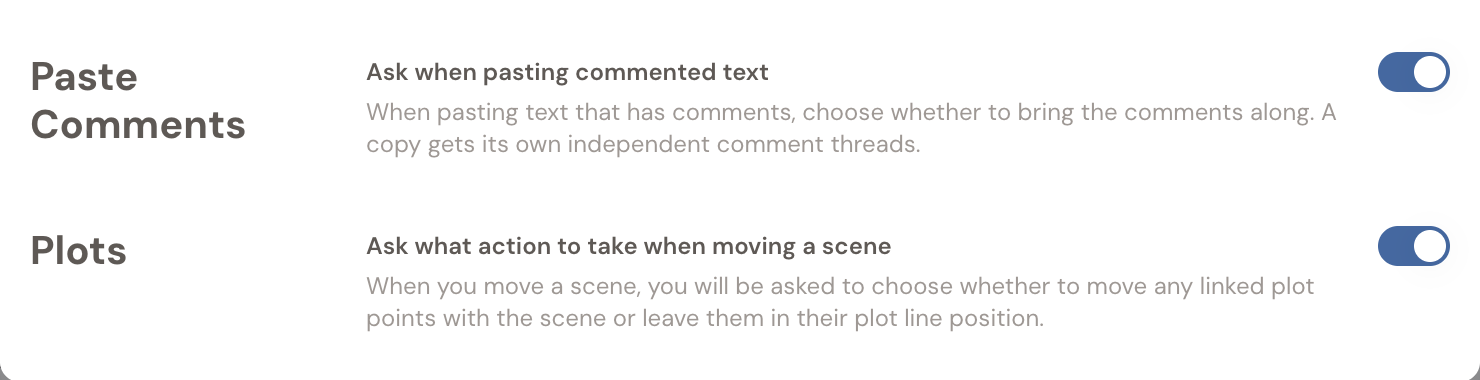
- Go to the Advanced tab and find Paste Comments.
- Switch Ask when pasting commented text back on.
Leave the toggle off and Dabble uses your saved default instead, which you pick with the Include Comments and Text Only options underneath it.
- Use the navigation arrows to move between threads. Tooltips read Previous comment or change and Next comment or change.
- If the text a comment is attached to gets deleted, the comment becomes orphaned and shows Original content deleted. The note isn’t lost, but it’s no longer anchored to live text.
- Comments are read-only when you’re viewing a merged review copy or a version-history preview.