

Move work between projects
That chapter isn’t part of this book. It’s the start of the next one.
Or the three characters you drafted belong to the spinoff. Or a scene you cut deserves a second life somewhere else.
You don’t have to retype a word. Dabble can move a document out of one project and into another, or leave the original alone and drop a copy into another project.
We’ll cover:
- Before you begin: what can go where
- Move a document to another project: it leaves this project
- Copy a document into another project: it stays in both
- Books and their Plot Grids: the one question Dabble asks
- What travels and what stays: comments, stats, covers
- When a move only half-lands: the partial-move message
- Troubleshooting: when the option isn’t there
Before you begin
Section titled “Before you begin”- Whatever you move takes its contents with it. Move a chapter and its scenes ride along. Move a book and the entire book goes.
- Destinations are projects you own. The picker lists your own projects, active and archived. Projects shared with you, templates, review copies, and anything in the Trash are never offered.
- A document in the Trash can’t be moved. Restore it first.
Move a document to another project
Section titled “Move a document to another project”The document leaves this project. There’s no copy left behind.
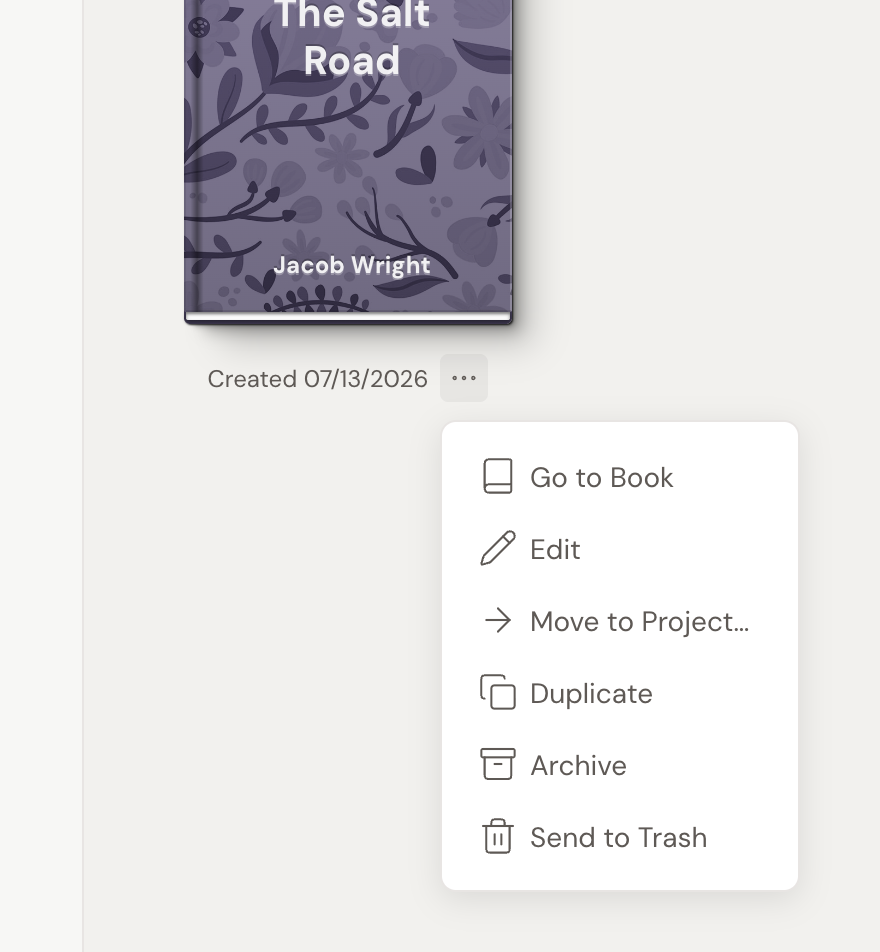
- In the sidebar, open the ”…” menu on the item you want to move. (An item’s card in an overview has the same menu.)
- Click Move to Project….
- Pick the destination project from the list. Use the Search… box to filter it if you have a lot of them.
Dabble files the document into the matching section of the destination: a chapter lands in Manuscripts, a character in Characters, a note in Notes, a plot grid in Plots. It arrives at the end of that section, so drag it into position from there.
You’ll see a Moved to [project name] message when it’s done.
Copy a document into another project
Section titled “Copy a document into another project”Copy is the safe version. The original never moves.
- In the source project, open the item’s ”…” menu and click Copy Book. The label names whatever you picked: Copy Scene, Copy Chapter, Copy Character.
- Open the destination project.
- Open the ”…” menu on the section or item that should hold it, and click Paste Book (again, named for what’s on the clipboard).
The copy arrives with (Copy) added to its title.
Two things worth knowing:
- The clipboard expires 30 minutes after you copy. Copy, switch projects, paste. It’s not a place to park something overnight.
- Paste only wakes up where the item fits. A scene pastes into a chapter, not into Characters. If Paste is greyed out, you’re aiming at a spot that can’t hold it.
Books and their Plot Grids
Section titled “Books and their Plot Grids”A book’s Plot Grid doesn’t live inside the book. It lives in the Plots section, linked to it.
Which means a book on the move has a decision attached. Dabble asks it outright.
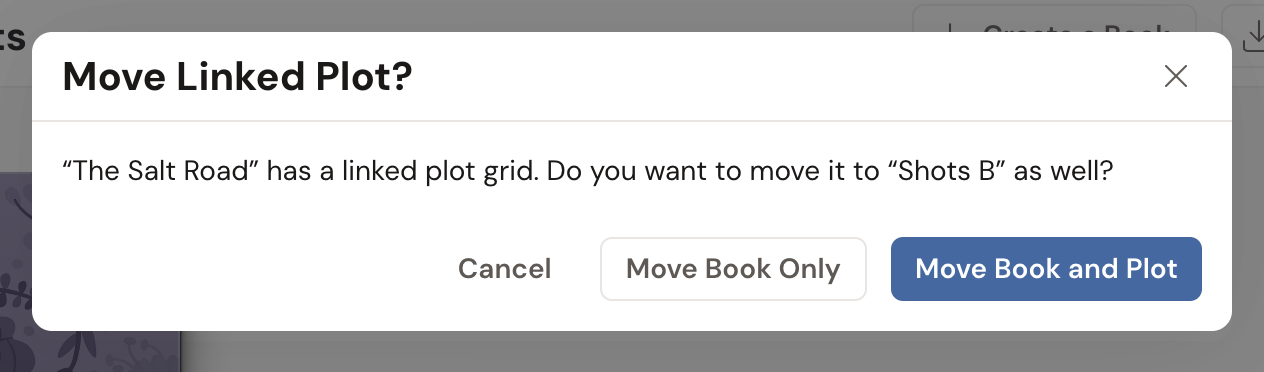
When you move a book with a linked grid, you’ll get Move Linked Plot?
- Move Book and Plot brings the grid along. Its cells still point at the right scenes, and the link between book and grid is rebuilt in the destination.
- Move Book Only leaves the grid behind in this project.
When you paste a book with a linked grid, the same fork appears as Paste Linked Plot?, with Paste Book and Plot and Paste Book Only.
Cancel cancels the whole operation, not just the plot. The book stays exactly where it was.
If the book has more than one linked grid, the wording turns plural (Move Linked Plots? and Move Book and Plots) and one click handles all of them.
What travels and what stays
Section titled “What travels and what stays”Comments and track changes come along on a move. They do not come along on a cross-project paste: the pasted copy lands clean, and the original keeps its comment threads in the source project.
Writing stats and version history stay with the project they were written in. Neither a move nor a copy carries them over.
A moved Book keeps its cover art in its new home.
Copied content doesn’t count toward your word-count goals or writing stats. Pasting a 60,000-word book into another project won’t make your totals leap.
When a move only half-lands
Section titled “When a move only half-lands”A move is two steps under the hood: put the document in the destination, then remove it from here. Nearly always both happen and you never think about it.
When the second step doesn’t, Dabble says so plainly rather than pretending the move worked.
“Copied to [project], but it couldn’t be removed from this project.” The copy is safely in the destination. The original is also still here. Nothing is lost. Check the copy, then send the original to the Trash yourself.
If you chose to bring a linked plot grid, that grid stays here with the book, so a book and its grid never end up split across two projects.
“The linked plot was copied to [project], but couldn’t be removed from this project.” The book moved cleanly and its grid is in the destination, but the old grid is still sitting in this project. Send the leftover grid to the Trash.
“Error moving document. Please try again.” Nothing moved. Try again.
Troubleshooting
Section titled “Troubleshooting”I don’t see Move to Project… in the menu. A few things hide it:
- You have nowhere to move to. The option only appears when you own at least one other eligible project.
- The document is in the Trash. Restore it, then move it.
- You’re in a Review Copy. A review copy is a filtered view of the live project, so documents can’t be moved out of it.
- The project is read-only for you. Read-only projects don’t offer structural changes.
- It isn’t a movable document. Built-in containers like Trash, Archive, and Templates, and section headings, stay where they are.
- It’s an idea. Ideas offer Send to Project… instead of the generic move.
Paste is greyed out. Either nothing is on the clipboard, the 30 minutes ran out, or the spot you’re aiming at can’t hold that document type.
My destination project isn’t in the list. The picker only offers projects you own. A project shared with you, an Editor’s Copy, a template, or a trashed project won’t be there.