

View and restore version history
You rewrote the chapter. It reads better now.
Then it hits you: the one paragraph you cut was the best line in the whole scene. And you saved right over it.
Breathe. Dabble saves your project automatically as you write, so nothing is really gone. Look back through your history, preview any earlier moment, and restore your work whenever you need it.
We’ll cover:
- Before you begin: check that your plan includes it
- Open version history: find the panel and your list of versions
- Preview an earlier version: look back without changing a thing
- Scrub through your history with the Time Machine: slide along your whole timeline
- Restore your whole project: roll everything back to an earlier moment
- Bring a single document forward: grab one doc, leave the rest
- Tips: name versions and find them fast
- Troubleshooting: when the buttons go missing
Before you begin
Section titled “Before you begin”Version history lives on Dabble’s paid plans.
Open a project and don’t see the Version History button? Two likely reasons: your plan doesn’t include it, or you’re in a project someone shared with you in a view-only or comment-only role.
Open version history
Section titled “Open version history”It all starts with one button in the header.
- Open a project.
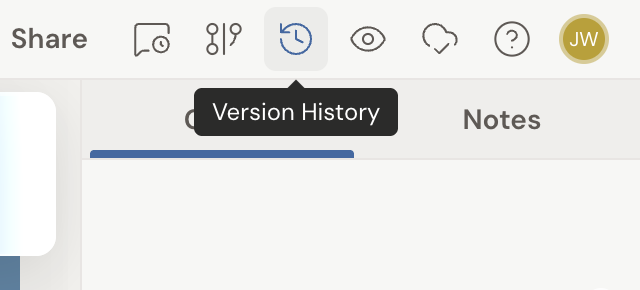
- In the top-right header, click the Version History button (the clock icon).
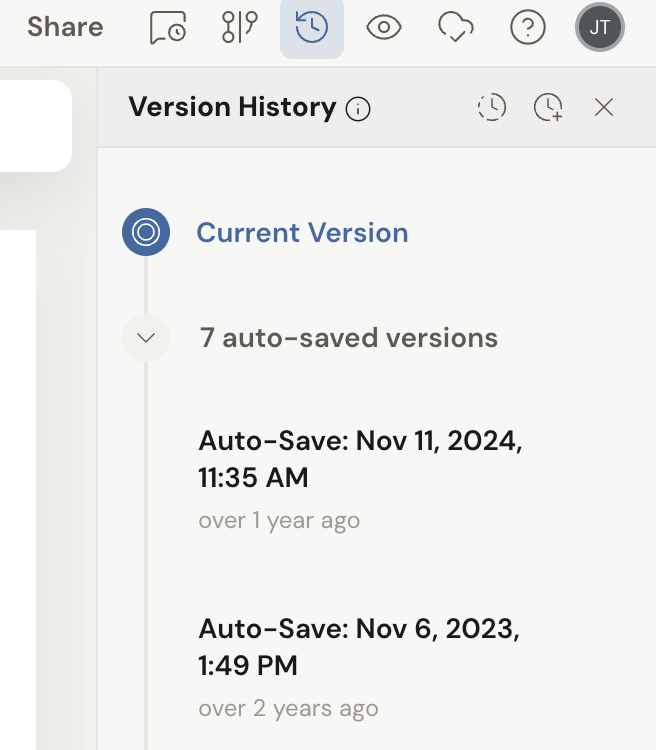
- The Version History panel opens on the right, listing your versions newest first. They’re grouped into manually-saved versions and auto-saved versions.
Preview an earlier version
Section titled “Preview an earlier version”Want to look without touching anything? You can read any past version while your live work sits untouched.
- With Version History open, click any version row.
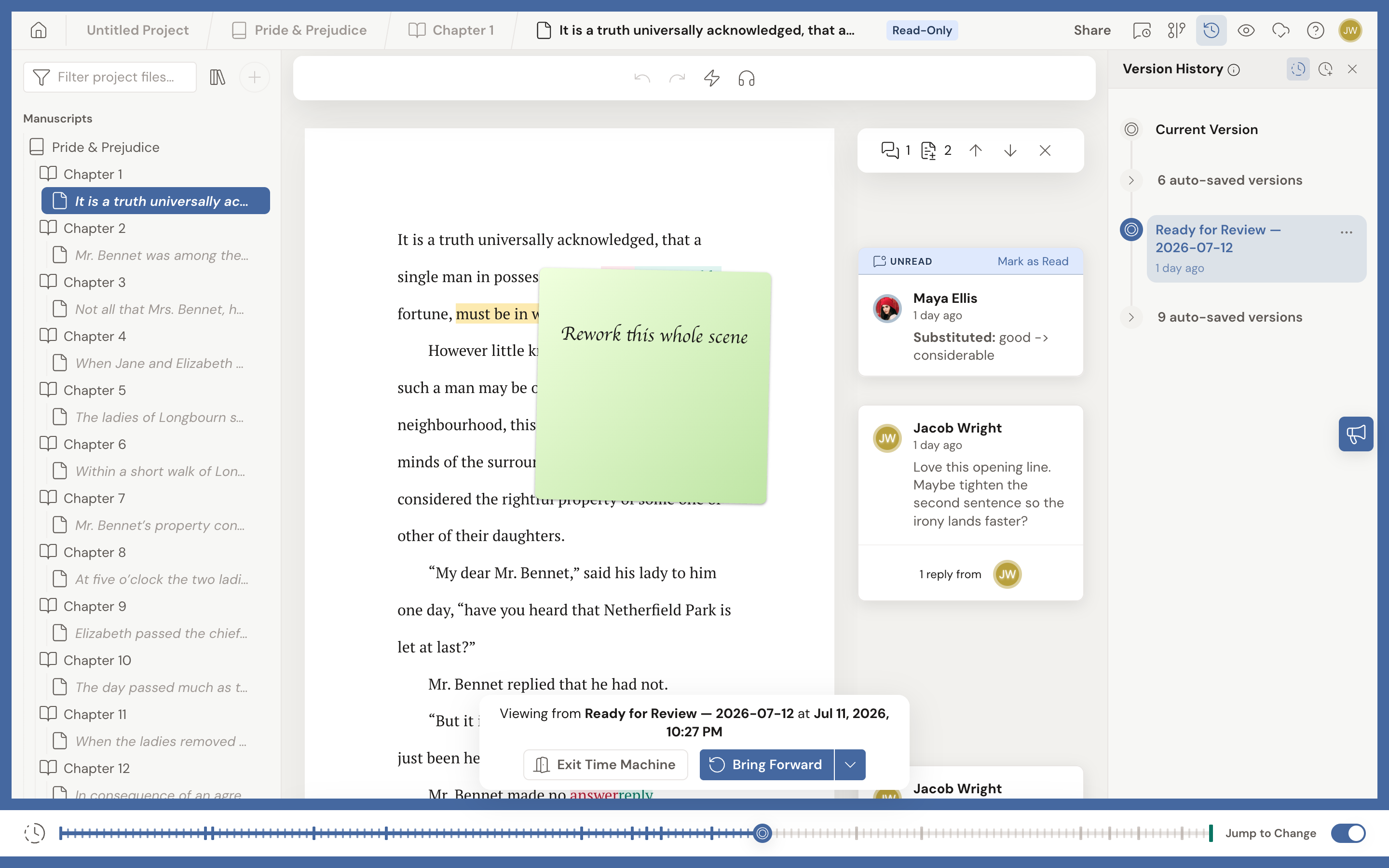
- The editor switches to a read-only preview of that moment, and the timeline appears along the bottom of the screen. This is the Time Machine.
You can’t type while you’re viewing the past. Dabble shows a Read-Only Mode indicator, so nothing you do here changes your live project.
Scrub through your history with the Time Machine
Section titled “Scrub through your history with the Time Machine”The Time Machine turns your whole history into a slider you can drag.
- Click the Time Machine button at the top of the panel, or click any version row.
- Drag the playhead along the timeline at the bottom of the screen: left for older, right for newer.
- As you move, the editor shows your project exactly as it was at that point and highlights the change made there.
- Leave Jump to change turned on to automatically jump to the document that changed as you scrub. Turn it off to stay where you are.
- The far right of the timeline is Current version, your live, latest work.
- Click Exit Time Machine (the door icon) or press Esc when you’re done.
Restore your whole project
Section titled “Restore your whole project”Sometimes you want the whole project back the way it was. Restoring does exactly that, and it’s reversible.
- Enter the Time Machine and scrub to the version you want.
- In the floating action card, choose Restore this version.
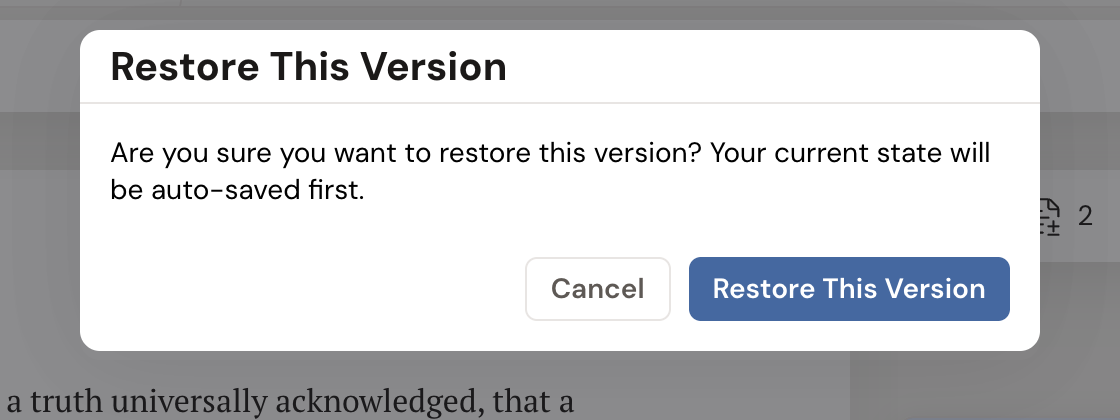
- Confirm the dialog. Dabble auto-saves your current state first, so the restore is reversible.
- Your project is replaced with that version. Dabble adds a Before Restore safety version, so you can undo by restoring that one.
Bring a single document forward
Section titled “Bring a single document forward”If you only want one document back, not the whole project, you can copy it forward without changing anything else.
- Enter the Time Machine and scrub to the version that has the document you want.
- Open that document so it’s the one you’re viewing.
- In the floating action card, click Bring Forward.
- A copy of that document is added to a new Restored section in your live project, with ” (restored)” added to its title. Dabble takes you straight to it.
- Name a version to mark a milestone. Click Create new version (the clock-plus icon) at the top of the panel to save a checkpoint right now. You’ll see a Version saved message.
- Rename or label versions. Open a version’s row menu and choose Save as named version or Rename, type a name, then click Save. Use Clear named version to remove a name.
- Find named versions fast. Named versions stand out on the timeline, and you can filter the list to show only them.
Troubleshooting
Section titled “Troubleshooting”- I don’t see the Version History button. Version history is a paid feature, and it’s hidden for people viewing or commenting on a project shared with them. If you own the project and it’s on a paid plan, reload and try again.
- Restore and Bring Forward are missing. These actions are hidden inside a review copy, on a merged review copy, in projects shared with you as read-only, and on the free plan.
- The panel says these versions belong to a review copy. When you open version history inside a review copy, it shows that copy’s history, not your main project’s. Return to your main project to see its history.