

Find and replace text
You renamed your villain in chapter three, and his old name is still hiding in thirty other scenes. Time to find and replace text in Dabble.
Find & Replace searches any word or phrase across your manuscript and notebook. Step through the matches, then swap them out one at a time or all at once.
Before you begin
Section titled “Before you begin”Find & Replace searches the writing inside your documents: manuscript scenes, characters, notebook pages, and ideas.
It doesn’t search the notes in a document’s Notes tab, document descriptions, or titles. It also skips anything in the trash.
Hunting for a word in a note or a description? Use Quick Open instead (Cmd+K on Mac, Ctrl+K on Windows). It searches those too. See The command palette.
You’ll find it wherever you can edit. In read-only views (such as a shared project you can only view, or a merged review copy), the button is hidden. Use your browser’s own search there instead.

Open Find & Replace
Section titled “Open Find & Replace”- Open a document in your project.
- Click the magnifying-glass (search) icon in the document toolbar, or press Cmd+F (Mac) or Ctrl+F (Windows). The panel opens at the top of the screen.
Tip: select text before you open the panel and it is pre-filled into the search box and searched right away.
Find text
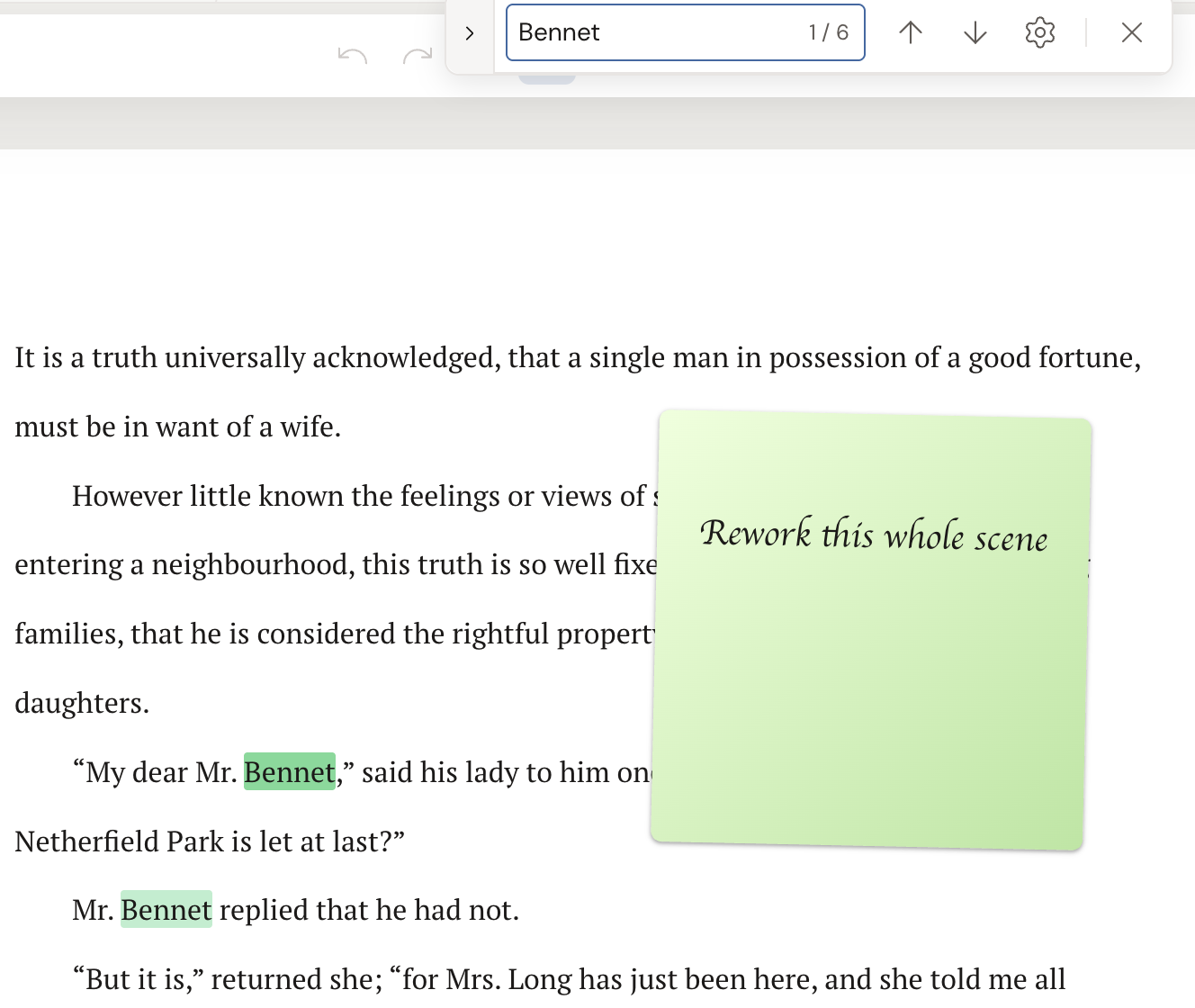
Section titled “Find text”- Type what you want to find in the Find in text… box. Matches highlight as you type, and a count appears in the box, like
3 / 17. If nothing matches, you see a red No matches. - Step through matches with the down arrow (Find Next) and the up arrow (Find Previous), or press Enter and Shift+Enter in the search box. Dabble scrolls each match into view and loads documents as it needs them.
Narrow your search
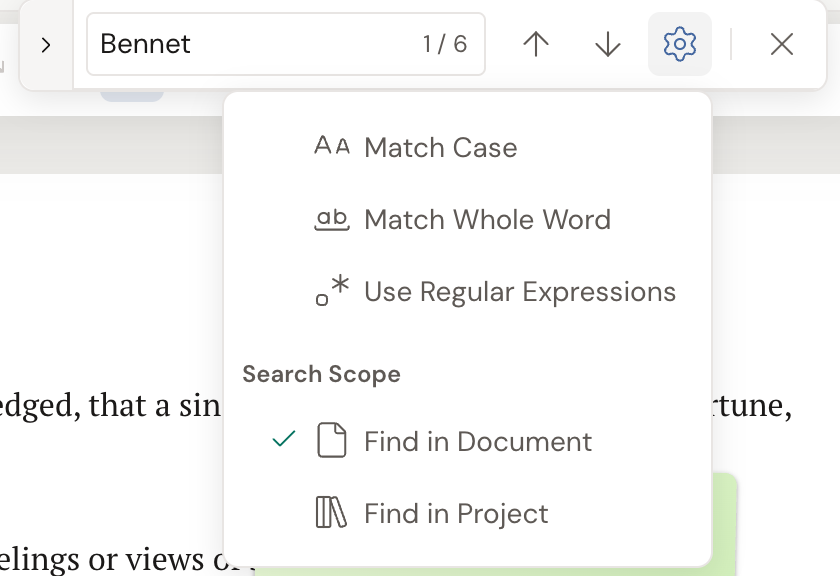
Section titled “Narrow your search”- Click the gear icon to open the search options:
- Match Case finds only matches with the same capitalization.
- Match Whole Word finds the word on its own, not inside larger words (so “will” does not match “goodwill”).
- Use Regular Expressions treats the search box as a pattern.
Choose where to search
Section titled “Choose where to search”- In the same gear menu, under Search Scope, pick where to look:
- Find in Document searches the current document and its sub-documents (for example, a chapter and all its scenes).
- Find in Project searches every document in the project.
Dabble remembers your choice for next time. To jump straight into project-wide search, press Cmd+Shift+F (Mac) or Ctrl+Shift+F (Windows).
Replace text
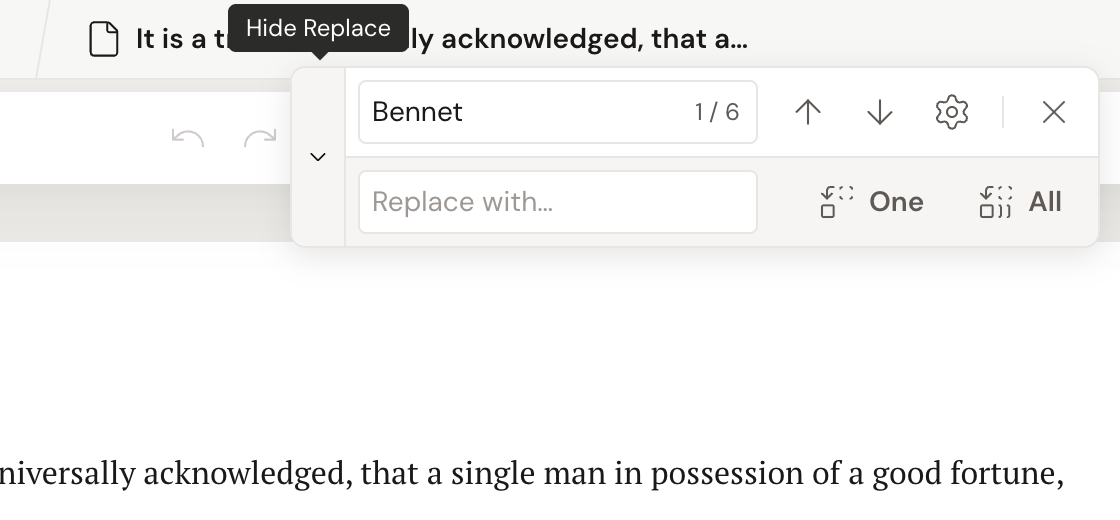
Section titled “Replace text”- Click the chevron on the left edge of the panel (Show Replace), or open replace directly with Cmd+Alt+F (Mac) or Ctrl+H (Windows). A second row with the Replace with… box appears.
- Type your replacement text.
- Click One to replace just the current match and move to the next one, or press Enter in the replace box.
- Click All to replace every match. A confirmation appears: This will replace {count} occurrences and cannot be undone. Click Replace All to go ahead.
Close the panel
Section titled “Close the panel”- Click the X or press Esc.
- A plain search matches straight and curly quotes automatically, so searching for
don'tfinds bothdon'tanddon't. - Very short searches feel a little slow on purpose. The wait shortens as you type more characters.
- Renaming a character across a whole book? Set the scope to Find in Project and turn on Match Whole Word so you don’t change words that merely contain the name. After a big replace, step through with One to double-check.
Use regular expressions
Section titled “Use regular expressions”Turn on Use Regular Expressions to search by pattern instead of exact text.
colou?rmatches both “color” and “colour”.- Capture groups carry into the replacement. Find
(\w+), (\w+)and replace with$2 $1to swap two words around a comma. - An invalid pattern simply finds nothing, with no error.