

Fix: right-click paste is blocked
You right-click in the editor, reach for Paste, and it’s greyed out. Your text just sits there on the clipboard, refusing to land.
That’s not a Dabble bug. It’s your browser doing its job. It’s quietly refusing to let a website read what you copied, which is exactly what you’d want if the website were shady.
Dabble isn’t shady. But the browser doesn’t play favorites. Here’s the one-second fix, plus two ways to get a working Paste back into your right-click menu.
Why this happens
Section titled “Why this happens”Dabble’s editor has its own right-click menu: Undo, Redo, Cut, Copy, Paste, Delete, and Select All.
For that menu’s Paste to work, the browser has to let a website read what’s on your clipboard. Browsers guard that closely, and for good reason. You don’t want a random site peeking at the password you copied a minute ago.
So until you grant permission, Paste in that menu is greyed out. Dabble can’t offer you a button it knows won’t work.
Paste it in
Section titled “Paste it in”The fastest fix skips permissions entirely. Reach for the keyboard.
- Click where you want the text to go.
- Press Ctrl+V (Windows) or Cmd+V (Mac).
Your text pastes right in. The keyboard shortcut always works, because it doesn’t ask the browser to read your clipboard the way the menu does.
Use your browser’s menu instead
Section titled “Use your browser’s menu instead”If you want a right-click Paste that just works, hand right-click back to your browser. Its own menu never needs permission.
- Open the account menu and click Preferences.
- Go to the Advanced tab.
- Under Interface, turn off Use Dabble’s Context Menu.
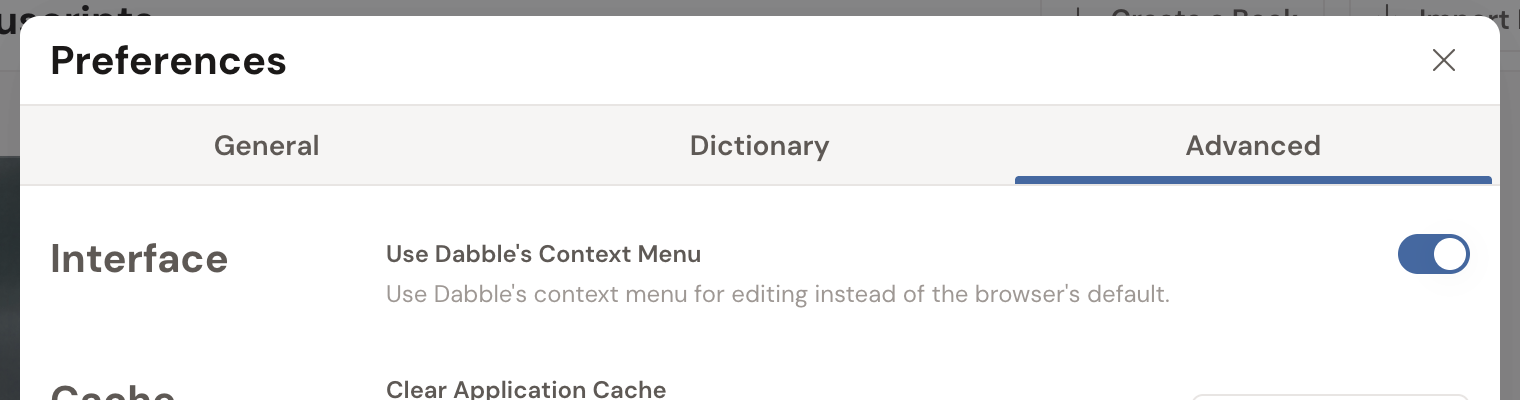
Now right-clicking in the editor brings up your browser’s normal menu, with a Paste that always works. You trade Dabble’s Undo and Select All items for reliable pasting. Plenty of writers call that a good deal.
Changed your mind? Switch the toggle back on any time.
Grant clipboard permission in Chrome
Section titled “Grant clipboard permission in Chrome”Want to keep Dabble’s menu and unblock its Paste? Give Chrome the go-ahead.
- Right-click in the editor to open Dabble’s menu.
- Chrome asks whether to let Dabble see text you copied. Click Allow.
- Right-click again. Paste is now available.
Blocked it once already? You can switch it back on from the browser.
- In Chrome, click the icon at the left end of the address bar, next to the web address.
- Find the clipboard permission and set it to Allow.
- Reload the page.
Troubleshooting
Section titled “Troubleshooting”- Firefox: Firefox doesn’t grant websites clipboard read access the way Chrome does, so Dabble’s Paste stays greyed out. Use Ctrl+V, or turn off Use Dabble’s Context Menu and use Firefox’s own menu.
- Paste is still greyed out after you clicked Allow: Reload the page so the new permission takes effect, then right-click again. Ctrl+V works in the meantime.
- Phones and tablets: Dabble’s right-click menu doesn’t appear on touch devices at all. Long-press and use your device’s own Paste.
- Desktop app: Same rules as the browser. Ctrl+V and Cmd+V are the reliable way to paste everywhere.