Add a prologue or epilogue
A prologue isn’t Chapter 1. An epilogue isn’t the last chapter. They live just outside your numbered chapters, doing their own thing.
In Dabble, the home for that is a Section: a chapter-like container with no number of its own. Add a prologue to the front of your book and Chapter 1 stays Chapter 1.
Here’s how to make one, name it, and hide its heading when you want it out of sight.
Why a Section, not a chapter
Section titled “Why a Section, not a chapter”A Section works just like a chapter. It holds one or more Scenes, and your prose lives in those scenes.
The difference is what it leaves out. A Section has no number, and it can hide its own heading.
That makes it the right home for a prologue, epilogue, foreword, interlude, or any front or back matter.
Add your prologue or epilogue
Section titled “Add your prologue or epilogue”You build it right in the sidebar, the same place your chapters live.
- Open your book in the left sidebar.
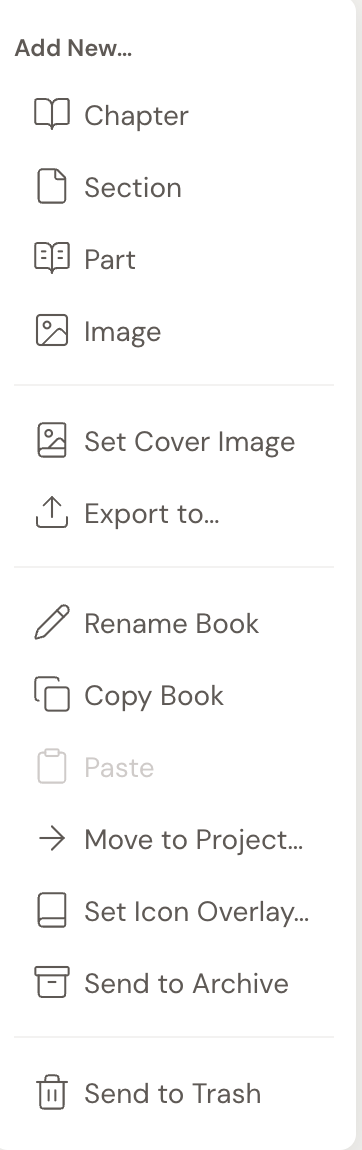
- Hover over the Book (or a Part) and open its ”…” menu.
- Under Add new…, choose Section. A new, unnumbered Section is added.
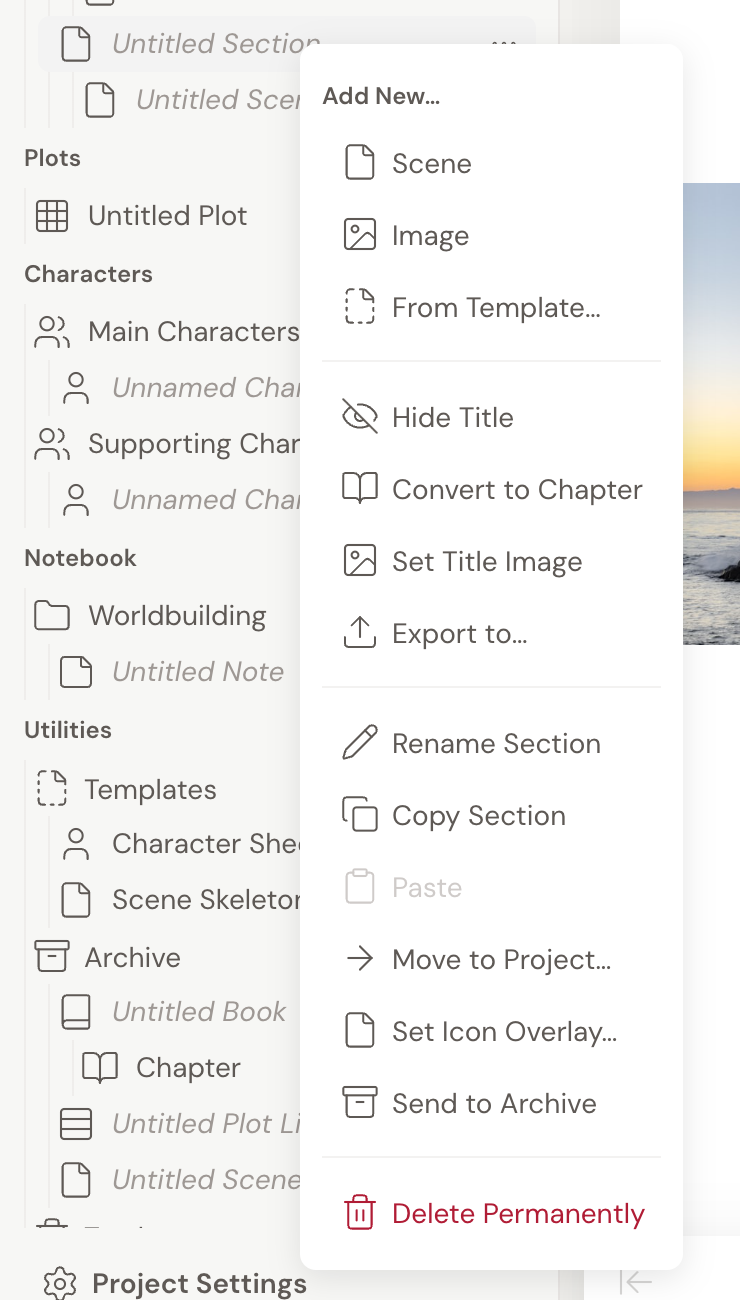
- Rename it: open the Section’s ”…” menu and choose Rename Section, then type a name like Prologue or Epilogue. You can also rename it inline in the sidebar.
- Add a place to write: open the Section’s ”…” menu, choose Scene, and start writing in the new scene.
Hide the title and keep your numbering
Section titled “Hide the title and keep your numbering”Your prologue’s in place. A few small things worth knowing.
- To hide the heading in your manuscript, open the Section’s ”…” menu and choose Hide Title. Toggle it back with Show Title.
- Sections are skipped by chapter auto-numbering, so your Chapter 1, Chapter 2, Chapter 3 numbering stays intact no matter how many prologues or interludes you add.
- Already wrote your prologue as a numbered chapter? Open that chapter’s ”…” menu and choose Convert to Section. It keeps its scenes and loses its number. You can reverse this any time with Convert to Chapter.