

Split and merge scenes and chapters
A scene balloons past the point of no return. Or two half-scenes are clearly one scene wearing a trench coat.
Either way, you don’t have to cut, paste, and pray. You can reshape the manuscript in place.
Split at the cursor to break content apart. Merge two neighbors to join them back up. Not a word gets retyped.
Before you begin
Section titled “Before you begin”- Splitting happens in the manuscript editor, right where your cursor sits.
- Merging happens in the left sidebar, from a Scene’s menu.
- Only Scenes hold your prose. Chapters and Sections are containers that group scenes.
Split a scene
Section titled “Split a scene”One scene becomes two, no copy-paste involved.
- In the manuscript editor, click to place your cursor exactly where you want the break.
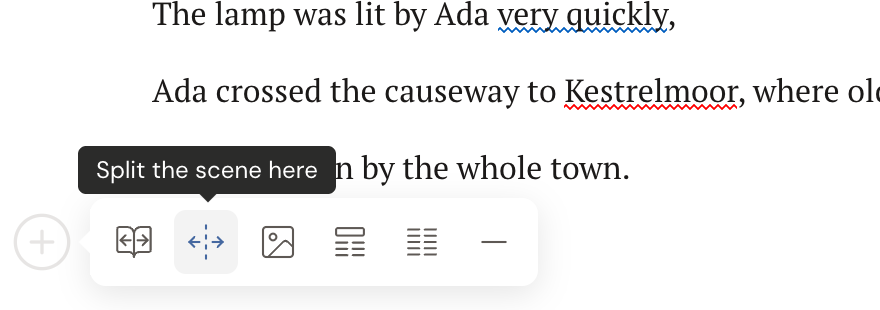
- In the editor’s left gutter, open the insert toolbar and click the split-scene action (its tooltip reads Split the scene here).
- Everything from the cursor to the end of the scene moves into a new Scene placed right after. You’ll see the toast You successfully split your scene.
Split a chapter
Section titled “Split a chapter”Same move, one level up.
- Place your cursor at the point inside a scene where the new chapter should start.
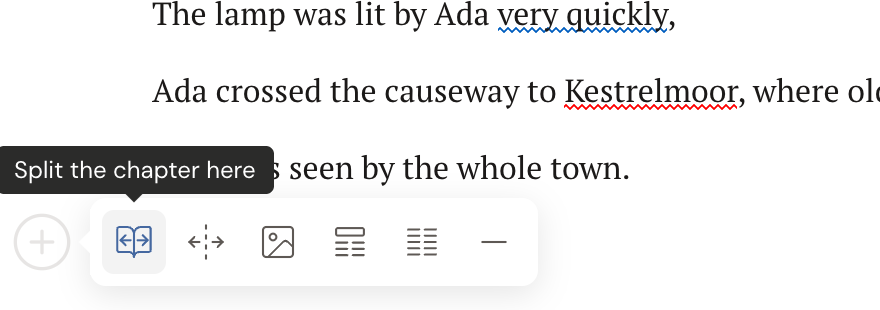
- In the gutter insert toolbar, click the split-chapter action (its tooltip reads Split the chapter here).
- A new Chapter is created after the current one. The content after your cursor, plus every scene that followed the split scene, moves into the new chapter. You’ll see the toast You successfully split your chapter.
The new chapter always keeps at least one scene, and your chapters renumber themselves automatically.
Merge two scenes
Section titled “Merge two scenes”Changed your mind? Pull two scenes back into one.
- In the left sidebar, find the Scene you want to merge and open its ”…” menu.
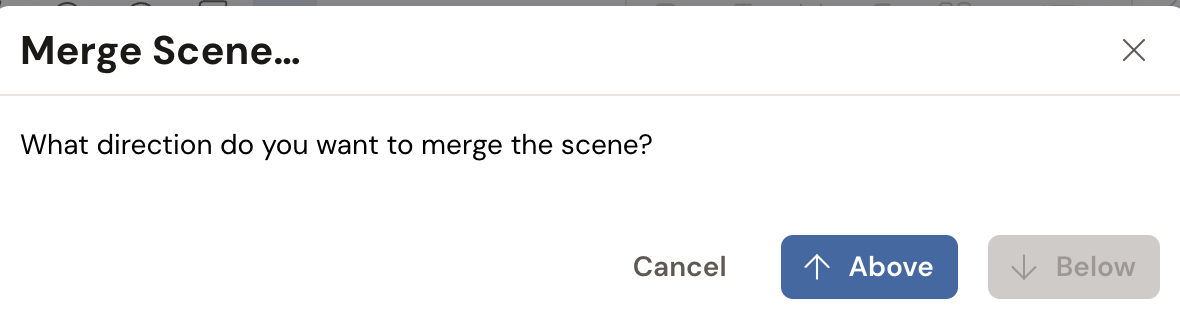
- Click Merge Scene….
- In the dialog, What direction do you want to merge the scene?, choose Above or Below to join the scene with the neighbor in that direction.
- The two scenes combine into one and the other is sent to the trash. You’ll see the toast Scenes merged successfully.
- Scenes must be adjacent within the same chapter or section to merge. If they aren’t side by side, drag them into place first, then merge. See Reorder scenes and chapters.
- Above and Below appear dimmed when there’s no neighboring scene in that direction, so you can only merge where a merge makes sense.
- Merging an empty bottom scene simply removes it, with no change to your text.
Troubleshooting
Section titled “Troubleshooting”There’s no “merge chapters” command. To combine two chapters, move all the scenes out of one chapter into the other (drag them in the sidebar), then delete the now-empty chapter. Your remaining chapters renumber themselves automatically.