

What to do if your manuscript stops syncing
The cloud icon in your header just turned red. Your stomach drops. Where did the last hour of writing go?
Take a breath. It’s still here.
Dabble saves every change to your device before it ever reaches the cloud, so a sync hiccup doesn’t cost you words. That little cloud is just telling you what’s wrong, and most of the time a reload fixes it. This doc shows you how to read the icon, clear the usual causes, and keep your work safe if the trouble sticks around.
Read the cloud icon
Section titled “Read the cloud icon”Your work is safe. Dabble writes every change to your device first, then pushes it up to the cloud. A failed sync means your words are waiting on your device, not gone. They go up the moment the connection returns. For the full picture, see How Dabble syncs your work.
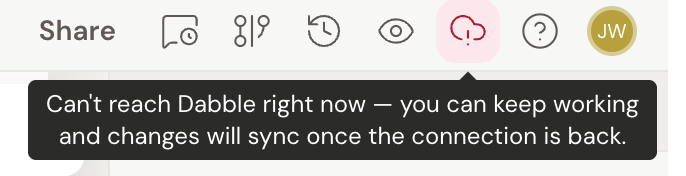
The cloud icon at the top of the window is where the trouble shows. Hover over it to read the exact message. Two states send you to the fixes below:
- A red cloud: Can’t reach Dabble right now — you can keep working and changes will sync once the connection is back. You’re online, but Dabble’s server isn’t answering.
- A yellow cloud: You’re offline — changes are saved on this device and will sync when you reconnect. There’s no network connection.
Any other state, including the rarer yellow cloud that reads Some changes haven’t synced yet…, is spelled out in Sync status icons.
Get syncing again
Section titled “Get syncing again”Start at the top. Stop as soon as the cloud goes green.
- Reload the page. A stuck sync almost always clears on a reload, which also reconnects Dabble and picks up any pending update. Wait a moment and watch the cloud icon. If it returns to All changes saved and synced., you’re done.
- Check the cloud icon’s color if reloading didn’t help. Hover over it to read the message, then follow the matching fix below.
- Yellow cloud (You’re offline). There’s no network connection. Reconnect to Wi-Fi or your network, and Dabble syncs your queued changes automatically. No further action needed.
- Red cloud (Can’t reach Dabble). You’re online, but Dabble’s server isn’t responding. On a school, library, or office network, a firewall is the most common cause. Try a different network, such as a phone hotspot, to confirm. Your work is safe on your device and syncs once the connection is back.
- Watch for a red alert icon in the header. This warns that your browser isn’t saving changes on this device, which happens in private or incognito windows. Switch to a normal browser window and allow site data for Dabble, then reload. Do not do real writing while this warning is showing.
- Look for a “This project is not syncing to the server” message. If a specific project shows this, contact support at support@dabblewriter.com so we can look into it.
- Syncing fine on your other devices, but not this one? The local copy on this machine may be the problem. See Reset Dabble on this device, and back up your work before you try the resync.
Protect your work first
Section titled “Protect your work first”Still no green cloud after a reload? Back up your book before you do anything else. Especially before you sign out.
To back up your current book, open the book’s action menu and choose Export to… to save a Word copy. See Export your manuscript for the full steps.
Want a copy of the raw data instead of a Word file? See Back up your work.
When to contact support
Section titled “When to contact support”Tried a different network and a reload, and the cloud is still red? Or that “not syncing” message keeps coming back? It’s time to email us at support@dabblewriter.com.
A few things speed us up:
- Include any error message as a screenshot or copied text.
- Mention what color the cloud icon shows.
- Back up your work before you sign out for any troubleshooting.