

Change or remove co-author access
Roles change. People come and go. And sometimes a project lands in your lap that you’d rather hand back. Whatever the case, you can manage or remove co-author access in Dabble in a few clicks, and every change takes effect the moment you make it.
This article covers all of it: change what someone can do, remove someone entirely, leave a project that was shared with you, and what the other person sees when their access ends.
Before you begin
Section titled “Before you begin”- Only the Owner can change roles and remove people. Co-Authors can too, if the owner has let them manage members.
- Changes apply right away. The person sees their new level the next time they open the project.
- You can manage access two ways: the Share button in the top bar, or project Settings under Sharing. Both do the same thing.
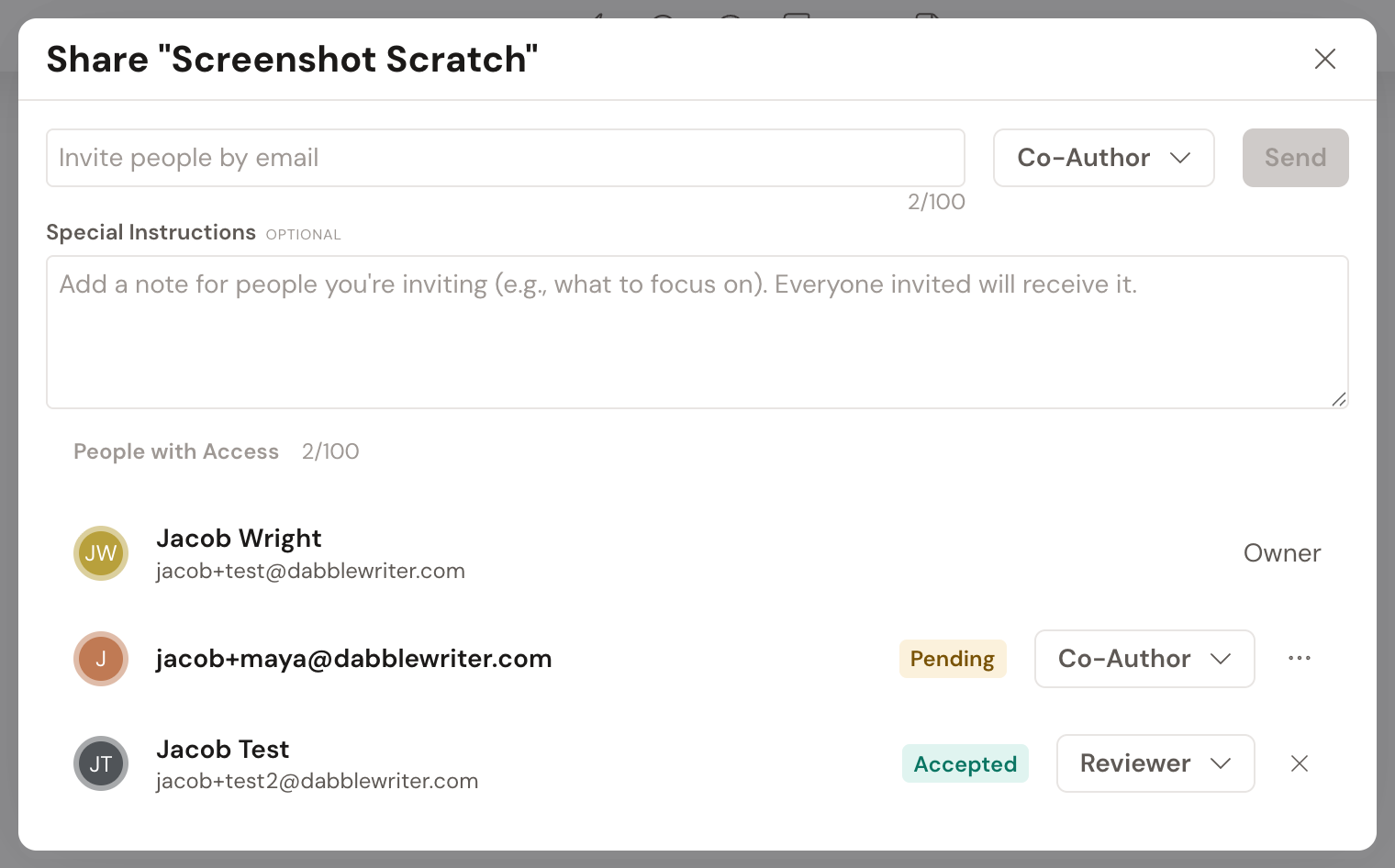
Change someone’s role
Section titled “Change someone’s role”- Open the project and click Share in the top bar.
- Find the person in the people list.
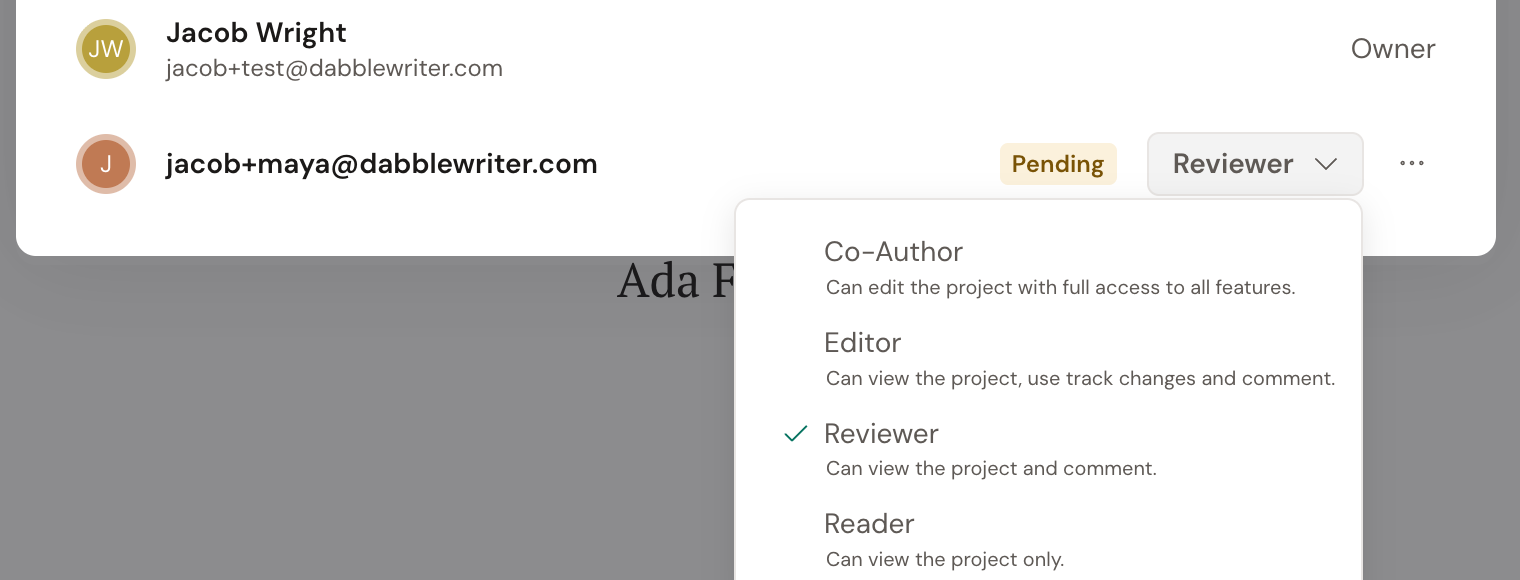
- Click their access-level dropdown and choose a new role: Co-Author, Editor, Reviewer, or Reader. Each option shows a short description of what it allows.
- The new role applies immediately. Nothing else to save.
For what each role can do, see Sharing roles explained.
Remove a pending invite
Section titled “Remove a pending invite”If someone hasn’t accepted yet (their row shows a Pending badge):
- Click Share.
- On that person’s row, open the … (ellipsis) menu.
- Click Delete and confirm.
Remove an accepted member
Section titled “Remove an accepted member”If the person has already accepted (their row shows Accepted):
- Click Share.
- Find the person in the people list.
- Click the × next to their access-level dropdown (tooltip Revoke Access).
- Their access is removed right away. They’ll see “You no longer have access to this project” the next time they open it.
Leave a project shared with you
Section titled “Leave a project shared with you”If someone shared a project with you and you no longer want access:
- Open the project and click Share.
- Click the Leave Project option (door icon).
- Confirm in the Leave “{projectName}”? dialog by clicking Leave Project.
Leaving removes the project from your Shared with Me list. The owner can re-invite you later, and any comments or tracked changes you made stay on the project.
What collaborators see when their access ends
Section titled “What collaborators see when their access ends”Nobody’s project vanishes without a word. When access ends, Dabble tells the person, and it tells them why.
The message
Section titled “The message”If they’re inside the project at that moment, Dabble sends them back to their dashboard. A warning message names what happened, and it stays on screen until they dismiss it:
- Access revoked: “Your access to ‘The Salt Road’ has ended.”
- Review copy merged: “‘The Salt Road’ was merged. Your access has ended.”
- Review copy deleted: “The review copy ‘The Salt Road’ was deleted. Your access has ended.”
- Project deleted: “‘The Salt Road’ was deleted. Your access has ended.”
That’s the whole list. Four ways a share ends, four messages.
Lose access to several projects at once and Dabble folds them into one: “Your access to 3 shared projects has ended.” with the names listed underneath.
The placeholder tile
Section titled “The placeholder tile”People you invited into a review copy get something that outlasts the message.
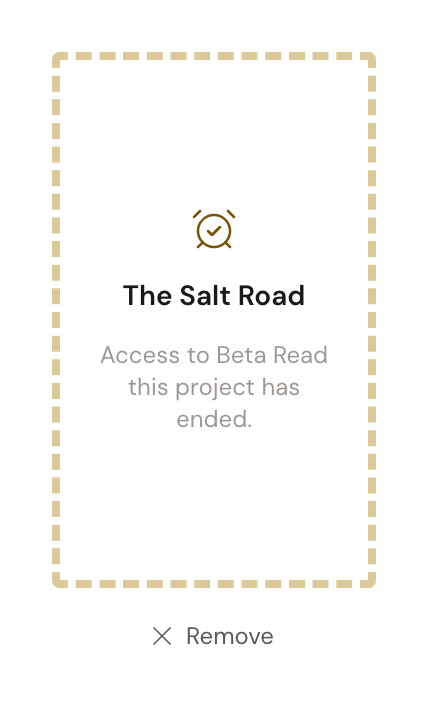
Where the copy’s tile used to sit, Dabble leaves a placeholder: a dashed amber card carrying the project’s name and a line explaining why access ended. It’s a receipt, not a project. There’s nothing inside it to open.
The line depends on what happened:
- Their access was revoked: “Access to Beta Read this project has ended.”
- The review copy was merged: “The review copy was merged. You no longer need access.”
- The review copy was deleted: “The review copy was deleted.”
- The whole project was deleted: “The project was deleted.”
The tile stays until they clear it. Clicking Remove takes it off their dashboard, and it touches nothing on your side.
People you shared the project itself with don’t get a tile. Whatever their role, the project simply leaves their dashboard after the message.
The copy an editor keeps
Section titled “The copy an editor keeps”An editor gets something different again.
Merge their review copy and Dabble adds a read-only project to their own list, badged Editor’s Copy, and tells them: “A read-only copy of ‘The Salt Road’ has been added to your projects.”
It opens with a Read-Only badge. They can keep it, rename it, or delete it. They can’t write in it, because those words would have nowhere to go.
For the owner’s side of that merge, see Work with review copies.
- Owners cannot leave their own project. If you own the project and want out, send it to Trash instead, or transfer ownership first.
- Owners cannot be removed. The × doesn’t appear on an owner’s row, and trying to revoke an owner is blocked.
- Removing someone keeps their contributions. Their past comments and tracked changes remain on the project after they lose access.
- Pending invites expire after 30 days. If an invite is no longer needed, delete it rather than waiting for it to expire.