

Change or switch your plan
Your needs changed. Maybe a new series means you want more of everything. Maybe you’re between books and want to spend a little less for a while. Or maybe you just noticed that annual billing costs less than paying month to month.
Any of these is a quick fix. You can move to a different Dabble plan, switch between monthly and annual billing, or change the currency you’re billed in, right from your billing portal.
Here’s how, plus what happens to your money when you switch mid-cycle.
Before you begin
Section titled “Before you begin”Dabble subscriptions are pre-paid, billed monthly or yearly. Your billing now lives in your account portal at accounts.dabblewriter.com, separate from the writing app.
Change plans mid-cycle and Dabble prorates the difference. The checkout shows the exact amount due before you confirm, so nothing lands as a surprise.
Moving from a more expensive plan to a cheaper one? The unused balance becomes account credit that applies to your next payment.
Change your plan
Section titled “Change your plan”The path is the same whether you’re upgrading, downgrading, or flipping to annual.
- In the writing app, click your avatar in the top-right corner.
- Choose Billing. This opens the billing portal at
accounts.dabblewriter.com/billing/portal. - Under Current Plan, click Change Plan.
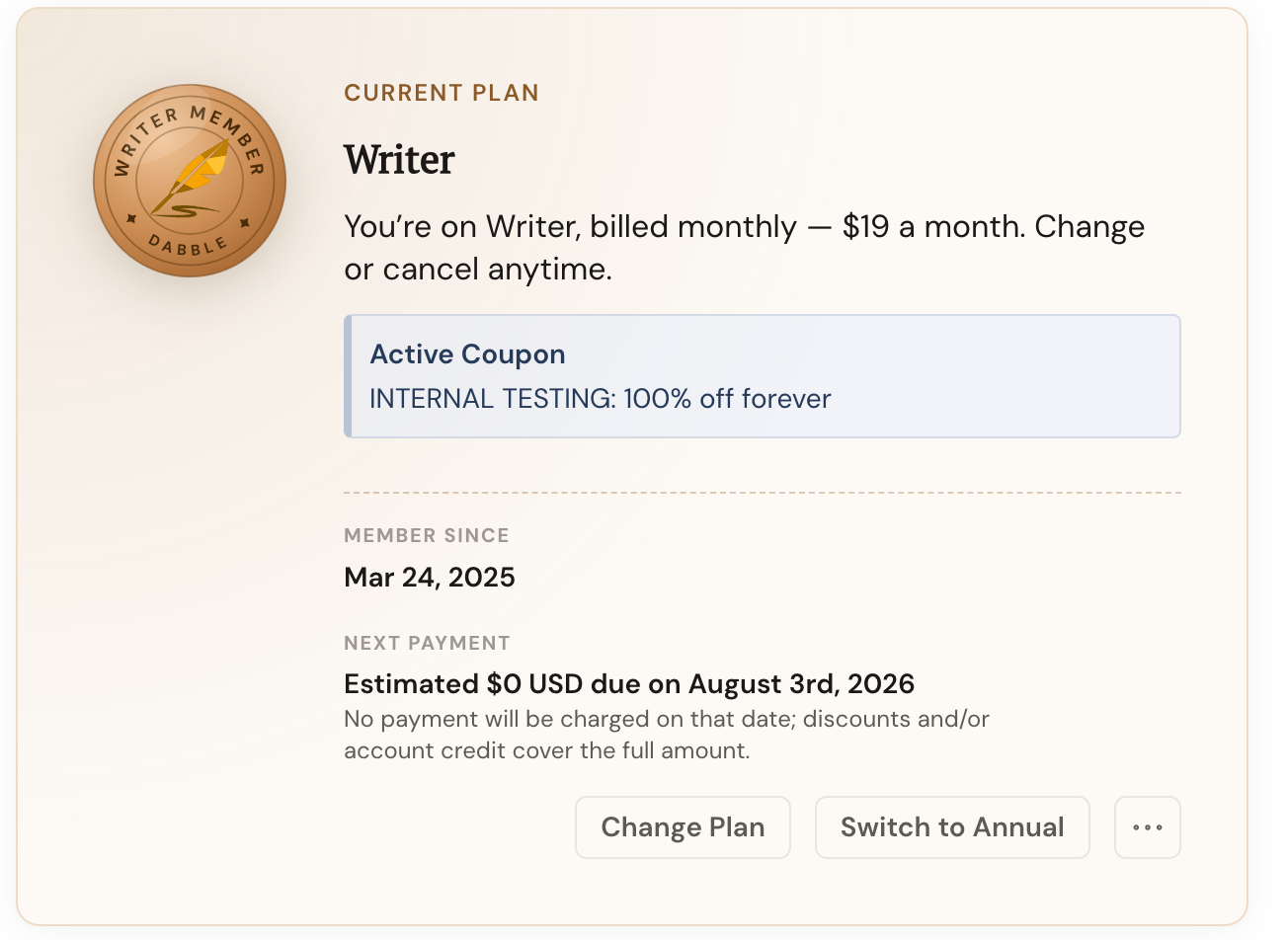
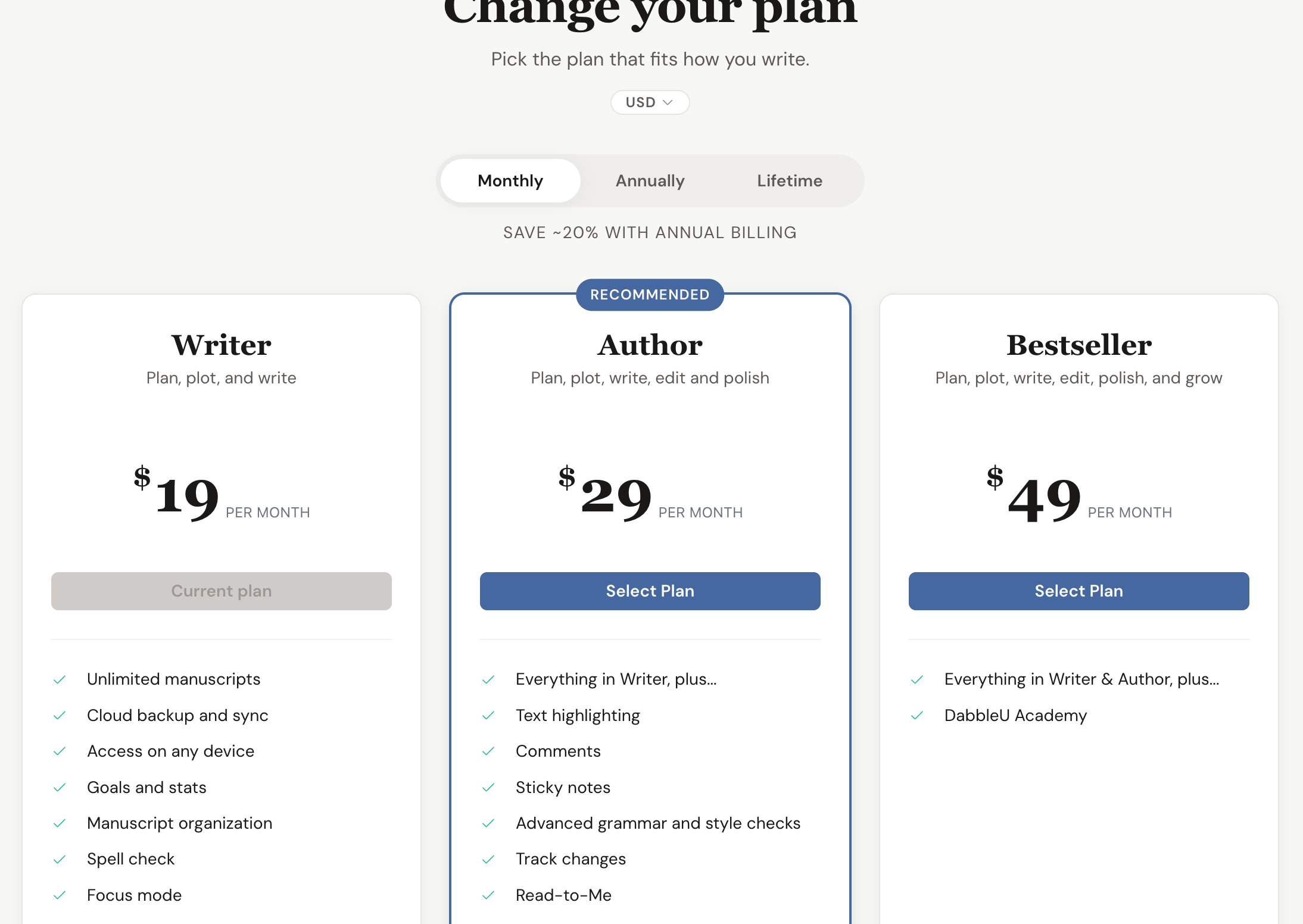
- At the top of the plans grid, choose Monthly or Annually. Annual billing saves roughly 20%.
- On the plan you want, click Select Plan. The plan you’re on already says Current plan on its button, greyed out, so you can’t pick it twice. On a trial it says Current trial and stays clickable.
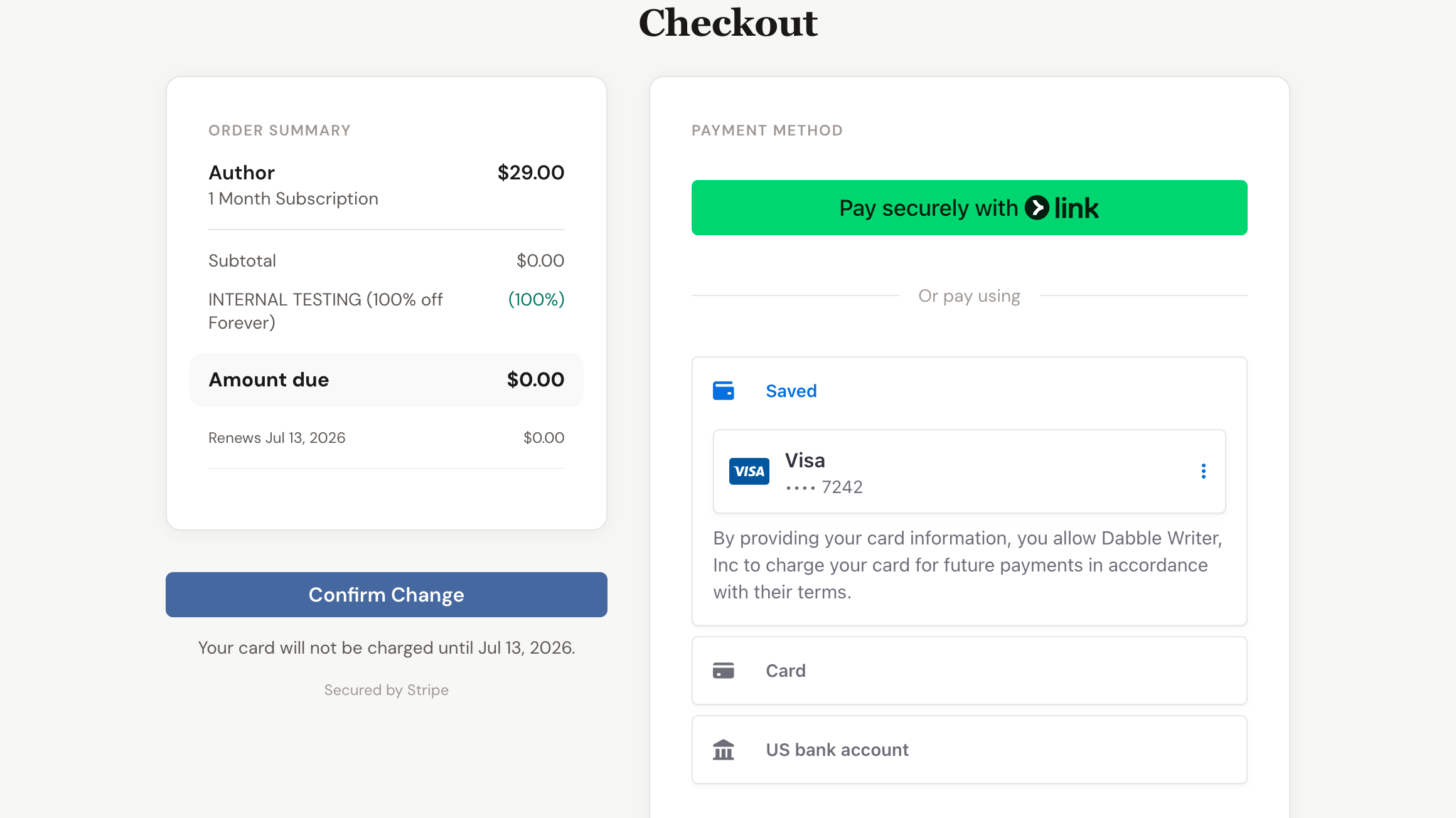
- On the Checkout screen, review the Order Summary and the amount due.
- Confirm your payment method, then click Confirm Change. If you don’t have a paid plan yet, that button reads Subscribe Now instead.
Change your billing currency
Section titled “Change your billing currency”Dabble prices its plans in six currencies. If you’re being billed in the wrong one, you can move.
This is the one switch with real money in it. Read this section before you click anything.
Dabble picks your starting currency for you: the one your subscription is already billed in, or, if you don’t have a subscription yet, the one for your country. After that it remembers what you chose.
You can only switch while your subscription is live: active, or on a trial. A paused or past due subscription can’t switch, and Dabble says so: “You need an active subscription to change currency.” Resume or settle up first, then come back.
Switch currency
Section titled “Switch currency”- In the writing app, click your avatar, choose Billing, then click Change Plan.
- Above the Monthly / Annually / Lifetime toggle, click the currency pill. It shows the code you’re on now, like USD.
- Pick your currency from the Currency menu. The whole grid re-prices.
- Click Select Plan on the plan you want. You can stay on your current plan or change plans at the same time.
- On the Checkout screen, click Confirm Change.
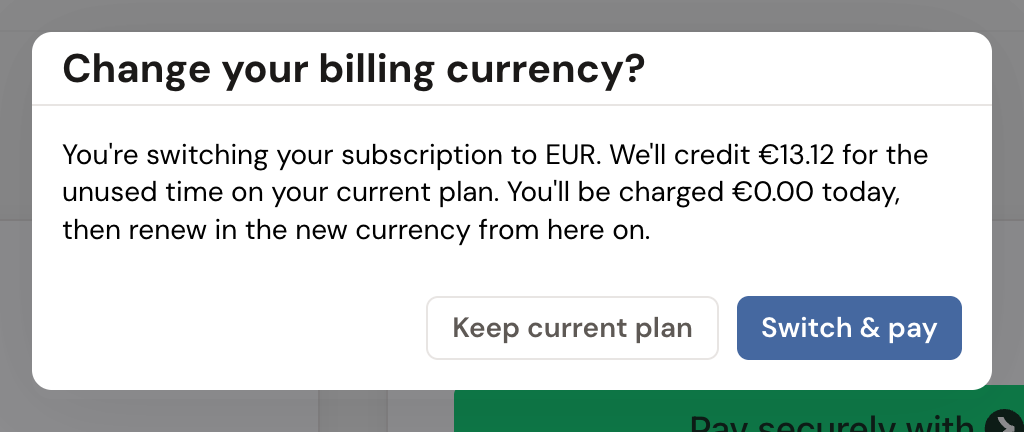
- Read the Change your billing currency? dialog, then click Switch & pay. Keep current plan backs out and nothing changes.
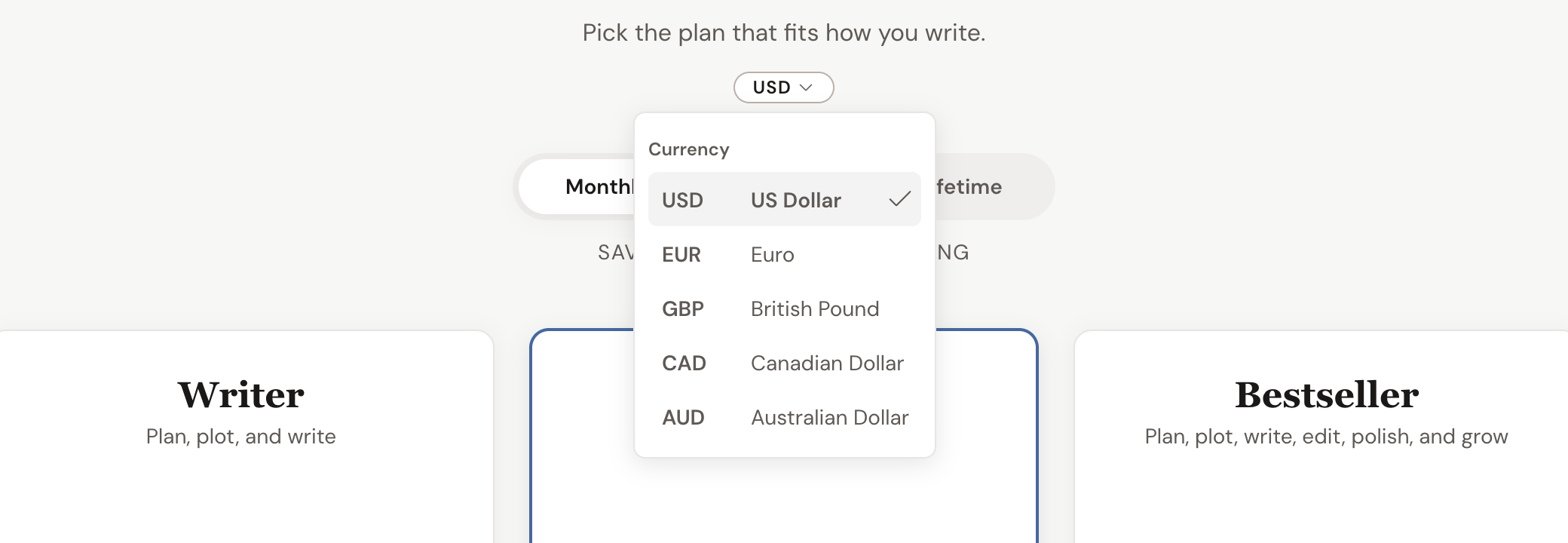
The six currencies: US Dollar (USD), Euro (EUR), British Pound (GBP), Canadian Dollar (CAD), Australian Dollar (AUD), and New Zealand Dollar (NZD). You’ll only see the ones your plans are actually priced in.
Those prices aren’t a live conversion. Each is Dabble’s own price in that currency, so the euro price won’t match the dollar price run through today’s exchange rate.
What you pay today
Section titled “What you pay today”A subscription is locked to one currency for its whole life, so Dabble can’t simply edit yours. It ends your current subscription and starts a fresh one in the currency you chose.
The dialog spells out every line of the maths before you commit.
- Time you already paid for comes back as credit. Halfway through your month or year? Roughly half your plan’s value returns as account credit, priced in the currency you’re moving to.
- You pay the new plan’s price today. That’s its price in the new currency, minus any discount that survives, minus that credit. If the credit covers the whole thing, you pay nothing now.
- Leftover credit stays on your account. Anything the first invoice doesn’t use waits there and comes off your next one.
- Your renewal date resets. The new subscription starts today, so that’s your new billing date.
The figure in the dialog is the most you’ll pay. Credit already sitting on your account can only bring it down.
You’ll need a payment method on file, since there’s a charge today.
What you lose
Section titled “What you lose”A percentage discount travels with you. Twenty percent off is twenty percent off in any currency.
A fixed-amount discount usually doesn’t. A coupon worth a flat $20, like the referral discount, only survives if that coupon has an amount set for your new currency. Otherwise the switch removes it.
The dialog says so, in as many words: “Your current discount can’t carry to the new currency and will be removed.”
If you’re sitting on a discount you’d rather keep, that line is your cue to click Keep current plan.
On a trial, or not subscribed yet
Section titled “On a trial, or not subscribed yet”On a trial, there’s no paid time to credit and nothing to charge, so you won’t see the credit dialog at all. Your trial keeps its end date, and the new currency applies from your first real payment.
No subscription at all? Then there’s nothing to switch. The currency you pick on the plans grid is simply the one you’ll be billed in.
Good to know
Section titled “Good to know”- Quick switch to annual. On a monthly plan, the billing portal adds a Switch to Annual button next to Change Plan. It skips the grid and drops you straight into checkout with the annual version of your plan already selected.
- Credit on a downgrade. Moving to a cheaper plan can leave a positive balance on your account. Checkout tells you the amount and says it will be applied to your next payment.
- Canceling is different from changing. Canceling only stops your renewal. You keep the time you’ve already paid for. See Cancel your subscription.
Troubleshooting
Section titled “Troubleshooting”- You have a lifetime plan. If your portal greets you with “Congratulations! You own Dabble for life.”, there’s no plan to change. Change, pause, and cancel are gone, because everything is already unlocked and paid for.
- You bought through an app store. If you subscribed through the Apple App Store or Google Play, manage that subscription in the store, not here.