

Delete your account and export your data
Leaving Dabble? We understand.
Before you go, protect the one thing you can’t get back: your words. Deleting your account is permanent. There’s no undo. Once the account is gone, your projects go with it.
So the order matters. Save a backup of your work first. Then delete your account from your profile. This doc walks you through both.
Before you begin
Section titled “Before you begin”A little triage before you touch anything permanent.
- Export your data first. Deleting your account is permanent. Once it’s done, your projects are gone and cannot be recovered. Save a backup before you delete (steps below).
- Cancelling is not the same as deleting. If you only want to stop paying, cancel your subscription instead and keep your work. See Cancel your subscription.
- This deletes everything. Your account, your projects, and your settings are all removed.
Export your data first
Section titled “Export your data first”Your export lives in the writer, not the accounts app. It drops a copy of your work onto your computer, so you still have it after the account is gone.
- In the writer, open Preferences.
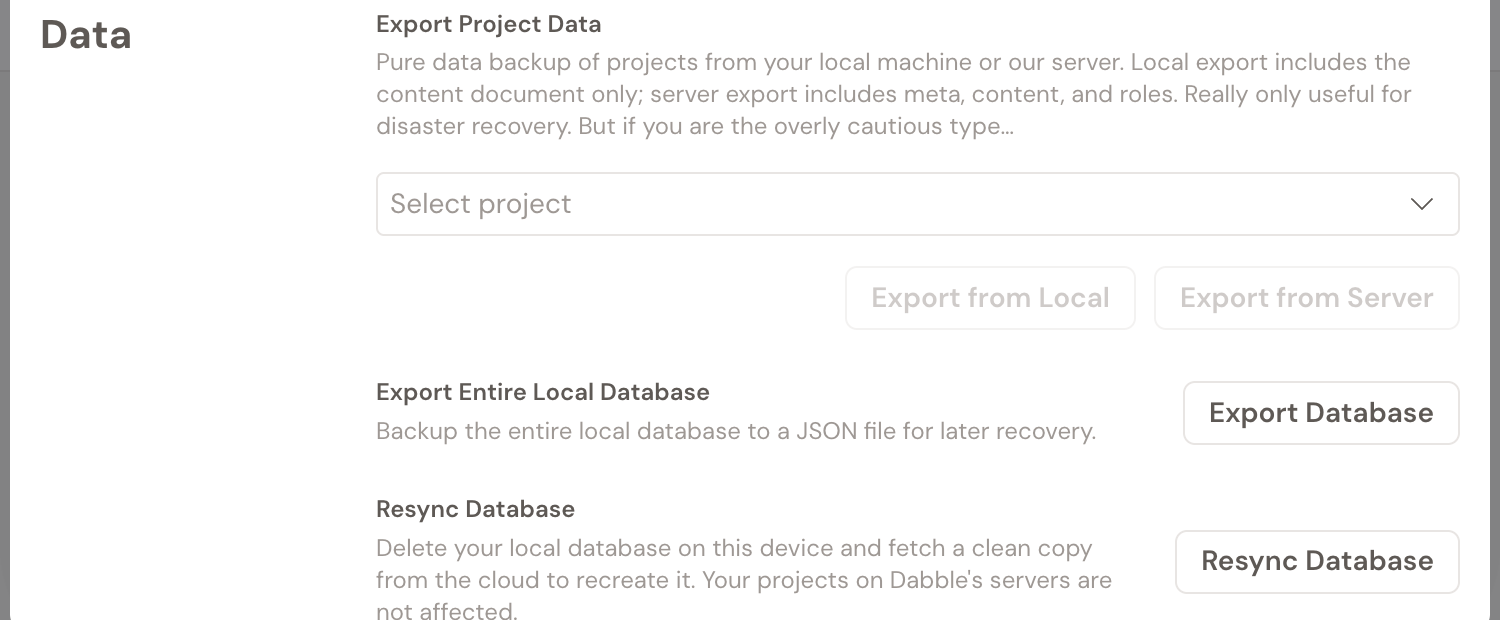
- Go to the Advanced tab, then the Data section.
- To back up a single project, use Export Project Data:
- Export from Server includes the project’s meta, content, and roles.
- Export from Local includes the content document only.
- To back up everything at once, use Export Database under Export Entire Local Database. This downloads a full backup of your local Dabble database as a single file.
Want your manuscript in a readable, shareable format like Word or Markdown instead of a raw data backup? Use the manuscript export. See Export your manuscript.
Delete your account
Section titled “Delete your account”Backup in hand and sure about this? Here’s the permanent step.
- In the writer, click your avatar in the top-right corner.
- Click Profile. This opens your account profile at
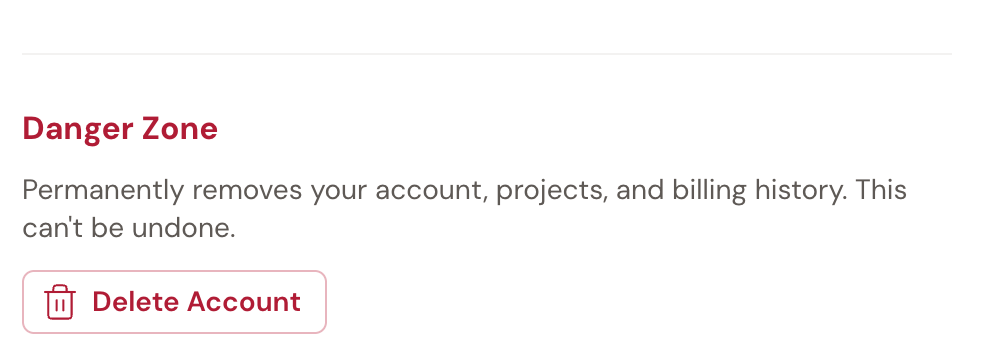
accounts.dabblewriter.com/account/profile. - Scroll to the bottom and click Delete Account.
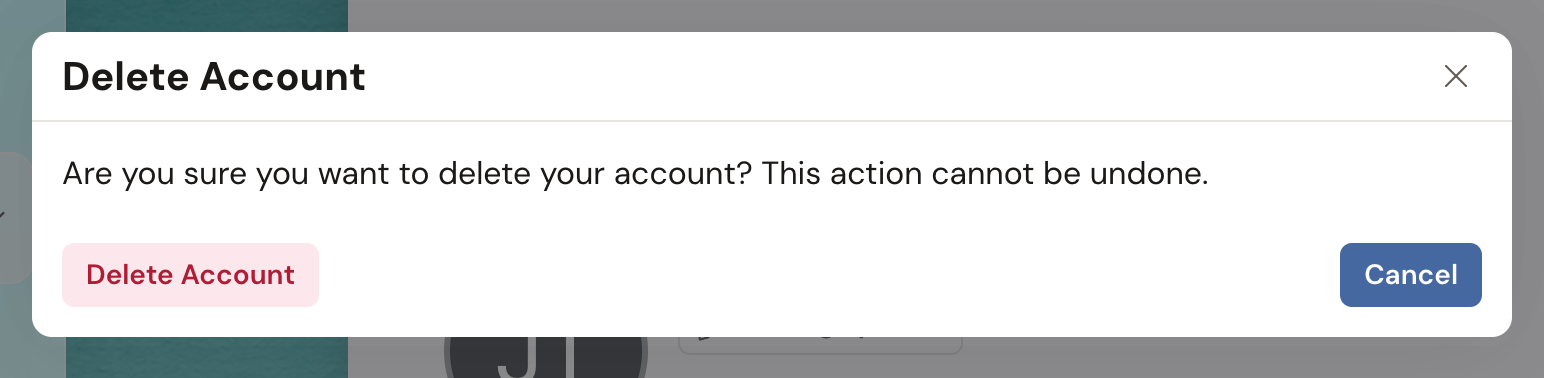
- In the Delete Account confirmation, read the warning: Are you sure you want to delete your account? This action cannot be undone.
- Click Delete Account to confirm, or Cancel to keep your account.
You’ll see Account deleted successfully once it’s done.
Troubleshooting
Section titled “Troubleshooting”- You have an active subscription. Cancelling your subscription and deleting your account are separate actions. To make sure you won’t be billed again, cancel first and confirm the change in your billing portal. See Cancel your subscription.
- You changed your mind before confirming. Click Cancel in the confirmation dialog and nothing happens to your account.
- You only want a break. Pausing or cancelling keeps your projects, so you can come back later. Deleting does not.