

Duplicate a project
You want to try a bold new direction. You also don’t want to torch the draft you already have.
Duplicate the project. You get a full, independent copy to experiment on, while your original sits exactly where you left it.
Here’s how to make the copy, and what ends up inside it.
We’ll cover:
- Before you begin: who can duplicate, and how often
- Duplicate your project: the three-click version
- What gets copied: spoiler: all of it
- Tips: the copy as a pre-revision safety net
- Troubleshooting: when Duplicate goes missing
Before you begin
Section titled “Before you begin”A couple of things to know first.
- You need to be the project’s owner to duplicate it. If a project was shared with you, the Duplicate option won’t show up.
- You can duplicate a project as many times as you like.
Duplicate your project
Section titled “Duplicate your project”- Go to the Projects dashboard.
- Find the project you want to copy. On its tile, click the … (ellipsis) button next to the “Modified” date.
- Click Duplicate.
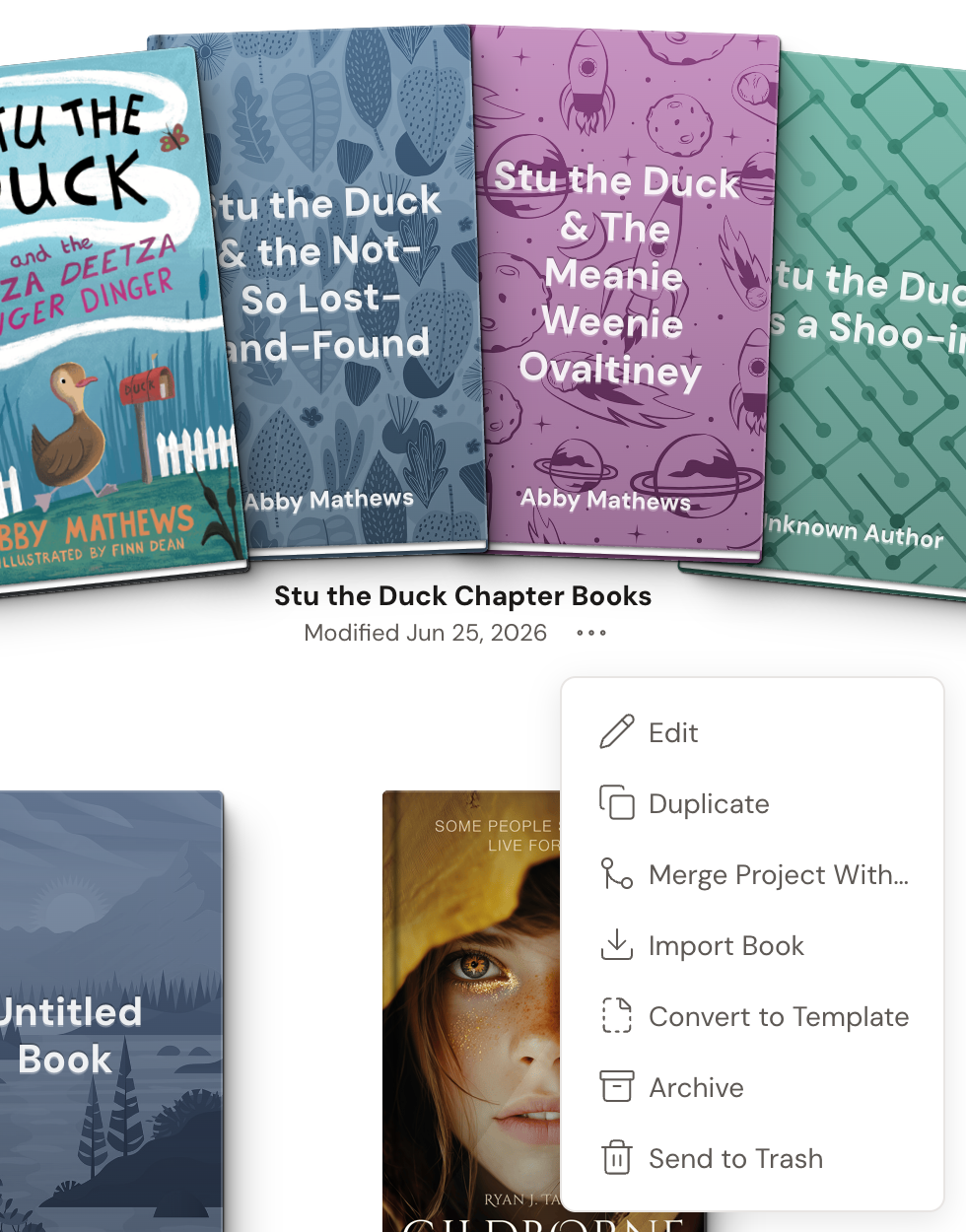
Done. A copy appears in the same collection, right after the original, with (Copy) added to its title (for example, “My Novel (Copy)”). You’ll see a “Project duplicated” message.
What gets copied
Section titled “What gets copied”Everything. The duplicate includes the entire project: every book, chapter, scene, your Story Notes, characters, Plot Grid, comments, and project settings. Nothing is left behind.
The copy is completely separate from the original. Edits you make in one won’t show up in the other.
- Duplicating is a great safety net before a big revision. Work on the copy, and your original draft stays untouched.
- The copy starts in the same collection as the original. To move it elsewhere, drag its tile onto another collection.
- You can rename the copy at any time. Open its … menu, click Edit, change the Project Name, and click Save.
Troubleshooting
Section titled “Troubleshooting”My word count did not change after duplicating. That’s expected. Copied content does not count toward your word-count goals or your writing stats, so duplicating a project won’t make your totals jump.
I do not see Duplicate in the menu. A few things can hide it:
- The project is in your Trashed view. Trashed projects only offer Restore from Trash and Delete Permanently. Restore the project first, then duplicate it.
- The project was shared with you, so you are not the owner. Only the owner can duplicate.
- The project is a template. Templates use Create Project from Template instead, which opens a setup screen for the new project.