

Format text in your manuscript
You want a word in italics. A chapter title that actually reads like a title. A stanza that sits centered on the page.
Formatting is the small stuff that makes a manuscript feel finished. Dabble gives you three ways to handle it, and none of them pull you out of the sentence you’re writing.
Before you begin
Section titled “Before you begin”Dabble gives you two formatting surfaces and a set of typing shortcuts.
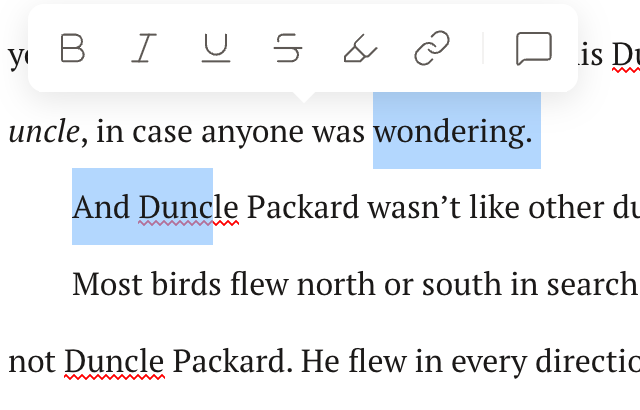
- The selection toolbar pops up on its own the moment you select text. It handles the basics: bold, italic, underline, and strikethrough.
- The Formatting Toolbar is the richer bar, with a block-type menu, lists, blockquotes, links, and highlights. It stays hidden until you ask for it.
- Markdown shortcuts and smart typography let you format as you type, no button required.
One catch: you need editing access to format text. Commenters and viewers see only Add Comment when they select text.
Show the Formatting Toolbar
Section titled “Show the Formatting Toolbar”The Formatting Toolbar is hidden by default, and every doc on this site that mentions it means this bar.
- In the document toolbar, click the Aa button.
- Or press Cmd+Alt+B (Mac) or Ctrl+Alt+B (Windows).
- Click Aa again to hide it. Dabble remembers your choice in this browser.

Format with the selection toolbar
Section titled “Format with the selection toolbar”The four marks you’ll reach for most don’t need the Formatting Toolbar at all.
- Select the text you want to format. Drag across it, double-click a word, or triple-click a line.
- The selection toolbar appears above your text.
- Click Bold, Italic, Underline, or Strikethrough to apply that format.
- Click the same button again to remove it.
Change the block type
Section titled “Change the block type”Block type is what a paragraph is: body text, a heading, a blockquote, a property list.
- Show the Formatting Toolbar if it’s hidden.
- Put your cursor in the paragraph you want to change.
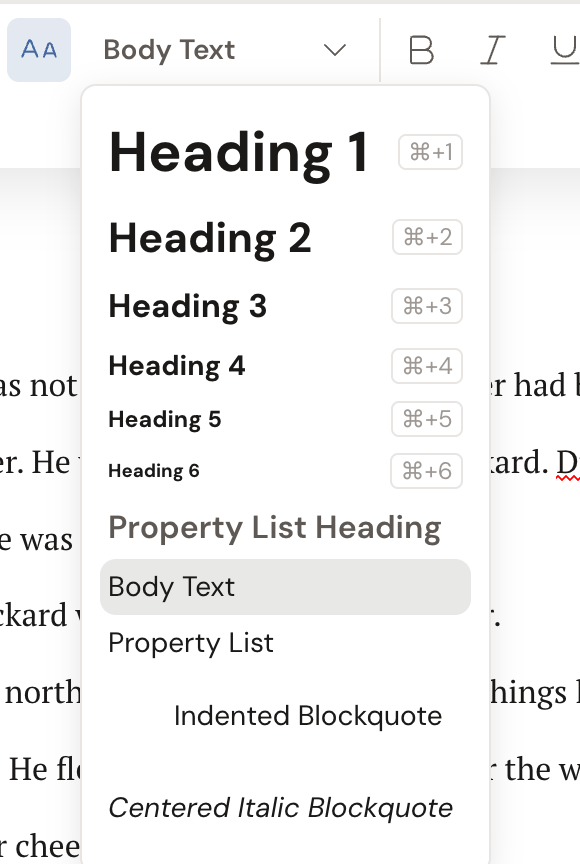
- Open the block-type menu on the left. It shows the current type, such as Body Text.
- Choose a style: Heading 1 through Heading 6, Body Text, Indented Blockquote, Centered Italic Blockquote, Property List, or Property List Heading.
Want a heading without the menu? Press Cmd+1 through Cmd+6 (Mac) or Ctrl+1 through Ctrl+6 (Windows) to toggle one straight from the keyboard.
Where the other formats live
Section titled “Where the other formats live”Everything else on the Formatting Toolbar has its own page, because each one has more to it than a single button.
- Lists. Eight styles, from Bulleted List to Checklist, and the markdown patterns that fire as you type. See Create lists with markdown shortcuts.
- Links, blockquotes, and highlights. Wrap text in a link, set a quote apart, or color-mark a passage. See Add links, blockquotes, and highlights.
- Poems and letters. The two blockquote styles were built for verse and correspondence. See Format letters and poems.
- Property lists. A two-column term-and-definition layout for stat blocks and glossaries, plus the (+) inserter on an empty line. See Property lists and the blank-line menu.
- Type your formatting. Markdown shortcuts apply as you type. At the start of a line,
#through######create Heading 1 through Heading 6,>starts a blockquote,-or*start a list,1.starts a numbered list,[ ]starts a checklist, and---inserts a horizontal rule. Inside a line,**text**is bold,*text*is italic, and~~text~~is strikethrough. - Smart typography cleans up as you go.
--becomes an em dash,...becomes an ellipsis,<<and>>become guillemets, and straight quotes become curly quotes. Each replacement can be undone on its own. - Soft line break. Press Shift+Enter to start a new line within the same paragraph without starting a new one. Handy for poem lines.
Troubleshooting
Section titled “Troubleshooting”- The Formatting Toolbar won’t appear. It’s hidden while a project is read-only. If you have editing access and still can’t show it, check that you opened the right project.
- Switching block type removed my bold or italics. Changing block type clears conflicting inline formatting on that line. Reapply bold or italics after you set the block type.
- A list isn’t showing in the block-type menu. Lists read as Body Text in the block-type menu because they have their own lists button. Use that button to change or remove a list.