

Use Read to Me (text-to-speech)
You know your own draft too well to proofread it. Read a page enough times and your eyes glide right past the dropped word, the clunky line, the sentence that runs a beat too long. Read to Me, Dabble’s built-in text-to-speech, reads your manuscript aloud instead.
Each sentence lights up as it’s read, and the page scrolls to keep pace. Awkward phrasing is a lot harder to skip when you have to hear it.
Here’s how to start Read to Me, pick a voice and speed, and sort it out when a voice won’t play.
We’ll cover:
- Steps: start Read to Me and follow the highlight
- Change the voice and speed: pick a voice and set the pace
- Tips: language matching, tracking, and read-only mode
- Troubleshooting: when a voice won’t load or play
Before you begin
Section titled “Before you begin”Two quick things before you press play.
- Read to Me is a paid feature. You’ll need an active Dabble subscription that includes it.
- The voices come from your browser and device, not from Dabble. What you hear depends on which voices your browser and operating system provide, so the list and the quality vary from one device to another. Read to Me is not an AI feature. It uses the built-in speech support that already ships with your browser.

- Open a manuscript document so the editor is showing.
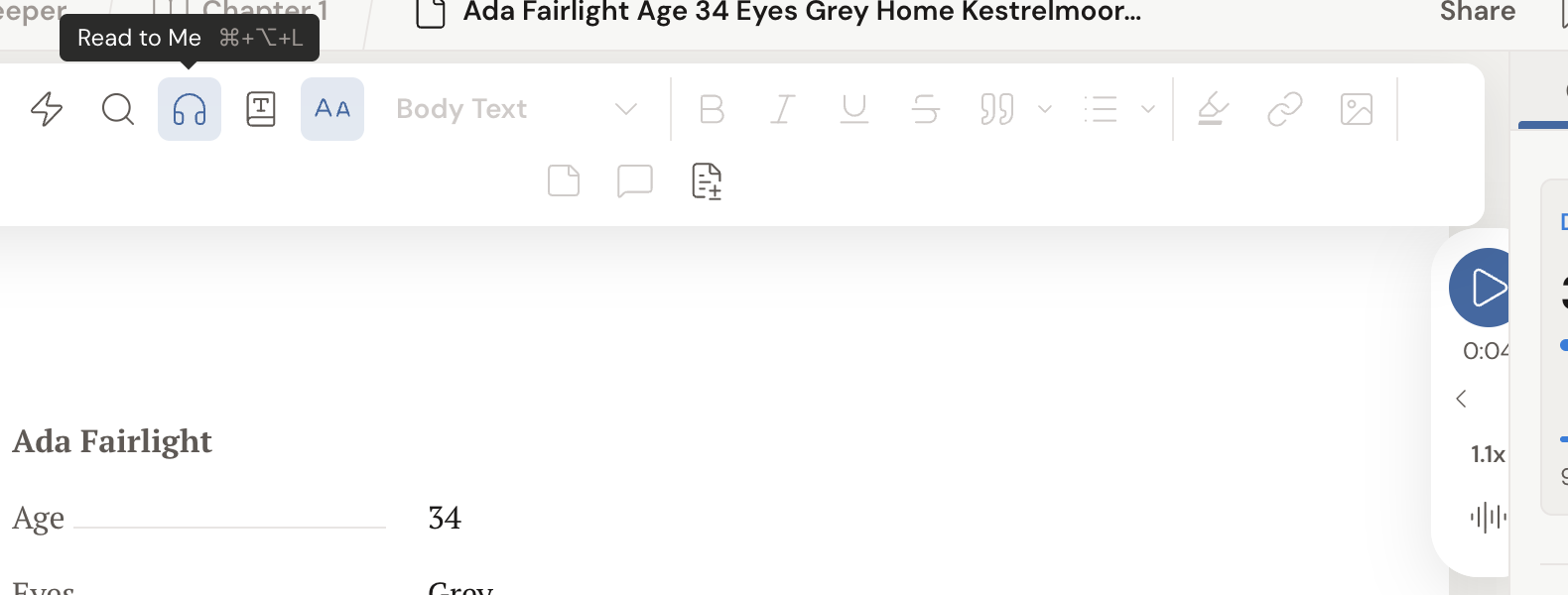
- Click the headphones button in the toolbar (its tooltip reads Read to Me), or press Cmd + Option + R on Mac or Ctrl + Alt + R on Windows. A small floating control appears on the right side of the page.
- Press the round play button to start reading from the first sentence on screen. The sentence being read is highlighted, and the page scrolls to follow along.
- To read from a specific spot, click any sentence in the text and reading starts from there.
- Use the ◀ and ▶ buttons to jump to the previous or next sentence.
- Press play/pause to pause and resume. The control also shows the time remaining.
- To close Read to Me, hover over the control and click the X, or click the headphones button again (its tooltip now reads Hide Read to Me).
Change the voice and speed
Section titled “Change the voice and speed”The default voice might not be one you want in your ear for an hour. Swap it, and set a pace that matches how you read.
- In the floating control, click the voice button (the person-with-sound icon) to open the list of available voices. Each is listed as “Name - language” (for example, “Samantha - en-US”). Pick one to hear a short demo line.
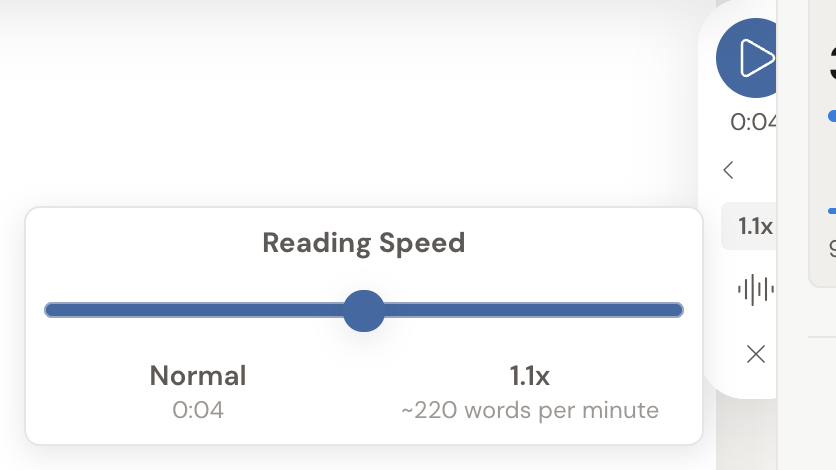
- Click the speed button (it shows the current rate, such as “1.1x”) to open the Reading Speed slider. Drag it between the named tiers (Snail, Slow, Normal, Fast, Speed Reader, Chipmunk), with a words-per-minute readout to guide you.
- To save a default voice and speed, open Read to Me Preferences and use Select a reading voice and Reading Speed. Reset to Default clears your choices.
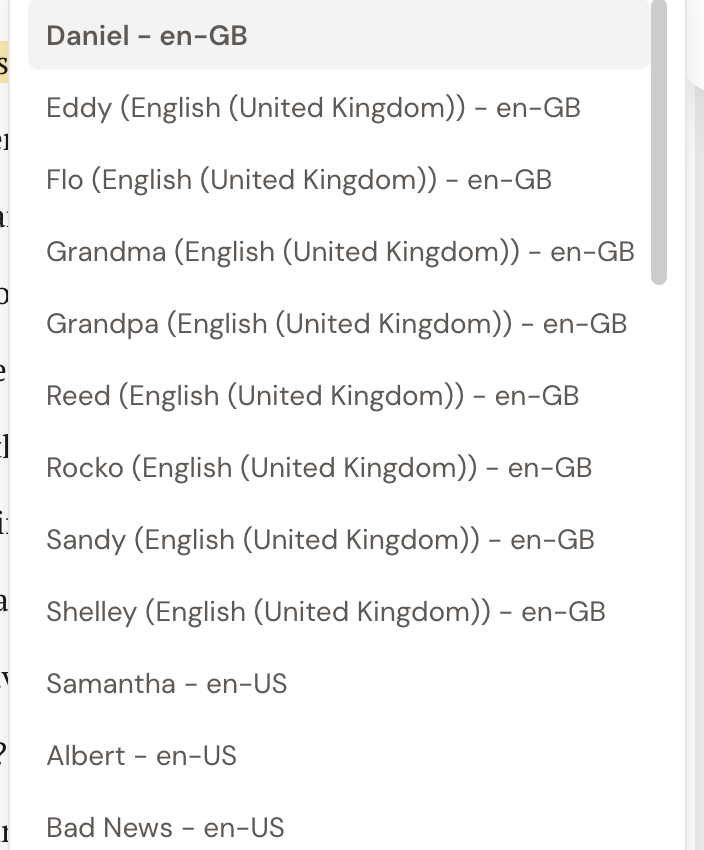
- The voice list is matched to your project’s writing language, set in Project Settings. An English project shows English voices; a French project shows French voices. If no voices are installed for that language, Read to Me falls back to English.
- If you scroll away from the sentence being read, a Resume Tracking option appears so you can jump straight back to it.
- While Dabble is actively reading, the editor is read-only. It becomes editable again the moment you pause.
Troubleshooting
Section titled “Troubleshooting”- A newly picked voice shows a spinner. Some voices load on demand, especially the higher-quality online voices in Microsoft Edge, which need an internet connection. Give it a moment to finish loading.
- You see “Speech synthesis is not supported on this browser.” Your browser doesn’t offer built-in speech support. Try Read to Me in a different browser, such as a current version of Chrome, Safari, or Edge.
- You can’t find Read to Me. It’s a paid feature. Check that your subscription includes it.