

System requirements
You’re about to trust Dabble with your novel. Fair enough to ask first: will it even run on your machine?
Almost certainly, yes. Dabble lives in your web browser and installs as an app on every major platform. There’s nothing to compile and nothing to configure.
You need three things: a supported browser, a Dabble account, and an internet connection to sign in and sync.
Devices and operating systems
Section titled “Devices and operating systems”Dabble runs just about everywhere you’d want to write.
| Platform | Supported |
|---|---|
| Windows | Yes |
| macOS | Yes |
| Linux | Yes |
| Chromebook (ChromeOS) | Yes |
| iPhone / iPad (iOS / iPadOS) | Yes |
| Android | Yes |
Browsers
Section titled “Browsers”Any modern browser is fine for writing. Installing Dabble as an app is where they differ.
| Browser | Use Dabble | Install as an app |
|---|---|---|
| Chrome | Yes | Yes |
| Edge | Yes | Yes |
| Safari (macOS) | Yes | Yes, via File → Add to Dock… |
| Safari (iOS/iPadOS) | Yes | Yes, via Share → Add to Home Screen |
| Firefox (desktop) | Yes | No (install from Chrome, Edge, or Safari) |
| Firefox (Android) | Yes | Yes, via menu → Install |
On iPhone and iPad, every browser uses Safari (WebKit) underneath. The install steps are the same no matter which browser app you open.
On Firefox desktop, you can still write in Dabble. To install it, open app.dabblewriter.com in Chrome, Edge, or Safari.
Installing Dabble
Section titled “Installing Dabble”Dabble is a Progressive Web App (PWA). You can install the web app itself, straight from your browser, and it keeps itself on the latest version automatically. On Windows, Mac, and Linux you can download a desktop app instead.
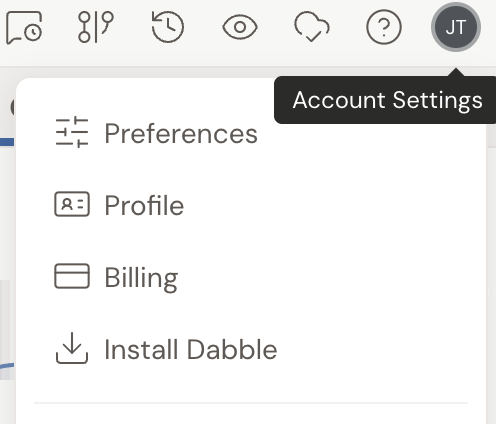
- To install from your browser, open the account menu (your avatar, top-right) and click Install Dabble, then follow the steps for your detected device and browser.
- The installed app runs in its own window and adds a shortcut to your dock, taskbar, launcher, or home screen.
- The downloadable desktop app is available for Windows, Mac, and Linux at
dabblewriter.com/downloads.
See Install Dabble for full per-platform steps.
Connection and offline use
Section titled “Connection and offline use”Lost your wifi mid-scene? Keep writing.
| Need | Requirement |
|---|---|
| Sign in and sync | Internet connection |
| Write while disconnected | None; Dabble is offline-first and saves to your device |
| Reliable offline launch | Install Dabble (PWA) so the app shell is cached |
Every edit saves to your device first, in the browser’s local storage, then syncs to Dabble’s servers when you’re online. You can keep writing with no internet. Your work syncs automatically when you reconnect.
One exception: don’t use private or incognito mode for real writing. In those modes the browser may refuse to save your work on the device, and Dabble shows a red warning: “Your browser isn’t saving changes on this device — work may be lost if you reload or close the tab. Check your private-browsing or site-data settings.”
See How sync works and Working offline for details.
Updates
Section titled “Updates”Dabble updates itself. It checks for new versions automatically on load and every 30 minutes while open.
When an update is ready, a green icon pulses in the header (“Update ready — click to reload”). Click it to reload, or the update applies on its own the next time you open Dabble.
There’s no manual “check for updates” and no version to install yourself.