
Sync status icons
You just wrote 800 words. You glance up at the header. There’s a little cloud. Is that good?
That cloud is Dabble’s sync status icon. It sits in the top-right of the header and tells you, at a glance, whether your latest words have made it to the cloud. Most of the time you can ignore it. This page is for the moments you want to be sure.
The icon has five states. Here’s what each one means and what, if anything, to do.
We’ll cover:
- Synced: everything is saved and up to date
- Syncing: a sync is in progress
- Offline: no connection, saved on this device
- Can’t reach Dabble: online, but the server isn’t answering
- Changes that haven’t synced: connected, but something didn’t go up
- The red alert beside the cloud: a different icon, and the one to act on
For the bigger picture of how any of this works, see How Dabble syncs your work.
Synced
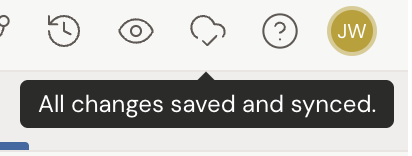
Section titled “Synced”A cloud with a check mark. Tooltip: “All changes saved and synced.”
This is the state you’ll see almost all the time. Everything on your device matches the cloud. You’re connected and up to date.
Nothing to do. Keep writing.
Syncing
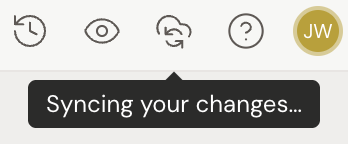
Section titled “Syncing”A cloud with circling arrows. Tooltip: “Syncing your changes…”
A sync is in flight, or Dabble is still connecting. You’ll see this for a moment after a burst of typing, or right when the app opens. It’s normal and usually gone in a blink.
Nothing to do. It settles back to synced on its own. If it hangs here for a long stretch, reloading the page almost always clears it.
Offline
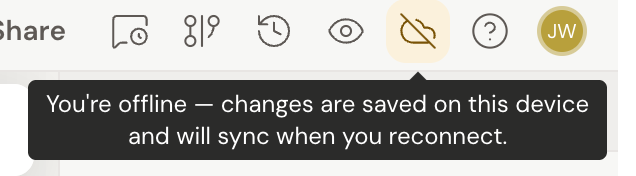
Section titled “Offline”A yellow cloud with a slash. Tooltip: “You’re offline — changes are saved on this device and will sync when you reconnect.”
There’s no network. This is expected on a plane, in a tunnel, or anywhere the wifi drops. Your work isn’t stuck out in the cold: every change is saved right on your device.
Keep writing. The moment you’re back online, Dabble syncs your queued changes automatically and the icon returns to synced. See Working offline for more.
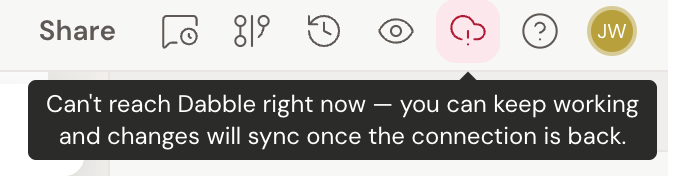
Can’t reach Dabble
Section titled “Can’t reach Dabble”A red cloud with an exclamation mark. Tooltip: “Can’t reach Dabble right now — you can keep working and changes will sync once the connection is back.”
You’re online, but Dabble’s server isn’t answering. Your work is still safe on your device and will sync as soon as the connection comes back.
The most common cause is a firewall on a school or work network blocking Dabble. If the icon stays red when you know you’re online, try a different network. For a full walkthrough, see What to do if your manuscript stops syncing.
Changes that haven’t synced
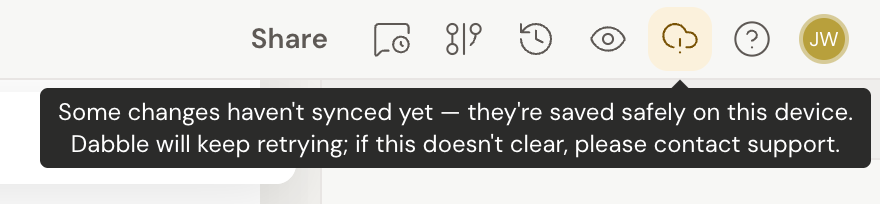
Section titled “Changes that haven’t synced”A yellow cloud with an exclamation mark. Tooltip: “Some changes haven’t synced yet — they’re saved safely on this device. Dabble will keep retrying; if this doesn’t clear, please contact support.”
The connection is fine, but something in one of your documents didn’t make it up. This is the rare one. Same glyph as the red state, in yellow instead of red, and the tooltip is the tell.
Your words are on your device, and Dabble keeps retrying on its own. Give it a minute, then reload the page. If the yellow cloud is still there afterward, email [email protected] and mention what the tooltip says.
The red alert beside the cloud
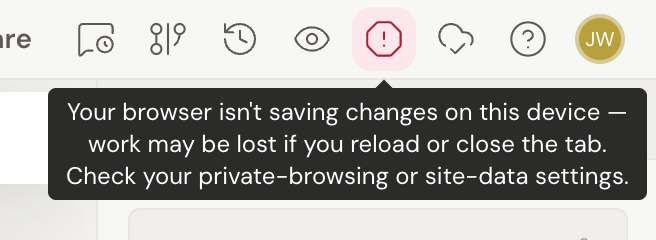
Section titled “The red alert beside the cloud”Sometimes a second icon shows up next to the cloud: a red octagon with an exclamation mark. That one isn’t about sync. Tooltip: “Your browser isn’t saving changes on this device — work may be lost if you reload or close the tab. Check your private-browsing or site-data settings.”
It means your browser is refusing to store anything on this device, which usually means you’re in a private or incognito window.
This is the one state to act on immediately. Don’t keep writing. Move to a normal browser window, allow site data for Dabble, and reload.