

Track your stats and streaks
Did you write today? Your writing stats and streaks in Dabble answer that at a glance, no mental math required.
Every small word you type gets counted. Hit your daily goal and the streak grows. The graphs fill in day by day, so momentum turns into something you can actually see.
Here’s how to set a daily goal, watch your progress add up, and read the graphs on your dashboard and goal cards.
Before you begin
Section titled “Before you begin”Stats and goals live inside Novel projects, and they need a plan that includes goals. No Goals tab in the right sidebar? Then your project type or plan probably doesn’t have them.
Your daily word count runs on your device’s time zone. It resets at local midnight, so the day starts and ends when yours does.
Set a daily goal to start a streak
Section titled “Set a daily goal to start a streak”A daily goal is global. It counts every word you type across every project, so your streak grows no matter which book you’re in today.
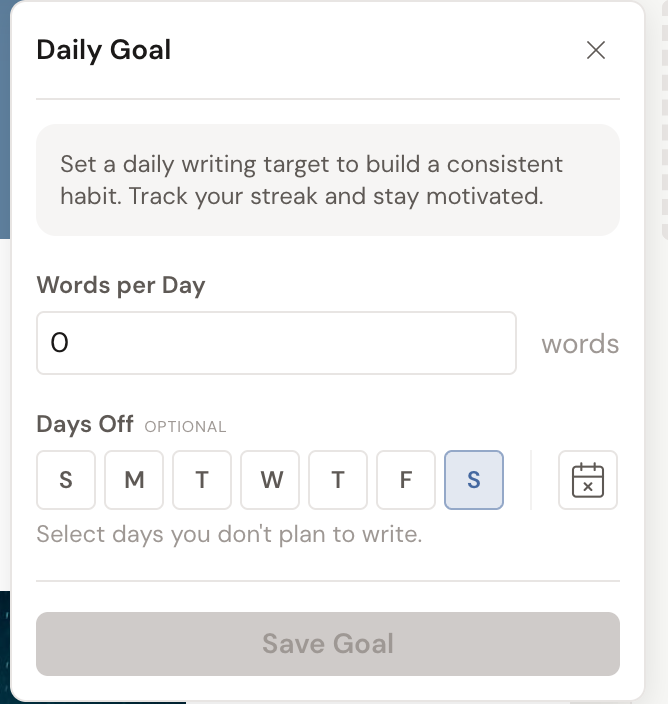
- Open the Dashboard and find the Daily Goal tile, then click Set a Daily Goal. (Inside a project you can instead open the Goals tab, click Add a Goal, and choose Daily Goal.)
- Enter a number under Words per Day.
- Under Days Off, select any days you don’t plan to write. New daily goals start with Saturday and Sunday selected. You can still write on a day off, but there’s no target that day. The calendar button beside the weekdays marks one-off dates like a vacation. See Set your days off.
- Click Save Goal.
Watch your daily progress and streak
Section titled “Watch your daily progress and streak”This is where showing up pays off.
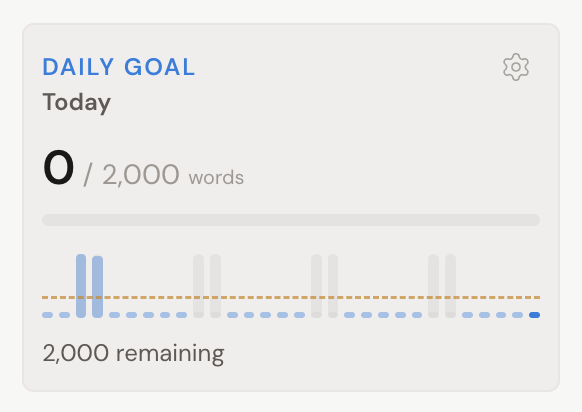
- On the Dashboard, the Daily Goal tile shows today’s count against your target.
- Below it, a 30-day sparkline charts your word count for each of the last 30 days. This is your streak at a glance: a row of full days is a healthy habit.
- When you hit today’s target, a trophy appears and confetti fires. The win is recorded, so the trophy stays even if you later delete words.
Read your per-project goal stats
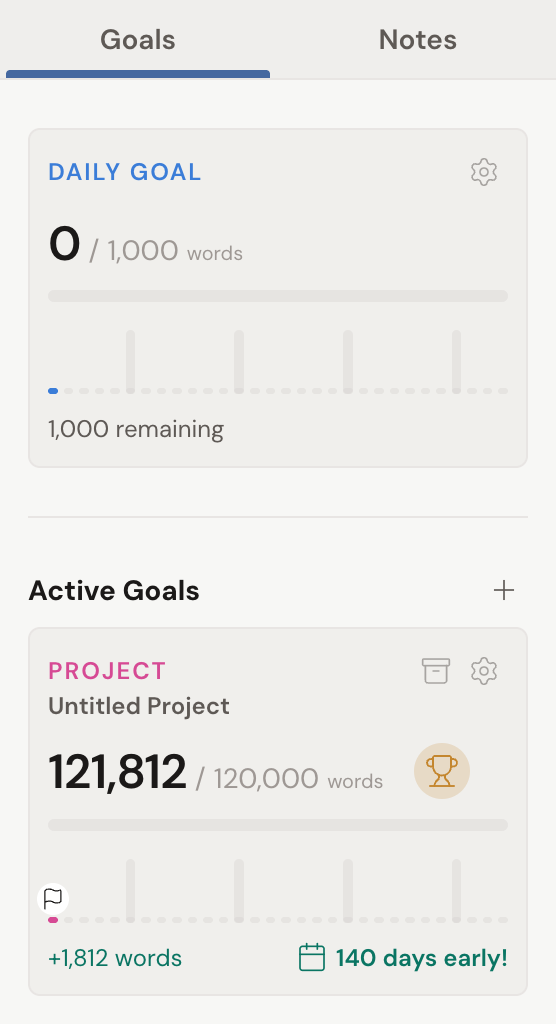
Section titled “Read your per-project goal stats”- Open a Novel project and click the Goals tab in the right sidebar.
- Each goal card shows its own progress. A card with a deadline shows a pacing line against your target. A card without one shows a 30-day sparkline of recent writing.
- A daily goal card also shows Today’s Target and your progress toward it.
Check live word and page counts
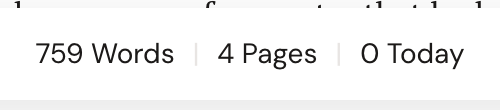
Section titled “Check live word and page counts”While you write, the bottom status bar keeps a running tally for the document you’re in.
- Words counts the current document, adding up its children (a chapter sums its scenes, a book sums its chapters).
- Pages is an estimate of word count divided by 250, rounded up.
- Today shows the words you’ve written today in this document.
- Select some text to see Selected Words appear.
On a phone, tap the word-count button to open the same counts in a dropdown.
- What counts toward your streak: only small typed writes, fewer than 50 words at a time, count as words “written” for stats and streaks. Large pastes, imports, and copied or templated content still change your visible word count but do not pad your streak.
- Time zone: your daily goal and streak reset at midnight in your device’s time zone, so they line up with your own day.
- Your daily goal’s days off are the default: the daily goal is global, so the days you mark off on it become your account-wide default. Project, document, and challenge goals each keep their own Days Off on top of that. Either way, days off are left out of pace and target math.