

Recover or permanently delete trashed work
You sent a project to Trash. Maybe you meant to. Maybe your cursor slipped.
Either way, take a breath. Nothing’s actually gone.
A trashed project waits in Trash until you decide: bring it back, or delete it for good.
This article is about a whole project, the kind you trash from the Projects dashboard. If you deleted something inside a project instead, a scene, a chapter, a character, or a notebook page, that has its own safety net: see Recover a deleted scene, chapter, or note.
Before you begin
Section titled “Before you begin”Trashing and deleting work on the whole project, and only the project’s owner can do it.
If a project was shared with you, you’ll see Leave Project instead. That removes the project from your dashboard only, and leaves the owner’s copy untouched.
Keep three things in mind:
- Send to Trash is reversible. The project moves to the Trashed view and stays there until you act on it.
- Delete Permanently cannot be undone. It destroys the project’s content for good.
- Projects sort by most recent activity. So a project can look “missing” when it has simply dropped down the list. Check the Trashed view before you assume a project is gone.
Send a project to Trash
Section titled “Send a project to Trash”Clearing your shelf? Here’s the safe way to do it.
- Go to the Projects dashboard.
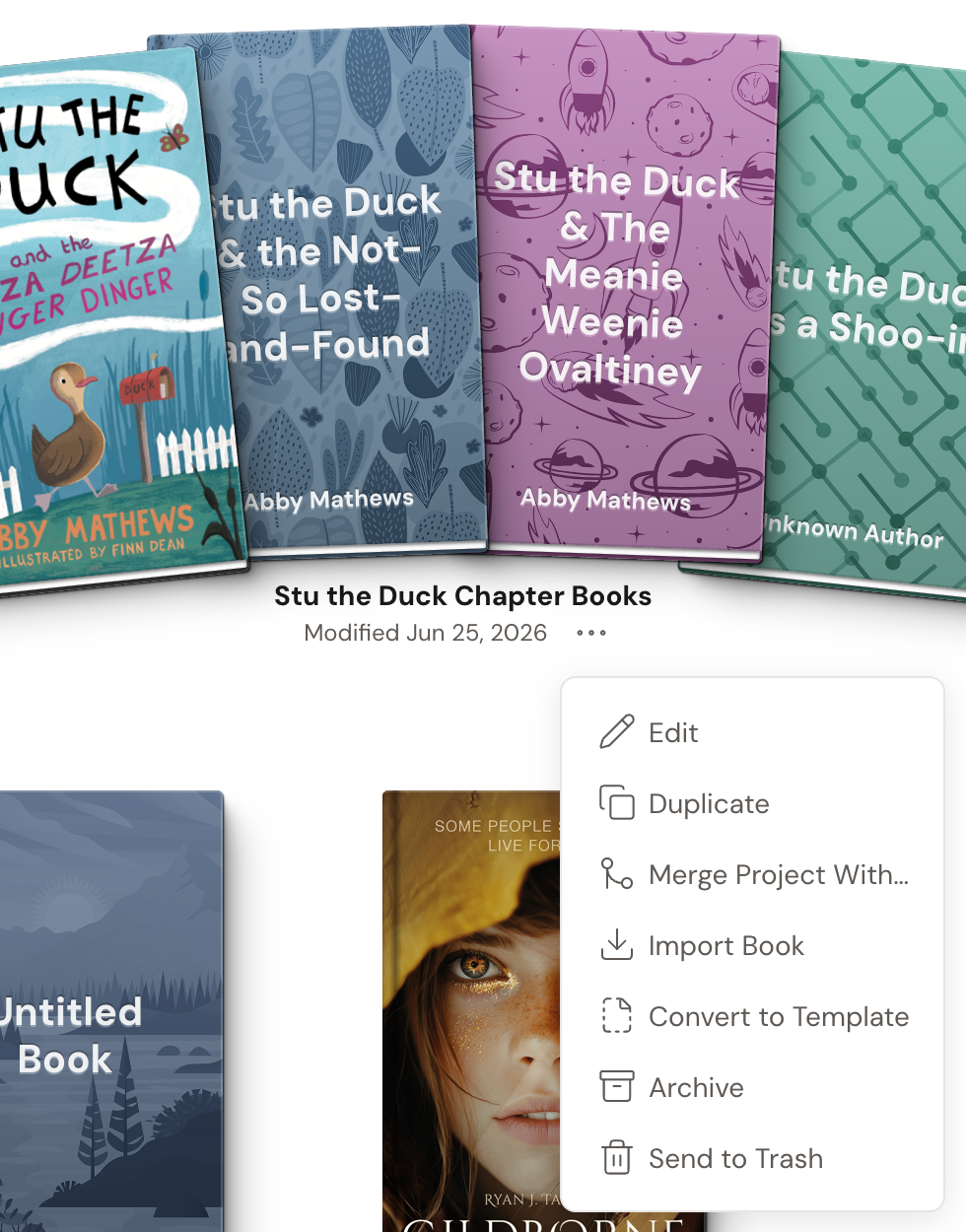
- Find the project tile and click the … (ellipsis) button beside the “Modified …” date.
- Click Send to Trash. There’s no confirmation, because the move is reversible. The project moves to the Trashed view.
Restore a project from Trash
Section titled “Restore a project from Trash”Changed your mind? Good.
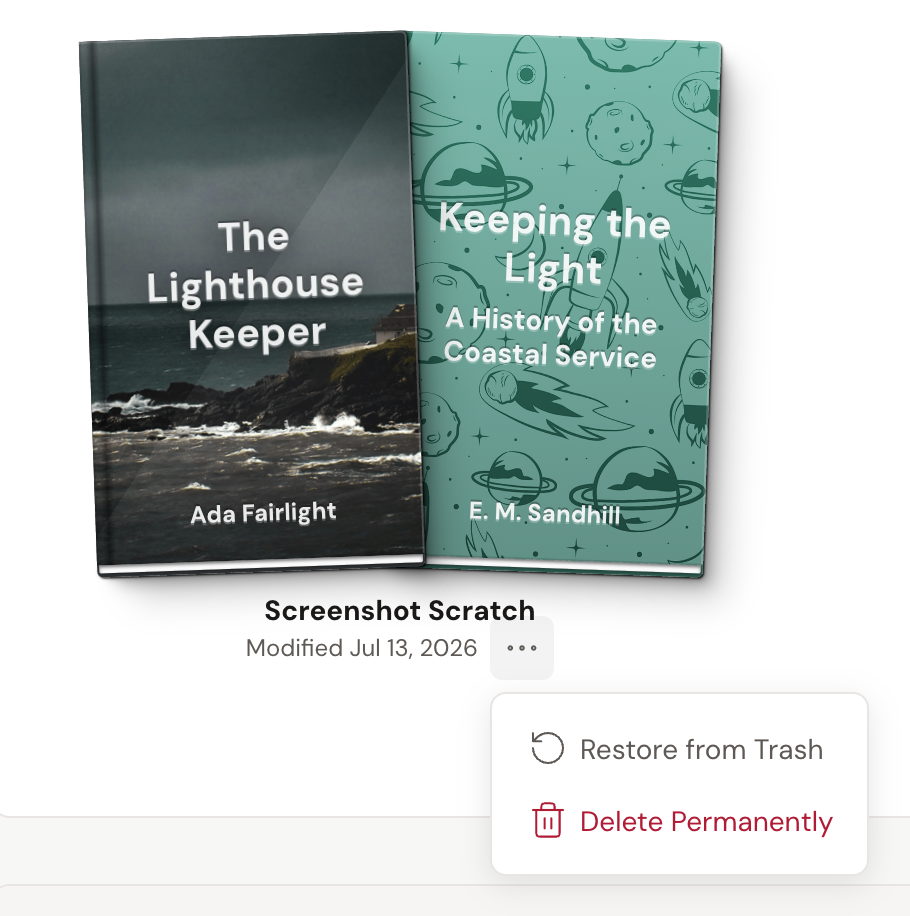
- On the Projects dashboard, open the view switcher and choose Trashed. This view only appears once Trash has something in it.
- Click the trashed project’s … (ellipsis) menu, then click Restore from Trash. The project returns to your My Projects collection.
Want everything back at once? Open the Trash collection’s header … menu and choose Restore from Trash. That pulls every project in the collection back out.
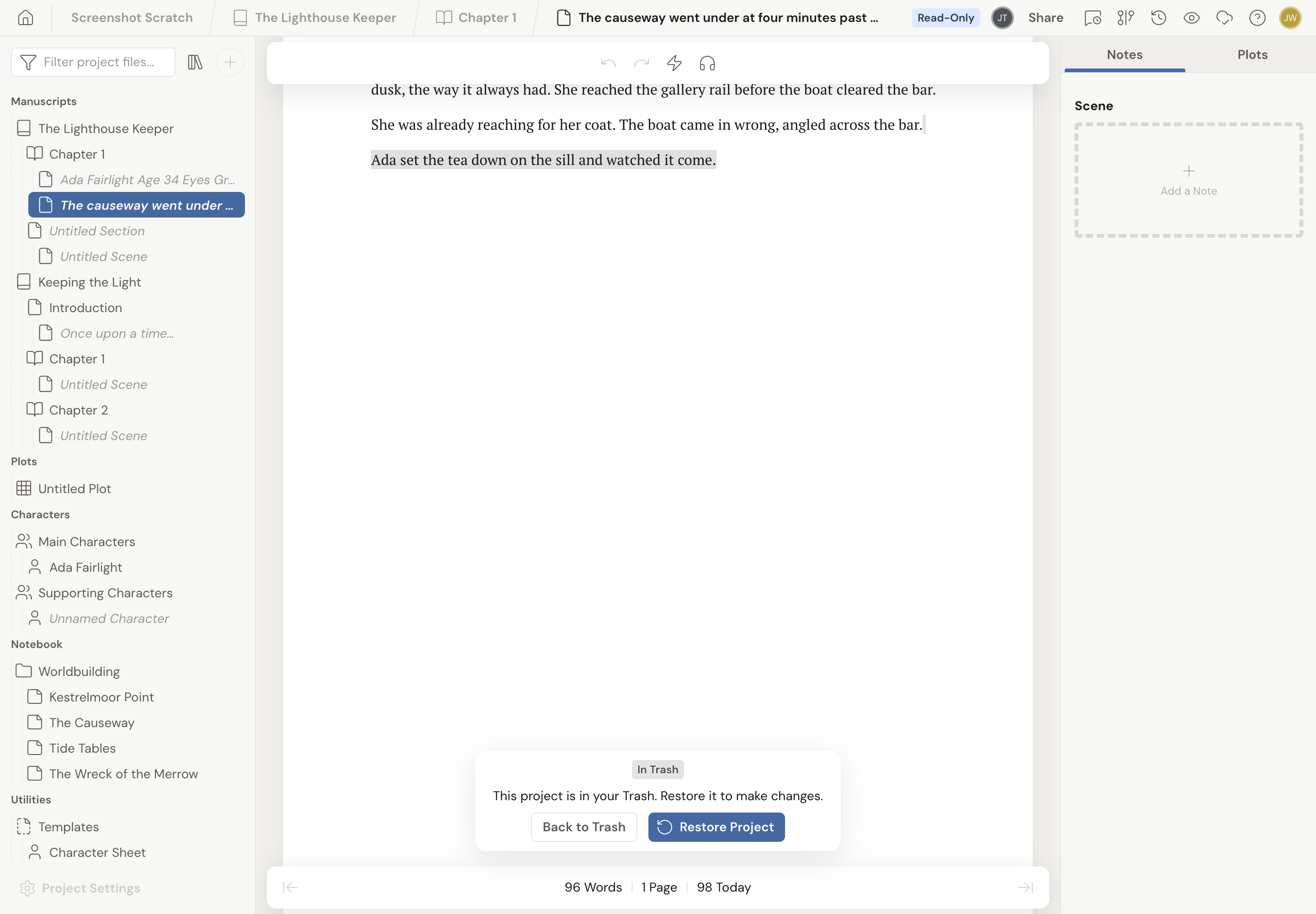
You can also restore a project from inside it. Open a trashed project and an In Trash badge appears at the bottom of the screen, with the message “This project is in your Trash. Restore it to make changes.”
The project stays read-only until you click Restore Project. To leave without restoring, click Back to Trash.
Permanently delete a trashed project
Section titled “Permanently delete a trashed project”This one is the point of no return, so Dabble makes you say it twice.
A project must already be in the Trashed view before you can delete it for good.
- Switch to the Trashed view.
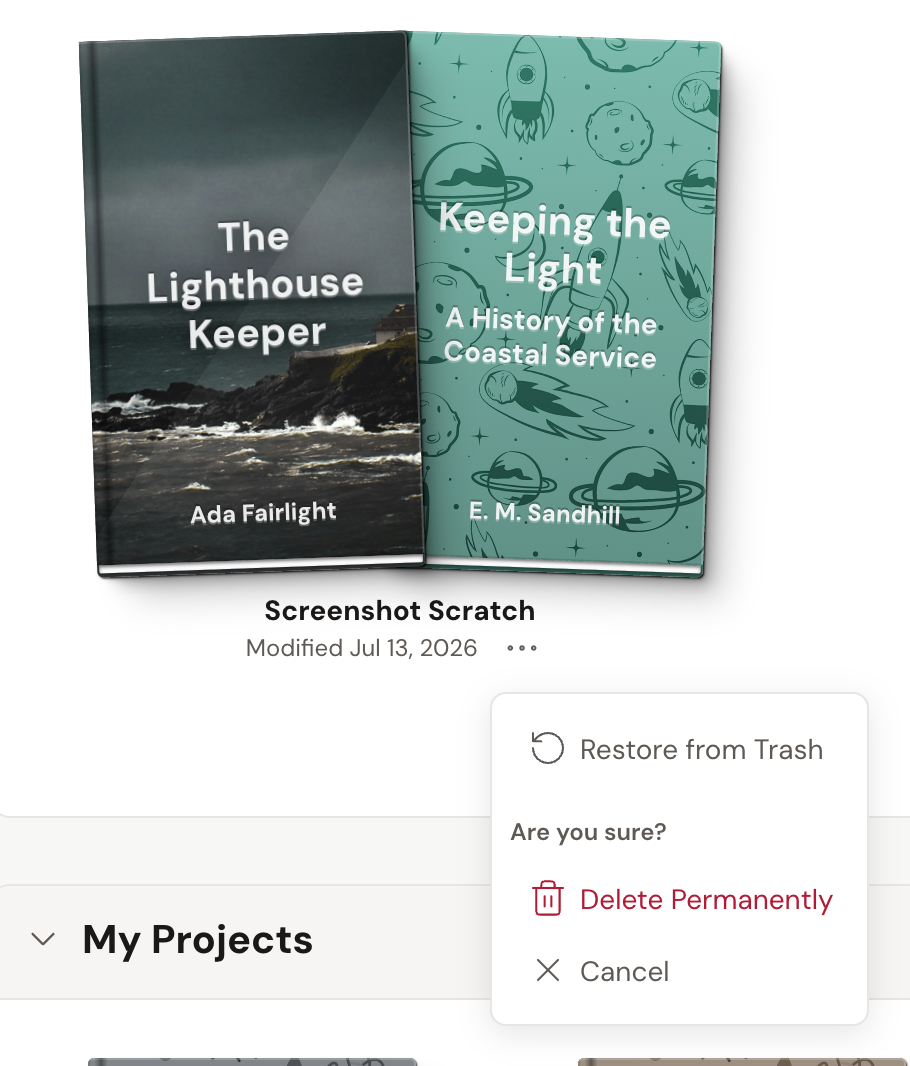
- Open the trashed project’s … (ellipsis) menu and click Delete Permanently.
- A two-step confirmation appears with the heading Are you sure?. Click Delete Permanently again to confirm, or Cancel to back out.
To clear everything at once, open the Trash collection’s header … menu and choose Empty Trash, then confirm. Every project inside it goes for good.
One wrinkle. Trash is the catch-all collection that individually trashed projects land in. If you trashed a whole collection as a unit, that collection keeps its own name in the Trashed view, and its header … menu offers Delete Permanently instead of Empty Trash. Same outcome: the collection and every project in it are gone.
- Trash is not emptied on a timer. Projects stay there until you restore them or delete them yourself.
- Trashed projects are still complete. Restore one weeks later and it comes back exactly as it was.
- Looking for a single chapter, scene, or note rather than a whole project? Every project has its own Trash inside it, separate from the dashboard’s. Head to Recover a deleted scene, chapter, or note.
- Want a copy that lives outside Dabble entirely? See Back up your work.
Troubleshooting
Section titled “Troubleshooting”A project disappeared and it’s not in Trash. Make sure you’re signed in to the right account, and that your work has finished syncing. Dabble saves to the cloud automatically, so give it a moment if you just made changes.
You permanently deleted something you needed. Permanent deletion cannot be undone from the app. If the work is recent, contact support as soon as you can. The sooner you reach out, the better the chance it can be recovered.