

Update your name, email, and photo
New email? New name? Maybe you finally want to retire the address you made in the ninth grade. Whatever the reason, updating your profile takes about a minute.
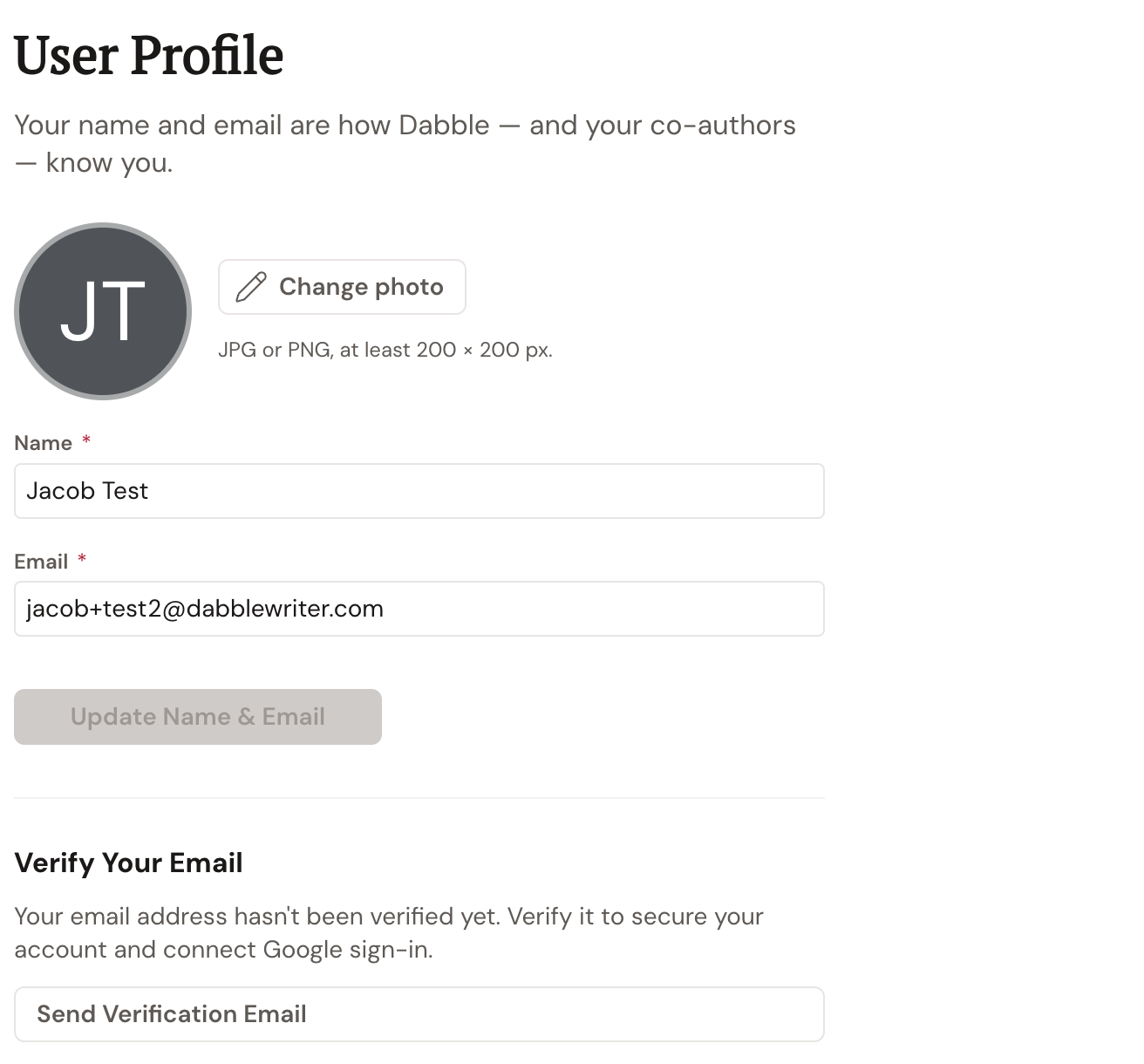
Your name, email, and photo all live on one page in your account portal at accounts.dabblewriter.com, separate from the writing app. One thing worth knowing up front: your email is also your login. Change it, and it changes how you sign in.
Open your profile
Section titled “Open your profile”Two ways to get there.
- Go straight to
accounts.dabblewriter.com/account/profile. Or, from the writing app, click your avatar in the top-right corner and choose Profile. - You’ll land on the User Profile page, with your Name and Email fields and your photo.
Change your name
Section titled “Change your name”This is the name Dabble shows on your account.
- On the User Profile page, click the Name field.
- Type your new name.
- Click Update Name & Email. Dabble also saves when you click out of the field, so you’ll see “Updating…” either way.
Change your email
Section titled “Change your email”Your email does double duty: it’s your login. So changing it here also changes the address you sign in with.
- Click the Email field.
- Type your new email address.
- Click Update Name & Email.
From now on, sign in with your new email. Your password stays the same. If you’d rather change that too, see Sign in and reset your password.
Change or remove your photo
Section titled “Change or remove your photo”Your photo is the avatar that shows up on your account and next to your comments when you’re writing with others.
- On the User Profile page, click Change photo and pick a square JPG or PNG.
- To go back to no photo, click Remove photo.