

Apply a coupon or discount code
You’ve got a code. Maybe a friend passed it along, maybe you caught a sale.
Either way, a discount only counts once it actually lands on your bill.
You can add your code two ways: to a subscription you already have, or while you’re picking a plan at checkout. Both take about a minute.
Before you begin
Section titled “Before you begin”A few things worth knowing before you type anything in:
- Coupon codes are not case-sensitive, so uppercase and lowercase don’t matter.
- You can only have one percent-off coupon active at a time.
- Referral codes are different. They only work on brand-new accounts during signup, not on an existing subscription. If a friend sent you a referral link, sign up through that link to get the discount.
- The Apply Coupon option only appears once you have a billing account set up. If you don’t see it, you may not have started a subscription or trial yet.
Apply a coupon to your current subscription
Section titled “Apply a coupon to your current subscription”Already on a plan? Add your code straight from the billing portal.
- In Dabble, click your avatar in the top-right corner.
- Click Billing to open your billing portal.
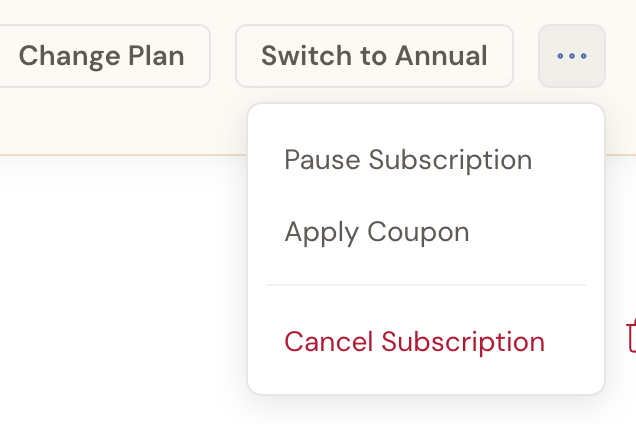
- Under your plan, click Apply Coupon.
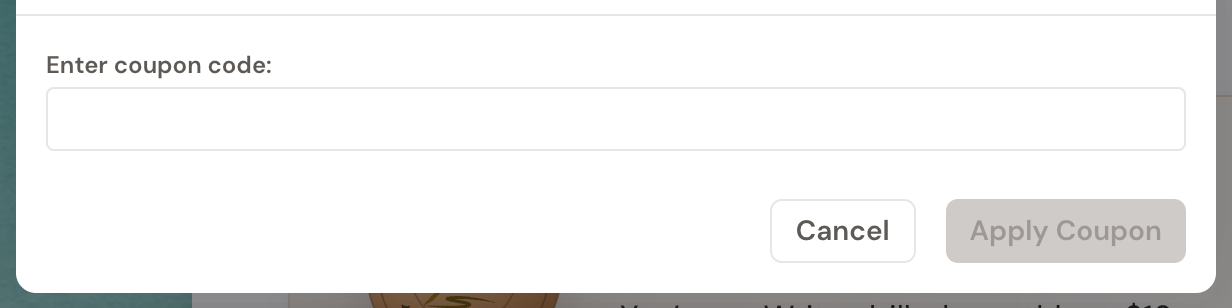
- In the Apply a Coupon window, type your code into the Enter coupon code: field.
- Click Apply Coupon.
When the code is valid, you’ll see Coupon applied successfully! and your discount appears as an Active Coupon.
Apply a coupon while choosing a plan
Section titled “Apply a coupon while choosing a plan”If you’re subscribing or switching plans, you can add your code before you confirm.
- From the billing portal, click Change Plan.
- Pick your plan and continue to Checkout.
- Apply your coupon, then review the Order Summary to see the discounted Total.
- Click Subscribe Now to confirm.
If your coupon covers the full amount, you’ll see No payment method required and can subscribe without entering a card.
When a code won’t apply
Section titled “When a code won’t apply”If a code bounces, Dabble tells you why. Here’s what each message means:
- That coupon code isn’t valid. Double-check the spelling and try again.
- That coupon has expired. The offer is no longer available.
- That coupon can’t be redeemed anymore. The code has reached its redemption limit.
- Referral codes can only be used on new accounts. Referral codes work at signup only, not on an existing subscription.
- You can only use one percent-off coupon at a time. Remove your current percent-off coupon before adding a new one.
- After your coupon applies, check the upcoming-invoice estimate in your billing portal to see the discount reflected on your next payment.
- Still stuck? Reach out to our support team and we’ll help sort it out.