

Organize your manuscript with Parts
A long book has a way of turning your sidebar into a scroll marathon. Thirty chapters, forty, and finding Act Two means a lot of squinting.
A Part fixes that. It’s a container that groups Chapters together, so you can split a big manuscript into clear divisions: acts, volumes, time periods, or point-of-view sections.
This doc covers adding a Part, filling it with chapters, and giving it a name.
Before you begin
Section titled “Before you begin”Parts are optional. A book doesn’t need them, and Chapters can sit directly under a Book. Reach for a Part when you want to gather several chapters under one heading.
Here’s the manuscript order: Book, then Part (optional), then Chapter, then Scene.
A Part can hold Chapters and Sections. Not Scenes directly, and not other Parts.
Add a Part
Section titled “Add a Part”Adding a Part takes a few seconds.
- In the left sidebar, find the Book you want to add a Part to.
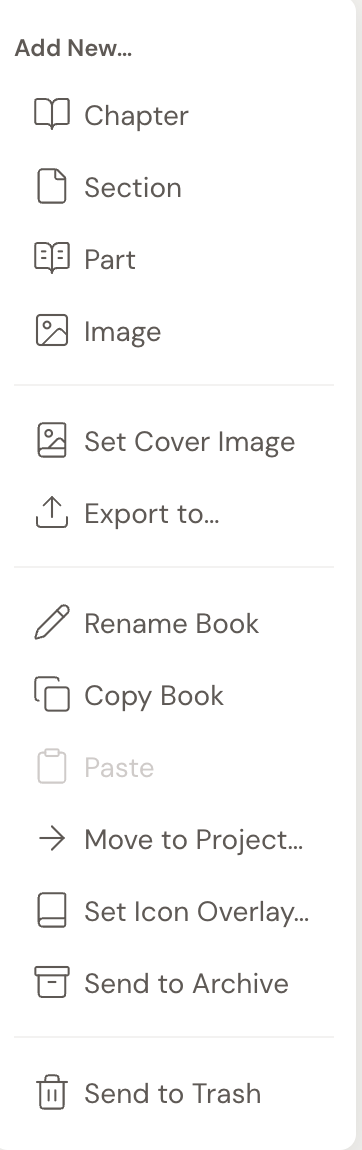
- Open the ”…” menu on the Book (or use the ”+” create menu).
- Under Add new…, choose Part.
- The Part appears in the sidebar, auto-numbered (Part 1, Part 2, and so on). Numbering restarts in each book.
Move chapters into a Part
Section titled “Move chapters into a Part”A new Part starts empty. To fill it, drag your existing chapters in.
- In the sidebar, press and hold anywhere on a Chapter. The whole row is the grab area.
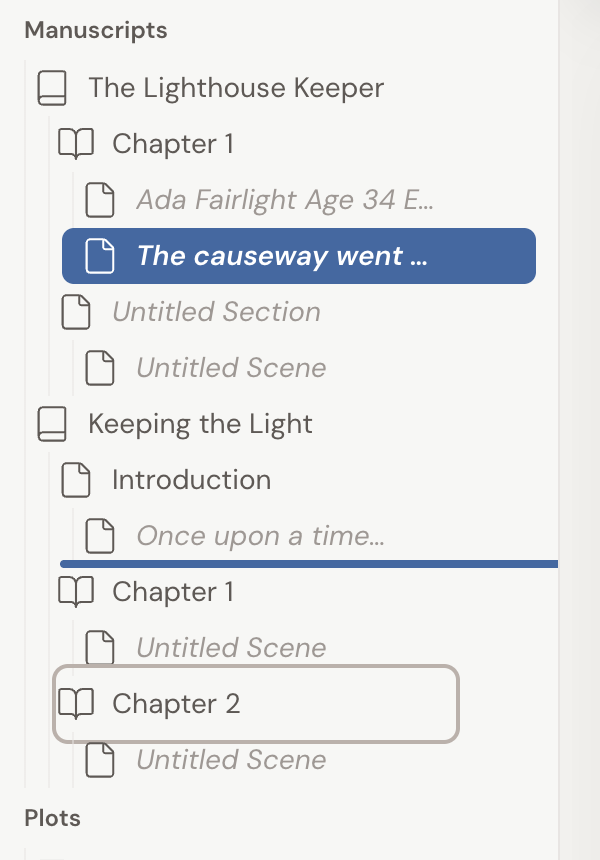
- Drag it over the Part row. A line shows where the chapter will land, indented to the depth it will sit at, so you can see it’s going inside the Part rather than next to it.
- Release. Any Scenes inside that chapter move with it.
You can drag whole Parts to reorder them too, and the chapters inside follow along.
Rename a Part
Section titled “Rename a Part”An untitled Part shows its auto-number (for example, Part 1) as a placeholder. Give it a real name whenever you’re ready.
- Double-click the Part in the sidebar, or open its ”…” menu and choose Rename Part.
- Type a name, such as “Act One” or “The War Years”.
- Use Parts for big story divisions: acts, volumes, timelines, or point-of-view characters.
- Collapse a Part in the sidebar to hide its chapters and focus on another section of your book.
- Numbering is per book. Adding or removing a Part renumbers the remaining Parts automatically.
Troubleshooting
Section titled “Troubleshooting”- A chapter snaps back when you drag it. The drop target only accepts valid children. A Part accepts Chapters and Sections, so make sure you are dropping a Chapter (or Section) onto the Part, not a Scene.
- You cannot drop a Part inside another Part. Parts do not nest. Keep Parts as direct children of the Book.