

Install Dabble on a Chromebook
Want to install Dabble on a Chromebook so it feels like a real app instead of one more browser tab you might close by accident? Chrome handles the whole thing. No Play Store, no download.
Once it’s installed, Dabble lands in your launcher, opens in its own window, and keeps working even when the Wi-Fi drops.
We’ll cover:
- Before you begin: what installing does, and what it doesn’t
- Steps: install it from Chrome in three clicks
- Tips: confirm the install took, and write offline
- Troubleshooting: when the install option won’t appear
Before you begin
Section titled “Before you begin”- Dabble on a Chromebook is a web app (a PWA, or Progressive Web App). You install it from Chrome, not from the Google Play Store.
- Installing doesn’t copy your work onto the device. On first launch, Dabble loads your account over the internet. After that, it keeps a copy on the Chromebook so it can open and work offline.
- Open Chrome and go to
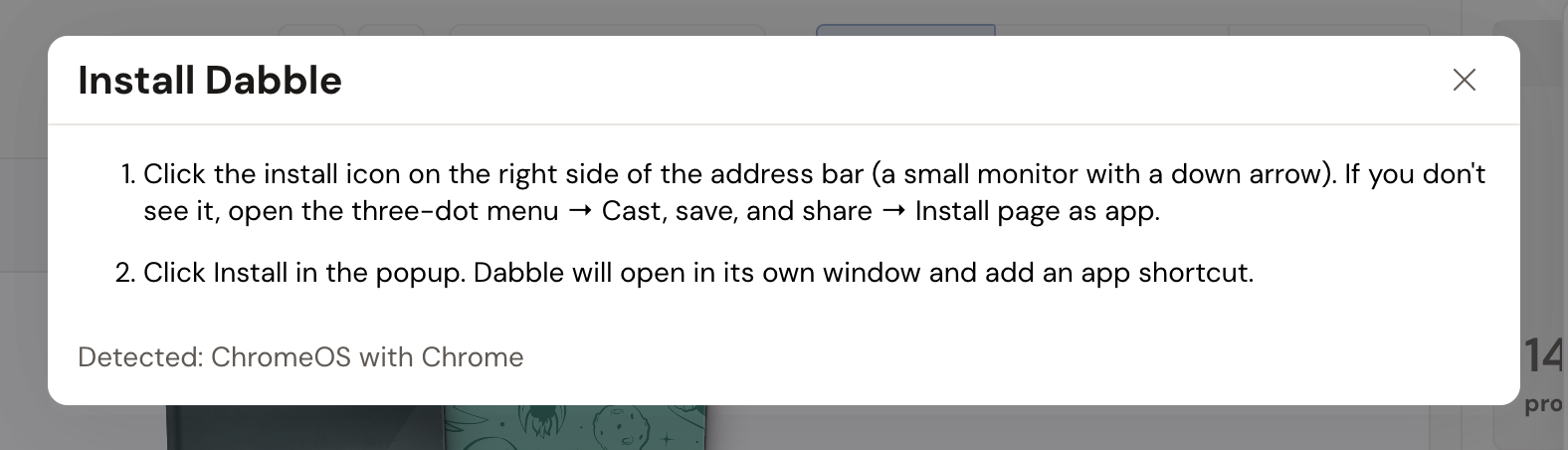
app.dabblewriter.com. Sign in if you aren’t already. - Click the install icon at the right of the address bar (a small monitor with a down arrow). If you don’t see it, open the three-dot menu and choose Cast, save, and share, then Install page as app.
- Click Install in the popup.
Dabble opens in its own window and shows up in your launcher and shelf. From then on, open it like any other Chromebook app.
Prefer to start from inside Dabble? Open the account menu (top-right) and click Install Dabble. The Install Dabble window walks through the same steps, matched to your device, and ends with a Detected: ChromeOS with Chrome line so you can confirm it picked the right one.
- Not sure the install took? Open the account menu in the new window. Install Dabble disappears once you’re running the installed app, so if it’s gone, you’re in.
- Once it’s installed, Dabble works offline. Your writing is saved on the Chromebook and syncs automatically the next time you’re online.
Troubleshooting
Section titled “Troubleshooting”- No install icon and no Install page as app option? Check that you’re using Chrome and signed in to Dabble. The option also won’t appear if Dabble is already installed.
- Skip Guest and Incognito windows. In those modes, Chrome can block Dabble from saving on the device, which puts your work at risk. Use a normal Chrome window.