

Word sprints with friends (WordSprints.org)
Writing is a solo sport. That’s the trouble with it.
A word sprint fixes that for a few minutes. Everyone starts the clock together, writes like the deadline is right now, and compares totals when time runs out. Friendly pressure, and nobody wants to be the one who wandered off to reorganize a bookshelf.
WordSprints.org is a free service from Dabble built for exactly that shared countdown. You schedule a sprint there, share the link, and everyone races the same clock.
Then you run Dabble’s own Timer beside it, so you can watch your own words stack up while you write.
We’ll cover:
- Before you begin: what you need on each side of the sprint
- Schedule a sprint on WordSprints.org: pick a day, a time, and a length
- Run Dabble’s Timer alongside it: match your lap to the group’s sprint
- Where your sprint words live: what WordSprints.org keeps, and for how long
- Troubleshooting: when a sprint won’t budge
Before you begin
Section titled “Before you begin”A sprint with friends has two moving parts.
One is the shared countdown on WordSprints.org. It’s free, it’s provided as-is by Dabble, and it’s where the group agrees on when the clock starts and how long it runs.
The other is your own word count, tracked inside Dabble. Dabble’s Timer lives at the bottom of the Goals panel in the right sidebar. It’s part of Dabble’s paid Goals feature. No Goals tab? Your plan may not include it. See Use the writing timer for sprints.
Schedule a sprint on WordSprints.org
Section titled “Schedule a sprint on WordSprints.org”The home page opens with Create your own word sprint and two buttons: Personal for a sprint that’s just you, Group for one you invite people to. There’s also a Join a Sprint button for hopping into a sprint somebody else made.
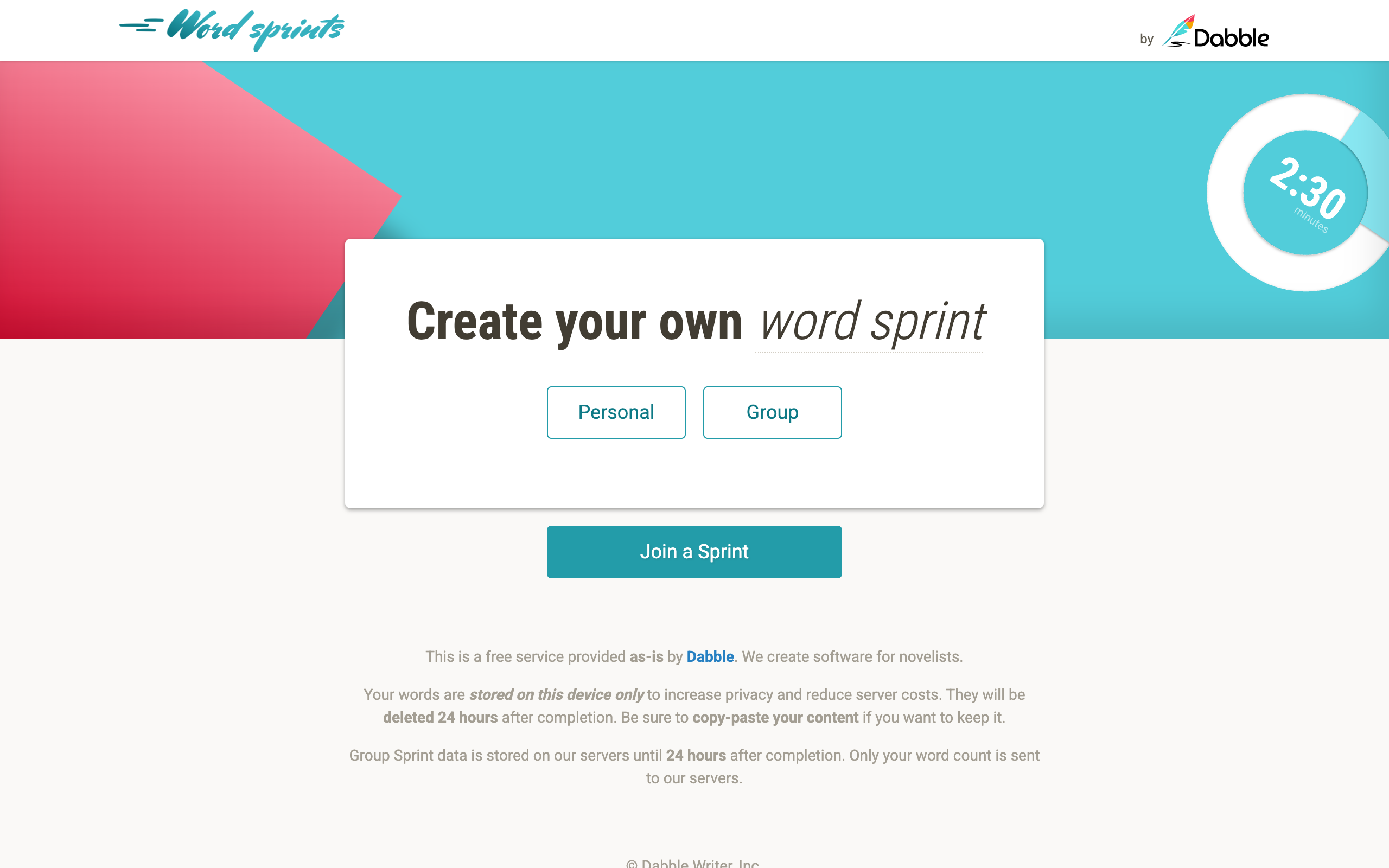
To host one:
- Open WordSprints.org in your web browser.
- Click Group.
- Pick the day on the calendar, then set the time the sprint starts at.
- Set how long it runs for: 5, 10, 15, 20, 25, 30, or 45 minutes, or 1 hour.
- Choose whether the sprint will be Publicly Listed. Leave it off for a private sprint and share the sprint’s link so your friends can join.
- Click Schedule.

Send the sprint’s link to whoever is writing with you. Keep the browser you scheduled from, too: once a sprint is created, you can only change it from that same device.
Joining someone else’s sprint is simpler. Click Join a Sprint, or just open the link they sent you.
Run Dabble’s Timer alongside it
Section titled “Run Dabble’s Timer alongside it”WordSprints.org runs the group clock. Dabble counts the words you actually add.
Open your project, click the Goals tab, and find the Timer at the bottom of the panel. Set it to the same length as the group sprint, then press play when the sprint page starts its countdown. Use the writing timer for sprints walks through the whole loop, laps and all.
Two things worth knowing when the clock is somebody else’s.
Some sprint lengths have no preset. Dabble presets 5, 10, 15, 25, and 30 minutes. A 20-minute, 45-minute, or 1-hour group sprint isn’t one of them, so tap the ellipsis button, enter the Hours and Mins, and click Set.
Match the lengths and the numbers line up. Each lap counts against your project’s word count at the moment the lap started. Set the same duration the group set, and your Lap {number} complete! total is exactly what you wrote during the sprint. That’s the number to share.
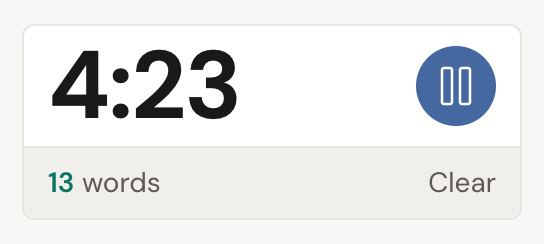
On a call with the group while you write? Click the speaker icon (Mute chime) so Dabble’s countdown doesn’t chime in everyone’s ears.
Where your sprint words live
Section titled “Where your sprint words live”Write in Dabble and your manuscript is your manuscript. Nothing to think about.
If you type into WordSprints.org itself, know that those words are stored on that device only, and they’re deleted 24 hours after the sprint finishes. Copy and paste anything you want to keep.
Group Sprint data sits on Dabble’s servers until 24 hours after the sprint completes, and only your word count is ever sent there. Your prose stays on your device.
Troubleshooting
Section titled “Troubleshooting”- Can’t edit a sprint you scheduled? A sprint can only be changed from the device that created it. Open the browser you scheduled it from.
- Can’t find the Timer, or don’t see a Goals tab at all? That’s covered in Use the writing timer for sprints.