
Organize your dashboard
A few projects in, your dashboard is a tidy little bookshelf. A dozen projects in, it’s a junk drawer.
Dabble gives you a few ways to sort the pile back into a shelf: group projects into collections, set the order they show up in, fold the shelves you’re not using, and choose how the covers look. Here’s how to make the dashboard yours.
We’ll cover:
- Group projects into collections: make shelves and fill them
- Sort your projects: by date, title, or your own order
- Collapse a collection: fold a shelf out of the way
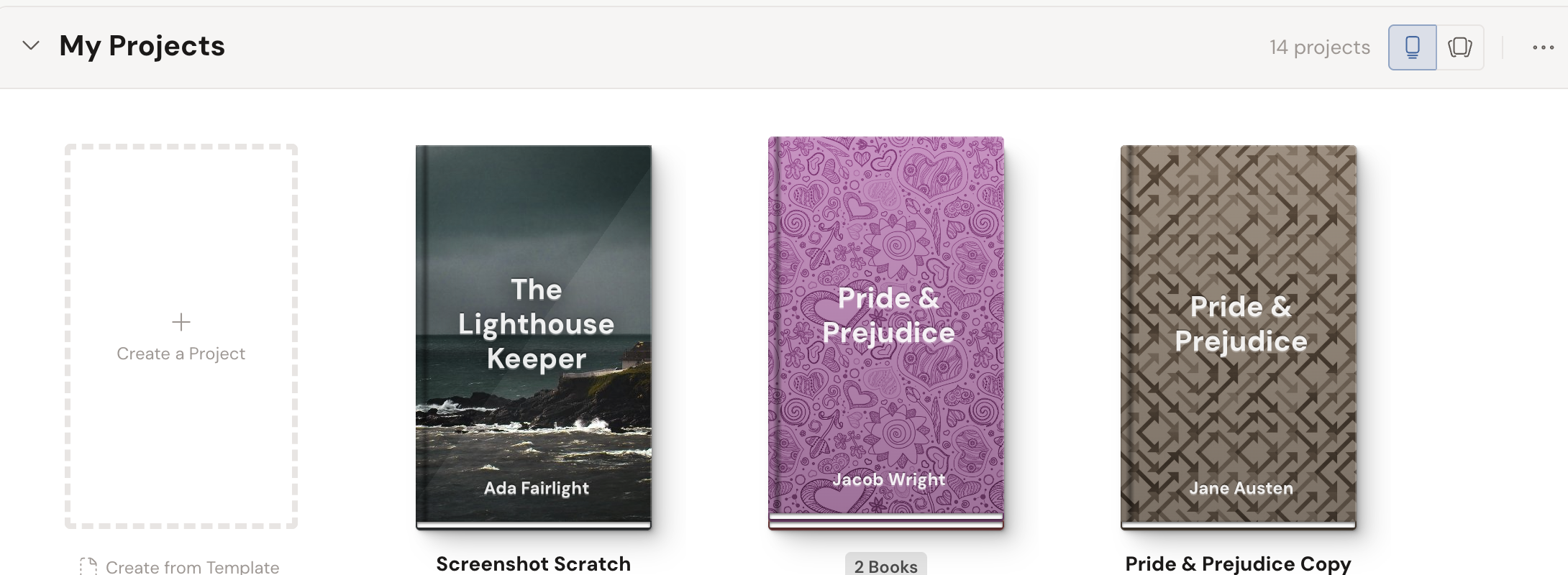
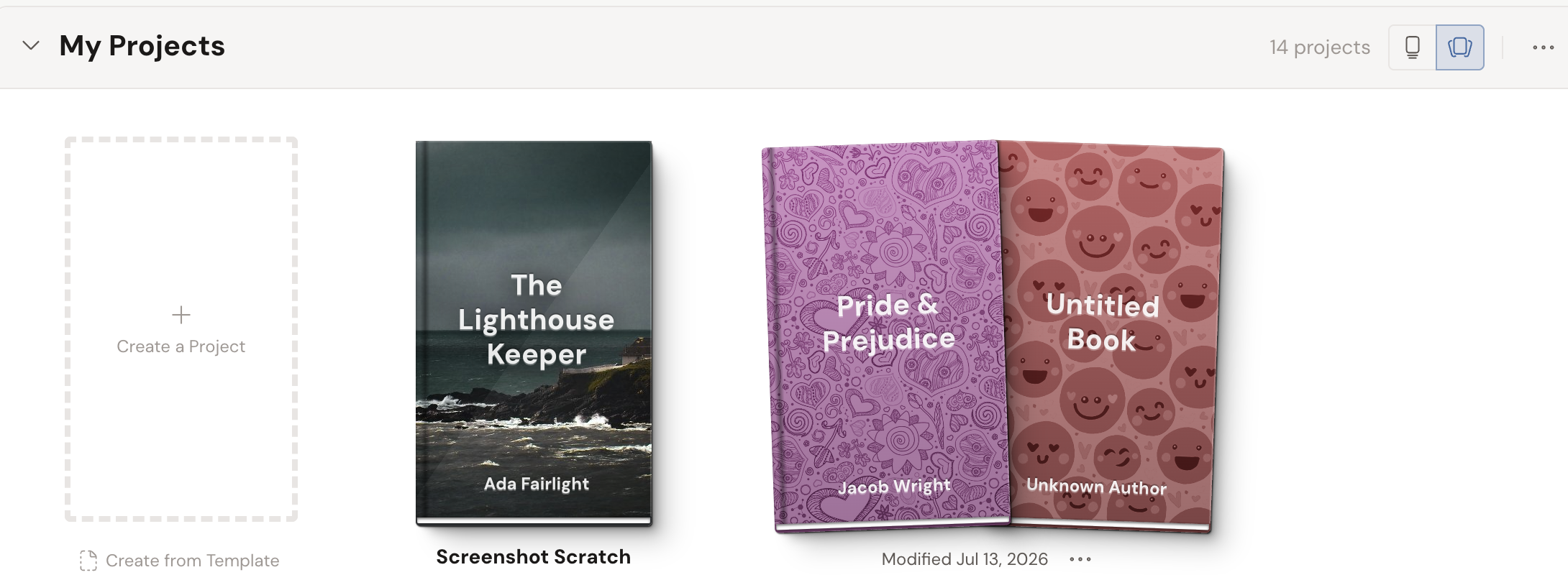
- Change the layout: stacked or fanned covers
Group projects into collections
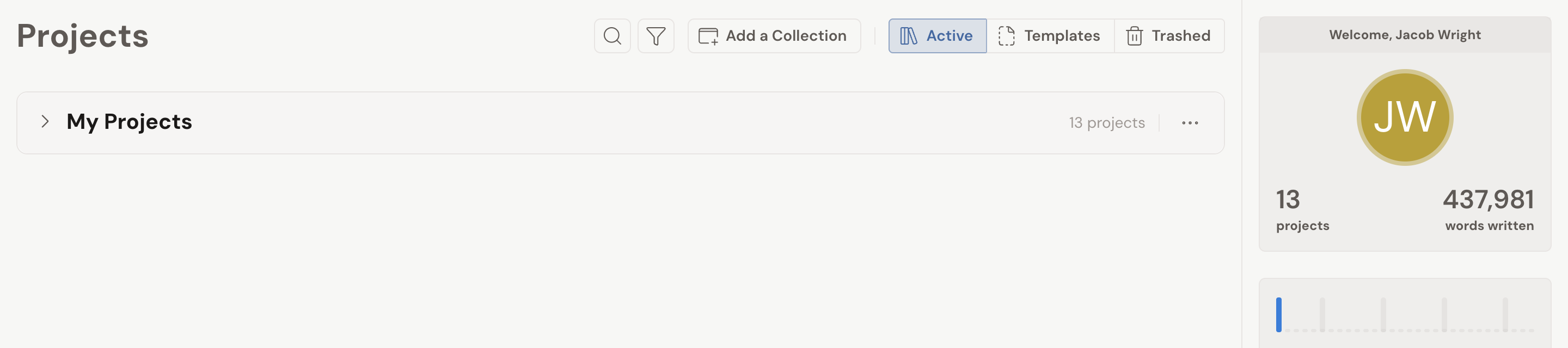
Section titled “Group projects into collections”A collection is a named shelf for related projects. Everyone starts with one called My Projects, and you can add as many more as you like.
- On the Projects dashboard, click Add a Collection at the top.
- Give the collection a name.
- Drag any project tile onto the collection to file it there.
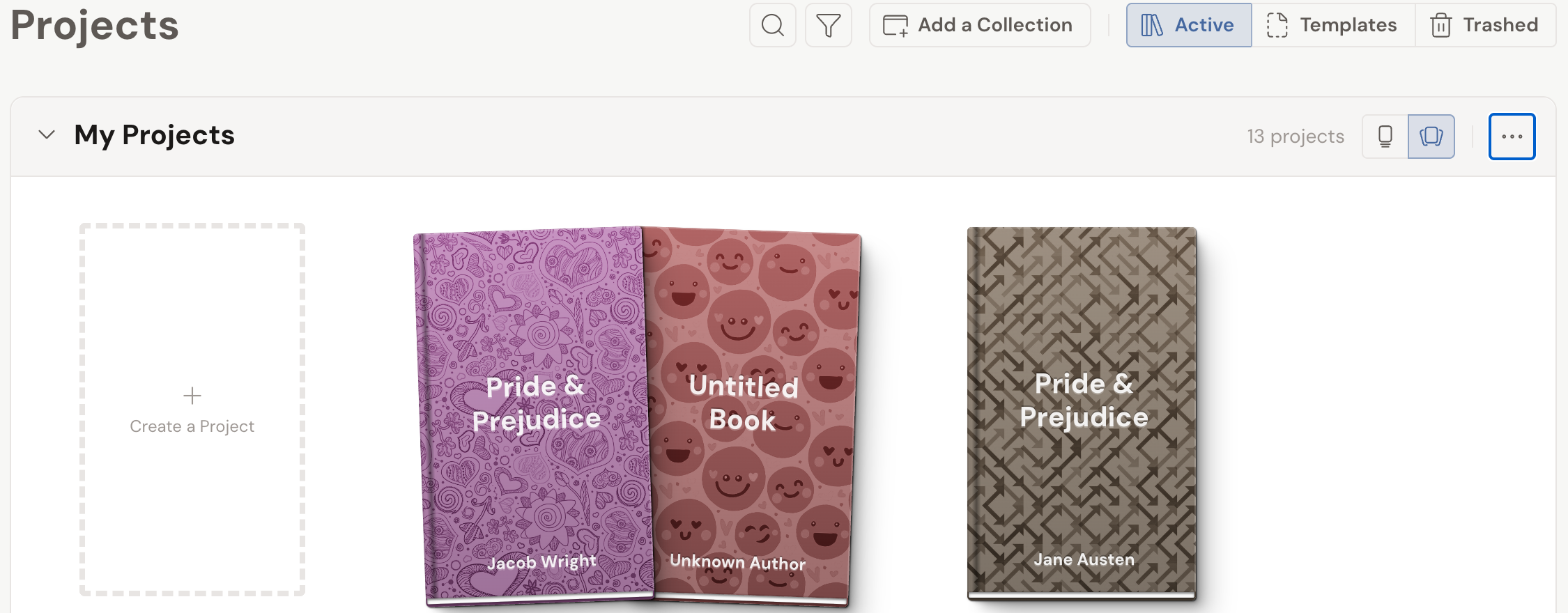
Drag a tile from one collection onto another to move it between shelves. To reorder the shelves themselves, drag a collection into a new position on the page.
When another writer shares a project with you, it lands in a Shared with Me collection of its own. That shelf stays put, so your own books never get mixed in with your collaborations.
Sort your projects
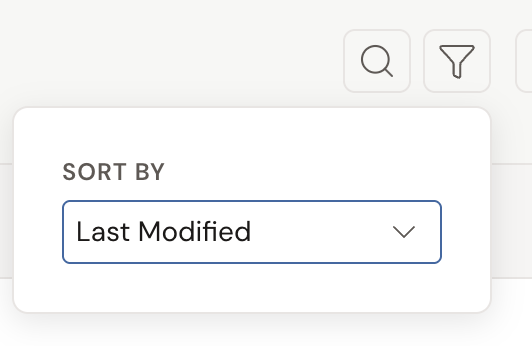
Section titled “Sort your projects”One Sort By setting runs the whole dashboard. Change it and every collection reorders to match.
- In the dashboard header, click the Filter button (the funnel icon).
- Pick an order under Sort By: Last Modified, Custom Order, Last Opened, Newest, Oldest, or Title.
On mobile, the same control opens as a Filters drawer from the bottom of the screen.
Most of those orders sort your projects for you. Custom Order hands the reins back: it lets you drag each project tile to the exact spot you want and keeps it there. Reach for it when you’d rather arrange by gut than by date.
- Set Sort By to Custom Order.
- Drag a project tile and drop it where you want it in the collection.
Collapse a collection
Section titled “Collapse a collection”Some shelves you open every day. Others you’d rather not look at until January.
Click the chevron to the left of a collection’s name and the whole shelf folds up. The header stays, project count and all, so you still know what’s in there.
Click the chevron again to bring the tiles back.
Dabble remembers what you collapsed on this device, so a shelf you closed stays closed the next time you open the dashboard.
One thing that looks like a bug and isn’t: start dragging a collection to reorder it and every collection folds up at once, so you can see the whole running order without scrolling. Drop it and they all open again.
Change the layout
Section titled “Change the layout”On desktop, each collection has a layout toggle that changes how its book covers sit on the shelf: Stacked or Fanned. Stacked keeps each project’s covers in a neat pile; Fanned spreads them out so you can see more of the set. It’s purely cosmetic, so pick whichever looks more like a shelf you’d want to browse. On mobile, projects are always stacked.