

The Preferences window
Somewhere in Dabble there is a switch for the thing that’s currently bugging you.
This page walks the Preferences window top to bottom, one line per setting, so you can find that switch and get back to the sentence you were writing. Where a setting has a full how-to of its own, we point you at it instead of repeating it here.
Open Preferences
Section titled “Open Preferences”- Open the Account menu in the top right of the header.
- Click Preferences.
Three tabs run across the window: General, Dictionary, and Advanced.
Your preferences live on your account, so they follow you to every device you sign in on. The one exception is Auto-Hide Toolbar, which Dabble remembers per device.
General tab
Section titled “General tab”Two sections: Theme and Interface.
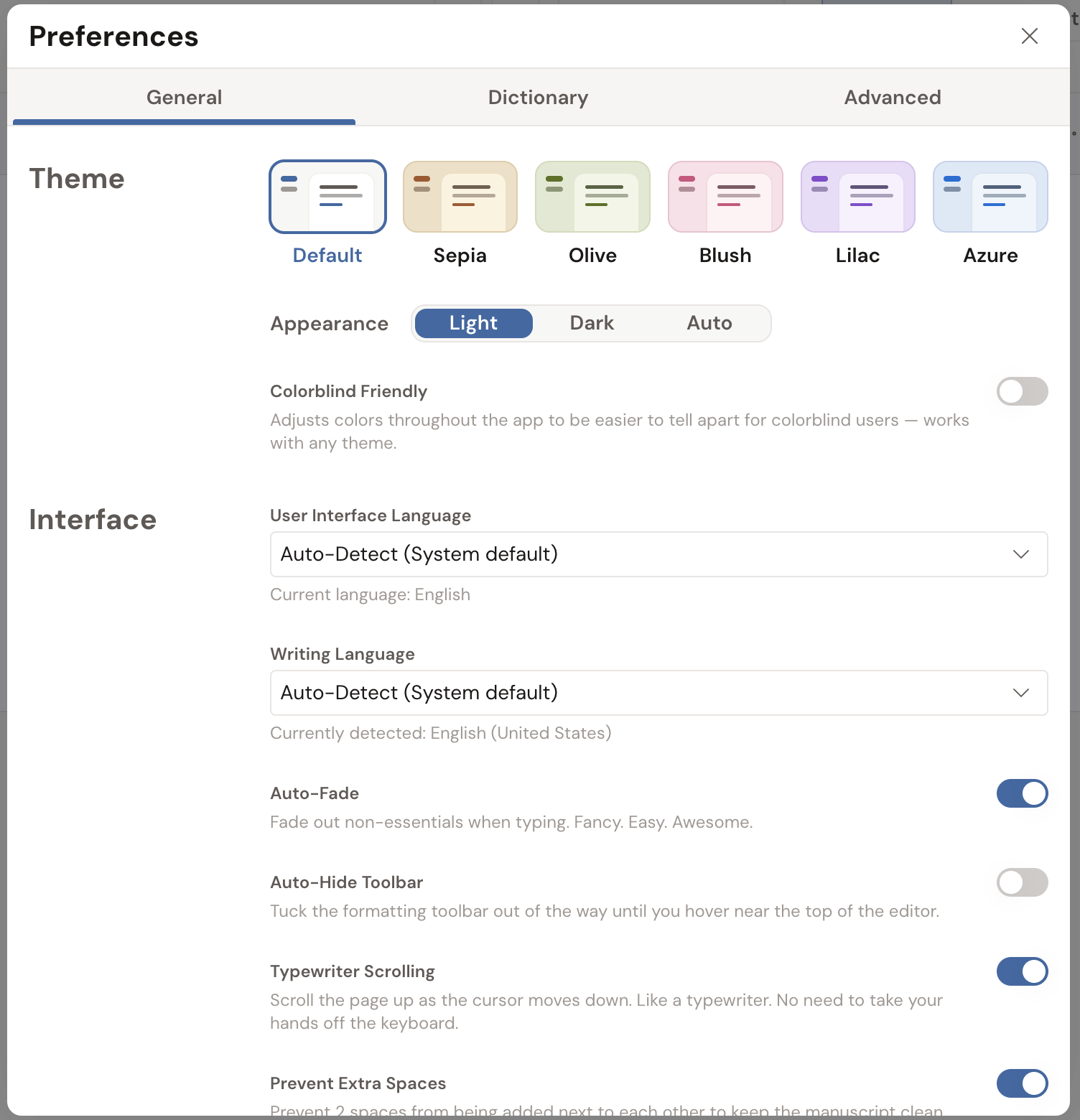
- Color tiles. Six of them: Default, Sepia, Olive, Blush, Lilac, and Azure. See Change your theme and fonts.
- Appearance. Light, Dark, or Auto. Auto follows your device’s own light or dark setting.
- Colorblind Friendly. A toggle that sits on top of whichever theme you picked. Its note reads, “Adjusts colors throughout the app to be easier to tell apart for colorblind users — works with any theme.” It recolors the status colors Dabble uses for success and danger, and it gives spelling, grammar, and style underlines different shapes so you can tell them apart without relying on color.
Interface
Section titled “Interface”- User Interface Language. The language of Dabble’s menus and buttons. Pick Auto-Detect (System default) to follow your device, and Dabble notes the language it landed on underneath. Or lock it to one of the twelve languages Dabble ships: English, Español, Français, Deutsch, Português, Nederlands, Svenska, Norsk, Suomi, Dansk, Italiano, and Polski. The window reopens in the new language the moment you choose.
- Writing Language. The language Dabble checks your spelling and grammar against, for every project that doesn’t set its own. See Change the checking language.
- Auto-Fade. Fades the interface away while you type. See Auto-Fade.
- Auto-Hide Toolbar. Tucks the formatting toolbar away until you reach for the top of the editor. See Auto-hide Toolbar.
- Typewriter Scrolling. Keeps the line you’re writing in one place on the screen. See Typewriter Scrolling.
- Prevent Extra Spaces. Stops two spaces from landing next to each other, so a double-space-after-periods habit never reaches your manuscript. It collapses the doubles as you type them. It does not go back and clean up the ones already in your document.
- Show Quotes on Startup. Shows a writing quote while Dabble loads. Turn it off here, or tick Don’t show again on the quote itself.
Dictionary tab
Section titled “Dictionary tab”Every word you’ve taught Dabble lives here, in one list.
Each entry shows the word, and, when you gave it a replacement, the Replace With line underneath. Click an entry to remove it. Empty list? You get “No dictionary entries. Words you add to the dictionary will appear here.”
You add words from the editor, not from this tab. See Manage your dictionary.
Advanced tab
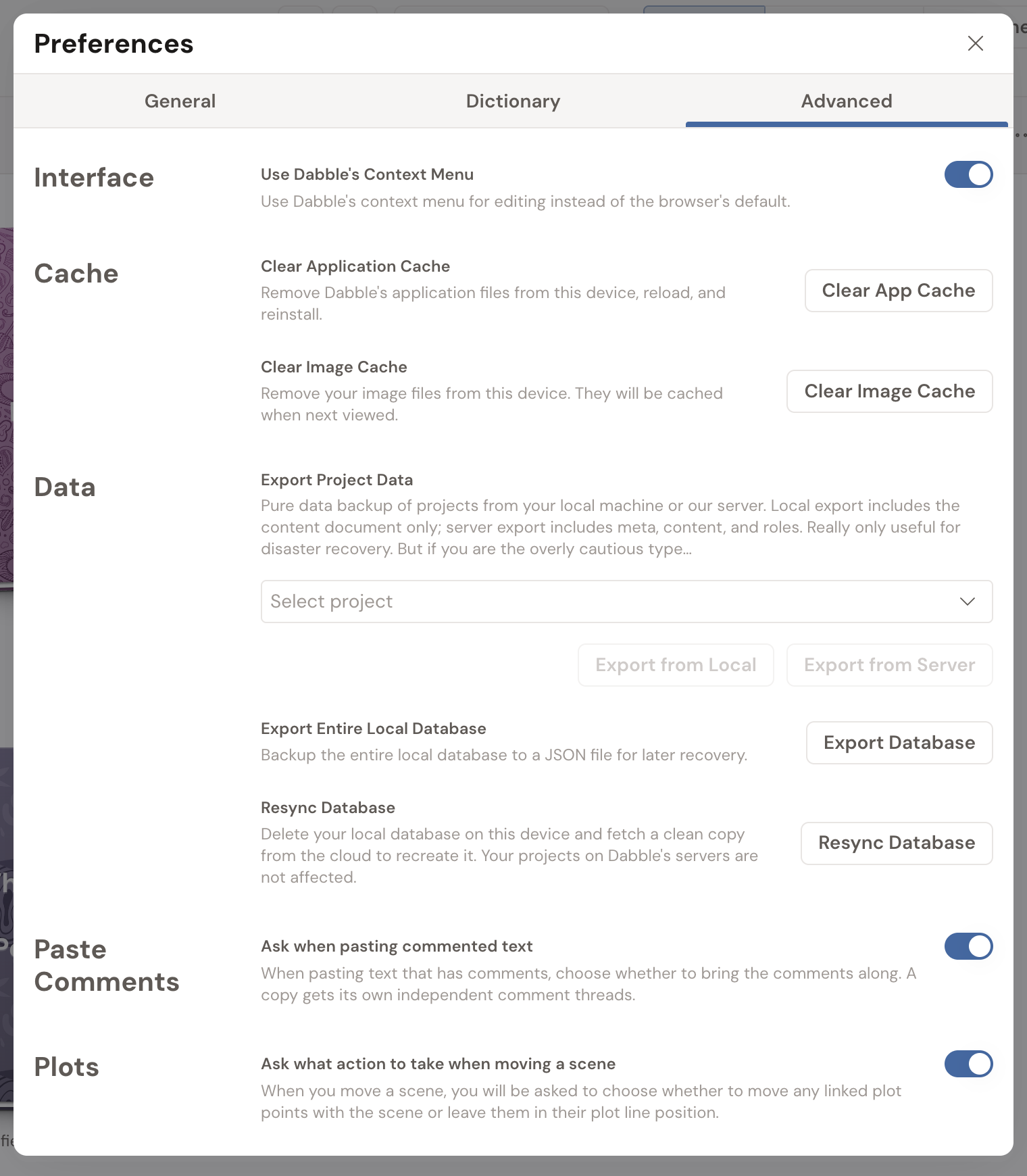
Section titled “Advanced tab”The tools you reach for when something is off, plus a couple of prompts you may have told Dabble to stop asking.
Interface
Section titled “Interface”- Use Dabble’s Context Menu. On by default. Its note reads, “Use Dabble’s context menu for editing instead of the browser’s default.” Turn it off to get your browser’s own right-click menu back. See Fix: right-click paste is blocked.
- Clear Application Cache. The Clear App Cache button removes Dabble’s application files from this device, reloads, and reinstalls them. Your writing isn’t touched.
- Clear Image Cache. The Clear Image Cache button removes the images stored on this device. They download again the next time you view them.
Both are walked through in Reset Dabble on this device.
- Export Project Data. Pick a project, then Export from Local or Export from Server, for a raw data backup.
- Export Entire Local Database. Export Database saves this device’s whole local database to a JSON file. Import Database puts one back.
- Resync Database. Deletes the local copy on this device and fetches a clean one from the cloud.
See Back up your work for the exports, and Reset Dabble on this device for the resync.
- Ask what action to take when moving a scene. On by default. When you move a scene that has plot points linked to it, Dabble asks what to do with them. Turn the toggle off and you pick the answer once, here: Move Scene & Plot Points Together or Move Scene Only.
Paste Comments
Section titled “Paste Comments”- Ask when pasting commented text. On by default. When you paste text that carries comments, Dabble asks whether to bring them along. Turn the toggle off and choose the standing answer: Include Comments or Text Only.