

Back up your work
Your words already live in two places: on your device and on Dabble’s servers, syncing between them as you write. For most writers, that’s the whole safety net.
But sometimes you want a copy in your own hands. A file on your own drive, yours to keep.
Dabble hands you one in a couple of clicks.
We’ll cover:
- Open the Data settings: where the tools live
- Export a backup: save a copy you keep
- Import a backup: bring one back in
Open the Data settings
Section titled “Open the Data settings”- Open the account menu and click Preferences.
- Go to the Advanced tab.
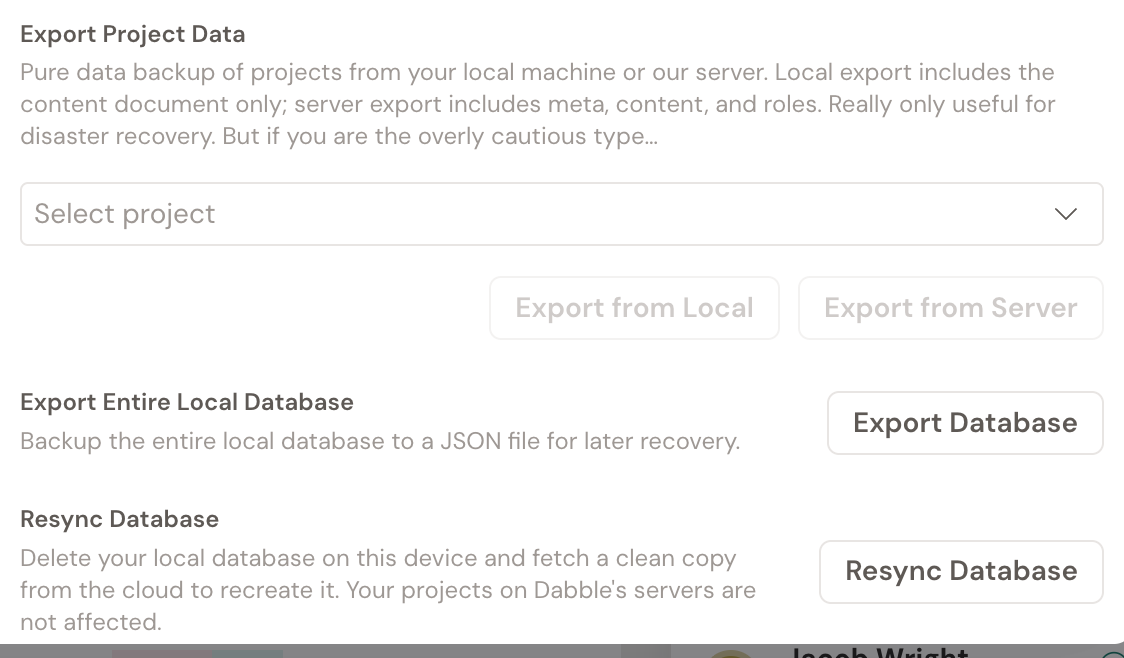
- Find the Data section.
Export a backup
Section titled “Export a backup”Two kinds of export, depending on what you want a copy of.
- Export Project Data saves a single project. Choose Export from Local to grab the copy on this device, or Export from Server to pull the cloud copy.
- Export Entire Local Database saves everything on this device in one file. Click Export Database.
Keep the file somewhere safe. It’s your own backup, and no subscription is required to hold on to it.
Import a backup
Section titled “Import a backup”Have a database file from a Dabble export? Bring it back in.
- In the Data section, click Import Database.
- Pick your file and confirm.
Dabble asks you to confirm before it changes anything, so you always know what’s about to happen.