

The Projects dashboard
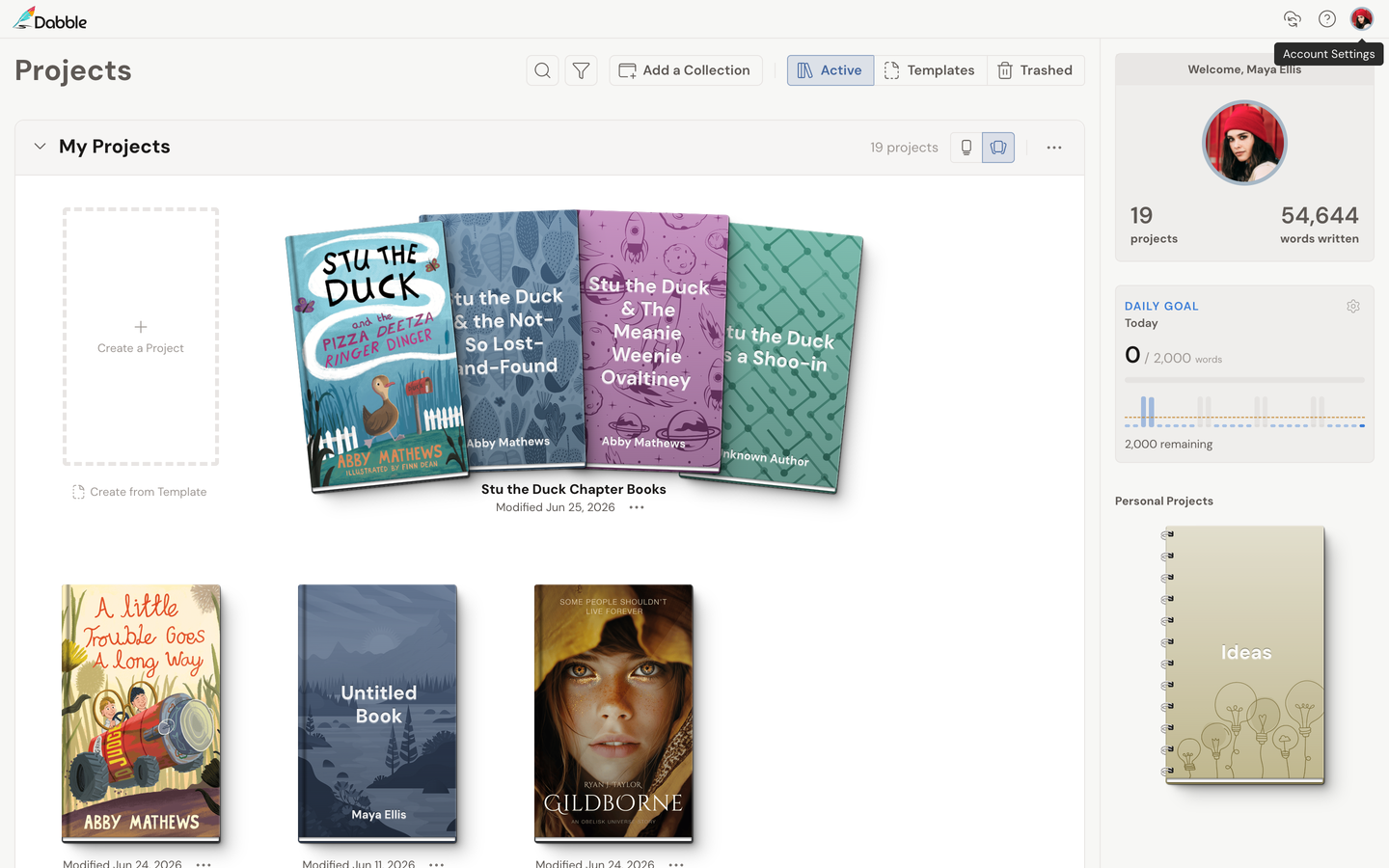
Open Dabble and you land on the dashboard. Think of it as your bookshelf: every project you’re working on, lined up and waiting, with the one you touched last sitting out front.
This page is the lay of the land: what you’re looking at, and how to get into a project. When you’re ready to tidy the shelf, Organize your dashboard has the how-to.
Collections
Section titled “Collections”Your projects are grouped into collections. Everyone starts with one called My Projects.
When another writer shares a project with you, it lands in a Shared with Me collection on its own. Your books and your collaborations stay separate without you doing a thing.
You can add collections of your own, drag projects between them, and change how each one is sorted and displayed. That’s all in Organize your dashboard.
Project tiles
Section titled “Project tiles”Each project is a tile: a stack of its book covers, the title, and when you last changed it (“Modified …”).
- Click the tile to open the project.
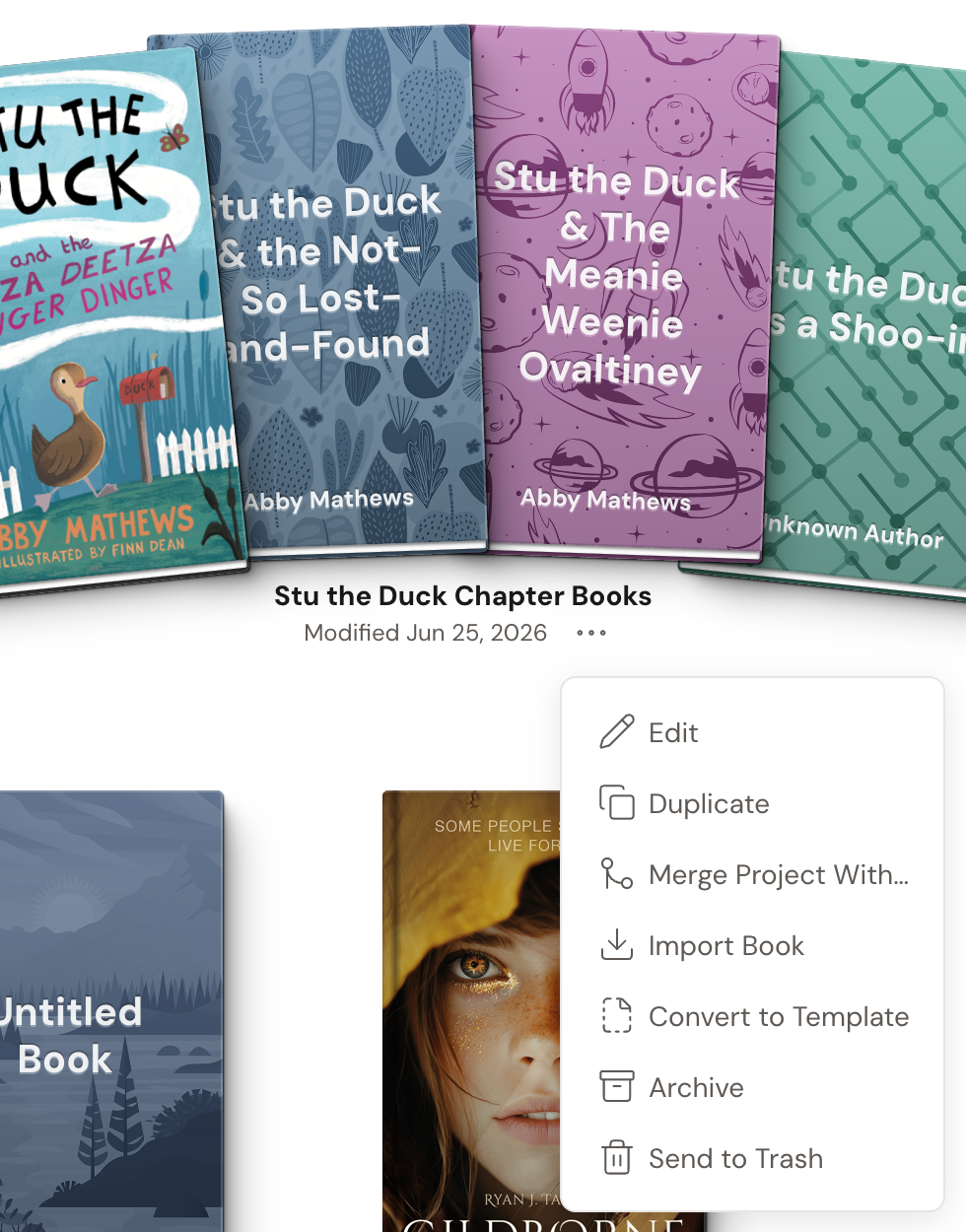
- Click the … (ellipsis) beside the date for that project’s actions. There’s no right-click menu; the … is the single door in.
The per-project tasks each have their own guide: Duplicate a project, Rename a project, Archive a project, and Recover deleted work.
Switch views
Section titled “Switch views”A view switcher at the top of the dashboard filters your projects by state:
- Active: your everyday projects.
- Templates: projects you’ve turned into reusable starting points.
- Archived: projects you’ve set aside. This view appears once you’ve archived something.
- Trashed: projects on their way out, still recoverable. This view appears once something’s in it.