

Update Dabble
You heard a new feature shipped, or a fix you’ve been waiting on finally landed. You want to update Dabble to the latest version, right now, without hunting for an installer.
Here’s the good part: there’s no installer to hunt down. Dabble keeps itself current. When a new version is ready, one click puts you on it.
This doc covers what happens on its own, and how to grab the newest version the moment you want it.
We’ll cover:
- Before you begin: what’s automatic, and what you can’t change
- How automatic updates work: what Dabble does quietly in the background
- Steps: force the newest version this second, in the browser or the desktop app
- Tips: small extras worth knowing
- Troubleshooting: no icon in sight, and why that’s fine
Before you begin
Section titled “Before you begin”Most of the time, you do nothing. Dabble checks for updates on its own and applies them the next time you open it in a fresh tab or session.
The steps below are for the other times, when you want the newest version right now instead of waiting.
One thing to know: there’s no manual “check for updates” button, and no way to skip or pin a version. It all happens automatically.
How automatic updates work
Section titled “How automatic updates work”Here’s the quiet routine running behind the scenes.
- Dabble checks for a new version when it loads, then every 30 minutes while it stays open.
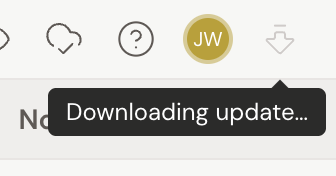
- When a new version is downloading, a download-arrow icon appears in the header. Hover it and you’ll see Downloading update….
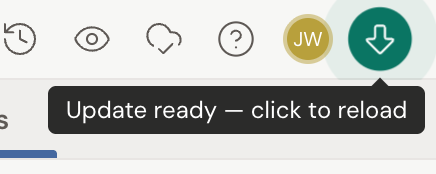
- When the update is ready, that icon turns green and pulses. The tooltip now depends on where you’re running Dabble.
In a browser or an installed web app, it reads Update ready — click to reload.
In the downloadable desktop app, it reads Update ready — click to restart. Same icon, same click. The desktop app relaunches itself instead of reloading a page.
Want the update this second? Here’s how.
- Look for the update icon in the top-right of the header. When an update is ready, it glows green and pulses gently.
- Hover it to confirm the tooltip reads Update ready — click to reload in a browser, or Update ready — click to restart in the downloadable desktop app.
- Click the icon. Dabble reloads, or restarts, into the new version. Before it goes, Dabble saves any typing you haven’t finished, so nothing is lost.
No rush, though. Leave it alone and the update applies on its own the next time you open Dabble in a new tab or session.
- The icon stays inactive until an update is actually ready to install, so you can’t click it too early.
- The installed web app and the browser both cache Dabble on your device for offline use. That’s why they update this way rather than through a separate installer.
- In the downloadable desktop app, the tooltip counts the download for you: Downloading update… 42%, and so on.
- A quick reload often clears a stuck sync too, and it picks up any pending update at the same time.
Troubleshooting
Section titled “Troubleshooting”- You never see the update icon. That’s normal most of the time. Dabble simply applies updates quietly on your next fresh load. The icon only appears when an update is downloading or ready while you have Dabble open.
- You’re running a local or development build. The update icon doesn’t appear in those builds. It’s part of the live app only.