

Reset Dabble on this device
Dabble works everywhere else, but on this one machine it’s sulking. An image won’t load. The app won’t update. Something’s just off.
Usually it’s the local copy, not your book. And a local copy can be rebuilt.
Start with the safest fix and work down. Stop as soon as Dabble behaves.
Open the Advanced settings
Section titled “Open the Advanced settings”- Open the account menu and click Preferences.
- Go to the Advanced tab.
Three sections stack down the tab: Interface, then Cache, then Data. The two fixes on this page live in Cache, and the last resort lives in Data. Top to bottom is also the order to try them in.
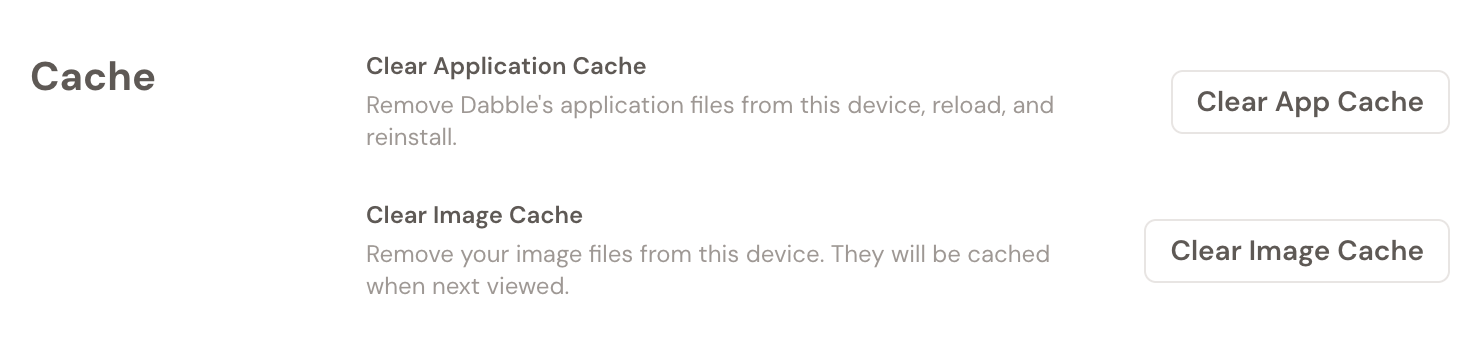
Clear the application cache
Section titled “Clear the application cache”Start here. This one touches none of your project data.
- In the Cache section, find Clear Application Cache.
- Click Clear App Cache.
Dabble removes its own application files from this device, reloads, and reinstalls them. Your manuscript, notes, and plot grid stay exactly where they were. Try this when Dabble won’t update to the latest version, or when the app is behaving strangely on this device and nowhere else.
Clear the image cache
Section titled “Clear the image cache”Images blank, broken, or stubbornly out of date? Clear the copies stored on this device.
- In the Cache section, find Clear Image Cache.
- Click Clear Image Cache.
Dabble removes the cached image files from this device. They download again the next time you view them. Your project isn’t changed, and nothing is deleted from the server.
Resync the database
Section titled “Resync the database”Neither cache did it? Then rebuild the local copy from the cloud. This is the last resort, and the only fix on this page that touches your data.
- In the Data section, click Resync Database.
- Dabble asks to confirm: Resync Database? Click Resync Database again.
- Got changes that haven’t synced? Dabble stops you a second time with Unsynced Changes. That warning is doing its job. Click Cancel, get your work synced or exported, and come back.
Dabble deletes the local database on this device, reloads the page, and downloads a clean copy from the cloud. Your projects on Dabble’s servers are not affected, so everything that was already synced comes right back.