

Recover a deleted scene, chapter, or note
You meant to delete the empty scene. You deleted the good one.
Take a breath. Inside a project, nothing you delete is gone right away. It moves to that project’s Trash and waits for you.
This article is about the pieces of a project: a scene, a chapter, a character, a notebook page. If you deleted a whole project from your dashboard, that’s a different safety net: see Recover or permanently delete trashed work.
We’ll cover:
- Where deleted documents go: the Utilities section in your left navigation
- Send a document to Trash: move it out of the way, reversibly
- Restore a document from Trash: pull it back where it was
- Send a document to Archive: keep it, but not in your way
- Delete a document for good: Delete Permanently and Empty Trash
- What the Restored section is: not trash, and not a mistake
- Troubleshooting: when Restore from Trash isn’t there
Where deleted documents go
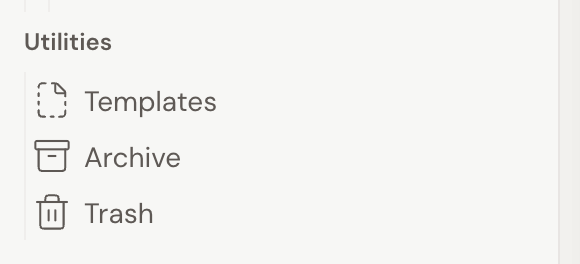
Section titled “Where deleted documents go”Scroll to the bottom of your left navigation and you’ll find a heading called Utilities. It holds the shelves your documents land on when they leave your manuscript.
- Trash holds documents you deleted. They stay until you restore them or delete them for good.
- Archive holds documents you set aside on purpose. Nothing in Archive is deleted.
- Restored appears only after you bring a document forward from version history. More on that below.
Click any of them to open it as a page of cards, one card per document inside.
Don’t see Utilities at all? It’s hidden for people viewing or commenting on a project shared with them, because they can’t trash or restore anything.
Send a document to Trash
Section titled “Send a document to Trash”Same move for a scene, a chapter, a character, or a notebook page.
- In the left navigation, hover the document and click the … (ellipsis) button on its row. You can also right-click the row.
- Click Send to Trash.
The document moves to Trash and stops being editable. Nothing is lost.
One thing that surprises people: if the document is completely empty, the menu says Delete Permanently instead. An empty scene has nothing to save, so Dabble skips the Trash step and just clears it out.
Restore a document from Trash
Section titled “Restore a document from Trash”Here’s the part you came for.
- In the left navigation, open Trash under Utilities.
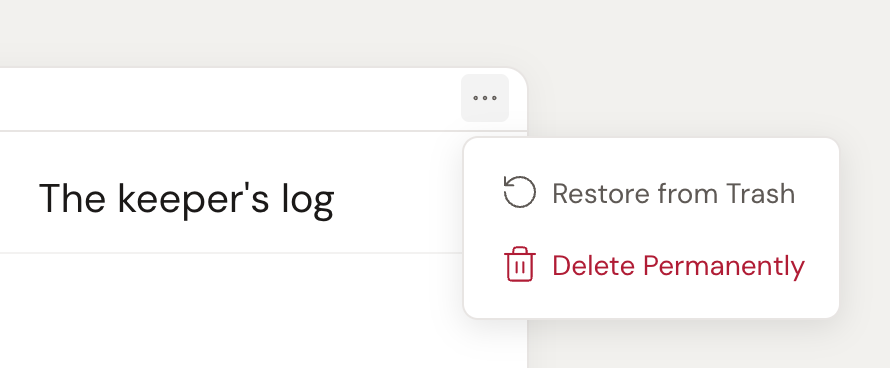
- Find the document’s card and click its … (ellipsis) button.
- Click Restore from Trash.
The document goes back where it was, in the same spot in your manuscript.
You can also restore a document while you’re reading it. Open a trashed document and a note appears at the top of the page: “This document cannot be modified because it is in the trash.” Click the Restore from Trash link right there.
Send a document to Archive
Section titled “Send a document to Archive”Sometimes a chapter isn’t wrong. It’s just not in this draft.
Archive is the shelf for that. Archived documents leave your manuscript but keep their content, and they’re never deleted.
- In the left navigation, click the document’s … (ellipsis) button.
- Click Send to Archive.
To bring one back, open Archive under Utilities, click the card’s … (ellipsis) button, and click Restore from Archive.
An archived document’s card menu also offers Send to Trash, if you decide you’re done with it after all.
Delete a document for good
Section titled “Delete a document for good”This is the one that doesn’t come back, so Dabble makes you say it twice.
To delete a single document:
- Open Trash under Utilities.
- Click the document card’s … (ellipsis) button, then click Delete Permanently.
- The menu expands into an Are you sure? step. Click Delete Permanently again to confirm, or Cancel to back out.
To clear the whole shelf at once:
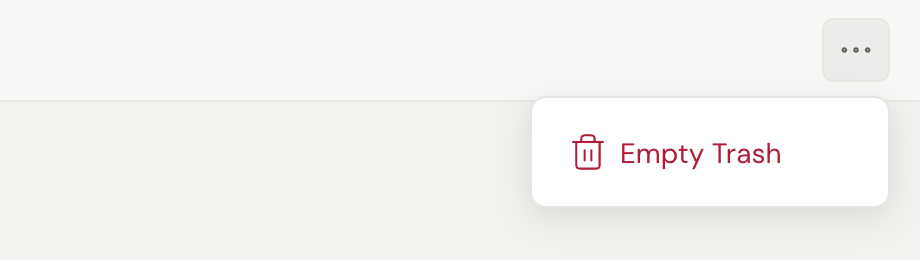
- In the left navigation, click the … (ellipsis) button on the Trash row itself.
- Click Empty Trash, then confirm under Are you sure?.
Every document in the project’s Trash goes for good. The option is greyed out when Trash is already empty, and the page tells you so: “Trash Is Empty. Items you delete will appear here.”
What the Restored section is
Section titled “What the Restored section is”Restored confuses people, because it sounds like it should hold the things you just un-deleted. It doesn’t.
Restored is where a document lands when you pull it out of version history with Bring Forward. Dabble drops the copy there and adds “(restored)” to its title, so you can compare it against your live draft before you move it into place.
The section doesn’t exist until you use it. Once it does, open it and use the … (ellipsis) button in the page header to Empty Restored and clear the whole section out.
Documents you restore from Trash don’t go here. They go back where they came from.
For the full walkthrough, see View and restore version history.
Troubleshooting
Section titled “Troubleshooting”The card menu shows Delete Permanently but no Restore from Trash. The document was nested inside another document you trashed, so it has no parent to go back to. Restore the parent instead and the whole branch comes back with it.
A document vanished and it isn’t in Trash. Check Archive under Utilities. Also check that your work has finished syncing, and that you’re in the right project.
You deleted something permanently and you need it back. Permanent deletion can’t be undone from the app. Contact support as soon as you can. The sooner you reach out, the better the chance the work can be recovered.