

Use sticky notes
A thought hits you mid-scene. Not the next line, just a reminder to yourself. Use sticky notes in Dabble to catch it without leaving the page.
Each sticky is a draggable, colored note that floats beside your text on a scene, a character profile, or a notebook page.
Here’s how to add them, move them, recolor them, and tuck them out of sight when you want a clean page.
Before you begin
Section titled “Before you begin”Stickies live on three kinds of documents: a manuscript scene, a character profile, and a notebook page. Anywhere else, the toolbar button stays disabled.

- Open a supported document: a manuscript scene, a character profile, or a notebook page.
- In the formatting toolbar, click the Add Sticky Note (note) icon.
- In the color popover, pick a color: yellow, green, blue, or pink. A new sticky appears near the center of the editor.
- Click into the sticky and start typing. The placeholder reads Write a note…
- To move it, drag from the sticky’s header area. It stays within the editor gutter and snaps to the left or right side.
Your text and the sticky’s position save automatically as you work.
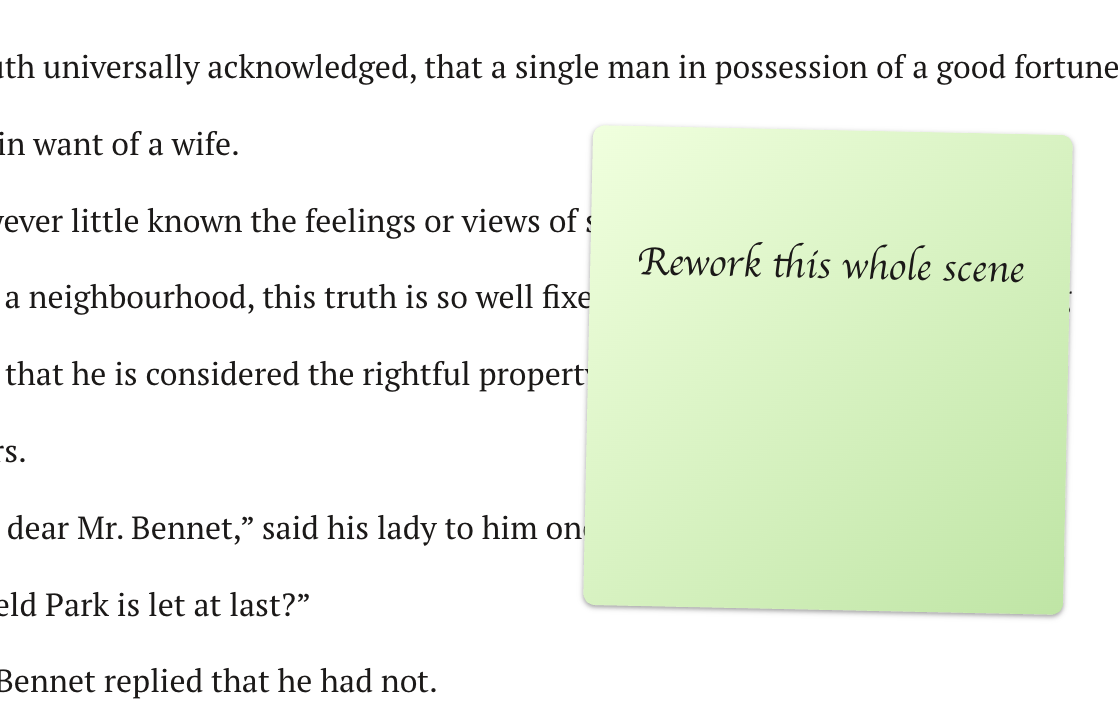
- Change a sticky’s color from its menu using Change Color.
- Delete a sticky with the × in its header, or use Delete Sticky from its menu.
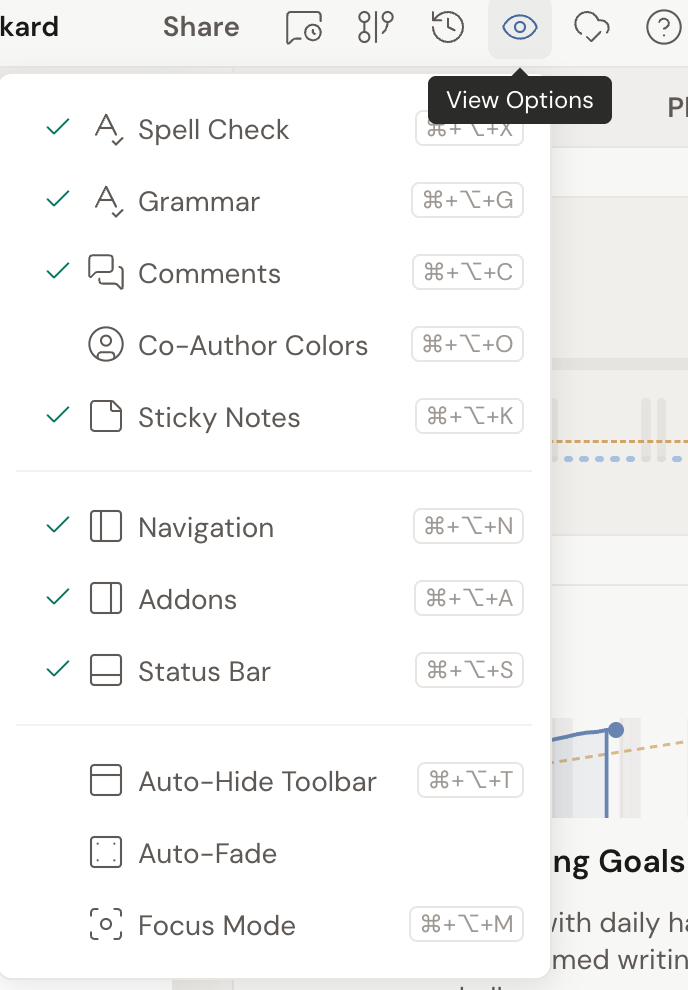
- Hide or show all stickies from View Options (the eye icon at the top of your project) using Sticky Notes, or press the keyboard shortcut: ⌘⌥K on Mac, Ctrl+Alt+K on Windows. Toggling visibility here never deletes a sticky. It just tucks them out of sight until you turn them back on.
- Stickies hide automatically in Focus mode so nothing distracts you while you write.
Troubleshooting
Section titled “Troubleshooting”The sticky note button is greyed out. You’re probably on a document that doesn’t support stickies. Open a scene, a character profile, or a notebook page and try again.
You don’t see your stickies. They may be hidden. Open View Options and turn on Sticky Notes, or press ⌘⌥K / Ctrl+Alt+K. Stickies are also hidden while you’re in Focus mode.