

Use track changes
Editing a co-author’s manuscript is a delicate business. Change one line and they may never notice what moved. Use track changes in Dabble and that stops being a worry: your edits show up as suggestions, not silent rewrites.
Every insertion, deletion, and format tweak becomes a card someone can review. Accept the good ones. Reject the rest.
Here’s how to turn track changes on, switch between views, and clear suggestions one card (or a whole chapter) at a time.
We’ll cover:
- Before you begin: the access you need first
- Steps: turn tracking on, pick a view, accept or reject
- Tips: the editor role, review copies, and remembered views
Before you begin
Section titled “Before you begin”You need edit access to the project. Anyone with the Co-Author role or higher can turn track changes on and off. People with the Editor role always have it on (see Tips).
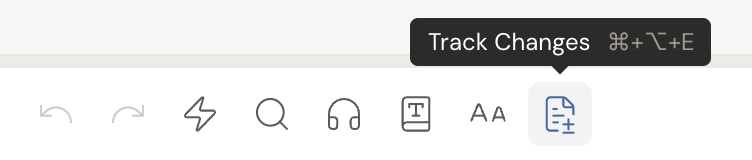
- Open the manuscript and click the Track Changes button in the toolbar (tooltip Track Changes, shortcut Cmd+Opt+E or Ctrl+Alt+E). Tracking turns on, and your edits now appear as suggestions (insertions, deletions, and format changes) instead of direct edits.
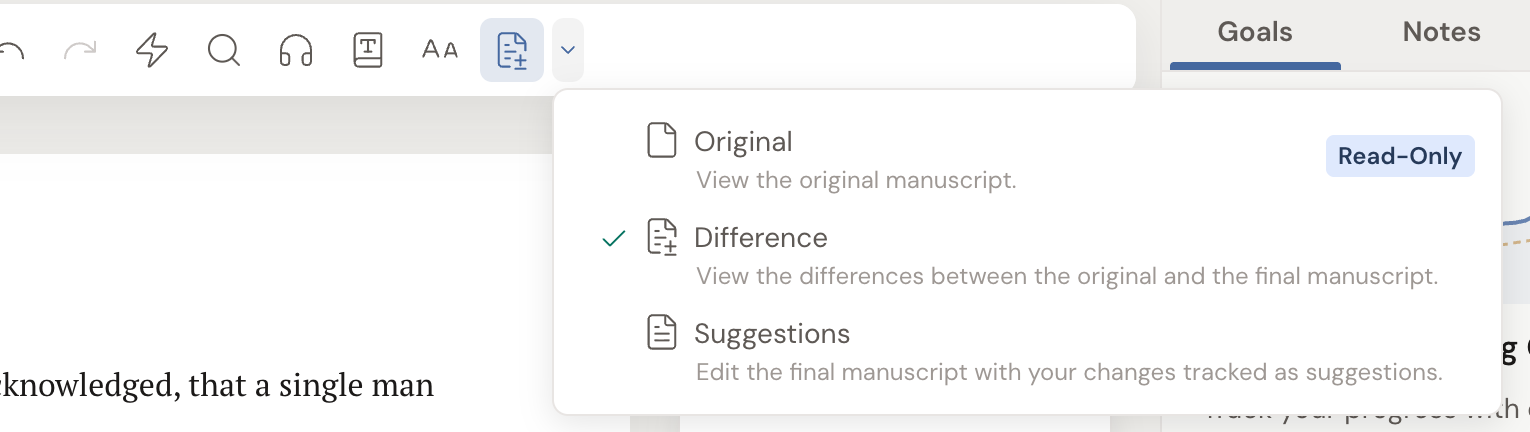
- To change how you see the manuscript, open the dropdown beside the Track Changes button and pick a view:
- Suggestions shows your tracked changes inline. Edit here and every change is tracked.
- Difference marks what changed between the original and the final manuscript.
- Original shows the original manuscript only, and is read-only (marked Read-Only).
- Review suggestions in the gutter to the right of your manuscript. Each suggestion appears as a card. Click Accept to keep the change or Reject to discard it. Resolved cards show Accepted or Rejected.

- To clear several suggestions at once, look at the navigator pill at the top of the gutter, the one showing your comment and change counts. Once a chapter or scene holds more than one unresolved change, a green check and a red X appear there. The check accepts every change in that chapter or scene. The X rejects them. Dabble asks you to confirm (Accept All or Reject All) before it does anything, and neither can be undone.
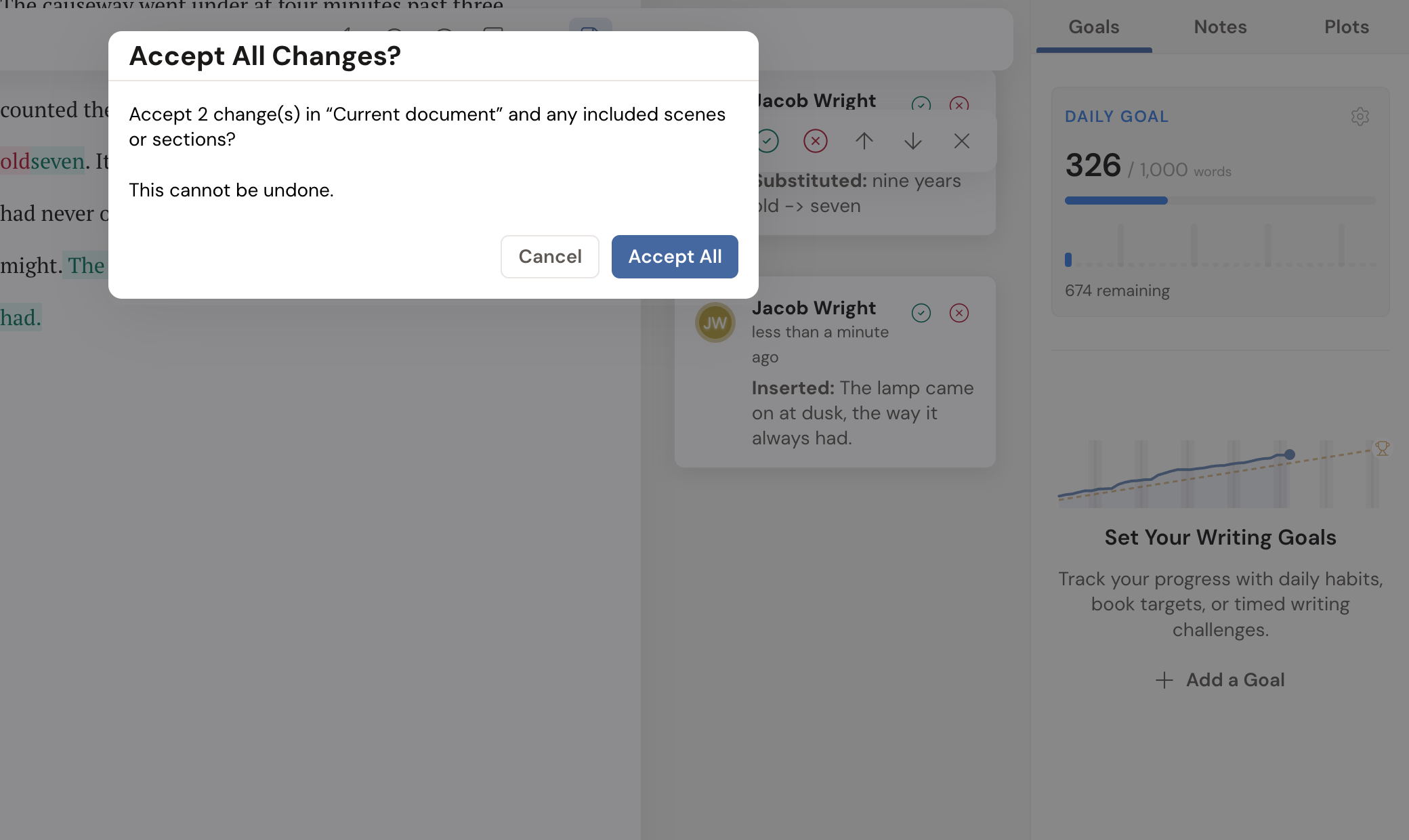
- Suggestions also appear alongside comments. Each change card is labeled by type, such as Inserted:, Deleted:, Substituted:, or Format Change:.
- With only one unresolved change in a chapter or scene, the green check and red X stay hidden. Accept or reject it on the card instead.
- People with the Editor role can’t turn track changes off. Their edits are always tracked as suggestions, and the toggle is locked with the tooltip As an editor, your changes are always tracked as suggestions.
- Inside a review copy, track changes is always on for everyone, and the toggle is locked.
- Your Track Changes view choice is remembered per project, so it stays the way you left it next time you open that manuscript.