
What's new in Dabble 3.0
Dabble 3.0 is a complete rebuild.
The biggest change: your project now syncs in real time. In 2.5, writing with someone meant passing the project back and forth like a single pencil. Now you both write at once, live.
Track changes, comments, version history, and sharing all grew up alongside it. Your existing projects and settings come with you.
This article is the quick tour, so you know what to look for. Each feature has its own guide when you want the details.
We’ll cover:
- Writing together, live: real-time co-authoring and four sharing roles
- Track changes you can actually use: suggestions you accept or reject
- Comments, rebuilt: threaded conversations that survive edits
- Review Copies for friends, beta readers, and editors: a separate copy you merge back on your terms
- Version history with the Time Machine: scrub back and restore any past state
- Jump anywhere with Quick Open: a command palette for large projects
- Read to Me: text-to-speech that catches awkward lines
- More ways to organize: Ideas, the Notebook, Notes, and a new Plot Grid
- New themes and preferences: six color themes, a light/dark switch, and one settings home
- A redesigned export, including Google Docs: Word, Web, Markdown, and Google Docs
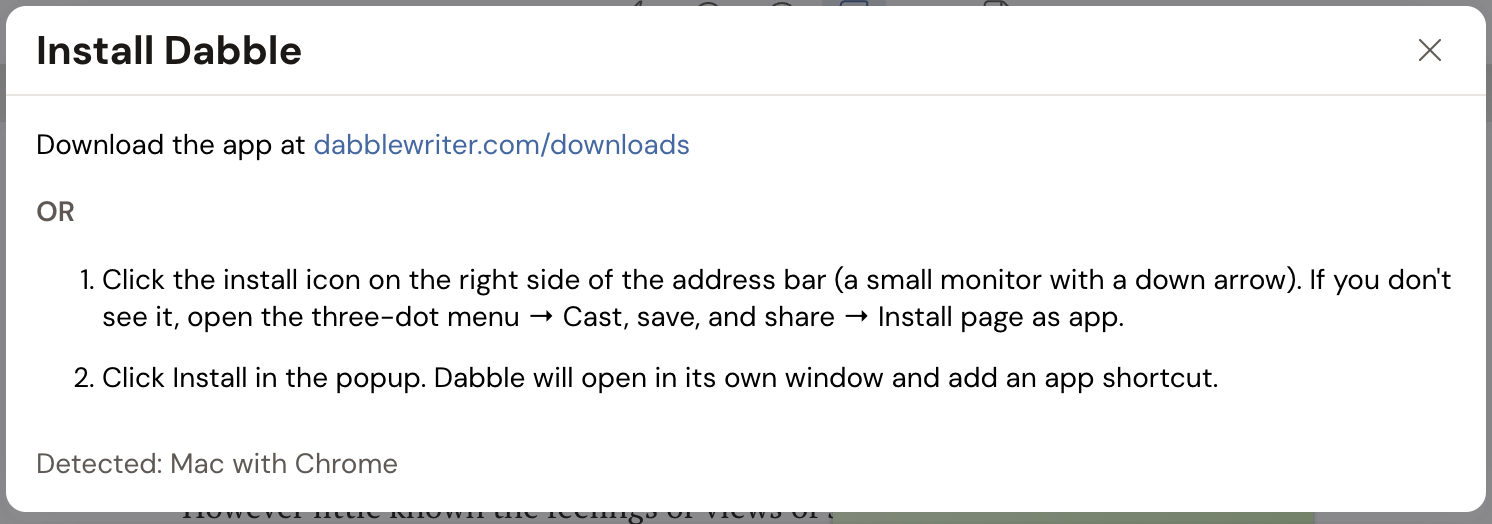
- Installing Dabble: install from your browser, or download the desktop app
Writing together, live
Section titled “Writing together, live”In 2.5, sharing meant handing the project over and waiting your turn. 3.0 drops the turns. You and your collaborators edit the same project at the same time.
To invite someone:
- Open a project and click Share Project.
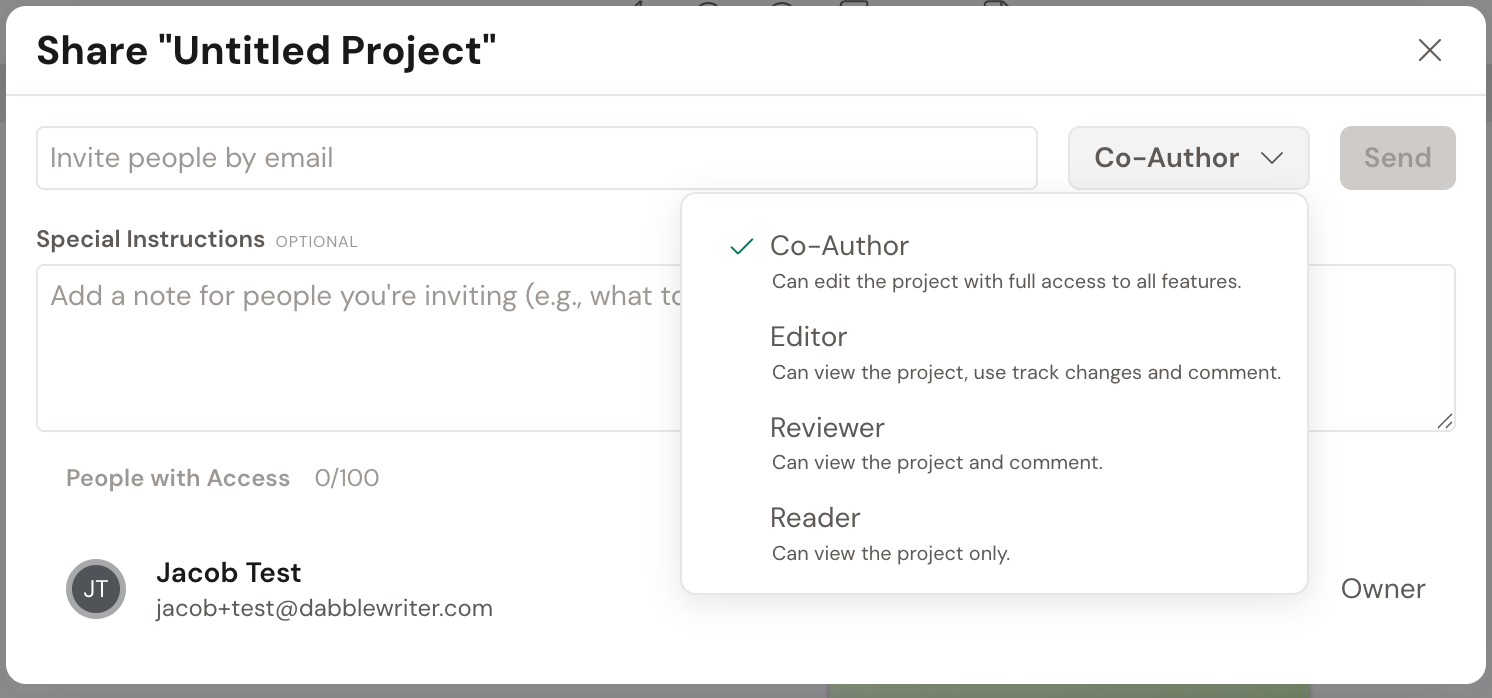
- Type an email into Invite people by email and choose a role.
- Click Send. (Or grab a Copy Invite Link to share it yourself.)
When your collaborator clicks Accept, you both write live. The status bar shows your connection and sync state.
Roles grew up too. 2.5 had only an owner and a co-author. 3.0 gives you four to choose from: Co-Author, Editor, Reviewer, and Reader. A Co-Author has full editing access. An Editor can suggest changes and comment. A Reviewer can comment. A Reader can view only. You stay the owner of the project. Hand each person exactly the access they need.
Review Copies are separate from sharing, and they come with their own invite types: Friend, Beta Reader, and Editor. More on those below.
Track changes you can actually use
Section titled “Track changes you can actually use”In 2.5, track changes was something you could look at but not use. In 3.0 it works, fully.
Click the Track Changes button in the editor toolbar (or press Cmd+Opt+E / Ctrl+Alt+E) to turn tracking on. Your edits become suggestions instead of silent rewrites.
To review, the status bar tabs switch between three views: Original (Read-Only), Difference, and Suggestions. In the sidebar you Accept or Reject each change, or Undo if you change your mind.
Track changes is always on inside an editor’s review copy. It is also always on for anyone with the Editor role, so their edits arrive as suggestions you can review.

Comments, rebuilt
Section titled “Comments, rebuilt”Comments are threaded conversations now.
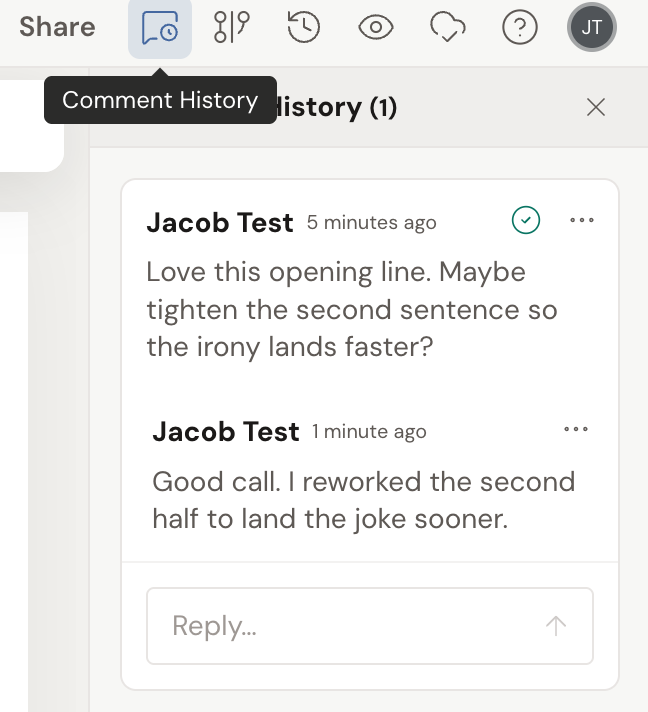
Select text, click Add Comment, and type into Leave a comment…. Others can Reply…. Click Mark as resolved when a thread is done.
Comments track read and unread state, can be edited, and survive even when the text they pointed to changes. Open Comment History to see everything that has been resolved, accepted, or rejected. Use Jump to original location to get back to where a comment lives.
Review Copies for friends, beta readers, and editors
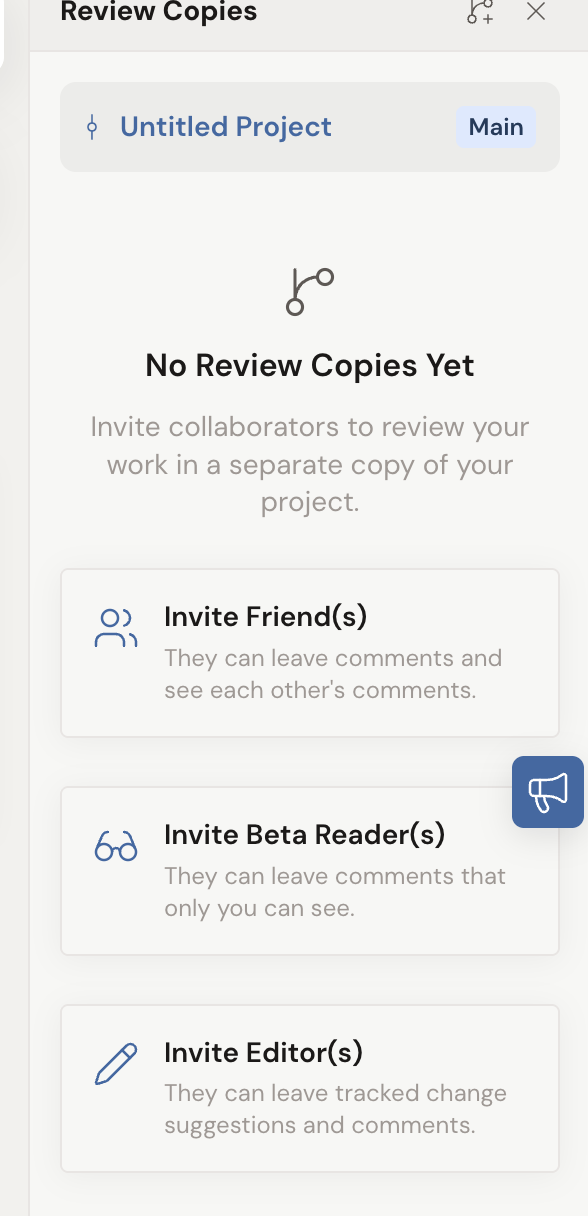
Section titled “Review Copies for friends, beta readers, and editors”Review Copies are new in 3.0. A review copy is an isolated copy of your project that you invite someone into. Their work stays separate until you decide to bring it in.
Open Review Copies and create a copy. Then choose who comes in:
- Invite Friend(s): they can leave comments that everyone on the copy can see.
- Invite Beta Reader(s): they can leave comments that only you can see.
- Invite Editor(s): they can leave tracked-change suggestions and comments.
Set the Access Scope to control which documents they see. That scope locks once the review copy is created, so choose it before you commit.
An editor’s copy is private by default. The panel shows a PRIVATE badge and a Waiting on Editor(s)… status while they work, and they mark the copy Ready for review when they’re done. If they’d rather you watch along in real time, they can turn private mode off.
When you’re ready, merge the work back into your project: an editor’s suggestions and comments, or the comments from a friend or beta reader. If edits overlap, a conflict prompt lets you decide which version wins.
Version history with the Time Machine
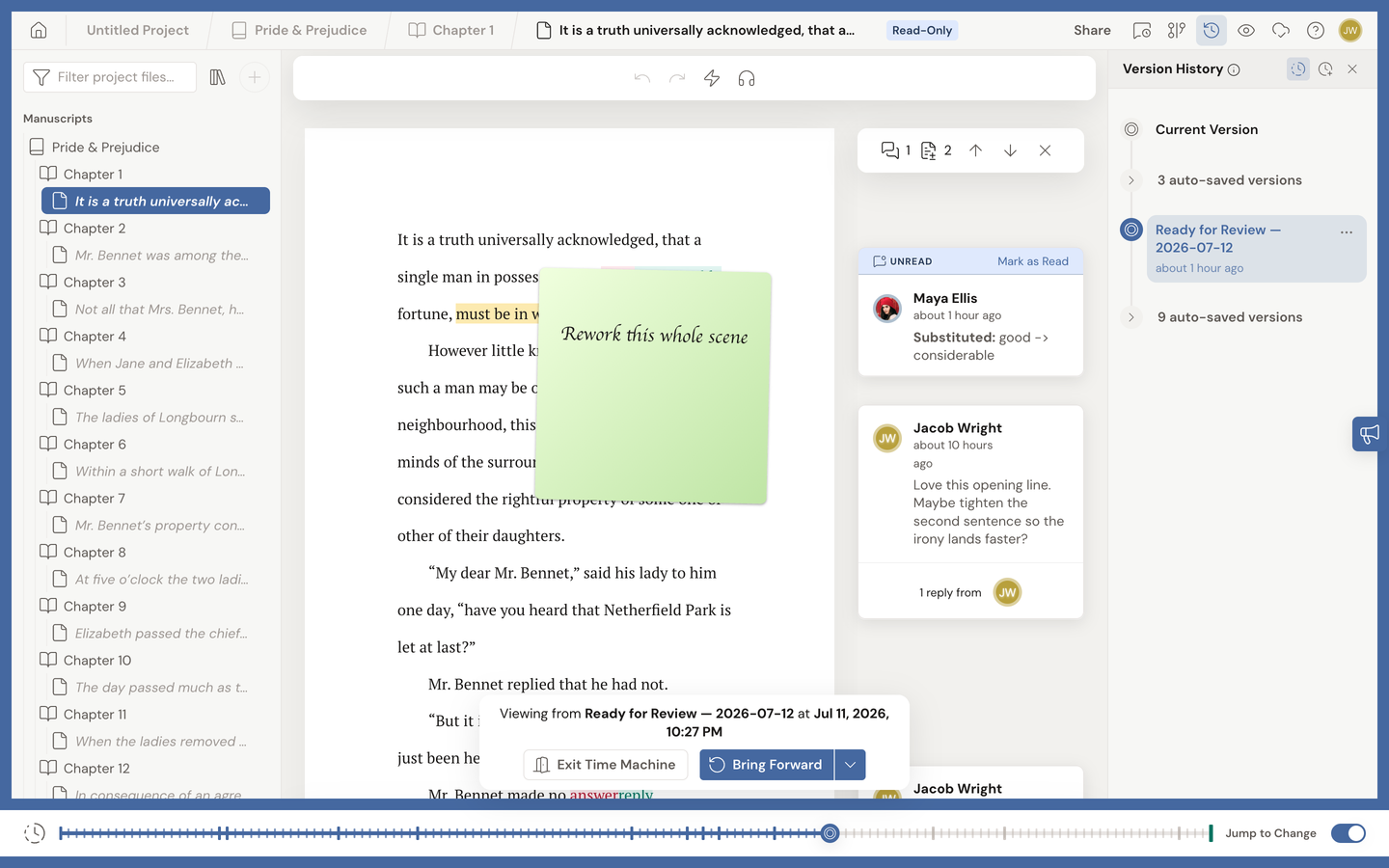
Section titled “Version history with the Time Machine”2.5 had a historical mode you could toggle. 3.0 gives you a visual timeline.
Version History, also called the Time Machine, lets you scrub back and view any past state in a read-only view. From there:
- Restore this version rolls the whole project back. It auto-saves your current state first, so nothing is lost.
- Bring Forward pulls a single document into the present.
You can also Create new version at any time to save a named checkpoint you can return to later.
Jump anywhere with Quick Open
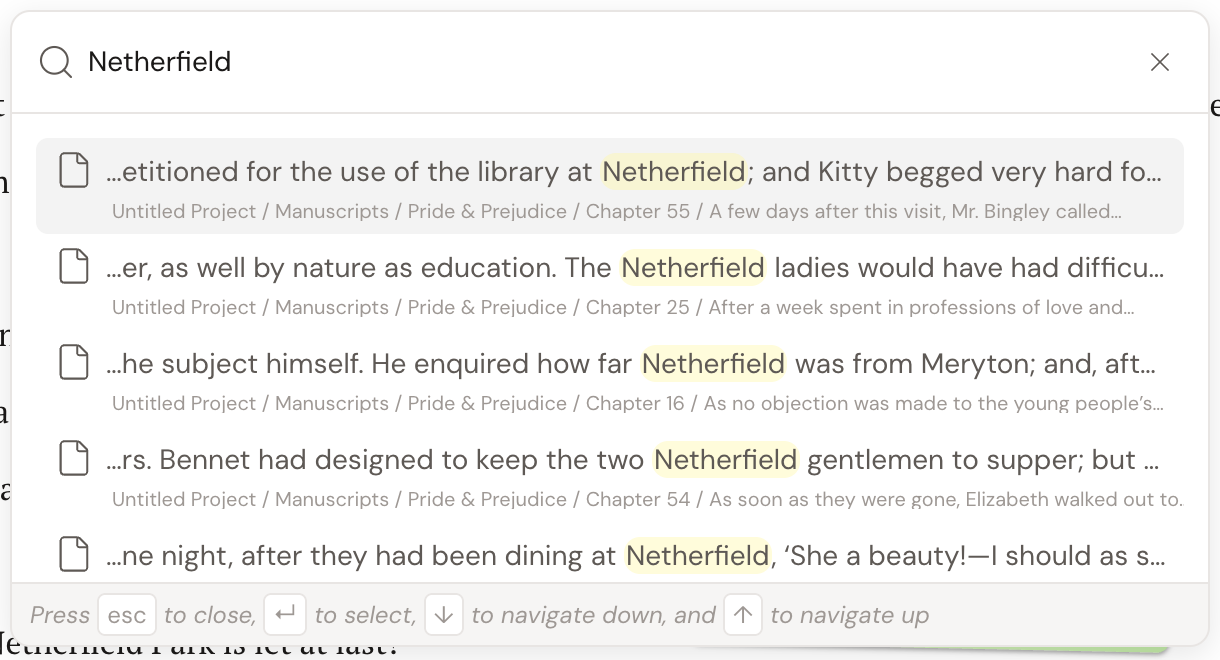
Section titled “Jump anywhere with Quick Open”3.0 adds a command palette: Quick Open.
Open it and start typing. It fuzzy-matches any document title or note in your project, and shows a snippet when it finds a match in the body text. Press enter to jump straight there.
In a large project, it’s the fastest way to get around.
Read to Me
Section titled “Read to Me”Read to Me is a new text-to-speech feature that reads your manuscript aloud, which is a great way to catch the awkward phrasing your eyes skip right over.
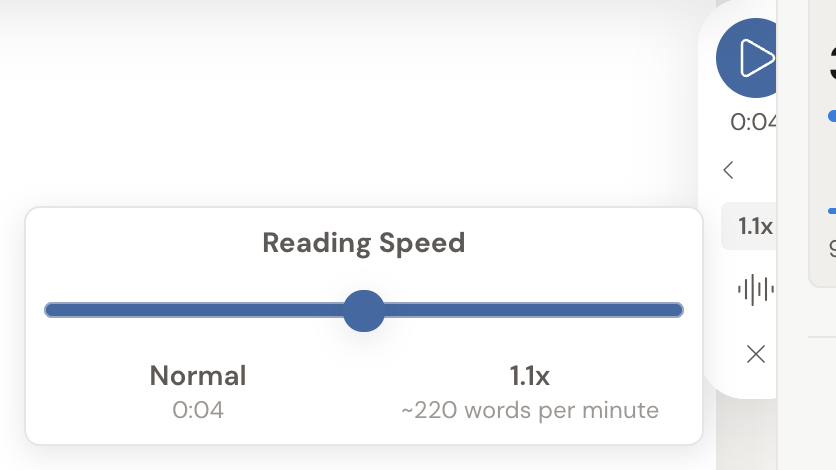
Click the headphones button in the toolbar and a small control appears beside your text: play and pause, the elapsed time, a speed button, and a voice picker. Open the speed button to set the Reading Speed, which shows you roughly how many words per minute that is. The highlight follows along as it reads, and Resume Tracking re-syncs if you scroll away.
More ways to organize
Section titled “More ways to organize”Alongside Manuscripts, Plots, and Characters, 3.0 adds room to think.
Ideas give you a place to jot things down. The Notebook (also labeled Worldbuilding) holds your world and lore notes. Notes are richer than before.
The Plot Grid for plotting got a major overhaul. And you can now design a book cover with an image, colors and patterns, and your title and author name placed where you want them.
New themes and preferences
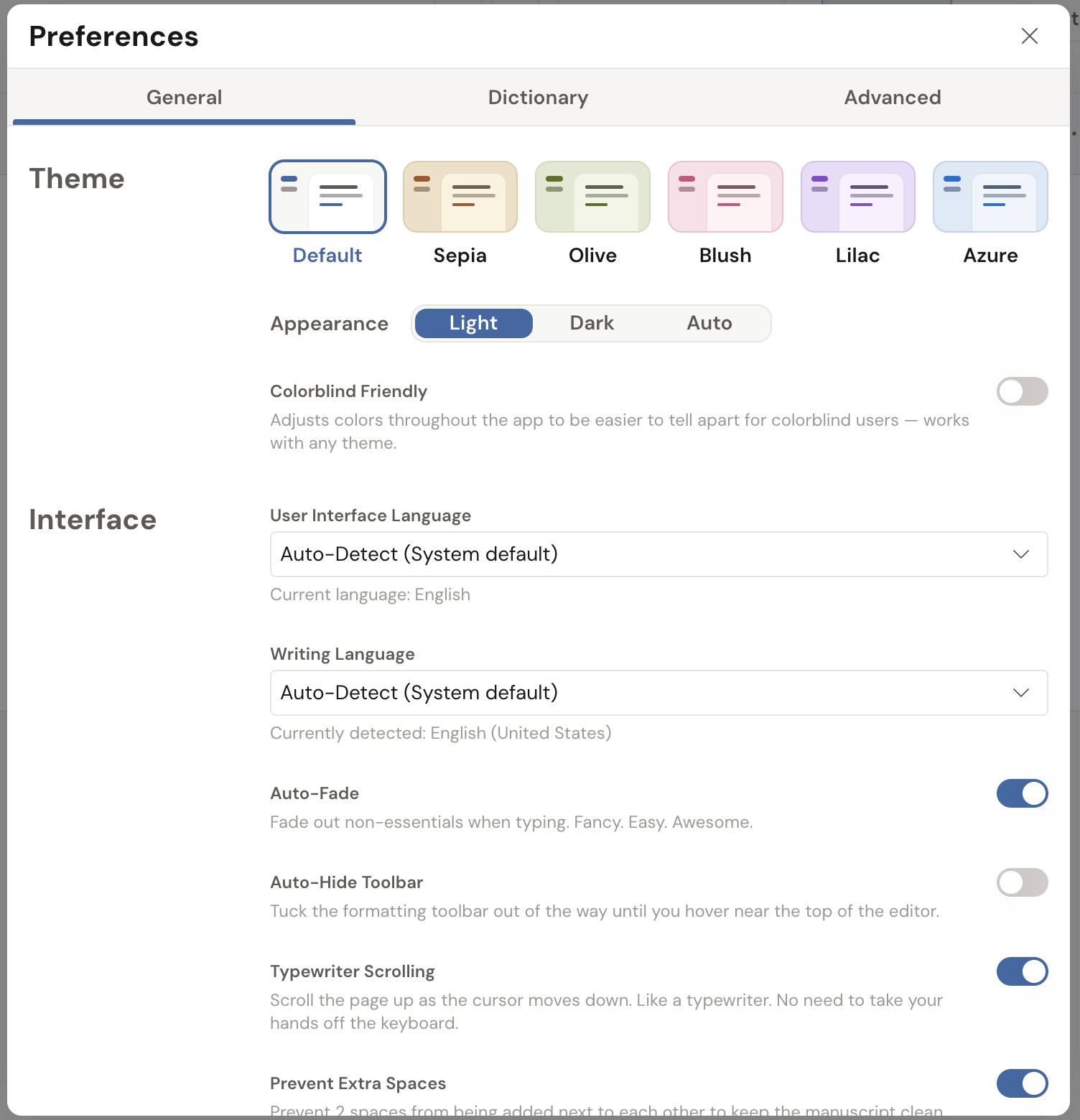
Section titled “New themes and preferences”2.5 gave you two themes. 3.0 gives you six color themes (Default, Sepia, Olive, Blush, Lilac, and Azure) plus a separate Light / Dark / Auto appearance switch, where Auto follows your device. There is an optional Holiday Themes toggle for when you’re feeling festive.
Preferences all live in one place now, sorted into General, Dictionary, and Advanced tabs. Interface options include Auto-Fade, Auto-Hide Toolbar, Typewriter Scrolling, and Prevent Extra Spaces.
A redesigned export, including Google Docs
Section titled “A redesigned export, including Google Docs”The whole export flow was rebuilt.
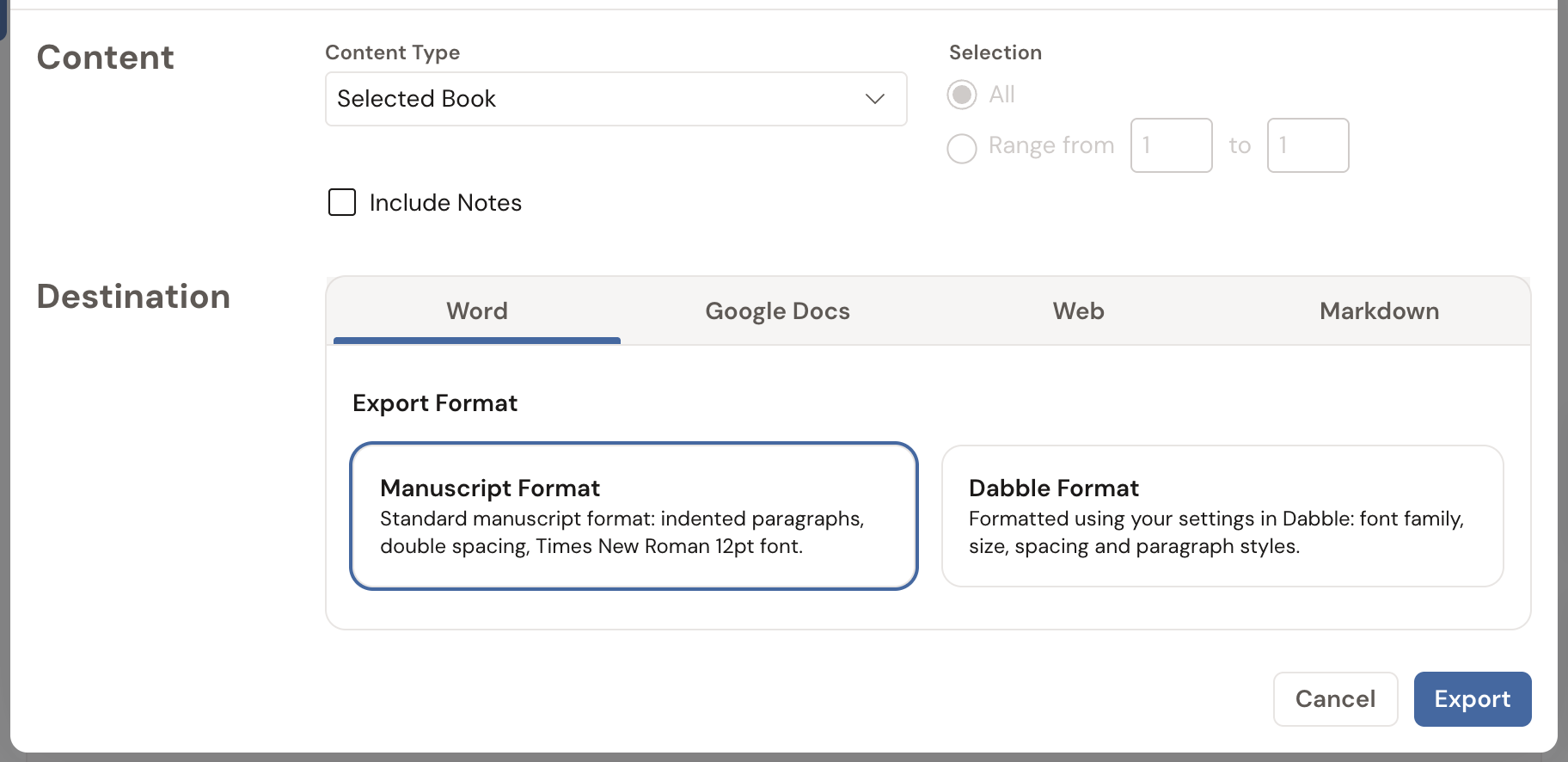
Export to… now offers Word, Web, Markdown, and Google Docs. Choose Manuscript Format or Dabble Format. Plots can export as index cards in 4×5 Cards or 3×5 Cards.
Sending a manuscript to Google Docs? Connect your Google account with Sign in with Google first.
Installing Dabble
Section titled “Installing Dabble”New in 3.0, you can install Dabble straight from your browser: a real app with its own window and icon, that keeps writing when your connection drops.
Open Install Dabble from the menu and follow the steps for your system. Dabble installs on Mac, Windows, Linux, iOS, and Android, and works offline once installed.
The downloadable desktop app is still there too, for Windows, Mac, and Linux, if that’s what you’d rather run.