

Reorder with drag and drop
Your Chapter 9 twist would land harder as Chapter 6. A scene wandered into the wrong chapter. When you need to reorder chapters and scenes in Dabble, you just drag them in the sidebar.
No cut, no paste, no retyping. Grab an item, drop it where it belongs, and everything else shuffles to make room.
Here’s how to drag, where an item is allowed to land, and the little things that trip people up.
Before you begin
Section titled “Before you begin”Reordering lives in the Manuscripts sidebar, the left navigation tree that lists your books, parts, chapters, sections, and scenes. Open a novel project and find the item you want to move.
Dabble keeps your structure valid as you go, so an item only drops where it fits:
- A Scene goes into a Chapter or Section.
- A Chapter or Section goes into a Book or Part.
- A Part goes into a Book.
Try an invalid move, like dropping a Scene straight onto a Book or a Part inside another Part, and the item snaps back to where it started.
- In the sidebar, find the row you want to move. The whole row is the grab area. There’s no handle to hunt for.
- Press and hold anywhere on the row, then drag. A line shows where the item will land.
- Aim for the spot you want. Drop near the top of a row and your item lands just before it, as a sibling. Drop near the bottom and it lands just after, or as that row’s first child if the row accepts it.
- Let go. Your item moves in, and everything else shuffles to make room.
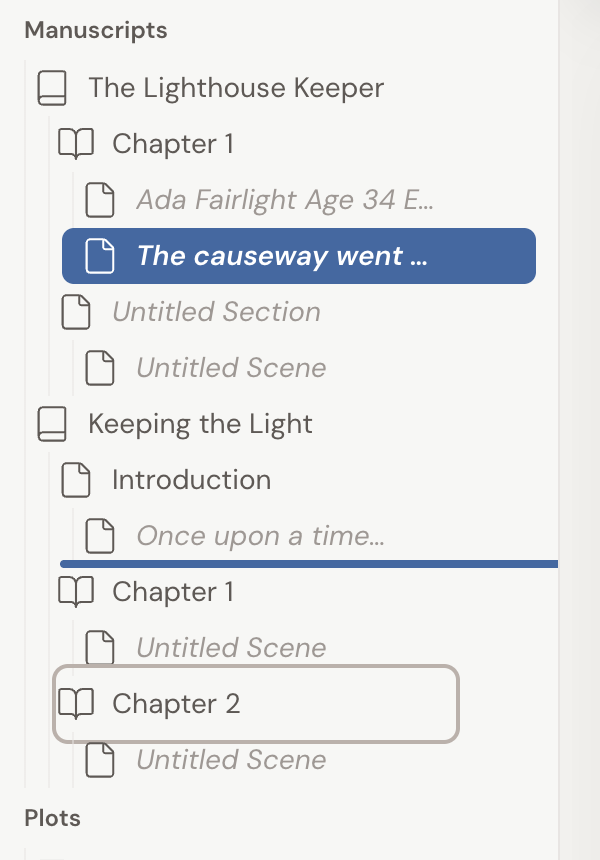
- Unnamed chapters renumber themselves. Named ones don’t. A chapter or part you haven’t titled shows its number as a placeholder: Chapter 1, Chapter 2, Part 1. Move it and the number catches up to its new position. A chapter you have named keeps that name and shows no number, so “The Lighthouse” stays “The Lighthouse” wherever it lands.
- Scenes follow their chapter. Drag a chapter and every scene inside it comes along. To leave the scenes in place and only shift the chapter break, move the scenes out first.
- Long lists tidy themselves mid-drag. Drag a chapter, part, or book, then pull the pointer away from the sidebar. About 150 pixels out, every other item of that same type collapses. Now you’re dragging past a short list of chapters instead of scrolling through every scene you’ve written. Move back over the sidebar and hover for about 2 seconds to expand it again. Scenes don’t trigger this, only the containers do.
- Dropping in place does nothing. Release an item on itself, or back in the same spot, and everything stays unchanged.