

Link notes with @mentions
In your notes, a scene mentions a character and that character mentions a city, but none of those names actually go anywhere. Link notes with @mentions in Dabble and each one turns into a link you can click.
Type @ while you write, pick the character, scene, or note you mean, and Dabble drops in the link. Click it later and you land right on that document.
Before you begin
Section titled “Before you begin”@mentions work in any rich-text editor that supports them: manuscript scenes, character profiles, Notebook notes, Ideas, and plots.
- Place your cursor where you want the link, then type @.
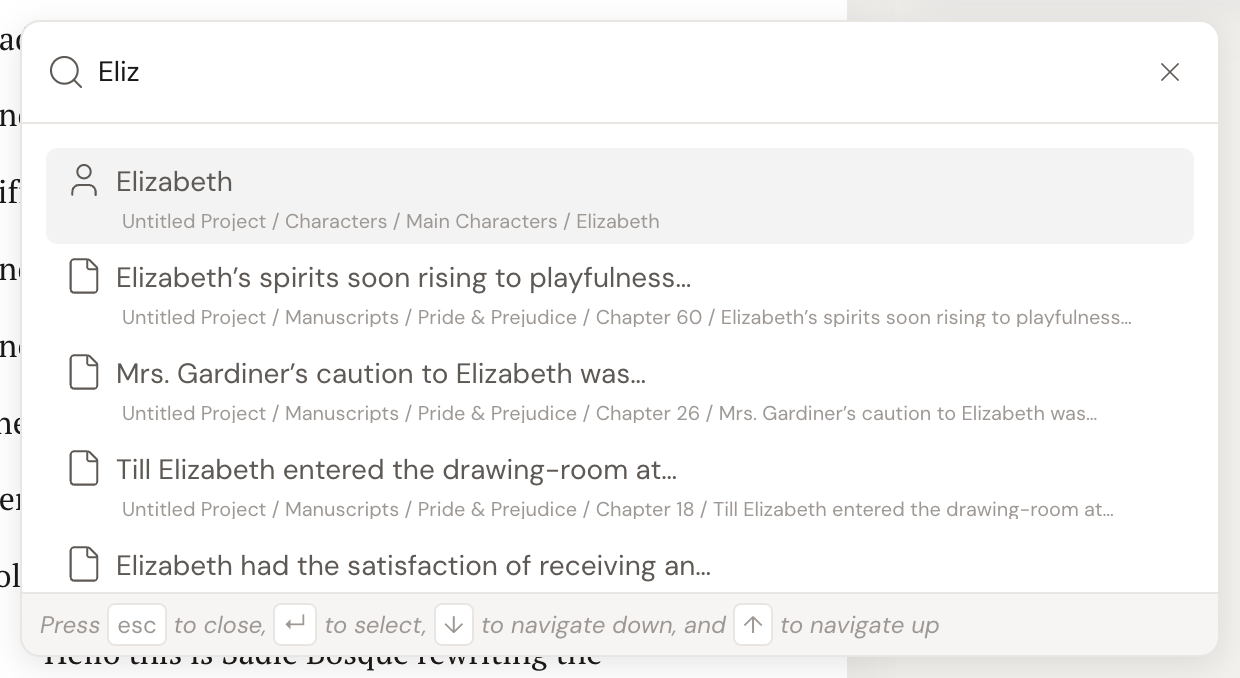
- A command palette opens, listing the documents in your project. Each one shows its title and a breadcrumb path, so you can tell similar items apart.
- Keep typing to filter the list by name.
- Click the document you want, or highlight it and press Enter.
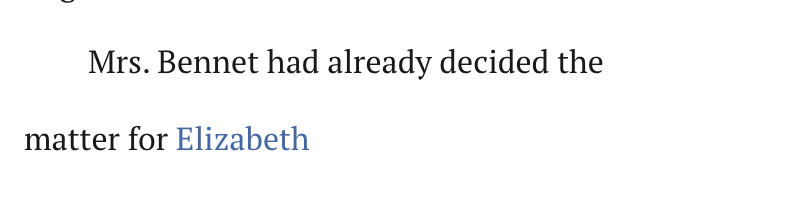
- Dabble replaces the @ with an inline link showing the document’s title, then adds a space after it so you can keep writing.
To follow a mention later, click the link. Dabble takes you straight to that document.
- Mentions stay current. Rename the linked document and every mention of it updates to the new title automatically, across all open editors.
- Deleted links are kept, not lost. Trash or delete the document a mention points to and the link is marked as deleted. It can no longer be clicked, but it stays in your text so you can see what it referenced.
- Templates, archived, and trashed items stay out of your way. Templates, the archive, and the trash are left out of the list by default. Trashed documents are filtered out, and archived ones sort to the bottom.
- Mentions also work inside the right-sidebar Notes forms, not just the main editor.