

Share a read-only link
You finished a draft. Now a beta reader, your critique partner, or your mom wants to read it, and you’d like to let them in without worrying they’ll nudge a word out of place. That’s when you share a read-only link in Dabble.
You invite one person as a Reader and send them their own invite link. They see the whole project. They can’t change a thing, and you can take the link back whenever you want.
Before you begin
Section titled “Before you begin”A read-only link in Dabble is a personal invite, not a public web page.
You invite one person as a Reader. Then you copy the link tied to that invite and send it however you like. Whoever opens it gets view-only access. And yes, you can revoke it later.
- Open the project, then click Share in the top bar.
- In the Invite people by email field, type the person’s email address and press Enter to add it.
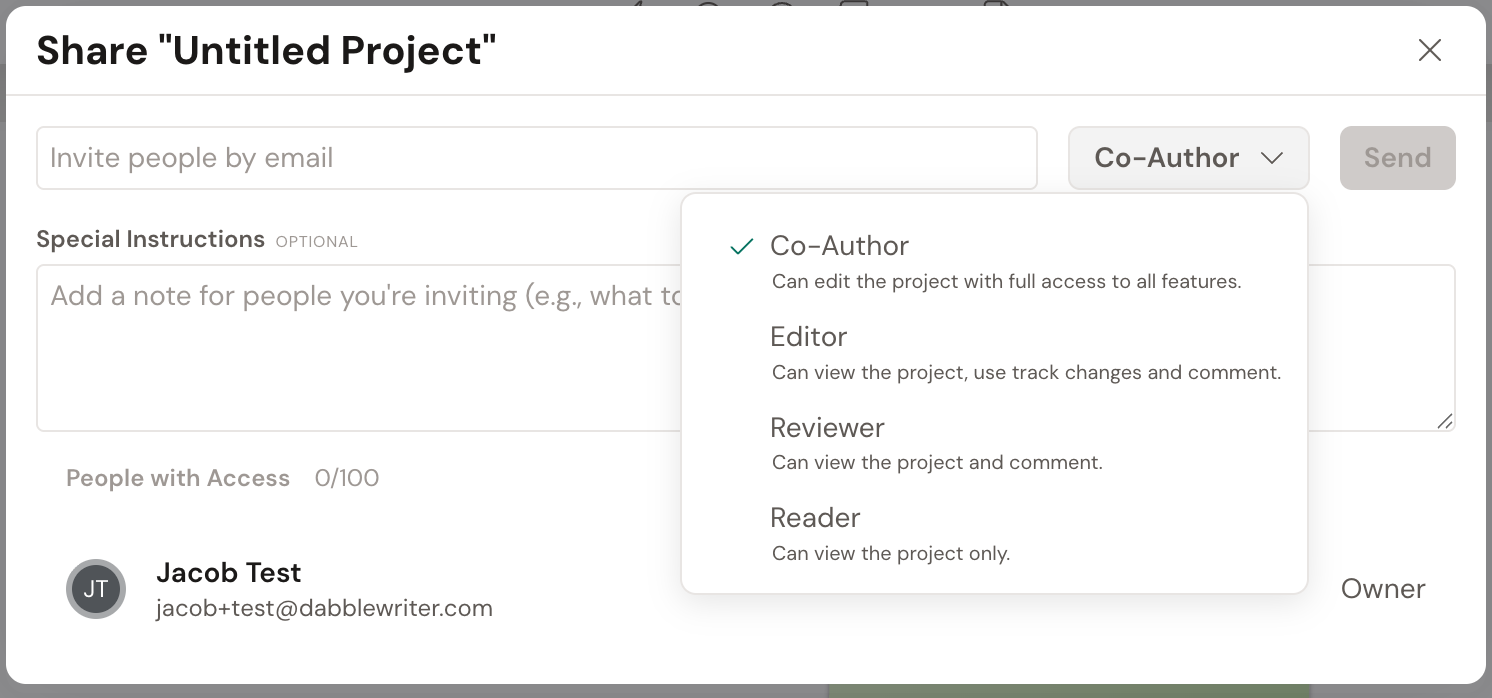
- Click the access-level dropdown and choose Reader. Its description reads “Can view the project only.”
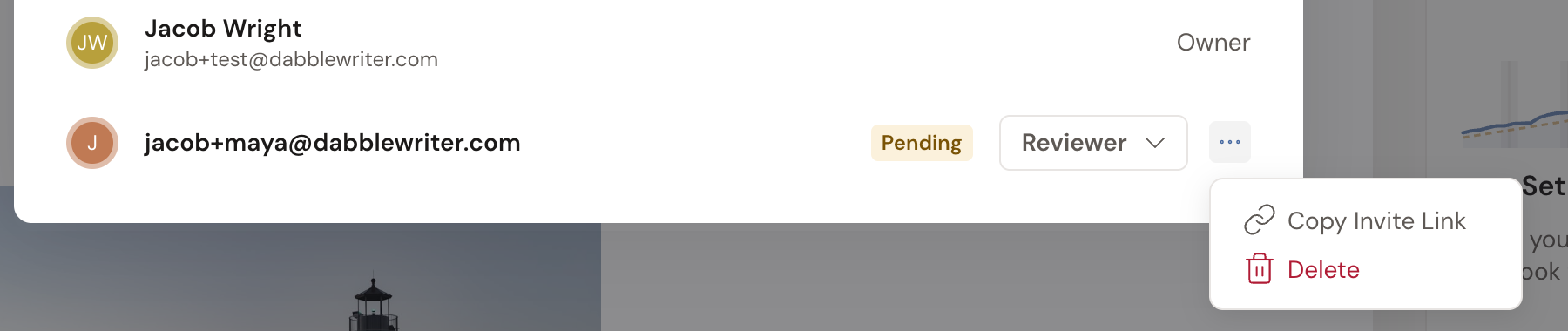
- Click Send. The person appears in the people list with a Pending badge.
- On their pending row, open the … (ellipsis) menu and click Copy Invite Link. You’ll see a Link Copied confirmation.
- Paste the link into an email, message, or anywhere else, and send it to them.
When they open the link, they accept a Project Invitation and get view-only access. Inside the project, a Read-only badge shows what they’ve got. They can read every scene. They can’t edit, comment, or suggest changes.
- The link isn’t locked to one email address. Whoever opens it can accept, so only share it with the person you mean to. If they’re signed in to the wrong account, Dabble offers them Switch Account.
- A Reader can read everything but cannot comment. If you want their feedback, invite them as a Reviewer (comment only) or Editor (suggestions) instead. See Invite a co-author.
- To stop someone’s access later, open Share, find their row, and use the × next to their access level (tooltip Revoke access).
Troubleshooting
Section titled “Troubleshooting”- The link says the invitation can’t be found. It may have been revoked, or the link was copied incompletely. Open Share, copy the link again, and resend it.
- The link expired. Pending invites expire after 30 days. Invite the person again to generate a fresh link.