

Work with review copies
You want a second opinion on a chapter. What you don’t want is someone rearranging your live manuscript while your back is turned.
A review copy is the middle ground. It’s an isolated copy of part of your project that you invite someone into. They work in the copy. When you’re ready, you merge their changes back into your main project, or you delete the review copy and move on.
Here’s how review copies work, from the invite to the merge.
We’ll cover:
- Why review copies exist: what a review copy is for, and how it differs from a co-author
- The three kinds of review copy: friends, beta readers, and editors
- Access scope keeps things contained: share one chapter without exposing the rest
- Share the invite link: copy the link when the email doesn’t cut it
- The lifecycle of a review copy: creation to merge, stage by stage
- What happens when you merge: bringing changes home, conflicts and all
- Review copies don’t affect your word counts: why writing in a copy stays off your stats
- Good to know: plans, limits, and the fine print
Why review copies exist
Section titled “Why review copies exist”Sometimes you want a second set of eyes, not a second set of hands.
A review copy keeps the review contained. Your collaborator only sees the documents you choose. They can suggest or comment, but nothing they do reaches your main project until you decide to merge it.
That’s the difference from a co-author. A co-author edits the same live project alongside you. A review copy hands off a slice of your story, gathers feedback, and brings it back on your terms.
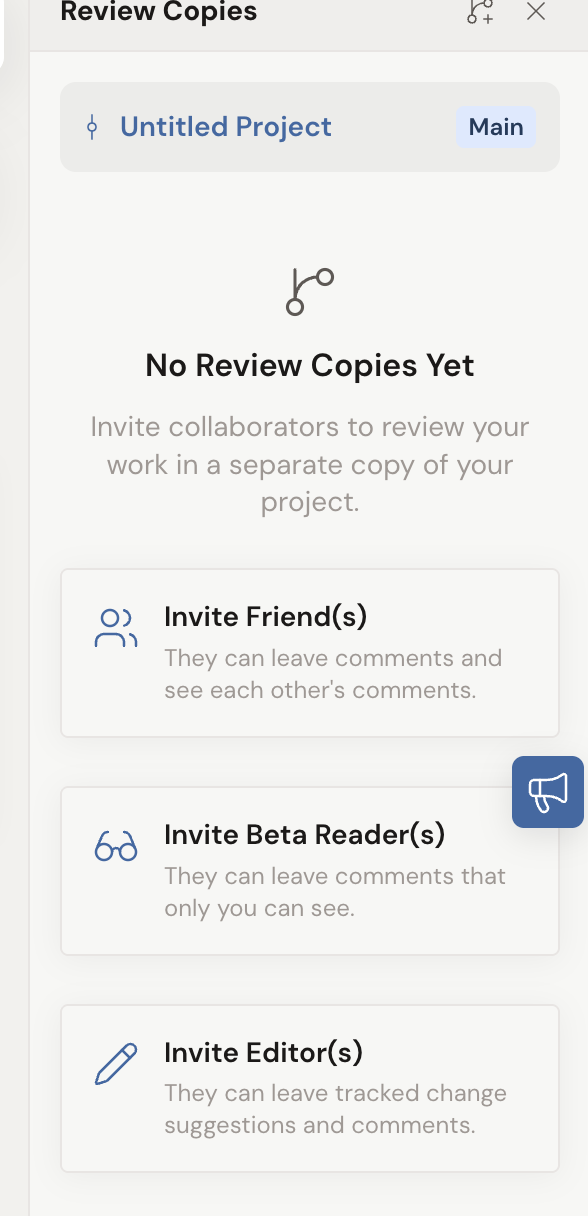
To find your review copies, click the Review Copies button in the project header. It opens the Review Copies panel. Your main project sits at the top as a tile with a Main badge, and every review copy appears beneath it.

The three kinds of review copy
Section titled “The three kinds of review copy”When you create a review copy, you choose who you’re inviting. That choice is locked for the life of the copy, so pick with intent.
- Invite Friend(s) creates a friend review copy. Invitees leave comments that everyone on the copy can see.
- Invite Beta Reader(s) creates a beta reader review copy. Invitees leave comments that only you, the owner, can see. A beta reader review copy has no writing toolbar at all, so readers can react but never rewrite.
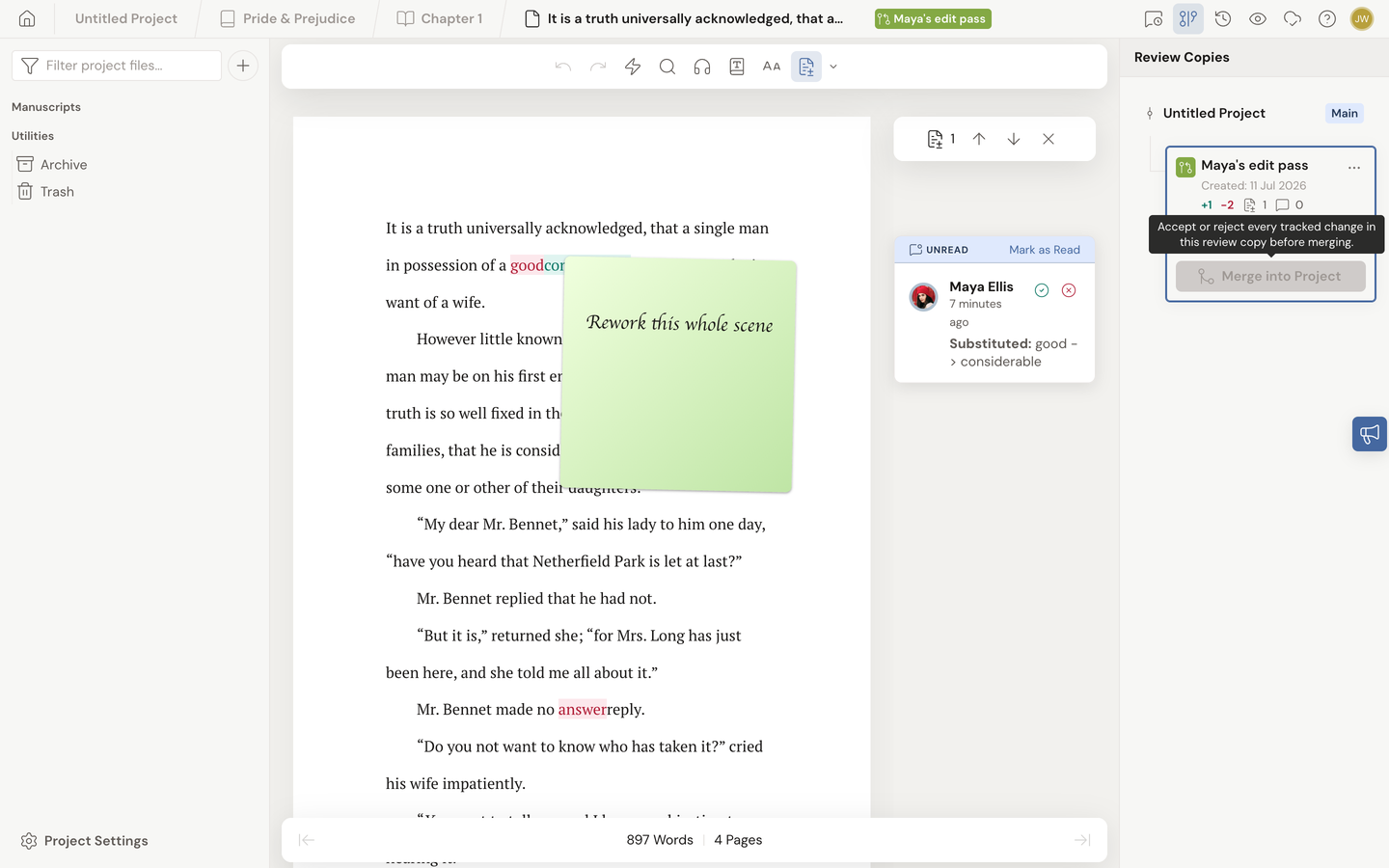
- Invite Editor(s) creates an editor review copy. Invitees leave tracked-change suggestions and comments. You review each suggestion, accept or reject it, then merge.
You pick between the three when you create the review copy.
Access scope keeps things contained
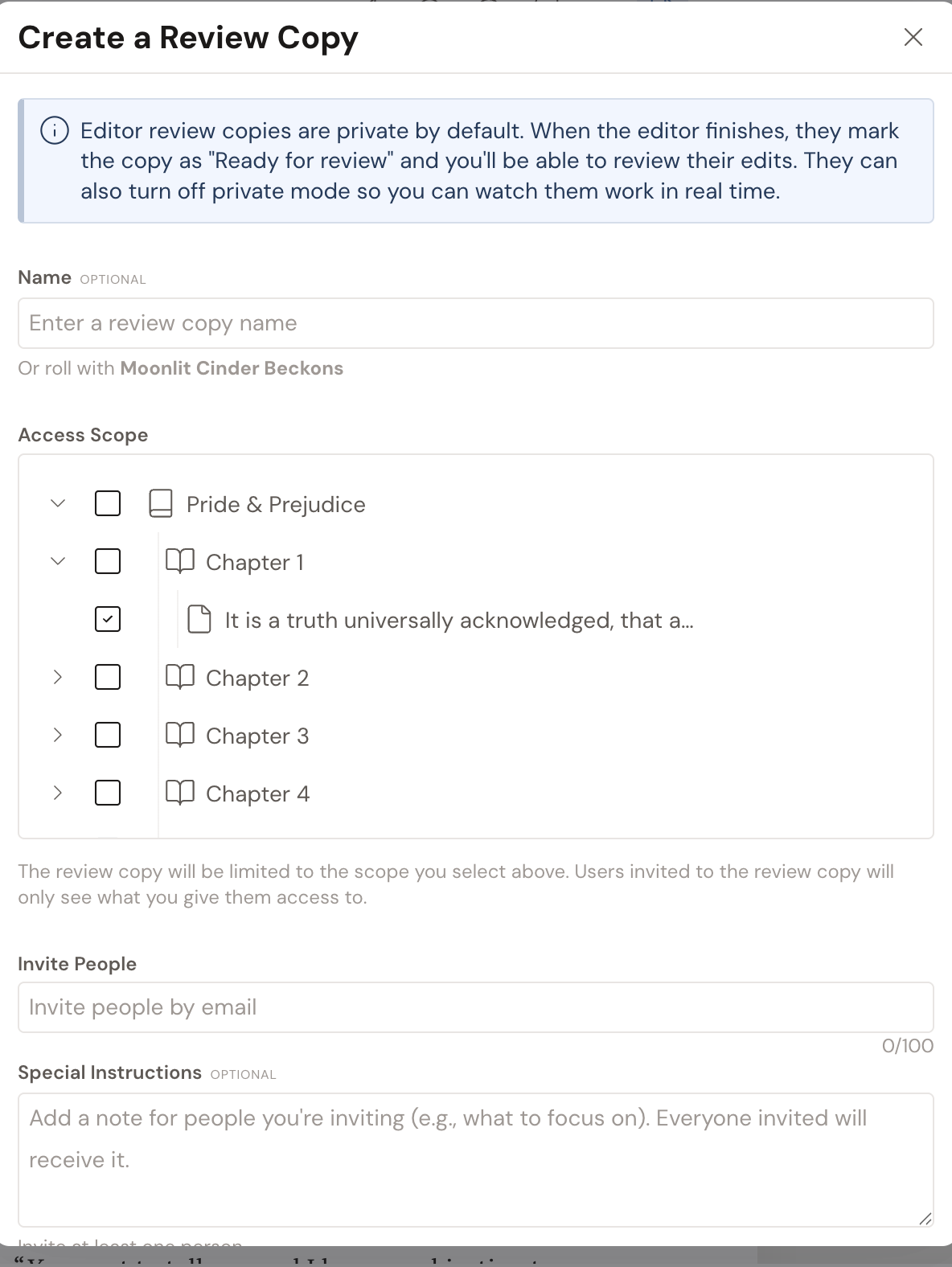
Section titled “Access scope keeps things contained”When you create a review copy, you set its Access Scope: the documents the copy is allowed to see and touch. Collaborators only ever see what you scoped the copy to. That’s how you share a single chapter without exposing the rest of your novel.
Scope locks once the review copy exists. To change which documents a copy covers, delete it and create a new one.
To the people you invite, the review copy wears your project’s normal title and cover. Someone invited only to a review copy sees what looks like an ordinary project in their workspace.
Share the invite link
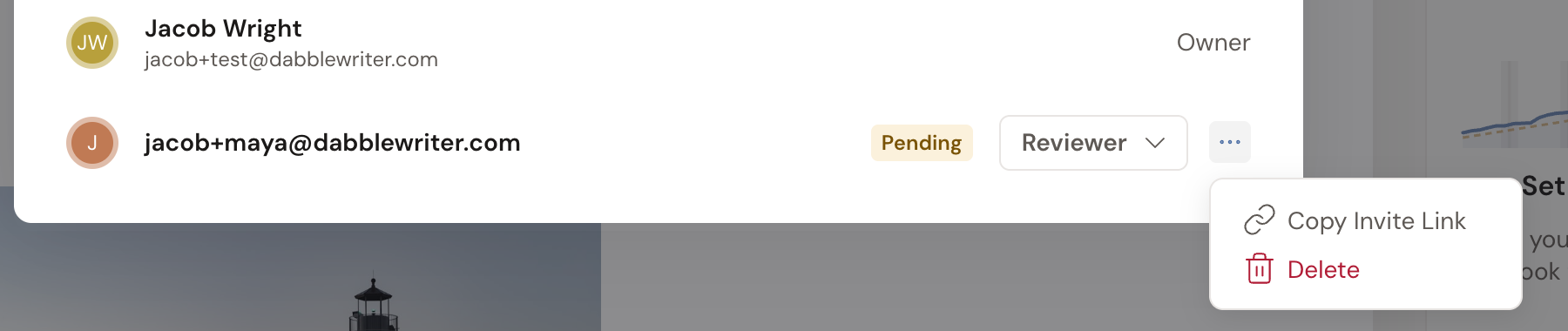
Section titled “Share the invite link”When you invite someone by email, Dabble sends them a link that opens the review copy. If the email never arrives, or you’d rather hand the link over yourself, you can copy it.
- Open the Review Copies panel and find the review copy.
- Click its ⋯ menu and choose Edit.
- At the bottom of the Edit Review Copy dialog, each pending invite has its own ⋯ menu. Click it and choose Copy Invite Link.
- Paste the link to the person you’re inviting.
When they open the link, Dabble asks them to accept the invitation before it appears in their workspace.
The lifecycle of a review copy
Section titled “The lifecycle of a review copy”Every review copy travels the same road from creation to merge:
- You create the review copy: choose the type, name it, set the Access Scope, and invite people under Invite People.
- Your collaborator works in their isolated copy, leaving suggestions or comments.
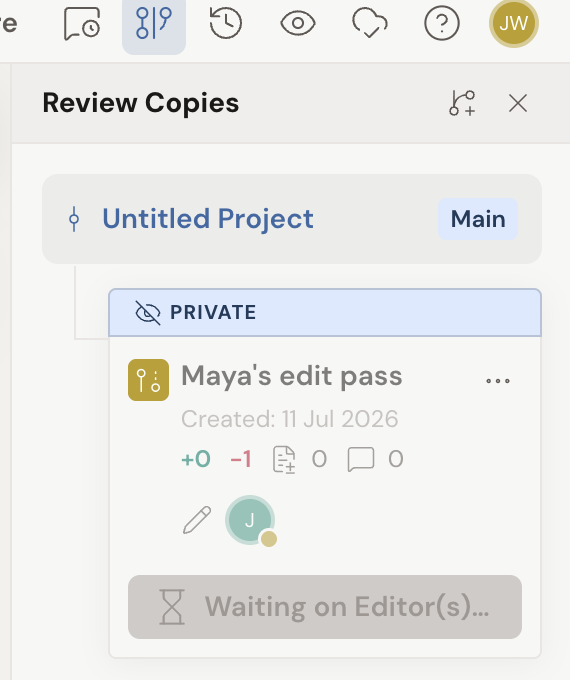
- The work is marked done. An editor review copy is private by default, so the editor works out of sight until they mark it Ready for Review. Then you accept or reject every tracked change. If your editor would rather you follow along, they can turn private mode off and you’ll see their work in real time. On a beta reader review copy, you click End Access, which removes the readers so you can bring their comments in.
- You accept or reject the tracked changes, then click Merge into Project on the review copy’s tile.
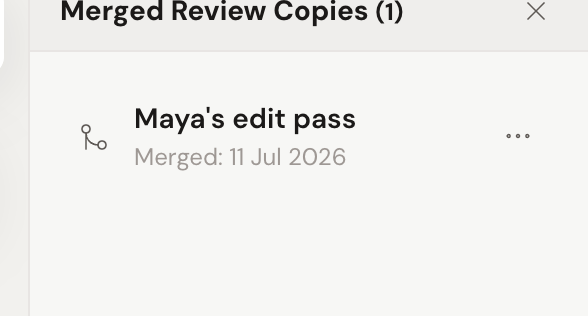
- After merging, the copy moves to the Merged Review Copies archive, a read-only record of what happened.
The tile tells you where things stand at a glance: a PRIVATE badge while an editor is still working privately, a status such as Waiting on Editor(s)… or Ready for Review, the date the copy was created, and a running tally of added and removed words, tracked changes, and comments.
What happens when you merge
Section titled “What happens when you merge”Clicking Merge into Project brings the review copy’s changes home to your main project.
Most of the time it just runs. But if you and the review copy both changed the same passage, Dabble won’t guess which one wins.
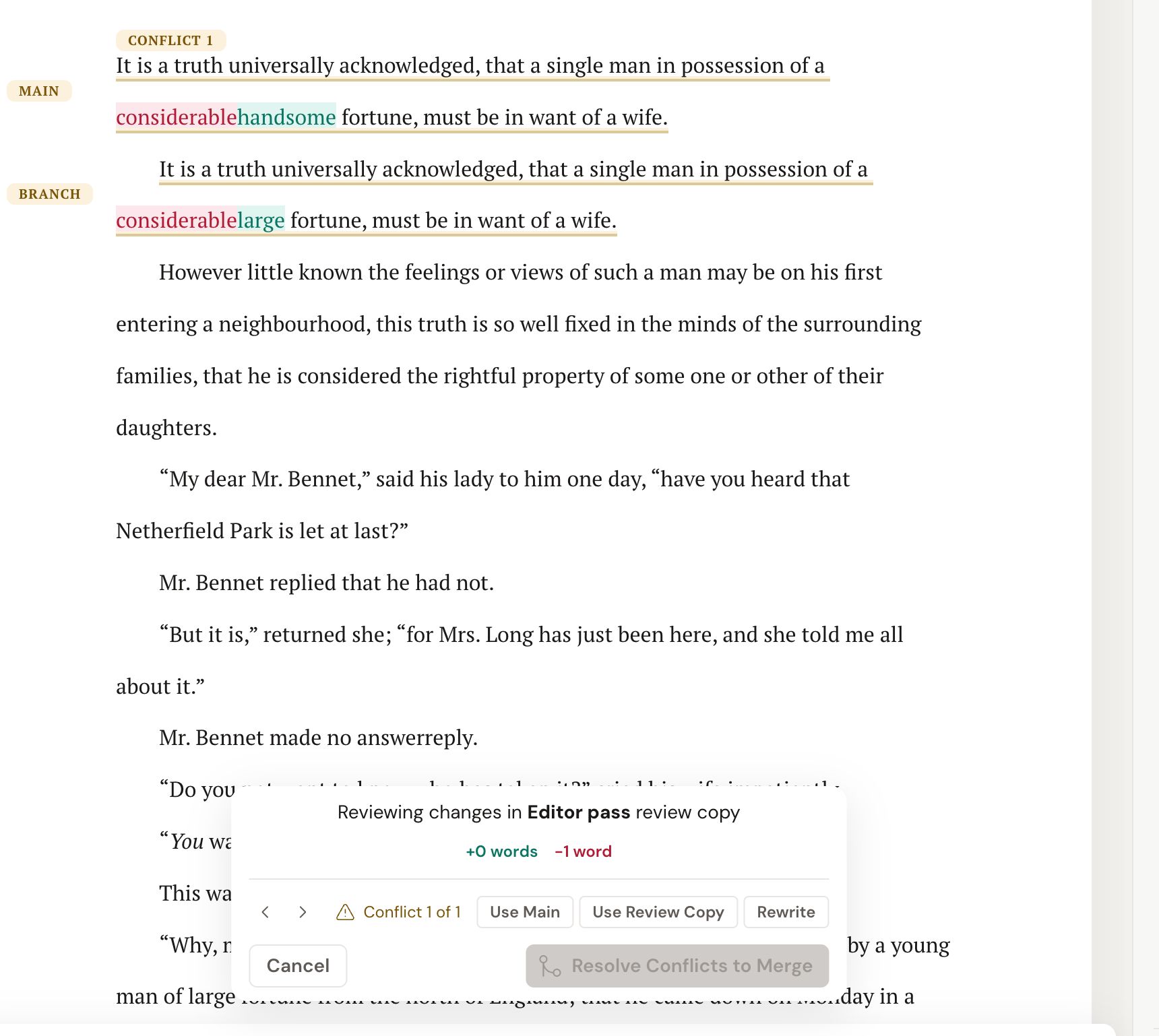
Both versions turn up inline in your manuscript, one right after the other, underlined in amber. Look to the left margin for the badge that tells you whose is whose: MAIN for yours, BRANCH for the review copy’s. (The margin says BRANCH, the button says Use Review Copy. Same version, two names.)
A small overlay floats at the bottom of the screen with a Conflict 1 of N counter and three choices: Use Main, Use Review Copy, or Rewrite to write your own version. Make a call, and Dabble carries you to the next conflict. When the counter runs out, the merge completes.
Merge into Project stays disabled until a review copy is actually ready. On an editor review copy, you have to accept or reject every tracked change in the copy first. Hover the disabled button and Dabble tells you exactly that.
After a merge, the copy lands in the merged archive. Open it from the View Merged Review Copies link at the bottom of the panel: the Merged Review Copies list keeps each merged copy as a read-only paper trail.
Merging also ends your collaborators’ access to the copy. They get a message saying so, and any editor you invited gets a read-only Editor’s Copy added to their own project list. See what collaborators see when their access ends.
Review copies don’t affect your word counts
Section titled “Review copies don’t affect your word counts”Under the hood, a review copy is its own separate project. So any words written while you’re inside a review copy don’t count toward your main project’s goals or word counts. Only writing on your main project moves those numbers.
The plus-and-minus word figure on the review copy’s tile is a comparison against your main project, not a contribution to your stats.
Good to know
Section titled “Good to know”- Review copies and version history come with paid plans. If you don’t see the Review Copies button, your plan may not include it.
- The invite type and access scope are both fixed once a review copy exists. To change either, delete the copy and create a new one.
- Deleting a review copy discards any changes in it you haven’t merged yet, and it can’t be undone.