

Read and comment as a beta reader
Someone trusts you with their book. They sent you a link, asked for your honest read, and now you’re staring at a Dabble invite wondering what you just signed up for.
Good news: not much. You’re here to read and leave notes. That’s the whole job. You can’t accidentally rewrite their chapter or break anything, and you don’t need to pay for a thing.
Here’s the whole experience, start to finish.
Open the invite link
Section titled “Open the invite link”Click the link the author sent you. It opens Dabble in your browser and shows an invitation.
- If you don’t have a Dabble account yet, create one first. It’s free, and being a beta reader never costs you anything.
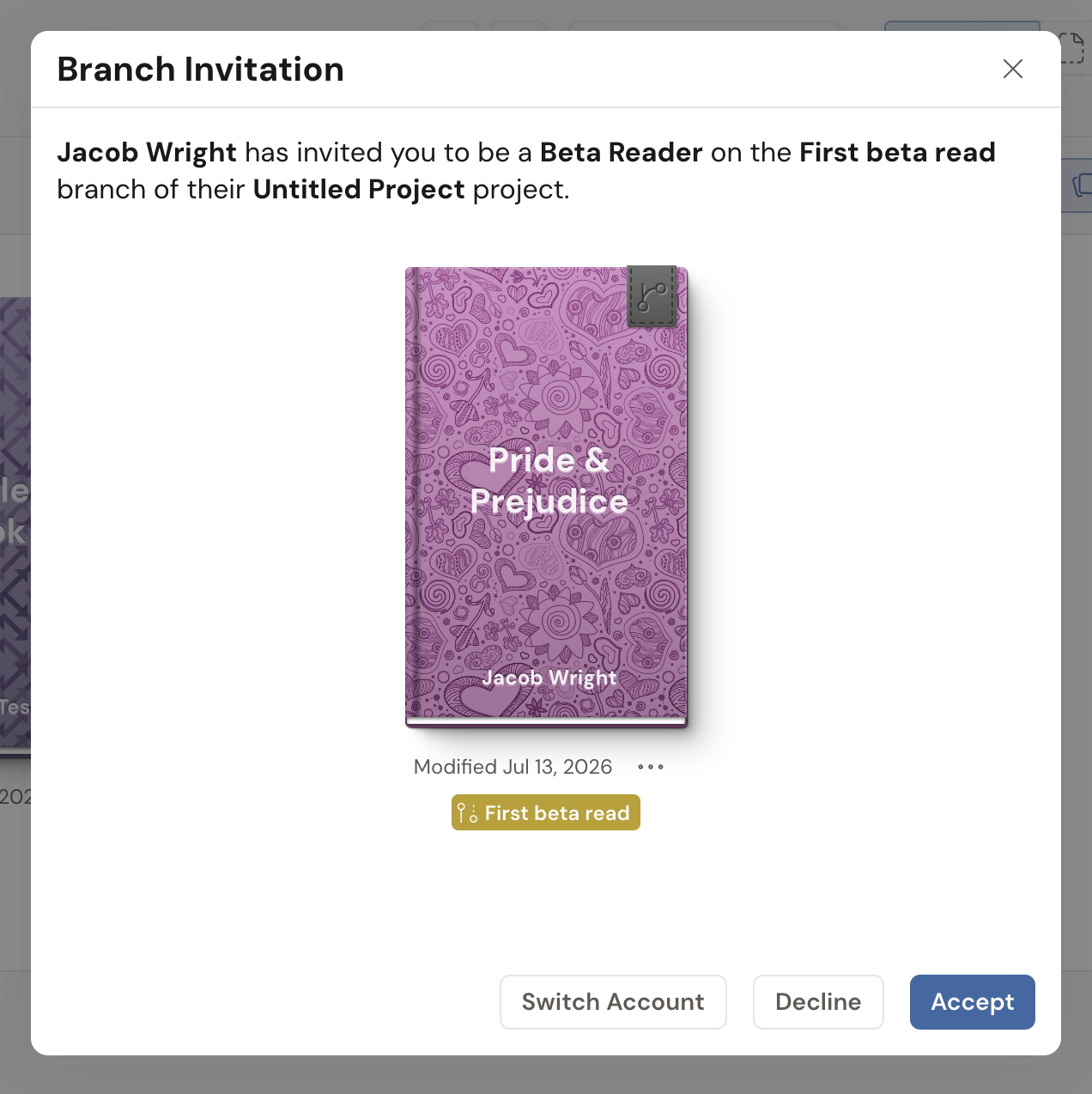
- Read the invitation. The window is titled Branch Invitation, and it names the author, the copy, and the project: “Jamie has invited you to be a Beta Reader on the Beta Read branch of their The Salt Road project.”
- Below that, you’ll see a preview of the project you’re being handed.
- Click Accept.
Branch is just Dabble’s word for the copy you’ll be reading. Nothing to decode.
Don’t want to? Click Decline. And if you’re signed in to the wrong Dabble account (say a personal one when the invite went to your work email), click Switch Account and pick the right one before you accept.
Once you accept, Dabble connects you to the project and it appears in your workspace, ready to read.
What you’re looking at
Section titled “What you’re looking at”The author didn’t hand you their live manuscript. They gave you a review copy: a separate, isolated version of their project, or just the parts they chose to share. They invited you to it as a beta reader, which means your comments go to the author and anyone they’ve given editing access to the copy.
That’s a good thing. You can read and comment freely with zero chance of nudging their real book out of place. Everything you do stays in your copy until the author pulls your feedback back into their manuscript.
You might see only part of the project, whatever the author decided to share. That’s normal, not a bug.
Curious about the author’s side of this? See Work with review copies.
Read the manuscript
Section titled “Read the manuscript”Reading works like any document. Use the panel on the left to move between chapters and scenes, and scroll to read the text.
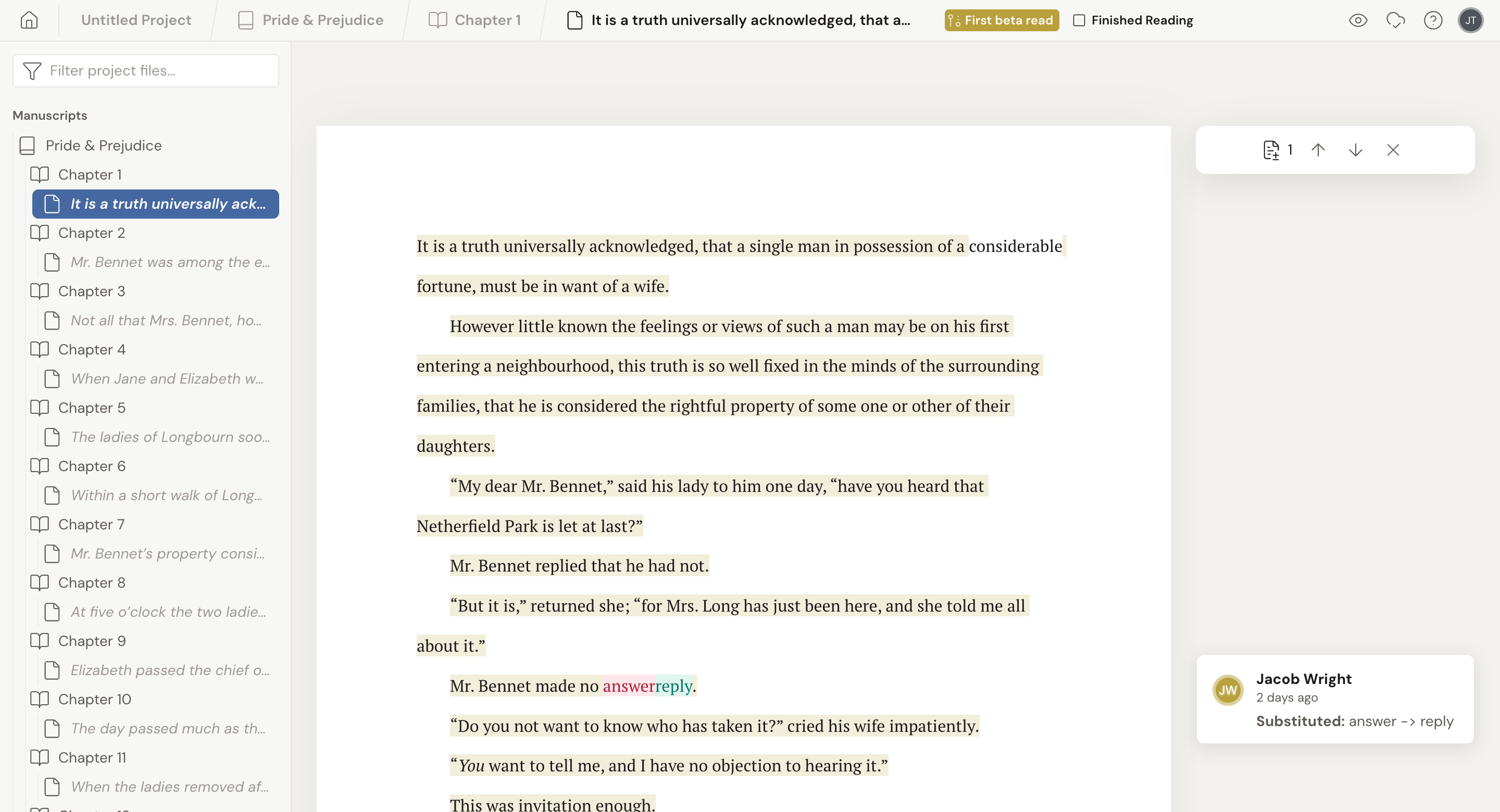
The toolbar looks thin, and that’s on purpose. The writing controls are gone: no Undo or Redo, no Find & Replace, no Grammar & Thesaurus, no formatting (AA) toolbar, no Track Changes. You’re not here to edit, so Dabble keeps those out of your way.
What’s left is what a reader actually needs. Quick Open to jump around, plus Read to Me if your plan includes it.
Leave a comment
Section titled “Leave a comment”Comments are how you talk to the author. Spotted a plot hole? A character whose eyes changed color between chapters? A line that made you cry? Say so, right where it happens.
- Select the text your note is about.
- Click the comment icon in the little toolbar that pops up next to your selection. That’s your way in.
- Type your note in the Leave a comment… field and press Enter. Prefer to click? Use the arrow button in the field. Its tooltip says Save.
Your comment shows up as a card in the margin, pinned to the text you selected.
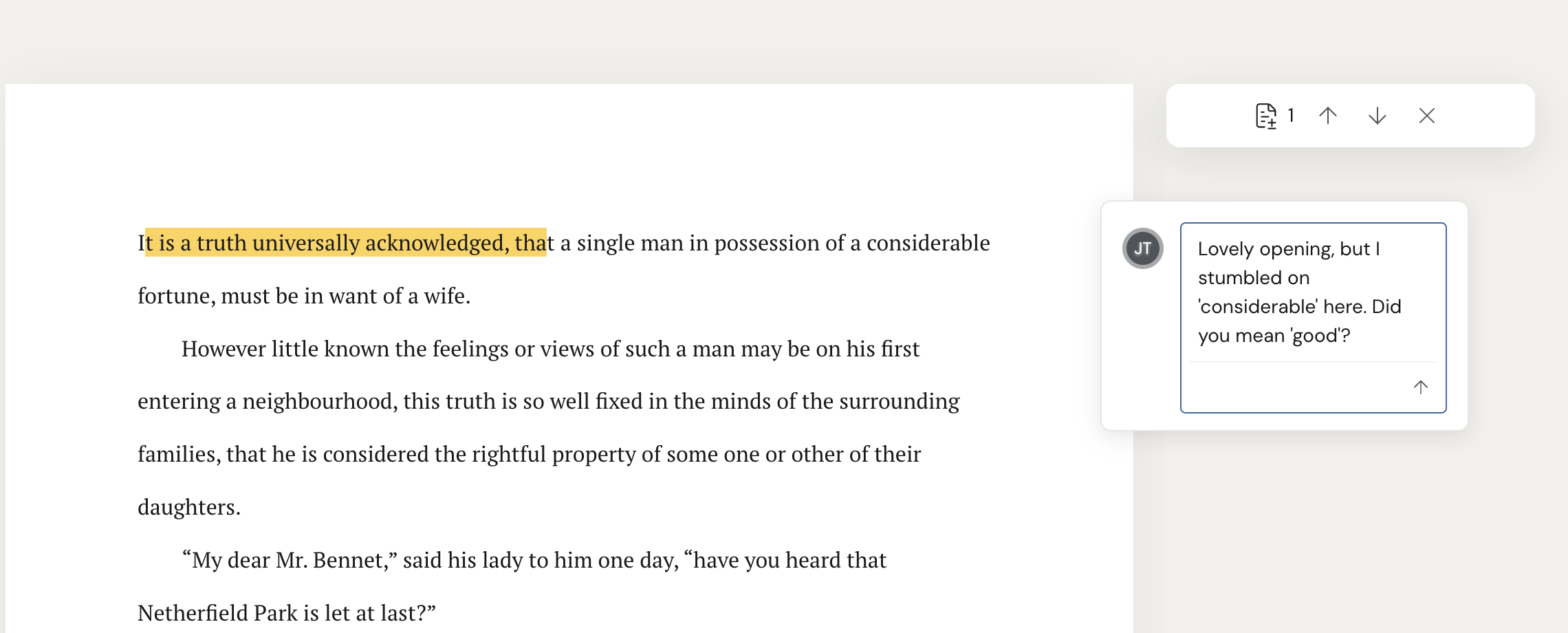
You can reply to keep a thought going, and edit or delete your own comments. For the full commenting flow, see Comment and reply.
Your notes are for the author, not the other beta readers, so write them that way.
What you can and can’t do
Section titled “What you can and can’t do”Short version: read and comment, nothing else.
You can:
- Read the manuscript, or the parts shared with you
- Leave comments anywhere in the text
- Reply to, edit, and delete your own comments
You can’t:
- Change the author’s words, formatting, or structure
- See other beta readers’ notes (your view shows your own and the author’s)
That’s the point of a review copy. You give notes. The author keeps control of the book.
How the author gets your feedback
Section titled “How the author gets your feedback”You don’t submit anything. Every comment saves and syncs to the author automatically, the moment you write it. No send button, no export step, nothing to email.
When the author is ready, they gather your comments into their manuscript and act on them. Your job is simply to leave good notes.
When you’re done
Section titled “When you’re done”Finish reading, leave your last comment, and you’re done. Nothing to save, nothing to send. Your feedback is already with the author.
To let the author know you’ve wrapped up, tick the Finished Reading checkbox in the header above the manuscript. The author sees a running {n} / {total} finished reading tally across everyone they invited.
Still going? Leave it unticked, or untick it if you come back for another pass. Either way, your notes are already with the author.

The author decides when the read closes. When they end it, your access wraps up and your comments travel with them into the book.
You’ll get a message saying so, and where the project used to sit on your dashboard you’ll find a card with its name and a line explaining that access has ended. Click Remove to clear it. Full details in what collaborators see when their access ends.
Your free Dabble account sticks around for the next manuscript someone hands you.