

Merge two projects
Somewhere along the way, your book split in two.
Maybe you started a fresh project for the rewrite. Maybe the notes ended up in one project and the manuscript in another. Now you want the whole thing under one roof.
Merging folds one project into another. Books, plot grids, characters, notes, comments, all of it.
It’s a big move, and it only goes one way, so the important thing is knowing which tile to start from.
We’ll cover:
- Before you begin: who can merge, and which projects Dabble will offer
- Merge one project into another: the flow, and the direction that trips people up
- What moves over: everything, added after what’s already there
- What happens to the project you merged in: it goes to Trash, intact
- Undo a merge: two steps and you’re back
- Troubleshooting: when the option isn’t in the menu
Before you begin
Section titled “Before you begin”- You need to own both projects. Merge Project With… only appears on projects you own, and it only offers projects you own. Anything shared with you is out.
- Only active and archived projects are offered. The picker lists your own projects from the Active and Archived views. Templates, trashed projects, and review copies never show up in it.
- Merging is a paid-plan action. On the free plan, the project-management actions are hidden from the tile menu.
- Nothing is destroyed, but plenty moves. The project you fold in goes to your dashboard Trash. The project you keep gets a lot of new content. Dabble saves a version of it first, so you have a way back.
Merge one project into another
Section titled “Merge one project into another”Start from the project you want to keep. That’s the part people get backwards: the tile whose menu you open is the one that ends up holding everything.
- Go to the Projects dashboard.
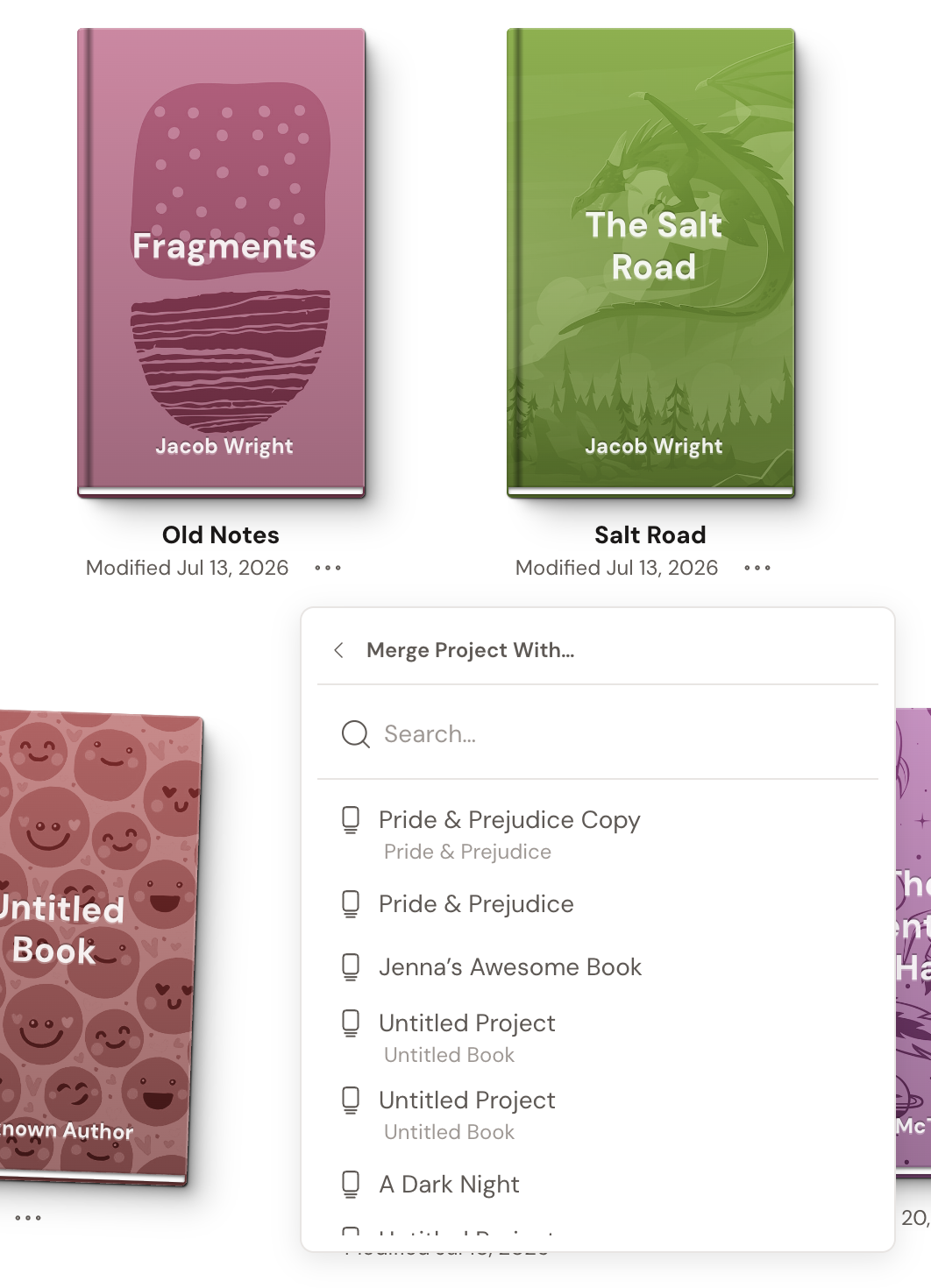
- Find the tile of the project you want to keep. Click the … (ellipsis) button next to the “Modified” date.
- Click Merge Project With…. The menu turns into a project picker, with a Search… box and a row for each of your other projects.
- Click the project you want to fold in. That one gets absorbed, then trashed. (The back arrow in the picker’s heading returns you to the normal menu.)
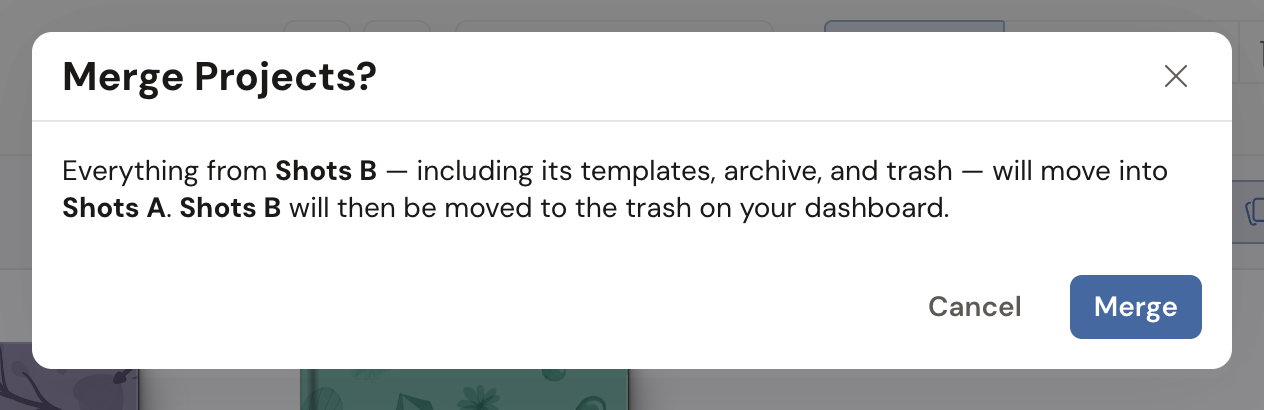
- A Merge Projects? dialog appears, naming both projects and spelling out what’s about to happen.
- Click Merge. Or click Cancel if the direction looks wrong.
Dabble confirms with a Projects merged message.
Two projects with the same name? The dialog badges them so you can still tell them apart: A is the one being folded in, B is the one you’re keeping.
What moves over
Section titled “What moves over”Everything. This is not a partial copy.
- Manuscript: every book, chapter, and scene, with book covers intact.
- Plot Grid, Characters, and Notebook, in full.
- Comments and tracked changes, still attached to the documents they belong to.
- The project’s own Templates, Archive, and Trash sections. Documents that were trashed over there arrive still trashed, in the Trash of the project you kept.
- Goals and recent word-count stats. Your last 30 days of writing and your lifetime total are added to the project you kept. Month-by-month history older than that stays with the project you merged in.
Nothing is overwritten. Incoming books, plot grids, characters, and notes are added after whatever the project already had.
Dabble doesn’t rename anything either, so if both projects had a “Chapter One”, you now have two. Rename them whenever you like.
What happens to the project you merged in
Section titled “What happens to the project you merged in”It moves to the Trashed view on your dashboard. It is not deleted.
Its content and its full version history are still there, exactly as they were. That’s your safety net: if the merge wasn’t what you wanted, the original is intact.
It stays in Trash until you restore it or delete it permanently yourself. Nothing is on a timer.
Undo a merge
Section titled “Undo a merge”A merge is two changes, so undoing it takes two steps.
1. Roll back the project you kept.
Open it, open Version History, and look for the named version Before merging followed by the other project’s title. Dabble saves it right before the merge runs. Restore that version and the project goes back to its pre-merge state.
2. Bring the other project back.
On the dashboard, switch to the Trashed view. Open the project’s … (ellipsis) menu and click Restore from Trash.
Do both and you’re exactly where you started.
One caveat worth knowing. The Before merging version is a best-effort save. If Dabble couldn’t create it, because you were offline when you merged, for instance, the merge still runs and that version won’t be in the list. Your merged-in project is still safe in Trash either way.
Troubleshooting
Section titled “Troubleshooting”I don’t see Merge Project With… in the tile menu. A few things hide it:
- The project was shared with you. Only the owner can merge.
- You have no other project to merge with. The option is hidden when the picker would be empty, and only your own active and archived projects count toward it.
- You’re on the free plan, where the project-management actions are hidden.
- The tile is a template, or it’s already in the Trash. Those menus offer their own actions instead.
I merged them the wrong way round. Undo both halves (see above), then start again from the other tile.
The project I merged in vanished from my dashboard. That’s the design. Look in the Trashed view.