

Create lists with markdown shortcuts
You want a quick list. Three plot points. A packing list for your hero. A row of checkboxes for revision day.
What you don’t want is to break your stride hunting for a menu.
So don’t. Dabble watches the start of each line and turns familiar markdown patterns into formatted lists as you type.
Before you begin
Section titled “Before you begin”These shortcuts work as you type, right in the editor.
Each one fires when you type a space (or press Enter) just after the trigger characters. Dabble swaps the trigger text for the formatted list.
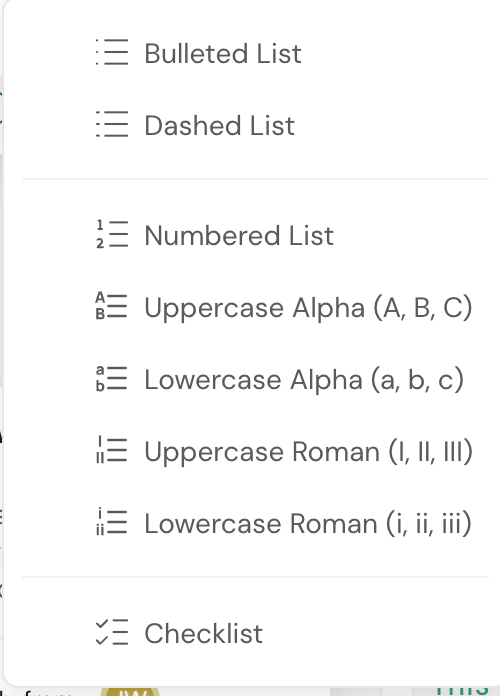
Prefer buttons? Every list style also lives on the Formatting Toolbar, which is hidden until you show it.
Type a list as you go
Section titled “Type a list as you go”Put your cursor at the start of a new line, type a pattern, add a space. That’s the whole trick.
- For a Bulleted List, type
*(an asterisk and a space). Typing+also starts a bulleted list. - For a Dashed List, type
-(a dash and a space). This gives you a distinct dash bullet. - For a Numbered List, type
1.(a number, a period, and a space). The list starts at the number you type, so3.begins at three. - For a lettered or roman list, type the starting marker and a period:
a.,A.,i., orI.. These map to Lowercase Alpha (a, b, c), Uppercase Alpha (A, B, C), Lowercase Roman (i, ii, iii), and Uppercase Roman (I, II, III). - For a Checklist, type
[ ]or[]to add an unchecked item, or[x]to add a checked item. Typing[ ]inside an existing bulleted or dashed list converts that list into a checklist. - Press Enter to add the next item. Press Enter on an empty item to leave the list.
Pick up where a list left off. Every numbered, lettered, and roman list can start at any value, not just the first. Type the marker you want, then a space: 12. begins a numbered list at twelve, D. a lettered list at D, iv. a roman list at four. Handy when an image or a couple of paragraphs interrupt a list and you want the count to carry on instead of resetting to one.
![Three lists in the editor, each made by typing a shortcut at the start of a line: a bulleted list from "* ", a numbered list from "1. ", and a checklist with empty checkboxes from "[ ] ".](/docs/_image?href=%2Fdocs%2F_astro%2Fmarkdown-lists.CObZeHwe.png&w=740&h=520)
More markdown shortcuts
Section titled “More markdown shortcuts”Lists are just the start. These patterns also fire at the beginning of a line:
#through######create Heading 1 through Heading 6 (the number of#characters sets the level).>creates a Block Quote.---or***(three dashes or asterisks) creates a Horizontal Rule.
You can also format text inline as you type:
**text**or__text__makes text bold.*text*or_text_makes text italic.***text***makes text bold and italic.~~text~~adds strikethrough.[text](url)creates a link.
Dabble tidies your punctuation for you, too, with smart typography. Want the raw characters back? Undo any one of these on its own:
--becomes an em dash....becomes an ellipsis.- A spaced hyphen between words, like
word - word, becomes an en dash. - Straight quotes become curly quotes.
<<and>>become guillemets («»), a Dabble extra handy for languages that use them.
If you would rather use buttons, every list style lives in the lists dropdown on the Formatting Toolbar, alongside Increase Indent and Decrease Indent for nesting list items.
Troubleshooting
Section titled “Troubleshooting”Shortcut not firing? Check two things. Your cursor needs to be at the very start of the line, and the line can’t already be that kind of list. A shortcut will not re-fire on a line that already carries the same list format.
Don’t see the Formatting Toolbar? It’s hidden by default, remembered per browser, and it hides itself while a project is read-only. See Show the Formatting Toolbar.