

Set a word-count goal with a deadline
A deadline you keep in your head is easy to renegotiate at midnight. Set a word count goal in Dabble instead, and let the math do the nagging.
You give the goal two things: a target word count and a date to hit it. Dabble works out how much to write each day to get there on time.
This doc sets one up and explains where that daily number comes from. Want a fixed sprint between two dates instead? That’s a Writing Challenge, covered lower down.
Before you begin
Section titled “Before you begin”Goals live inside Novel projects. Open the novel you want a goal for before you start.
There are two ways to aim at a specific date:
- A Document Goal or Project Goal with the optional Deadline turned on. Best for “finish this book by March 1.”
- A Writing Challenge for a date-boxed sprint with a fixed start and end. Best for events like a 30-day push.
This article covers the deadline goal. For sprints, jump to Run a Writing Challenge below.
- Open your Novel project.
- In the right sidebar, open the Goals tab.
- Click Add a Goal. If you already have goals, it’s the plus button in the Active Goals header instead.
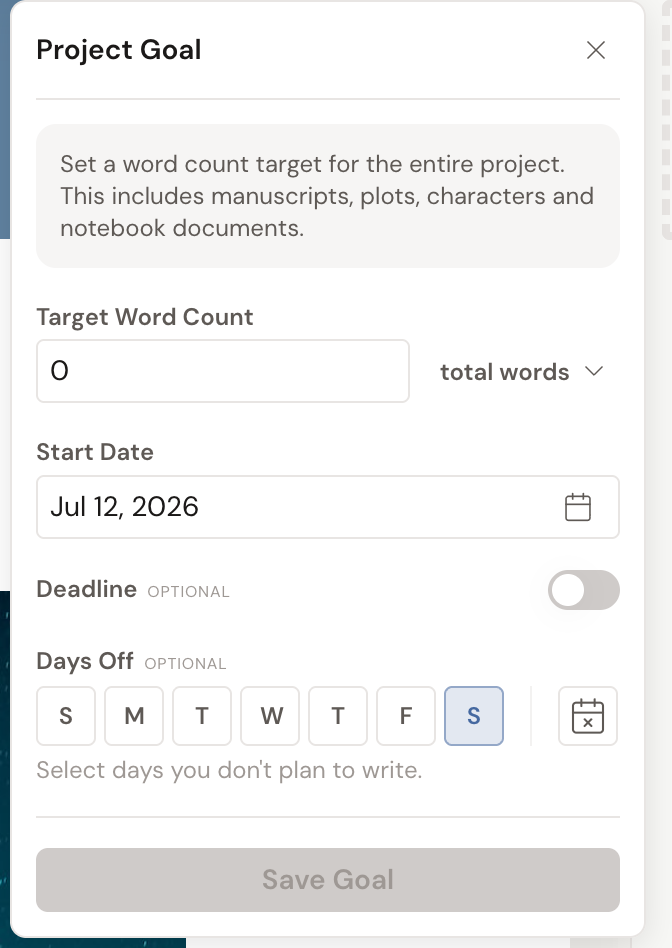
- Choose Document Goal for a chapter, book, or all-books target, or Project Goal for a whole-project target that includes manuscripts, plots, characters, and notebook documents.
- For a Document Goal, pick what to track under Which Document? (Chapter, This Book, or All Books). Only documents in your current location are offered.
- Enter a number in Target Word Count.
- In the dropdown beside it, choose total words for an absolute target, or more words to count additional words on top of what you have now.
- Turn on the Deadline toggle (it is marked optional) and pick an end date in the calendar. The date cannot be before today.
- Set your Days Off. New goals start with Saturday and Sunday selected. See Set your days off.
- Click Save Goal.
Now the goal card fills in. It shows Today’s Target (the words you need today to finish on time), your Total Progress toward the goal, a pacing graph, the words remaining, and a deadline countdown.
Set your days off
Section titled “Set your days off”Nobody writes seven days a week. Days Off are the days Dabble leaves out of the deadline math, so your daily target lands on the days you actually sit down.
The field is at the bottom of every goal form, marked optional, with the note Select days you don’t plan to write. It has two halves.
The weekday buttons. Seven of them, Sunday through Saturday. Click one to mark that day off every week. New goals start with Saturday and Sunday already selected.
The calendar button. Beside the weekdays sits a small calendar button. Hover it and the tooltip reads Set vacation and irregular days off. Click it and a multi-select calendar drops down.
That calendar is for the days that aren’t a pattern. Click any date to mark it off, click it again to clear it, and pick as many as you like. A two-week vacation, a holiday, the Tuesday you’ll be at a wedding: mark them here and Dabble reroutes those words to the days you’ll be at the keyboard.
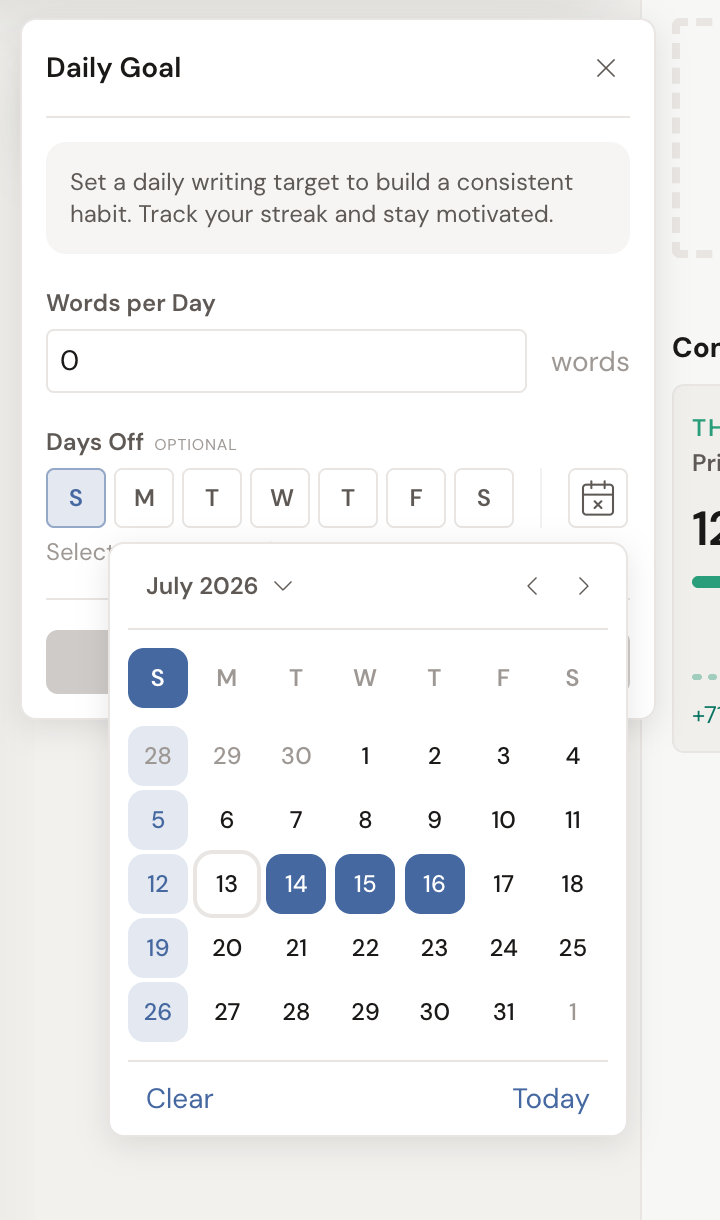
Each goal keeps its own Days Off. Marking Fridays off on your book goal leaves your Writing Challenge alone.
How the daily target works
Section titled “How the daily target works”Your Today’s Target is the words-per-day you need to finish by your deadline, with days off left out of the math.
- The target is set when your day starts and stays put, so it doesn’t shrink as you type.
- On a day off, there’s no target. The card reads Today is a day off. You can still write. There’s just no goal riding on it.
Retire, archive, or delete a goal
Section titled “Retire, archive, or delete a goal”Hit your target and the goal doesn’t disappear. It gets filed.
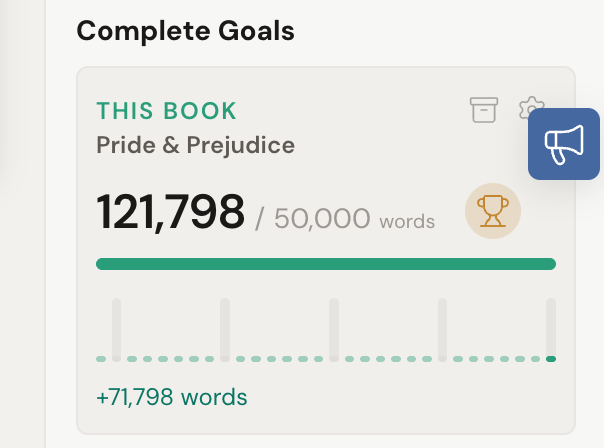
Your goals sit under two headings in the Goals tab. Active Goals holds anything still running. Complete Goals holds the ones you’ve finished.
A goal you finish today stays in Active Goals for the rest of the day, trophy and all. Tomorrow it moves down to Complete Goals. A Daily Goal is rolling, so it never completes and never moves.
Send a goal to the archive
Section titled “Send a goal to the archive”Once you’ve hit a goal’s target, an archive button appears in the top-right of its card. Its tooltip reads Send to Archive.
- Find the goal, usually under Complete Goals.
- Click the archive button on the card.
The card leaves the panel. Nothing is deleted, and your word counts don’t change.
Open the archive
Section titled “Open the archive”Archive at least one goal and a View Archive button appears at the bottom of the Goals panel.
Click it to open Archived Goals, a list of everything you’ve filed away with its final numbers intact. Click the close button to go back to your goals.

Restore or delete an archived goal
Section titled “Restore or delete an archived goal”Each card in Archived Goals has two buttons in its top-right corner.
- The undo button (Restore from Archive) puts the goal back in the Goals tab.
- The trash button (Delete Goal) removes it permanently. There’s no undo on that one.
Delete a goal without archiving it
Section titled “Delete a goal without archiving it”You don’t have to archive first.
- Click the settings button on the goal card.
- Click Delete Goal at the bottom of the form.
The goal is gone for good. Your words are not: deleting a goal never touches a single word of your manuscript.
- The countdown footer reads Today, Tomorrow, or {n} days. Finish ahead and it flips to {n} days early! Fall behind and it reads {n} days overdue.
- Wrote some words before setting a deadline goal on a document? Dabble asks whether to count them: You’ve written {n} words already. Do you want to include them in your goal? Choose Yes, include them to keep that progress, or No, start a fresh count to begin from zero.
- Let a deadline pass unmet for a while and the card locks behind an overlay: You’ve missed your deadline. Adjust your goal settings to set a new deadline. Click Adjust Settings to pick a new date.
Run a Writing Challenge
Section titled “Run a Writing Challenge”A Writing Challenge is a timed sprint between two dates. It’s built for community events or a personal push against the clock.
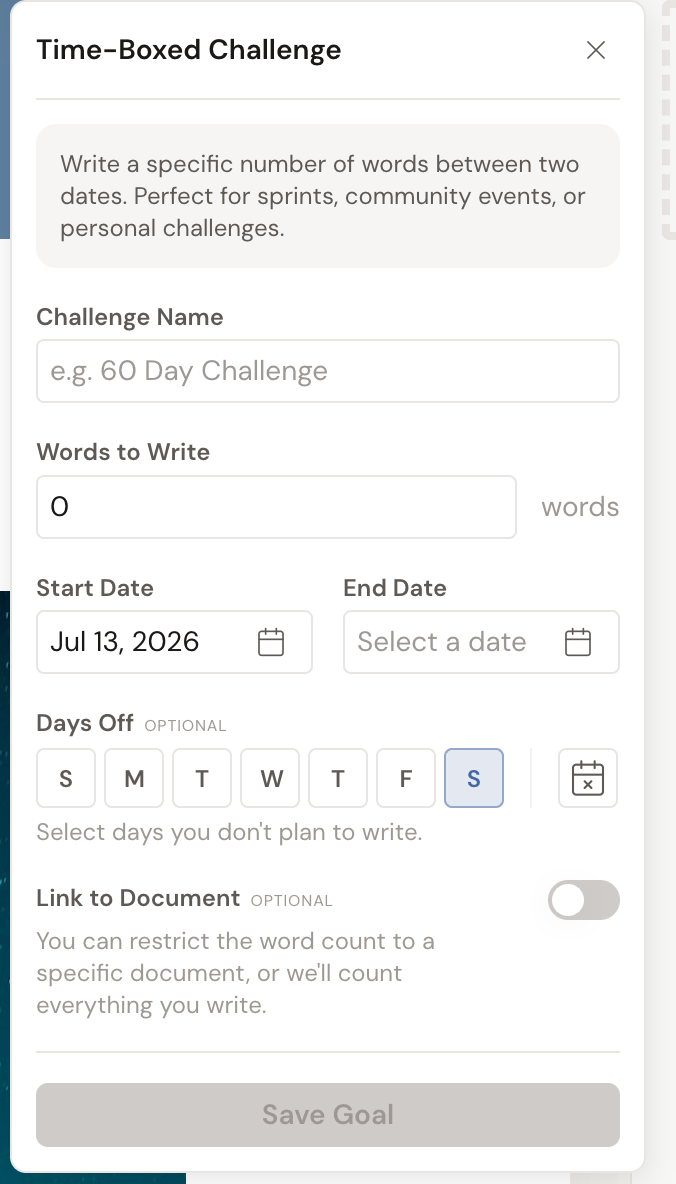
- In the Goals tab, click Add a Goal, then choose Writing Challenge (the form is headed Time-Boxed Challenge).
- Give it a name under Challenge Name (for example, “60 Day Challenge”).
- Enter a number in Words to Write.
- Set a Start Date and an End Date. Both are required.
- To restrict counting to one book or chapter, turn on Link to Document and pick it. Otherwise Dabble counts everything you write, shown as All Writing.
- Set your Days Off, then click Save Goal.
A challenge retires like any other goal. Finish it, and it drops into Complete Goals, ready for Send to Archive.