

Filter a project by book
You’re writing a series. Three books, one world, one cast that carries across all of them. So you keep it in a single project, right where the shared characters and worldbuilding live.
Then you sit down to draft Book Three and the left panel is a wall. Every chapter of Book One. A character who died two books ago. Notes you haven’t touched since the first draft.
Filter the project by book. Dabble narrows the view to the one book you’re working on and tucks the rest away until you want it back.
Why this helps a series
Section titled “Why this helps a series”A project can hold more than one book. That’s what makes it the natural home for a series: your Characters, your Notebook, and your plots stay shared across every book, so the cast and world you built in Book One are right there when you start Book Two.
But shared is only helpful until it’s crowded. When you’re deep in one book, the others are noise.
Filtering fixes that. You keep everything in one place, and you still get a clean, single-book workspace whenever you want to focus.
Filter to one book
Section titled “Filter to one book”- Open your project.
- Open the book filter near the top of the left panel and choose the book you want to focus on.
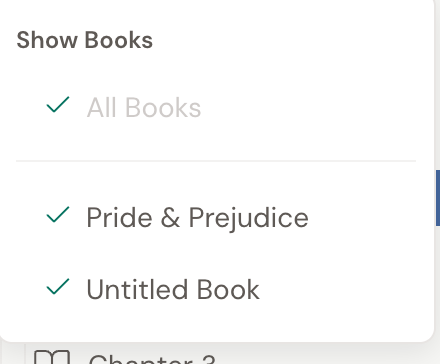
The view narrows to that book. You’ll see its chapters and scenes, plus anything shared across the whole project, and nothing that belongs to the other books.
Assign a document to a book
Section titled “Assign a document to a book”By default, your Characters, Notebook pages, and other supporting documents are shared across every book in the project. That’s usually what you want. But some belong to just one book: a villain who only shows up in Book Three, a location that’s introduced in the finale.
Assign that document to its book, and it stays out of sight while you’re focused on any other one.
- In the left panel, right-click the document you want to assign. (You can also open its ”…” menu.)
- Choose the book to assign it to.
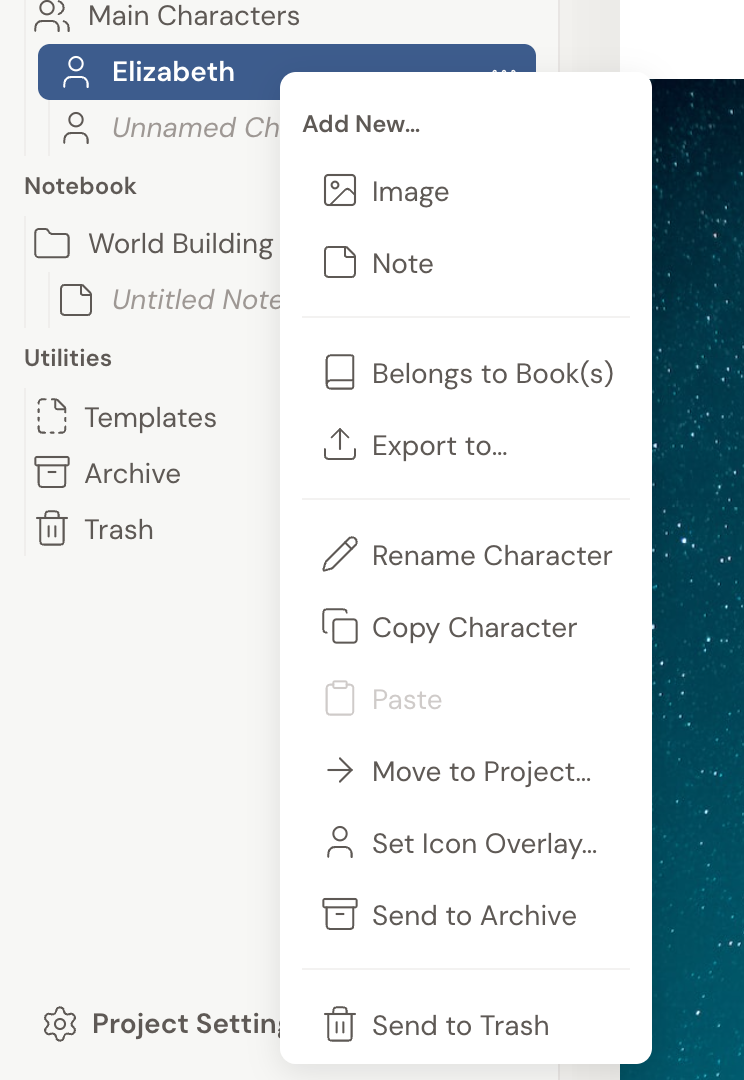
From now on, that document only appears when its book is in focus (or when you’re showing every book). Switch the filter to a different book and it filters away.
Show every book again
Section titled “Show every book again”Want the whole project back? Open the book filter and switch it back to showing all books. Everything returns to the left panel, filtered documents included.
- Filtering only changes what you see. It never moves or deletes anything, so switch freely.
- Assigning is per document. A character shared across the series can stay shared while a book-specific one is scoped to its book.
- Not sure which sections are shared and which belong to a book? See how Dabble splits your manuscript from your supporting material in How Dabble organizes your story.