Working offline
The internet drops mid-sentence. The cloud icon in the corner changes color, and so, briefly, does your face. Take a breath: using Dabble offline isn’t a mode you switch on. It’s just how Dabble works, and your words are already safe on your device.
Every edit saves the instant you type it, and Dabble syncs your changes automatically the moment you reconnect.
This doc walks through what offline looks like, how to tell when your words have caught up, and the one browser setting that can bite you.
Dabble is offline-first
Section titled “Dabble is offline-first”Being offline never costs you a word. As you type, each change saves straight to your device before anything reaches the server. When you have a connection, Dabble syncs those changes to your account in the background. When you don’t, it keeps saving locally and waits.
This is a real shift from older versions of Dabble. No more staying glued to one device, keeping the window open, or making daily Word backups just to write offline. Dabble holds your changes and catches them up for you when you’re back online.
How you know you’re offline
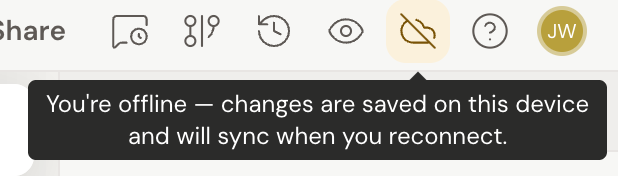
Section titled “How you know you’re offline”The cloud icon in the header tells you what sync is doing. Lose your connection and it turns yellow, a cloud with a slash through it. Hover it and the tooltip reads “You’re offline — changes are saved on this device and will sync when you reconnect.”
That’s your all-clear. Keep writing.
The cloud has a few other states, and Sync status icons walks through every one.
What happens when you reconnect
Section titled “What happens when you reconnect”When your connection comes back, Dabble syncs your queued changes on its own. The cloud spins for a moment, then settles on the check mark: “All changes saved and synced.” Once you see that, everything you wrote offline is safely on your account and on your other devices.
Nothing to press. There’s no “sync now” button and no “work offline” switch. Sync is always on and always automatic.
Install Dabble for reliable offline writing
Section titled “Install Dabble for reliable offline writing”For the steadiest offline experience, install Dabble as an app. Installing saves the app to your device so it opens without a connection, instead of loading from the web each time. Open your account menu and choose Install Dabble, then follow the steps for your device.
One thing to avoid: private browsing
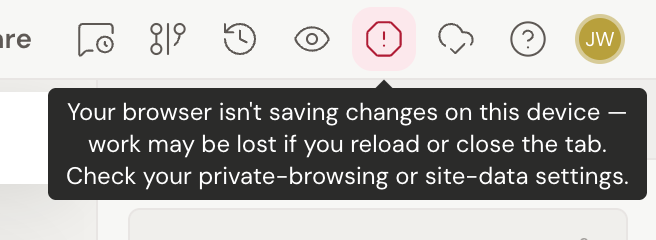
Section titled “One thing to avoid: private browsing”Skip private or incognito mode for real writing. In those modes your browser may refuse to save anything to your device, so your edits live only in memory and vanish when you reload or close the tab.
If that happens, Dabble shows a red alert in the header: “Your browser isn’t saving changes on this device — work may be lost if you reload or close the tab. Check your private-browsing or site-data settings.” When you see it, switch out of private mode, allow site data for Dabble, then reload.