

Edit a manuscript you were invited to
Someone handed you their manuscript and said: make it better. That’s a lot of trust in one link.
Good news: you can’t break anything. As an editor, you work on a copy of the author’s project, and every change you make is a suggestion they get to accept or reject. Their original stays untouched until they say so.
This walks you through the whole thing, start to finish: opening the invite, suggesting changes, leaving comments, and handing your edits back.
Open your invite
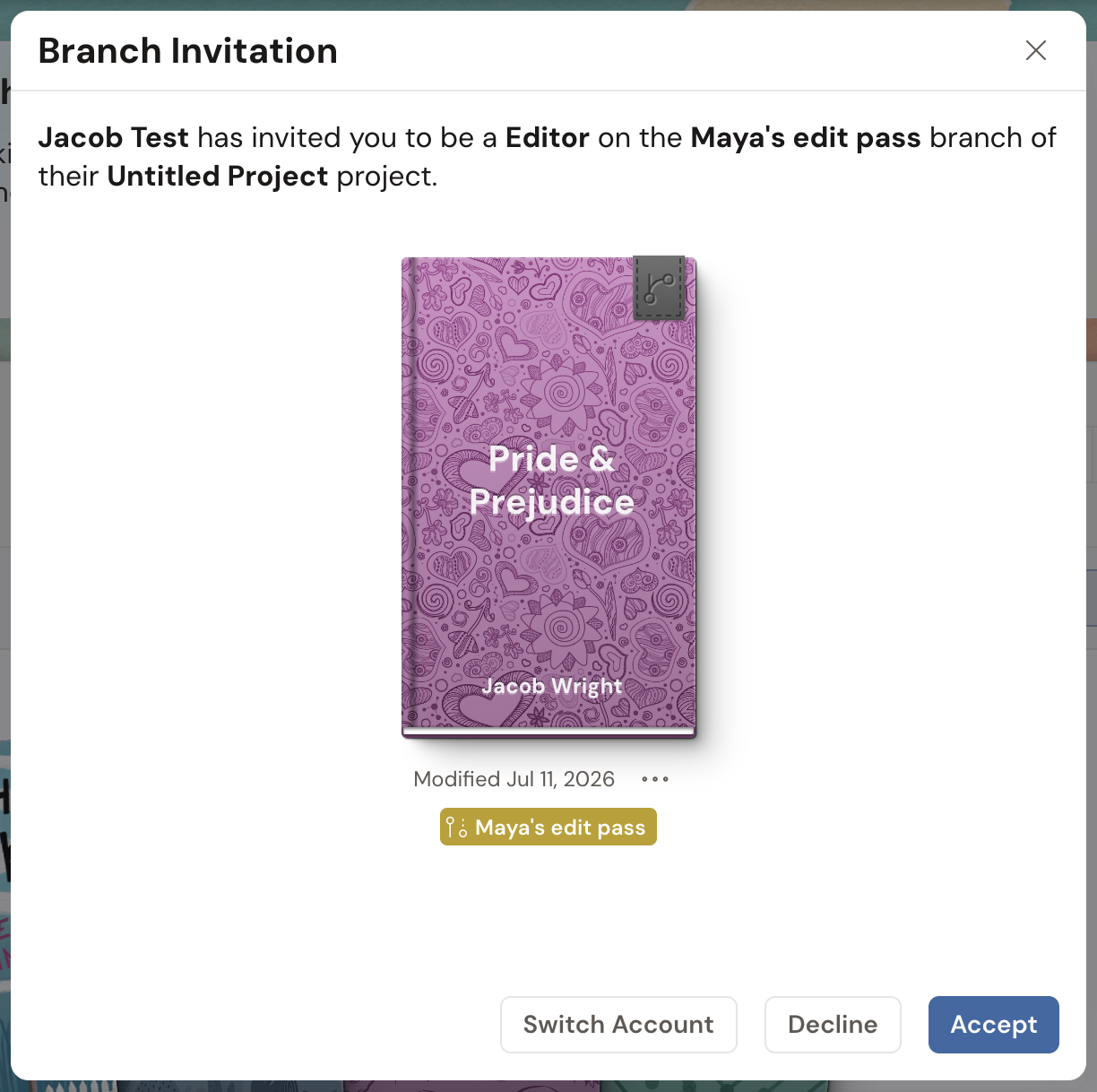
Section titled “Open your invite”The author sends you a link, usually by email. Click it and Dabble opens an invitation window. It names who invited you, the review copy you’ll be editing, and your role: Editor.
- Already signed in to Dabble? Click Accept.
- Signed in to the wrong account? Click Switch Account, pick the right one, then Accept.
- New to Dabble? Sign in or create a free account first. You’ll come right back to the invite.
Dabble connects you to the shared copy and drops you straight in. That’s it. You’re editing.
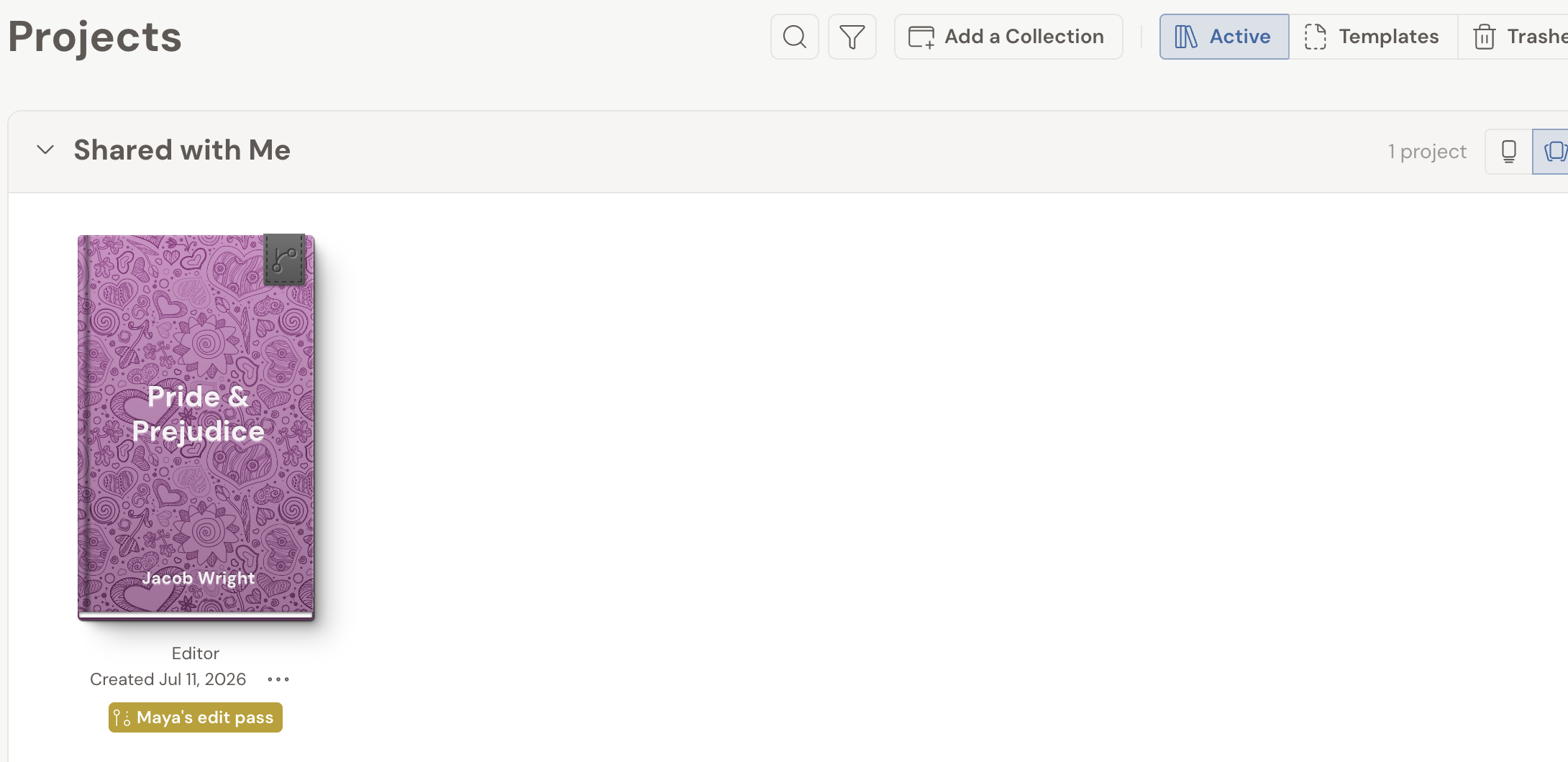
The copy also lands under Shared with Me on your dashboard, tagged with your Editor role, so you can reopen it whenever you like.
What you’re editing
Section titled “What you’re editing”Here’s the part that makes editing someone else’s book safe.
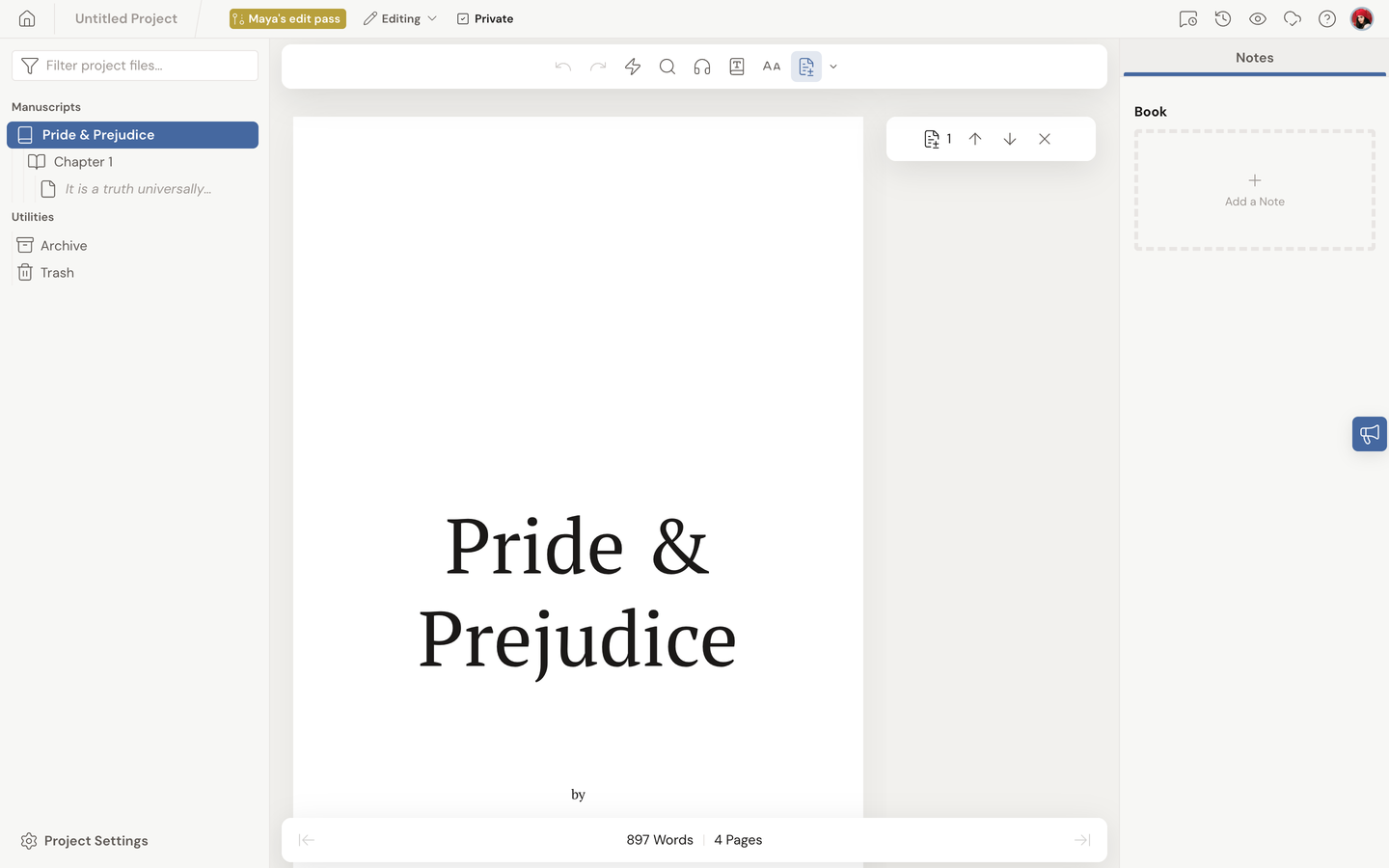
You’re not typing into the author’s live manuscript. You’re in a review copy: an isolated copy of the parts they chose to share with you. That might be the whole book or just a few chapters, whatever they scoped it to.
Everything you do stays in this copy. Your edits reach the author only when they pull them in, and they review each one first. So go ahead and be bold. Nothing you change here overwrites their words.
The top bar names the review copy and shows an Editing status with a Private toggle beside it. Only the documents the author scoped to you show up in the sidebar.
Suggest changes
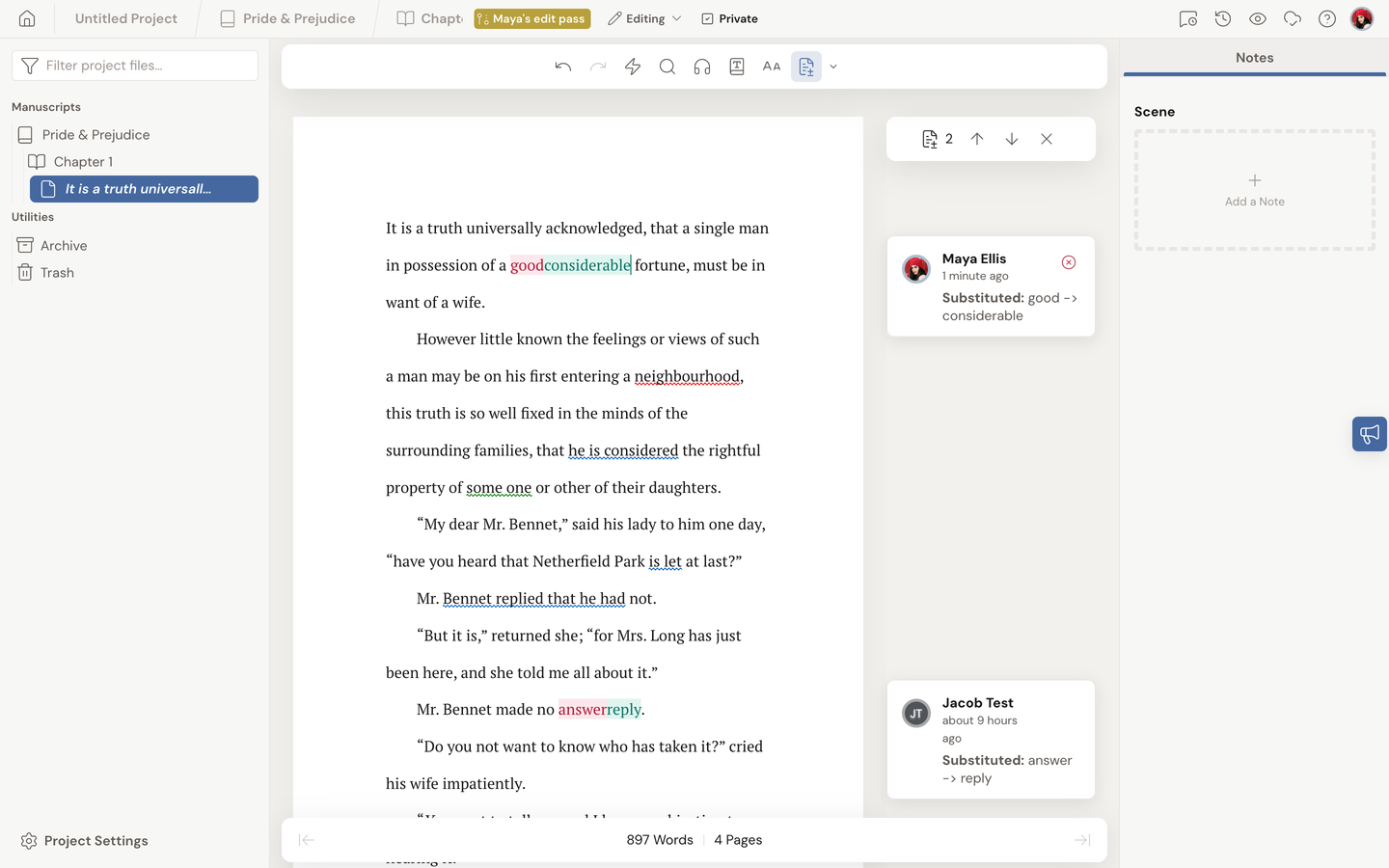
Section titled “Suggest changes”In a review copy, track changes is always on. You don’t flip a switch. You just edit.
- Type to add a line. Select and delete to cut one. Change formatting the way you normally would.
- Each edit shows up as a suggestion: an insertion, a deletion, or a format change. The author sees every one as a card they can Accept or Reject.
- Want to compare your version against the original? Open the view dropdown beside the Track Changes button and switch between Original (Read-Only), Difference, and Suggestions.
Because tracking is always on here, there’s no way to quietly rewrite the author’s text. Every word you touch is on the record.
For the full tour of views and suggestion cards, see Use track changes.
Leave a comment
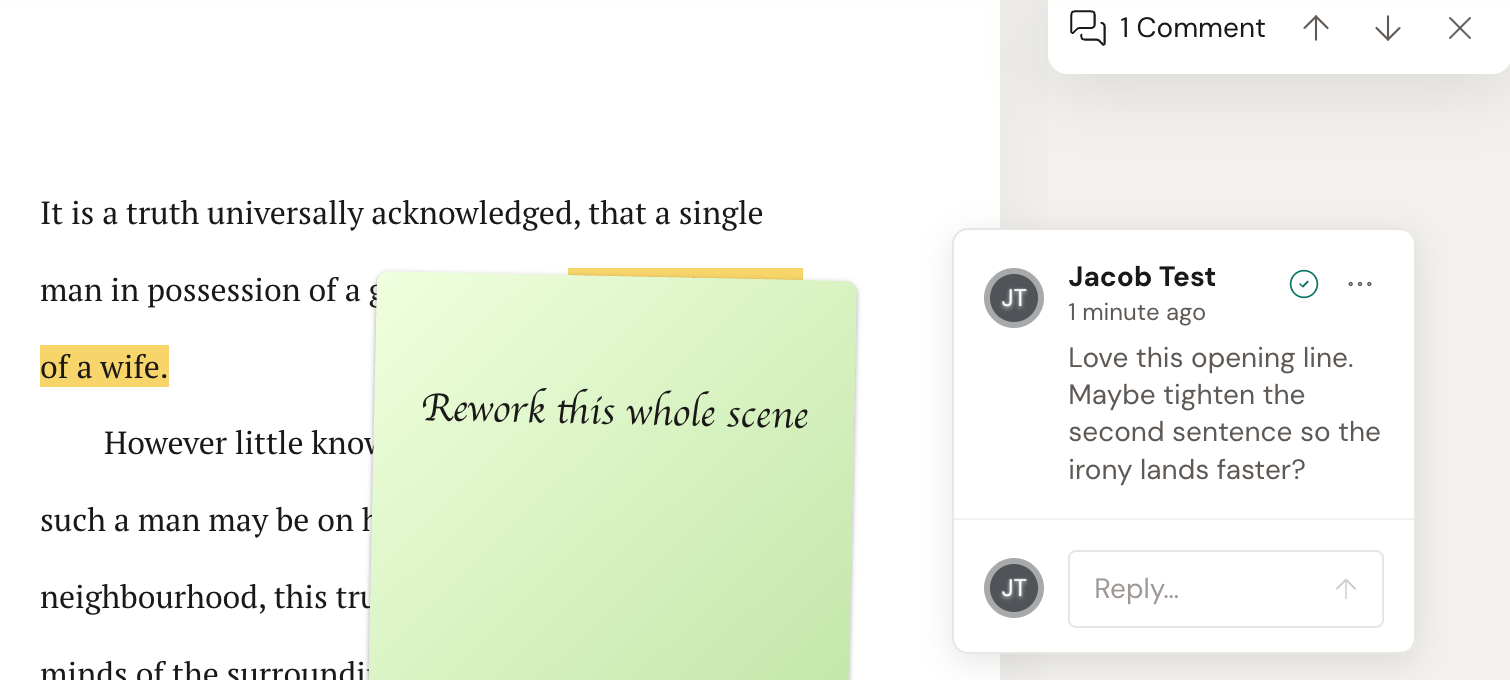
Section titled “Leave a comment”Sometimes you don’t want to rewrite a line. You want to ask about it, or cheer it on. That’s a comment.
- Select the text you’re reacting to.
- Click the comment icon in the toolbar (tooltip Add Comment, shortcut Cmd+Opt+C or Ctrl+Alt+C).
- Type in the Leave a comment… field and click Save.
Your comment appears in the gutter next to the text, and the author can reply. Full details in Comment and reply.
Hand your edits back
Section titled “Hand your edits back”Your review copy is private while you work. The author sees a PRIVATE badge and a Waiting on Editor(s)… status, and they can’t merge your edits yet. That’s on purpose. It keeps your work in progress yours until you say it’s ready.
When your edits are done:
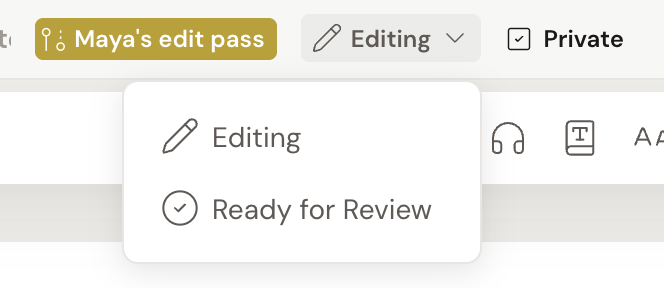
- In the top bar, click the status control (it reads Editing).
- Choose Ready for Review.
That tells the author your suggestions are ready. They open your copy, accept or reject each change, and merge the good ones into their project. You don’t merge anything yourself. That’s the author’s call.
If you’d rather let the author watch your progress in real time, click the Private toggle beside the status control to turn private mode off.
After you hand it back
Section titled “After you hand it back”- The author reviews every suggestion. Accepted changes fold into their project; rejected ones simply drop. Your name stays on the comments and changes you made.
- Your work saves automatically and syncs whenever you’re online, so you can close the tab and pick up later.
- Once the author merges, your access to the review copy ends and Dabble adds a read-only project to your own list, badged Editor’s Copy. See what collaborators see when their access ends.
- If the author added you straight to their project instead of a separate copy, you’ll edit in place with those same tracked suggestions, and there’s nothing to hand back: they see your suggestions as you make them.